Docker run -e Explained: Environment Variables Made Easy
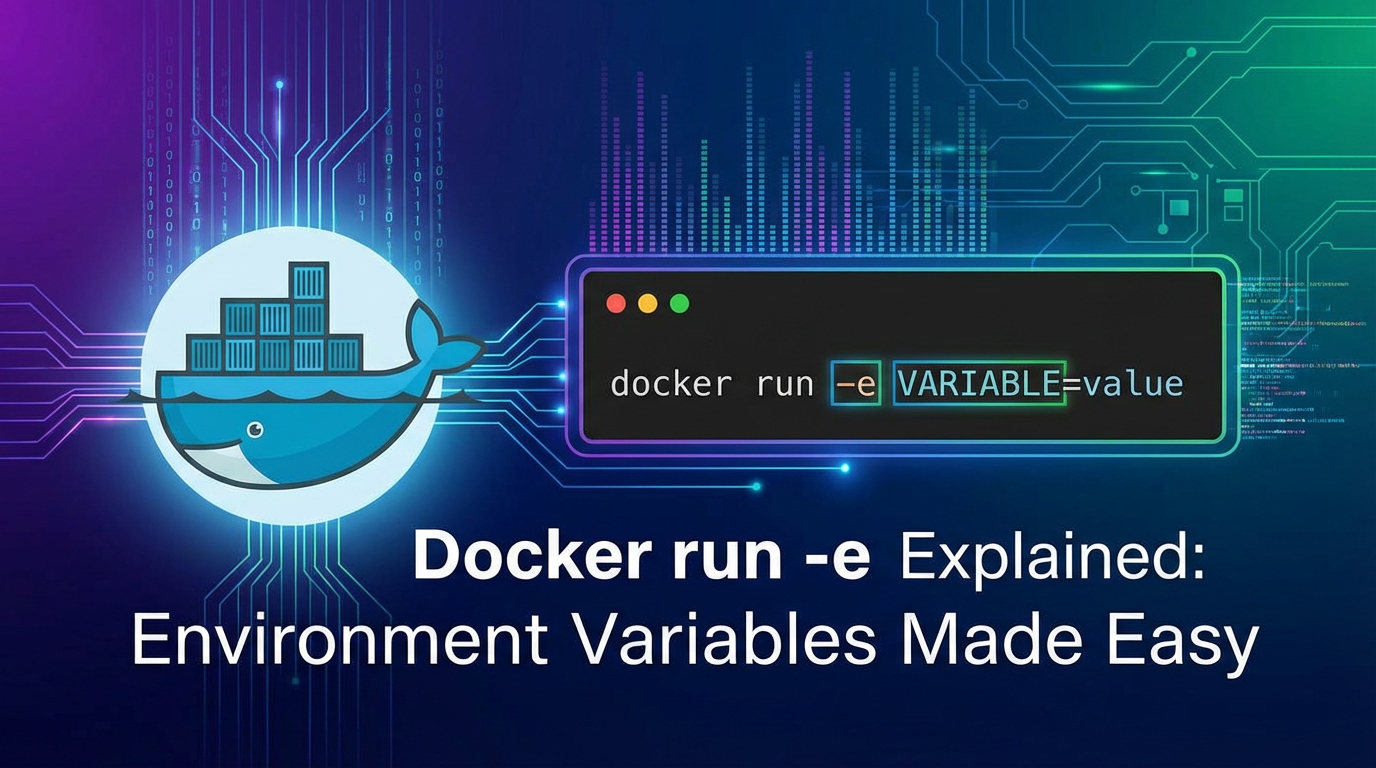


The Dynamic Heart of Containerization: Unlocking Flexibility with Docker Environment Variables
In the ever-evolving landscape of modern software development, containerization has emerged as a transformative force, revolutionizing how applications are built, shipped, and run. At the forefront of this revolution stands Docker, a platform that has made it remarkably simple to package applications and their dependencies into lightweight, portable, and self-sufficient units known as containers. This paradigm shift has brought forth unparalleled consistency across different environments, from a developer's local machine to production servers, drastically reducing the infamous "it works on my machine" syndrome. However, the true power of containers lies not just in their ability to encapsulate applications, but in their capacity for dynamic configuration—adapting to various operational contexts without requiring a complete rebuild. This critical need for flexibility is primarily met through the judicious use of environment variables, a fundamental concept that empowers containers to be truly adaptable and resilient.
While a Docker image itself is an immutable blueprint, representing a static snapshot of an application and its entire runtime environment, real-world applications are rarely static. They connect to different databases in development versus production, toggle feature flags, consume varying API endpoints, and might operate with distinct logging levels based on the environment they find themselves in. Hardcoding these configurations directly into the Docker image would negate many of the benefits of containerization, forcing developers to rebuild images for every minor environmental change. This is where environment variables step in as indispensable tools, serving as the conduits through which external configurations are injected into a running container. They provide a standardized and highly efficient mechanism for passing configuration data, secrets, and operational parameters to applications inside containers at runtime, allowing a single, immutable Docker image to serve a multitude of purposes across diverse deployment scenarios.
This comprehensive guide aims to demystify the docker run -e command, one of Docker's most potent and frequently utilized options for injecting environment variables into containers. We will embark on a detailed exploration, starting from the foundational understanding of what environment variables are and why they are so crucial within the Docker ecosystem. We'll delve into the precise mechanics of docker run -e, illustrating its various syntaxes and practical applications with clear, actionable examples. Beyond the basics, we will navigate through advanced techniques, explore best practices for secure and efficient variable management, and compare different methods of setting environment variables within Docker. By the end of this journey, you will possess a profound understanding of how to leverage environment variables to build more flexible, robust, and easily manageable containerized applications, transforming your approach to configuration management in the Dockerized world.
The Foundation: Understanding Environment Variables
Before diving into the specifics of Docker, it's essential to solidify our understanding of what environment variables are in a broader computing context. At their core, environment variables are named values that are maintained by the operating system and made available to processes that run within that system. They are essentially key-value pairs, where the "key" is a unique identifier (typically uppercase and separated by underscores, e.g., PATH, HOME, USER) and the "value" is a string representing a piece of data. These variables form a part of a process's environment, influencing its behavior without altering its source code.
What Are They and How Do They Work in Traditional OS?
In traditional Unix-like operating systems (including Linux, macOS, and even Windows via different mechanisms), environment variables serve as a crucial channel for passing configuration information to programs and scripts. When a program starts, it inherits a copy of its parent process's environment variables. This inheritance mechanism ensures that certain system-wide or user-specific settings are automatically available to all applications launched within that context.
For instance, the PATH environment variable is perhaps one of the most widely recognized examples. It contains a colon-separated list of directories where the shell should look for executable commands. When you type ls or python in your terminal, the shell iterates through the directories listed in PATH until it finds the corresponding executable. Without PATH, you would have to specify the full path to every command (e.g., /bin/ls instead of ls), which would be incredibly cumbersome.
Other common examples include HOME, which points to the current user's home directory, and USER, which holds the current username. These variables are not hardcoded into every application; instead, applications retrieve their values from the environment, making them adaptable across different users and system configurations. You can inspect the environment variables of your current shell using commands like printenv or env on Linux/macOS.
Purpose: Dynamic Configuration, Sensitive Data, Cross-Platform Compatibility
The utility of environment variables extends across several critical domains:
- Dynamic Configuration: They provide a lightweight and effective way to configure applications without modifying their binaries or source code. This is paramount for applications that need to behave differently in development, testing, staging, and production environments. For example, a database connection string can be provided via an environment variable (
DATABASE_URL), allowing the same application code to connect to different database instances simply by changing the variable's value at runtime. - Sensitive Data Management: While not a standalone secret management solution, environment variables are frequently used to pass sensitive information like API keys, database credentials, or secret tokens. They are generally preferred over hardcoding such values directly into the application's source code, which would expose them in version control systems. However, it's important to note their limitations regarding true security, which we will discuss later.
- Cross-Platform Compatibility: Environment variables offer a somewhat standardized way to specify settings across different operating systems. Although the exact mechanisms for setting them may vary (e.g.,
export VAR=VALUEin Bash vs.set VAR=VALUEin Windows CMD), the concept of retrieving named values remains consistent for applications. This contributes to the portability of software.
Scope: Process-Specific, Inherited
The scope of an environment variable is crucial to understand. When you set an environment variable in your shell (e.g., export MY_VAR="hello"), it is typically available to that shell session and any child processes that are launched from it. Child processes inherit a copy of their parent's environment. However, changes made to environment variables within a child process do not affect the parent process, nor do they persist across system reboots or new shell sessions unless explicitly configured (e.g., in .bashrc, .profile, or system-wide configuration files). This hierarchical inheritance model forms the backbone of how Docker manages environment variables for containers.
Docker and Environment Variables: A Symbiotic Relationship
The principles of environment variables translate seamlessly and powerfully into the Docker ecosystem, forming a symbiotic relationship that underpins the flexibility and portability of containerized applications. Docker's design philosophy, particularly its emphasis on immutable images and declarative configuration, makes environment variables an indispensable tool for adapting generic container images to specific runtime contexts.
Why Containers Need Them: Immutability, Portability, Separation of Concerns
Containerization, as championed by Docker, thrives on several core tenets that necessitate the use of environment variables:
- Immutability: A Docker image, once built, should ideally remain unchanged. This immutability ensures that the application and its dependencies are identical across all environments, eliminating inconsistencies. However, applications need to change their behavior based on the environment (e.g., connecting to a development database vs. a production database). Environment variables provide the mechanism to inject these varying configurations at runtime without altering the immutable image itself. You build an image once, and deploy it everywhere, configuring it differently for each deployment.
- Portability: Containers are designed to run consistently anywhere Docker is installed. This portability means a container should not be tied to the specific configuration of the host machine or even the specific environment it was built in. Environment variables enable this by externalizing configuration. Instead of baking in server IP addresses or specific API endpoints, the container expects these values to be provided externally, making it truly portable.
- Separation of Concerns: Good software design dictates a clear separation of concerns. An application's code should focus on its business logic, not on how to find its database or what logging level to use in a specific environment. By externalizing configuration through environment variables, the application code remains clean and environment-agnostic. The operational concerns of configuration are handled outside the container, typically by the orchestrator or the
docker runcommand itself. This separation also aids in security, as sensitive credentials can be provided at the last possible moment, reducing their exposure within the image or version control.
How Docker Leverages Them: Runtime Configuration Without Rebuilding Images
Docker leverages environment variables extensively to facilitate runtime configuration. When you start a container from an image, Docker creates a new process (or set of processes) within an isolated environment. This isolated environment can be populated with specific environment variables provided during the container launch.
Consider an application that connects to a database. Instead of hardcoding the database host, port, username, and password into the application's configuration files within the Docker image, the application can be written to read these values from environment variables like DB_HOST, DB_PORT, DB_USER, and DB_PASSWORD. When launching the container, you can then dynamically provide these values:
- For a development setup, you might pass
DB_HOST=localhost DB_USER=devuser DB_PASSWORD=devpass. - For a production setup, you would pass
DB_HOST=prod-db.example.com DB_USER=produser DB_PASSWORD=securepass.
The same Docker image runs flawlessly in both scenarios, adapting its behavior based on the environment variables it receives. This capability is foundational to DevOps practices, enabling continuous integration and continuous deployment (CI/CD) pipelines where images are built once and promoted through various environments.
The ENV Instruction in Dockerfiles vs. docker run -e
Docker offers two primary ways to set environment variables for a container, each serving a distinct purpose:
ENVinstruction in a Dockerfile:- Purpose: This instruction sets environment variables during the image build process. These variables become part of the image's metadata and are inherited by any container launched from that image.
- Use Cases: Ideal for default values, application-specific paths, or non-sensitive configuration that is consistent across all deployments of the image. For example,
ENV APP_VERSION=1.0.0orENV DEBUG_MODE=false. - Characteristics: These are "baked-in" variables. They are visible to all layers built after the
ENVinstruction and persist in the image.
docker run -ecommand-line option:- Purpose: This option sets environment variables at the moment a container is launched from an image.
- Use Cases: Perfect for runtime-specific configurations, sensitive data (though with caveats for true secrets), or overriding default values set by
ENVin the Dockerfile. For example,docker run -e DB_HOST=production_db .... - Characteristics: These variables are applied to the specific container instance being started and do not affect the image itself. They take precedence over any
ENVvariables with the same name defined in the Dockerfile.
When to Use Which: Build-Time vs. Run-Time
The choice between ENV in a Dockerfile and docker run -e hinges on whether the configuration is a build-time default or a run-time override:
- Use
ENVin Dockerfile when:- You want to define default values that are usually constant for the application packaged within the image.
- The variable is required during the image build process (e.g., for installing packages, configuring build tools).
- The value is not sensitive and can be publicly exposed in the image metadata.
- You want to provide a consistent baseline configuration for all instances of your container.
- Use
docker run -ewhen:- You need to provide environment-specific configuration (e.g., development, staging, production).
- You are passing sensitive information that should not be permanently stored within the image.
- You want to dynamically override default values set in the Dockerfile.
- The variable's value might change frequently or needs to be specific to a single container instance.
Understanding this distinction is crucial for building robust, secure, and flexible Docker images and containers. The docker run -e option, in particular, empowers operators to manage the dynamic aspects of container configuration with precision and control.
docker run -e: The Core Mechanism Explained
The docker run -e command is the workhorse for injecting environment variables into a Docker container at runtime. Its simplicity belies its profound impact on making containers adaptable. This section will meticulously break down its syntax, explore various assignment methods, discuss how it interacts with special characters, and demonstrate its capability to override Dockerfile ENV variables with practical examples.
Syntax: docker run -e KEY=VALUE ...
The basic syntax for passing a single environment variable is straightforward: you use the -e flag followed by KEY=VALUE.
docker run -e MY_VARIABLE="Hello World" my_image
Here, MY_VARIABLE is the key, and "Hello World" is its corresponding value. The value is a string, and like shell commands, it's often good practice to quote values if they contain spaces or special characters to ensure they are treated as a single argument.
Single Variable Assignment
Let's illustrate with a simple example. Suppose we have a Docker image for a web server that needs to display a custom welcome message.
First, create a basic Dockerfile:
# Dockerfile
FROM alpine/git
CMD ["sh", "-c", "echo 'Welcome: ' $WELCOME_MESSAGE && sleep infinity"]
Build this image:
docker build -t welcome-app .
Now, run a container from this image and pass a WELCOME_MESSAGE environment variable:
docker run --rm -e WELCOME_MESSAGE="Greetings from Docker!" welcome-app
The output in your terminal would be:
Welcome: Greetings from Docker!
If you don't provide the variable, the output would be:
Welcome:
This simple demonstration highlights how docker run -e dynamically injects the WELCOME_MESSAGE into the container's environment, which the sh command then accesses.
Multiple Variable Assignment
You can pass multiple environment variables to a single docker run command by simply repeating the -e flag for each variable:
docker run --rm \
  -e WELCOME_MESSAGE="Hello there!" \
  -e APP_VERSION="1.2.3" \
  welcome-app sh -c "echo 'App Version: '$APP_VERSION', Welcome: '$WELCOME_MESSAGE && sleep infinity"
This would produce:
App Version: 1.2.3, Welcome: Hello there!
Each -e flag introduces a new environment variable into the container's execution context. This approach is highly flexible for configuring applications with multiple parameters.
Quoting and Special Characters
When environment variable values contain spaces, special characters (like &, |, <, >, ;, $), or other shell metacharacters, it's crucial to enclose the value in single or double quotes. The choice between single and double quotes depends on whether you want the host shell to interpret variables before passing them to Docker.
- Double Quotes (
"): Allow variable expansion by the host shell. If your variable value contains$and you want the host shell to substitute it, use double quotes.bash HOST_USER=$(whoami) docker run --rm -e MY_VAR="Hello $HOST_USER" welcome-app sh -c "echo $MY_VAR && sleep infinity"Ifwhoamireturnsjohn, the container will receiveMY_VAR="Hello john". - Single Quotes (
'): Prevent variable expansion by the host shell. The value, including any special characters or$signs, is passed literally to Docker and then to the container. This is generally safer for values that contain literal$signs, which are meant for the container's environment or application to interpret.bash docker run --rm -e MY_VAR='This is a value with $ signs and spaces' welcome-app sh -c "echo $MY_VAR && sleep infinity"The container will receiveMY_VAR='This is a value with $ signs and spaces'. If you used double quotes, the host shell might try to expand$ signs, leading to errors or unexpected behavior ifsignsisn't an existing host variable.
Important Note: Backslashes (\) also require careful handling. If you need a literal backslash in your value, you might need to escape it twice: once for the host shell and once for the environment variable parsing within Docker, or use single quotes.
Overwriting ENV Variables from Dockerfile
One of the most powerful features of docker run -e is its ability to override environment variables that were set using the ENV instruction within the Dockerfile. This mechanism ensures that runtime configurations always take precedence over build-time defaults, maintaining the image's immutability while allowing dynamic adjustments.
Let's modify our Dockerfile to include a default WELCOME_MESSAGE:
# Dockerfile
FROM alpine/git
ENV WELCOME_MESSAGE="Default greeting from image"
CMD ["sh", "-c", "echo 'Welcome: ' $WELCOME_MESSAGE && sleep infinity"]
Rebuild the image:
docker build -t welcome-app-with-default .
Now, run a container:
- Without
-e: The container uses the default from the Dockerfile.bash docker run --rm welcome-app-with-defaultOutput:Welcome: Default greeting from image - With
-e: The value provided via-eoverrides the Dockerfile'sENV.bash docker run --rm -e WELCOME_MESSAGE="A new greeting from runtime!" welcome-app-with-defaultOutput:Welcome: A new greeting from runtime!
This behavior is fundamental to Docker's configuration strategy. It allows image maintainers to provide sensible defaults, but empowers deployers to customize every aspect of the application's environment without needing to rebuild the image. This flexibility is crucial for deploying the same application across diverse environments, each with its unique configuration requirements.
The docker run -e command is thus a cornerstone of dynamic container configuration. Mastering its various forms and understanding its interaction with Dockerfile ENV instructions is essential for any developer or operator working with Docker.
Practical Use Cases for docker run -e
The versatility of docker run -e shines through in numerous real-world scenarios, particularly when dealing with applications that require dynamic configurations. This section explores some of the most common and impactful use cases, providing concrete examples for each to illustrate their practical application.
Database Connection Strings
Perhaps the most ubiquitous use case for environment variables in containerized applications is managing database connection details. It's almost certain that an application will connect to different database instances across development, testing, and production environments. Hardcoding these details would necessitate rebuilding the image for each environment, which is impractical and against Docker's philosophy of immutability.
Instead, applications are designed to read database connection parameters from environment variables.
Example: PostgreSQL Connection
Consider a Python Flask application that connects to a PostgreSQL database. Its config.py might look something like this:
# config.py
import os

class Config:
    SQLALCHEMY_DATABASE_URI = os.environ.get('DATABASE_URL') or \
                              'postgresql://user:password@localhost/defaultdb'
    SECRET_KEY = os.environ.get('SECRET_KEY') or 'a-very-secret-key-for-dev'
    DEBUG = os.environ.get('FLASK_DEBUG') == 'True'
To run this application, you would use docker run -e to provide the actual database connection string:
- Development: Connecting to a local PostgreSQL instance (perhaps another Docker container).
bash docker run --rm -p 5000:5000 \ -e DATABASE_URL="postgresql://dev_user:dev_pass@host.docker.internal:5432/dev_db" \ -e FLASK_DEBUG="True" \ my_flask_app_image(Note:host.docker.internalis a special DNS name for accessing the host from inside a Docker container.) - Production: Connecting to a managed cloud PostgreSQL instance.
bash docker run -d -p 80:5000 \ -e DATABASE_URL="postgresql://prod_user:prod_secure_pass@prod-db.cloud.com:5432/prod_db" \ -e SECRET_KEY="a-much-stronger-production-secret" \ -e FLASK_DEBUG="False" \ my_flask_app_image
This approach allows the same my_flask_app_image to be deployed across different environments, each connecting to its designated database without any image modifications.
API Keys and Credentials
Sensitive data like API keys for external services (e.g., payment gateways, email services, cloud APIs) or internal credentials are prime candidates for environment variables. Injecting them at runtime via docker run -e is significantly more secure than embedding them in the Docker image, which could lead to their accidental exposure if the image is shared or inspected.
Example: AWS S3 Credentials
An application that interacts with AWS S3 buckets might require AWS_ACCESS_KEY_ID and AWS_SECRET_ACCESS_KEY.
docker run --rm \
  -e AWS_ACCESS_KEY_ID="AKIAIOSFODNN7EXAMPLE" \
  -e AWS_SECRET_ACCESS_KEY="wJalrXUtnFEMI/K7MDENG/bPxRfiCYEXAMPLEKEY" \
  my_s3_uploader_image
Security Consideration: While docker run -e is better than hardcoding, it's crucial to understand its limitations for truly sensitive data. Environment variables are visible in docker inspect output and in the process list within the container (/proc/self/environ). For high-security requirements, dedicated secret management solutions like Docker Secrets, Kubernetes Secrets, HashiCorp Vault, or cloud provider secret managers are recommended. We will touch upon this in the advanced section.
Application Settings
Many applications include various settings that control their behavior, such as logging levels, feature flags, cache settings, or external service endpoints. Environment variables provide a clean way to adjust these without modifying application code or configuration files within the image.
Example: Logging Level and Feature Flags
An application might have a LOG_LEVEL variable to control verbosity and a ENABLE_ANALYTICS flag.
# Development
docker run --rm -e LOG_LEVEL="DEBUG" -e ENABLE_ANALYTICS="False" my_app_image

# Production
docker run -d -e LOG_LEVEL="INFO" -e ENABLE_ANALYTICS="True" my_app_image
This allows developers to get detailed logs during debugging, while production environments maintain a less verbose INFO level to save disk space and processing power.
Service Discovery
In microservices architectures, services often need to discover and communicate with each other. While modern orchestrators like Kubernetes offer sophisticated service discovery mechanisms, for simpler Docker setups or legacy applications, environment variables can facilitate basic service location. Docker's deprecated --link option used to create environment variables for linked services, illustrating this concept. Even without --link, you can manually pass service hostnames/IPs.
Example: Backend API Endpoint
A frontend service might need to know the URL of its backend API.
# Running frontend with a local backend
docker run --rm -p 3000:3000 -e BACKEND_API_URL="http://localhost:8080/api/v1" my_frontend_image

# Running frontend with a staging backend
docker run -d -p 80:3000 -e BACKEND_API_URL="http://staging-api.example.com/api/v1" my_frontend_image
Runtime Customization
Sometimes, a generic Docker image needs minor customizations at runtime that don't warrant a full rebuild. This could involve setting locale, timezones, or specific execution parameters.
Example: Timezone Setting
Many applications rely on the system's timezone. You can set it via an environment variable like TZ.
docker run --rm -e TZ="America/New_York" my_time_sensitive_app
docker run --rm -e TZ="Europe/London" my_time_sensitive_app
This ensures that the application inside the container operates with the correct time references, crucial for logging, scheduling, and data processing.
By leveraging docker run -e for these practical use cases, developers and operators gain immense flexibility, enabling them to deploy the same Docker image across a spectrum of environments, each tailored to its specific operational requirements, without sacrificing the benefits of containerization. This makes configuration management robust, transparent, and significantly more efficient.
APIPark is a high-performance AI gateway that allows you to securely access the most comprehensive LLM APIs globally on the APIPark platform, including OpenAI, Anthropic, Mistral, Llama2, Google Gemini, and more.Try APIPark now! 👇👇👇
Advanced docker run -e Techniques
While the basic docker run -e KEY=VALUE syntax covers many scenarios, Docker provides more sophisticated mechanisms for handling environment variables, especially when dealing with a large number of variables or sensitive data. This section delves into these advanced techniques, including --env-file for batch assignments and considerations for sensitive data.
Reading from a File: --env-file
Manually typing out dozens of -e flags for each docker run command can be tedious and error-prone. It also makes commands excessively long and difficult to manage in scripts or CI/CD pipelines. The --env-file option offers an elegant solution by allowing you to load all environment variables from a text file.
Syntax and Benefits
The --env-file option specifies a file (typically named .env) containing KEY=VALUE pairs, one per line.
docker run --rm --env-file ./my_app.env my_app_image
Benefits of --env-file:
- Readability and Maintainability: Centralizes all environment variables into a single, human-readable file, making it easy to review, update, and manage.
- Reduced Command Line Clutter: Keeps your
docker runcommands concise and clean, especially when dealing with many variables. - Version Control (with caution): You can (carefully) version control a template
.envfile with placeholder values, ensuring consistency across teams. However, actual sensitive.envfiles should generally be excluded from version control. - Environment-Specific Files: Easily switch between different
.envfiles for different environments (e.g.,dev.env,prod.env).
Example .env File
Let's create a .env file for our Flask application:
# my_app.env
DATABASE_URL=postgresql://dev_user:dev_pass@host.docker.internal:5432/dev_db
SECRET_KEY=my_development_secret
FLASK_DEBUG=True
LOG_LEVEL=DEBUG
API_KEY=abcdef123456
Now, run the container using this file:
docker run --rm -p 5000:5000 --env-file ./my_app.env my_flask_app_image
All variables defined in my_app.env will be automatically loaded into the container's environment. If a variable is also specified using -e on the command line, the -e flag takes precedence over the --env-file entry.
Security Implications of .env Files
While --env-file improves management, it inherits the same security limitations as -e for sensitive data. The variables from the .env file are still accessible via docker inspect and within the container's process environment.
Key Security Best Practices for .env files:
- Exclude from Version Control: Never commit
.envfiles containing actual sensitive credentials (like production database passwords or API keys) to your version control system (e.g., Git). Use.gitignoreto prevent this. - Use Placeholders for Templates: If you include a
.env.exampleor.env.templatein version control, fill it only with placeholder values (e.g.,DATABASE_URL=your_db_url_here). - Restrict File Permissions: Ensure that
.envfiles on your hosts have restricted file permissions, accessible only by the necessary users. - Runtime Injection: Ideally, for production, retrieve sensitive values from a dedicated secret manager and dynamically generate or inject the
.envfile or pass variables directly todocker run -e(if using an orchestrator, it handles this more securely).
Passing Variables from the Host Environment
Docker provides a shorthand for passing environment variables that are already set in the host's shell environment directly into the container.
docker run -e MY_VAR (without a value, takes from host)
If an environment variable MY_VAR is set in your host shell (e.g., export MY_VAR="host value"), you can pass its value into the container simply by using -e MY_VAR without specifying a value. Docker will look up MY_VAR in the host's environment and inject that value into the container.
# On your host shell:
export MY_HOST_VAR="This came from the host!"

# Now, run Docker:
docker run --rm -e MY_HOST_VAR welcome-app sh -c "echo $MY_HOST_VAR && sleep infinity"
Output: This came from the host!
Use Cases and Caveats
Use Cases:
- Developer Convenience: When debugging locally, you might have specific environment variables set in your shell that you want your containerized application to use without retyping.
- CI/CD Integration: CI/CD pipelines often set environment variables (e.g., build ID, branch name, API keys stored securely by the CI system) that need to be propagated to containers during the build or test phase.
Caveats:
- Implicit Dependency: This creates an implicit dependency on the host's environment. The container's behavior will vary depending on the host's environment variables, which can reduce portability if not carefully managed.
- Debugging Challenges: If a variable is missing on the host or has an unexpected value, it might lead to subtle bugs that are hard to trace back to the host environment.
- Security: Similar to explicit
-e KEY=VALUE, this method still exposes the variable's value indocker inspect. Exercise extreme caution when passing sensitive information this way, especially in shared environments.
Working with Sensitive Data (Secrets Management)
As repeatedly highlighted, while environment variables are better than hardcoding, they are not a full-fledged secret management solution. For production environments and truly sensitive data, dedicated secret management tools are indispensable.
Why -e is not ideal for truly sensitive data (history, docker inspect)
The primary reasons docker run -e falls short for high-security secrets are:
docker inspectExposure: Any environment variable passed via-e(or--env-file) is recorded in the container's configuration and is easily retrievable by anyone withdocker inspectpermissions on the host. This means if an attacker gains access to your Docker host, they can easily extract all secrets passed via environment variables.- Process List Exposure: Within the container, environment variables are often visible in the
/proc/<pid>/environfile, which can be read by any user or process inside the container. - Command History: Secrets passed directly on the command line can end up in shell history files (e.g.,
~/.bash_history), making them vulnerable. - Log Files: If your logging inadvertently captures the full
docker runcommand, secrets can leak into log files.
Introduction to Docker Secrets and Docker Compose Secrets (briefly, as context)
For environments managed by Docker Swarm, Docker Secrets provides a more secure way to manage sensitive data. Secrets are encrypted at rest and in transit, and are only exposed to services that explicitly require them, mounted as files in a temporary filesystem within the container, not as environment variables. This prevents them from showing up in docker inspect or the process environment.
Similarly, Docker Compose supports a secrets section in its docker-compose.yml file, integrating with Docker Swarm's secret management capabilities. This allows defining secrets and associating them with specific services.
Mentioning External Secret Managers
For larger, more complex deployments, especially with orchestrators like Kubernetes or across multiple cloud providers, external secret managers are the industry standard:
- Kubernetes Secrets: Kubernetes provides its own secret management system, also exposing secrets as files or environment variables (though file mounting is preferred for security).
- HashiCorp Vault: A popular open-source tool for centrally managing and distributing secrets, providing strong encryption, access control, and auditing capabilities.
- Cloud Provider Secret Managers: AWS Secrets Manager, Google Cloud Secret Manager, Azure Key Vault all offer managed services for securely storing and retrieving secrets.
These systems integrate with your orchestrator or application to deliver secrets to containers securely, minimizing their exposure and providing robust auditing and rotation capabilities that go far beyond what simple environment variables can offer. While docker run -e is excellent for general configuration, recognizing its limitations for truly sensitive data is crucial for building secure containerized applications.
Best Practices for Using Environment Variables in Docker
Effective use of environment variables in Docker is not just about knowing the syntax; it's about adhering to best practices that enhance security, maintainability, and clarity. Following these guidelines will lead to more robust and manageable containerized applications.
Keep Sensitive Data Out of docker run -e Arguments Where Possible
This is perhaps the most critical best practice. As discussed, passing highly sensitive data like production database passwords, private API keys, or security tokens directly via docker run -e KEY=VALUE or even --env-file exposes them to docker inspect and potentially shell history.
Preferred Alternatives for Sensitive Data:
- Docker Secrets (for Docker Swarm): This is the native and most secure way within Docker Swarm. Secrets are mounted as files in a
tmpfs(in-memory filesystem) within the container, preventing them from being part ofdocker inspectoutput or regular logs. - Kubernetes Secrets (for Kubernetes): Similar to Docker Secrets, but for Kubernetes clusters.
- External Secret Management Systems: Tools like HashiCorp Vault, AWS Secrets Manager, Google Cloud Secret Manager, or Azure Key Vault are designed for robust secret lifecycle management, including rotation, auditing, and fine-grained access control. Applications can retrieve secrets from these systems at startup.
- Mounting Volume with Secrets: While still exposing the file system, mounting a volume with a secrets file (read-only) with restricted permissions can be an improvement over environment variables in some simpler scenarios, provided the host is secure.
For less sensitive, but still configuration-specific data, --env-file remains a good choice, as long as the .env file itself is securely managed and not committed to version control.
Prefixing Variables
To avoid naming collisions and to make your environment variables easily identifiable, adopt a consistent prefixing convention. This is particularly useful in complex applications that might rely on multiple libraries or modules, each with its own set of configurations.
Example:
Instead of generic names like HOST, USER, PASSWORD, use prefixes that indicate the application or component:
APP_NAMEDB_HOST,DB_USER,DB_PASSWORDAPI_KEY_STRIPE,API_KEY_MAILCHIMPCACHE_REDIS_URL,CACHE_EXPIRY_SECONDS
This practice makes it immediately clear which variable belongs to which part of the application, improving code readability and reducing the chance of accidental overrides.
Documentation
Thorough documentation of expected environment variables is crucial for anyone needing to deploy or troubleshoot your Dockerized application. Without it, users might struggle to understand what variables are required, what their valid values are, and what impact they have on the application's behavior.
Where to Document:
README.mdin your project repository: A dedicated section listing all configuration options, their purpose, default values (if any), and example usage.- Dockerfile comments: For
ENVvariables set within the Dockerfile. - Application code comments: Where environment variables are read and used.
env.examplefile: A template.envfile with placeholder values and comments explaining each variable.
Good documentation reduces friction for new team members, improves deployment reliability, and minimizes support requests.
Default Values
Where appropriate, provide sensible default values for environment variables. This makes your application more resilient and easier to get started with, as it can run even if certain variables are not explicitly provided.
Methods for Setting Defaults:
ENVinstruction in Dockerfile: This sets defaults that are baked into the image. These can then be overridden at runtime bydocker run -e.dockerfile ENV LOG_LEVEL=INFO ENV PORT=8080- Application code: Many programming languages provide idiomatic ways to fetch environment variables with fallback defaults.
- Python:
os.environ.get('MY_VAR', 'default_value') - Node.js:
process.env.MY_VAR || 'default_value' - Go:
os.Getenv("MY_VAR")and then check if empty, or use a config library.
- Python:
Providing defaults means your application can often start up with minimal configuration, especially useful for local development or simple testing.
Immutable Containers
Embrace the philosophy of immutable containers, where an image is built once and never changed. Environment variables, especially those passed via docker run -e, perfectly complement this philosophy. They allow you to adapt an immutable image to different environments without rebuilding, maintaining consistency and predictability.
- Avoid Runtime Changes to Images: Never try to modify an image after it's been built.
- Externalize Configuration: Move all environment-specific configurations out of the image and into environment variables.
- Build Once, Run Anywhere: This core tenet is enabled by dynamic configuration through environment variables.
Avoid Overloading
While flexible, don't overload your containers with an excessive number of environment variables. A container with hundreds of distinct environment variables can become difficult to manage, understand, and troubleshoot.
- Group Related Settings: If you have many variables related to a single component (e.g.,
DB_HOST,DB_PORT,DB_USER,DB_PASSWORD), consider if they can be encapsulated into a single connection string if the application supports it (e.g.,DATABASE_URL). - Structured Configuration: For very complex applications, consider using a structured configuration file (e.g., JSON, YAML) mounted as a volume, rather than an explosion of environment variables. The path to this file can then be an environment variable.
Validation
Implement validation checks within your application to ensure that all required environment variables are present and that their values are in the expected format.
Example:
If DATABASE_URL is a mandatory variable, your application should explicitly check for its presence at startup and exit with an informative error if it's missing.
import os

DATABASE_URL = os.environ.get('DATABASE_URL')
if not DATABASE_URL:
    raise ValueError("DATABASE_URL environment variable is required.")
Validation helps catch configuration errors early, preventing unexpected runtime behavior and providing clear feedback during deployment.
By adhering to these best practices, you can harness the full power of environment variables in Docker, creating containerized applications that are secure, flexible, easy to deploy, and maintainable across their entire lifecycle.
Comparing ENV in Dockerfile vs. docker run -e vs. docker-compose.yml
Understanding the nuances of where and how to set environment variables within the Docker ecosystem is crucial for effective container management. While ENV in a Dockerfile and docker run -e are fundamental, docker-compose.yml introduces another layer of abstraction, particularly for multi-container applications. This section provides a comparative analysis, culminating in a table for quick reference.
Dockerfile ENV: Build-Time Configuration, Image Defaults, Fixed Values
- Purpose: To define environment variables that are part of the Docker image itself. These are typically default values or configurations required during the image build process.
- Timing: Set at image build time.
- Scope: Global to all containers created from this image, unless overridden.
- Characteristics:
- Immutability: Once the image is built, these
ENVvalues are fixed within that image layer. - Visibility: Visible in image metadata (
docker inspect <image_name>) and to all subsequent layers during the build. - Defaults: Best used for providing sensible defaults or constants that are unlikely to change per deployment.
- Example:
ENV APP_VERSION=1.0.0,ENV PATH="/techblog/en/usr/local/sbin:/usr/local/bin:$PATH"
- Immutability: Once the image is built, these
docker run -e: Runtime Overrides, Instance-Specific Configuration
- Purpose: To inject or override environment variables for a specific container instance at the moment it is launched.
- Timing: Set at container runtime.
- Scope: Specific to the container instance being started.
- Characteristics:
- Dynamic: Allows for highly dynamic configuration without rebuilding the image.
- Precedence: Takes precedence over
ENVvariables defined in the Dockerfile if they share the same key. - Sensitive Data (with caveats): Commonly used for sensitive data, but as discussed, requires caution due to
docker inspectvisibility. - Example:
docker run -e DB_HOST=prod_db -e LOG_LEVEL=ERROR my_app_image
docker-compose.yml environment: Orchestration-Specific, Readable, Often Combined with .env Files
- Purpose: To define environment variables for services managed by Docker Compose. This is particularly useful for multi-container applications where configurations need to be managed collectively.
- Timing: Set at service startup by Docker Compose.
- Scope: Specific to the service (container) defined in the
docker-compose.yml.- Declarative: Environment variables are declared alongside other service configurations (images, ports, volumes) in a YAML file, improving readability and consistency.
- Batch Assignment: Supports defining multiple variables for a service in a clean list format.
- External
env_filesupport: Can reference one or more external.envfiles, similar todocker run --env-file, for further organization and separation of sensitive data (or environment-specific configs) from the maindocker-compose.yml. - Host Environment Inheritance: Compose can also implicitly pick up variables from the host's environment, especially for variables used in the
docker-compose.ymlfile itself (e.g.,${HOST_VAR}). - Example:
Characteristics:```yaml
docker-compose.yml
version: '3.8' services: web: image: my_app_image environment: - DB_HOST=db - APP_PORT=80 env_file: - ./.env.production # optional, if you need more variables ```Variables specified directly under environment: in docker-compose.yml override those in env_file if there's a conflict, and both override ENV in the Dockerfile.
Table Comparison
To summarize the differences and typical use cases, here's a comparative table:
| Feature/Method | Dockerfile ENV |
docker run -e |
docker-compose.yml environment |
|---|---|---|---|
| When to Use | Build-time, image defaults, non-sensitive constants | Runtime overrides, single container, quick testing, sensitive (with caveats) | Multi-container apps, declarative config, development/staging |
| Timing | Image build time | Container runtime | Service startup by Compose |
| Scope | Image-wide (inherited by all containers) | Specific container instance | Specific service (container) defined in Compose file |
| Precedence | Lowest priority; overridden by docker run -e and Compose |
Medium priority; overrides Dockerfile ENV, overridden by Compose's direct environment but can override Compose's env_file |
Highest priority (for environment: block); env_file has lower priority than direct environment: but higher than docker run -e and Dockerfile ENV |
| Visibility | docker inspect <image>, visible in image layers |
docker inspect <container>, process environment inside container |
docker-compose.yml file, docker inspect <container>, process environment inside container |
| Sensitive Data | No (exposed in image) | Avoid for high security (exposed in inspect, history) | Avoid for high security (exposed in docker-compose.yml or .env file, inspect) |
| Batch Assignment | No, individual ENV instructions |
Via --env-file option |
Yes, in a list; also via env_file option |
| Best For | Consistent application versions, system paths, stable defaults | Ad-hoc testing, specific deployments, quick overrides | Orchestrating development environments, complex multi-service apps |
| Example Syntax | ENV MY_VAR=value |
docker run -e MY_VAR=value ... |
environment: \n - MY_VAR=value or env_file: ./.env |
This table provides a clear roadmap for choosing the appropriate method to define environment variables in your Dockerized projects. The key takeaway is to select the method that aligns best with the variable's lifecycle, sensitivity, and the deployment context, leveraging the strengths of each approach for a well-architected solution.
Troubleshooting Common docker run -e Issues
Despite its apparent simplicity, using docker run -e can sometimes lead to unexpected behavior. Understanding common pitfalls and effective debugging strategies is essential for efficient Docker development. This section outlines typical problems and how to address them.
Variable Not Appearing Inside the Container
This is arguably the most frequent issue. You've passed a variable with -e, but your application or script inside the container can't seem to find it.
Common Causes and Solutions:
- Typo in Key Name: Double-check the variable name. Environment variables are case-sensitive (e.g.,
MY_VARis different frommy_var). Ensure the name passed with-eexactly matches what your application expects. - Application Not Reading Variables Correctly: Your application might not be looking for the variable in the environment. Ensure your code correctly uses
os.environ.get()(Python),process.env(Node.js),System.getenv()(Java), etc., to retrieve environment variables. - Variable Overridden: Another
ENVinstruction in the Dockerfile or a subsequent-eflag might be overriding the variable. Remember, the last defined value for a variable takes precedence. If you're usingdocker-compose, check theenvironmentandenv_filesections in the YAML. - Container Entrypoint/CMD Issue: If your
CMDorENTRYPOINTisn't executing a shell that expands variables, or if you're using a compiled binary that doesn't inherently parse shell variables in its arguments, the variable might not be accessible in the way you expect. For shell scripts, ensure variables are referenced correctly (e.g.,$MY_VARor${MY_VAR}). - Not Starting a New Container: If you're modifying a running container with
docker exec, you cannot change its environment variables usingdocker run -eretroactively. Environment variables are set only when the container is first created. You must stop and remove the old container, thendocker runa new one with the updated variables.
Debugging with docker exec env:
The most effective way to verify if an environment variable is present inside a running container is to use docker exec.
- Start your container:
docker run -d --name my-test-container -e MY_VAR="Hello" welcome-app - Execute
envinside the container:docker exec my-test-container env
This command will print a list of all environment variables currently set within that container's primary process. If MY_VAR is not in this list, then it was not correctly passed or was overridden.
Incorrect Values or Types
Sometimes the variable is present, but its value is not what you expect, or the application is misinterpreting its type.
Common Causes and Solutions:
- Quoting Issues: As discussed, values with spaces or special characters need proper quoting (single or double quotes) to be treated as a single string by the host shell. Incorrect quoting can lead to truncated values or shell expansion on the host side.
- Shell Expansion on Host vs. Container: If you use double quotes and your value contains a
$sign, the host shell might try to expand it before passing it to Docker. If you want the$to be literal or expanded by the container's shell, use single quotes or escape the$with a backslash.docker run -e VAR="Value with $USER"(host's$USERmight expand)docker run -e VAR='Value with $USER'(literal$USERpassed to container)
- Type Coercion: Environment variables are always strings. If your application expects a number, boolean, or complex object, it must perform the necessary type conversion.
- Example:
FLASK_DEBUG="True"passed as a string. Your application needsos.environ.get('FLASK_DEBUG') == 'True'for proper boolean evaluation, not justbool(os.environ.get('FLASK_DEBUG'))which would always beTrueif the string is non-empty.
- Example:
- Newline Characters: Be careful when copying and pasting values, especially from multi-line text. Hidden newline characters can corrupt the value.
Debugging: Use docker exec my-test-container printenv MY_VAR to see the exact string value received by the container.
Shell Expansion Issues (e.g., $USER being expanded by host shell)
This specific problem is a common source of confusion, stemming from the interaction between the host shell and the Docker client.
Scenario: You want to pass a variable like DB_PASSWORD whose value is derived from another host environment variable or a command substitution.
# Host shell
DB_PASS=$(openssl rand -base64 12)
docker run -e DB_PASSWORD=$DB_PASS my_app # WRONG!
Problem: If you don't quote $DB_PASS, the host shell will perform word splitting and globbing on its value before passing it to docker run -e. This might break if DB_PASS contains spaces or special characters.
Solution: Always quote the value when it comes from a host variable or command substitution:
# Correct way
DB_PASS=$(openssl rand -base64 12)
docker run -e DB_PASSWORD="$DB_PASS" my_app
Using double quotes ensures the entire value of $DB_PASS is treated as a single argument. If the value itself contains single quotes, you might need more complex escaping or an alternative approach like --env-file.
Debugging with docker exec env
This command is your best friend for environment variable troubleshooting.
- Identify the Container ID/Name:
docker ps - Execute
envwithin the container:docker exec <container_id_or_name> env(to see all variables)docker exec <container_id_or_name> printenv MY_SPECIFIC_VAR(to see a single variable)
By inspecting the container's actual environment, you can quickly determine if the variable was received as expected or if there's a problem upstream (host shell, docker run command) or downstream (application logic). This direct inspection is invaluable for pinpointing the exact location of the configuration issue.
Mastering these troubleshooting techniques will significantly reduce the time spent debugging environment variable related problems and help you build more reliable Docker deployments.
The Role of AI Gateways and API Management in a Dockerized World (APIPark Integration)
As applications grow in complexity, embracing microservices architectures, and increasingly integrating sophisticated AI models, the challenge of managing configurations, securing endpoints, and ensuring efficient communication intensifies. Docker provides the foundational environment for deploying these individual services, offering consistency and portability. However, beyond individual container deployment, the orchestration, exposure, and governance of these services, especially APIs and AI endpoints, demand specialized solutions. This is where AI gateways and robust API management platforms become indispensable.
Docker excels at packaging and running individual components, whether they are traditional RESTful microservices, background workers, or even inference services for AI models. Developers leverage docker run -e to configure these containers dynamically, ensuring they can connect to the right databases, external services, or internal components. For example, an AI inference service running in a Docker container might use environment variables to specify the path to its model weights, the port it should listen on, or configuration for its underlying ML framework.
However, once these individual services are up and running in their Docker containers, they often need to expose APIs for other services or external clients to consume. This exposure is not trivial; it involves concerns such as authentication, authorization, rate limiting, logging, versioning, and transforming requests/responses. When these APIs are backed by AI models, additional complexities arise, like managing different model versions, standardizing invocation formats across heterogeneous AI services, and encapsulating prompts.
In this intricate landscape, where developers leverage Docker for deploying diverse services, including those powered by AI models, efficient API management becomes paramount. Platforms like ApiPark, an open-source AI gateway and API management platform, become indispensable. APIPark is designed to help enterprises and developers manage, integrate, and deploy both traditional REST services and advanced AI services with remarkable ease, acting as a crucial intermediary layer between consumers and the Dockerized backend services.
APIPark complements Docker deployments by providing a unified and secure interface for all your APIs. Imagine you have multiple Docker containers, each running a different AI model inference service (e.g., one for sentiment analysis, another for image recognition, a third for natural language generation). While Docker ensures each model service is isolated and portable, APIPark steps in to offer a "Quick Integration of 100+ AI Models," bringing these disparate services under a single management umbrella. This allows for a unified management system for authentication, cost tracking, and access control across all your AI endpoints, regardless of their underlying Docker configuration.
Furthermore, APIPark addresses a critical challenge in AI integration: the fragmentation of model invocation formats. It introduces a "Unified API Format for AI Invocation," ensuring that changes in AI models or prompts do not affect the application or microservices consuming them. This standardization simplifies AI usage and significantly reduces maintenance costs, allowing developers to focus on building their applications within Docker, while APIPark handles the complexities of exposing and standardizing AI interactions. An application running in a Docker container might use environment variables to configure its connection to APIPark, making it easy to point to different APIPark instances in development versus production.
Beyond AI, APIPark offers comprehensive "End-to-End API Lifecycle Management" for all types of APIs. This includes design, publication, invocation, and decommission, helping regulate API management processes, manage traffic forwarding, load balancing, and versioning of published APIs. Services running in Docker containers can expose their raw endpoints internally, and APIPark can then securely expose them externally, applying policies such as "API Resource Access Requires Approval" to prevent unauthorized calls and potential data breaches. This offloads significant operational burdens from individual Dockerized services, allowing them to remain focused on their core logic.
For teams, APIPark facilitates "API Service Sharing within Teams" by centralizing the display of all API services, making it easy for different departments to discover and use required APIs. In multi-tenant environments, APIPark ensures "Independent API and Access Permissions for Each Tenant," allowing for creation of multiple teams each with independent applications, data, and security policies, while sharing underlying infrastructure. This capability means Dockerized services can be securely shared across different tenants, with APIPark managing access boundaries.
Finally, APIPark offers robust operational features like "Performance Rivaling Nginx" (over 20,000 TPS with modest resources), "Detailed API Call Logging" for troubleshooting, and "Powerful Data Analysis" to display long-term trends. These features enhance the efficiency, security, and data optimization for developers and operations personnel working with Dockerized services, ensuring that even as containers provide the building blocks, an intelligent API gateway like APIPark provides the necessary traffic control, security, and intelligence layer for complex, distributed applications, especially those at the forefront of AI integration. By abstracting away API complexities, APIPark enables Docker users to deploy powerful services that are easily consumable and securely managed.
Conclusion
The journey through the world of docker run -e reveals a fundamental truth about Docker's power: its ability to transform static, immutable images into dynamic, adaptable container instances. Environment variables, especially those injected at runtime via docker run -e, are the linchpins of this flexibility, empowering developers and operations teams to configure applications without the need for constant image rebuilds. From tailoring database connection strings and application settings to handling sensitive data (with appropriate security considerations), docker run -e stands as a cornerstone of modern container deployment strategies.
We began by solidifying our understanding of environment variables in their traditional operating system context, setting the stage for their pivotal role within Docker. We then delved into the symbiotic relationship between Docker and environment variables, highlighting how they enable immutability, portability, and a clear separation of concerns in containerized applications. The core mechanics of docker run -e were meticulously explained, covering single and multiple variable assignments, the intricacies of quoting and special characters, and its crucial ability to override Dockerfile ENV variables, ensuring runtime configurations always take precedence.
Practical use cases further illustrated the indispensable nature of docker run -e, demonstrating its application in managing database credentials, API keys, general application settings, and even basic service discovery. Moving into advanced techniques, we explored the convenience and benefits of --env-file for batch variable assignment, alongside the shorthand for passing host environment variables. Crucially, we emphasized the limitations of environment variables for truly sensitive data, introducing the broader landscape of dedicated secret management solutions like Docker Secrets and external platforms such as HashiCorp Vault.
To foster robust and secure deployments, we outlined a comprehensive set of best practices: judiciously keeping sensitive data out of direct docker run -e arguments, adopting consistent variable prefixes, documenting configurations thoroughly, providing sensible default values, embracing immutable container principles, avoiding variable overload, and implementing application-level validation. A detailed comparative analysis demystified the interplay between Dockerfile ENV, docker run -e, and docker-compose.yml environment, providing a clear guide for choosing the right configuration method for various scenarios. Finally, we equipped you with essential troubleshooting techniques, including the invaluable docker exec env command, to swiftly diagnose and resolve common environment variable-related issues.
In an era where applications are increasingly distributed and leverage complex services, including cutting-edge AI models, the foundational flexibility provided by Docker's environment variables extends its utility. As these Dockerized services expose APIs, the need for advanced API management solutions becomes paramount. Platforms like ApiPark offer a critical layer of abstraction and control, unifying the management of both traditional REST services and AI endpoints. By integrating seamlessly with Docker-deployed backends, APIPark ensures that services, configured with the very environment variables we've explored, are not only efficiently managed and secured but also presented through a standardized, accessible interface. This combination of Docker's granular container control and APIPark's comprehensive API governance empowers organizations to build, deploy, and scale modern applications with unprecedented agility and confidence.
The docker run -e command, while simple in form, represents a powerful paradigm for dynamic configuration in containerized environments. By mastering its nuances and adhering to best practices, you can build applications that are not only robust and portable but also highly adaptable to the ever-changing demands of diverse operational contexts. We encourage you to experiment with these concepts, integrate them into your workflows, and continually refine your approach to container configuration, building upon the strong foundation that Docker's environment variables provide.
Frequently Asked Questions (FAQs)
1. What is the primary difference between ENV in a Dockerfile and docker run -e? The primary difference lies in their timing and precedence. ENV in a Dockerfile sets environment variables at image build time, making them part of the image's default configuration. These values are "baked in" and apply to any container launched from that image, unless overridden. In contrast, docker run -e sets environment variables at container runtime for a specific container instance. Variables passed via docker run -e always take precedence over ENV variables with the same name defined in the Dockerfile, allowing for dynamic overrides without rebuilding the image.
2. Is it safe to pass sensitive data like API keys using docker run -e? While docker run -e is better than hardcoding sensitive data directly into your application's source code or Docker image, it is not considered secure enough for production-grade secrets management. Environment variables passed via docker run -e are visible in the output of docker inspect <container_id_or_name> and can also be exposed in shell history, process lists (/proc/<pid>/environ inside the container), and log files. For truly sensitive data in production, it is highly recommended to use dedicated secret management solutions like Docker Secrets (for Docker Swarm), Kubernetes Secrets, HashiCorp Vault, or cloud provider secret managers (e.g., AWS Secrets Manager, Azure Key Vault).
3. How can I pass multiple environment variables to a Docker container efficiently? You have several efficient ways to pass multiple environment variables: * Repeat -e flag: docker run -e VAR1=value1 -e VAR2=value2 my_image. This is suitable for a few variables. * Use --env-file: This is the most common method for managing many variables. You can define all your KEY=VALUE pairs in a file (e.g., .env) and pass it using docker run --env-file ./my_app.env my_image. This significantly cleans up your command line and improves readability. * docker-compose.yml environment or env_file: For multi-container applications, Docker Compose allows you to define environment variables declaratively for each service, either directly in the environment: block or by referencing an env_file:.
4. What happens if an environment variable is set in both the Dockerfile ENV and docker run -e? If the same environment variable (with the exact same key name) is set in both the Dockerfile using ENV and during container launch using docker run -e, the value provided with docker run -e will take precedence. This behavior allows you to define sensible default values within your Docker image and then override them at runtime for specific deployments or testing scenarios, maintaining the image's immutability.
5. My application inside the container isn't receiving the environment variable I passed. How do I debug this? The most effective way to debug this is to directly inspect the container's environment: 1. Run your container (in detached mode if needed): docker run -d --name my-debug-container -e MY_VAR="test" my_image 2. Execute the env command inside the container: docker exec my-debug-container env or docker exec my-debug-container printenv MY_VAR This will list all environment variables accessible to the container's main process. If your variable isn't there, check for: * Typos: Case sensitivity in variable names. * Quoting: Incorrect quoting on the host might truncate values or cause shell expansion issues. * Overrides: Another -e or ENV might be overriding it. * Application Logic: Ensure your application code is correctly reading environment variables (e.g., os.environ.get() in Python). If it's still missing, the problem is usually with how the variable is being passed by the docker run command or how the host shell is interpreting it.
🚀You can securely and efficiently call the OpenAI API on APIPark in just two steps:
Step 1: Deploy the APIPark AI gateway in 5 minutes.
APIPark is developed based on Golang, offering strong product performance and low development and maintenance costs. You can deploy APIPark with a single command line.
curl -sSO https://download.apipark.com/install/quick-start.sh; bash quick-start.sh

In my experience, you can see the successful deployment interface within 5 to 10 minutes. Then, you can log in to APIPark using your account.

Step 2: Call the OpenAI API.