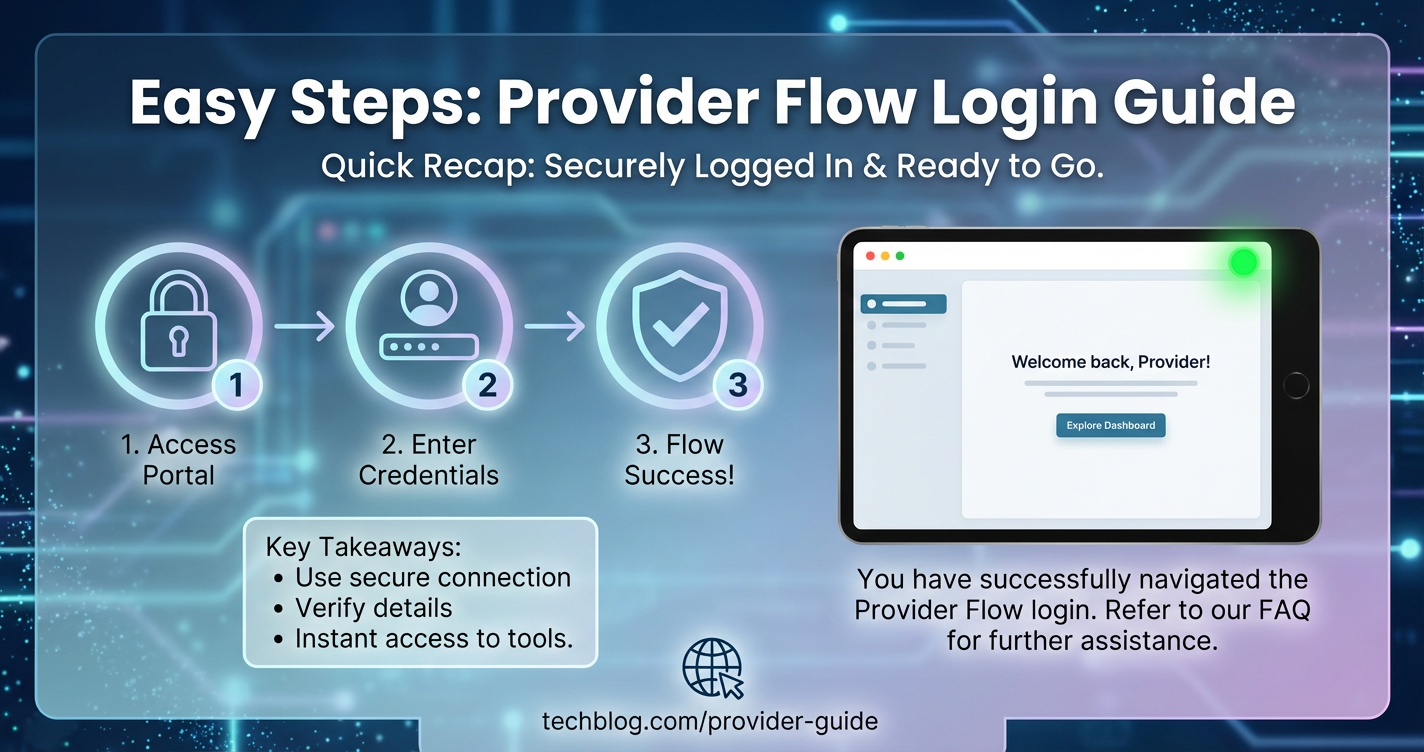
Easy Steps: Provider Flow Login Guide


In an increasingly interconnected digital landscape, service providers operate within complex ecosystems, often needing secure and streamlined access to dedicated portals, dashboards, and management systems. These "Provider Flows" are the digital arteries through which essential operations, data exchanges, and collaborative efforts are conducted. Whether managing client portfolios, accessing proprietary tools, deploying services, or overseeing advanced AI-driven solutions, the initial login process forms the critical gateway to productivity and operational efficiency. This comprehensive guide aims to demystify the provider flow login, offering a meticulously detailed, step-by-step walkthrough designed to ensure a smooth, secure, and frustration-free experience for every user. We will delve into not just the mechanics of logging in, but also the underlying technological principles, security best practices, and troubleshooting tips that empower providers to confidently navigate their digital workspaces.
The significance of a robust and user-friendly login mechanism cannot be overstated. It’s more than just entering credentials; it’s about establishing a secure identity, gaining authorized access to sensitive information, and initiating workflows that often have significant business implications. A poorly designed or understood login process can lead to significant friction, costing valuable time, introducing security vulnerabilities, and ultimately hindering a provider's ability to effectively deliver their services. This guide, therefore, is crafted not only for the novice user seeking initial access but also for the experienced professional looking to deepen their understanding of the security layers and best practices that underpin modern provider portals. We will explore how advanced architectural components, such as a sophisticated API gateway, play a pivotal role in safeguarding these digital entry points, ensuring data integrity, and facilitating seamless integration, particularly in environments rich with AI services where an AI gateway becomes indispensable.
Understanding the Provider Flow: More Than Just a Website
Before diving into the mechanics of logging in, it’s crucial to grasp what a "Provider Flow" truly represents. It is typically a specialized web application or a suite of integrated services designed to cater specifically to the needs of individuals or organizations offering particular services or products. This could range from a SaaS provider managing their subscribers, a healthcare professional accessing patient records, a financial advisor overseeing client investments, or even a developer deploying and monitoring AI models. The common thread is the necessity for authenticated and authorized access to a dedicated environment, distinct from a public-facing website, often containing sensitive data, proprietary tools, and critical operational functionalities.
The term "flow" itself suggests a sequence of actions, often starting with authentication, followed by navigation through various modules, dashboards, and tools. Each step in this flow is designed to support the provider's specific role and responsibilities. For instance, a provider might log in to update service subscriptions, review performance analytics generated by AI tools, collaborate on projects, or manage billing. The initial login, therefore, isn't just an entry point; it's the launchpad for a multitude of sophisticated and often mission-critical operations. The robustness of this entry point is frequently bolstered by intelligent traffic management and security solutions, with an api gateway acting as a central control point.
Chapter 1: Pre-Login Preparations – Laying the Groundwork for Seamless Access
A smooth login experience often begins long before you even type in your username. Proper preparation can preempt many common issues, saving time and frustration. This chapter outlines the essential steps and considerations to ensure your system and environment are optimally configured for accessing your provider portal.
1.1 Account Setup and Activation: The Initial Handshake
The very first step in accessing any provider flow is having an active account. This typically involves an initial registration process, either self-service through a portal or facilitated by an administrator from the service provider's organization. During registration, you will usually be prompted to provide essential information such as your name, organization details, contact information, and a preferred email address, which often doubles as your username.
Upon successful registration, you might receive an email containing an account activation link. This link is critical for verifying your email address and often for setting your initial password. It’s paramount to click this link promptly, as activation links typically have a limited lifespan for security reasons. If the link expires, you'll need to request a new one, which can delay your access. Always check your spam or junk folder if the activation email doesn't arrive in your inbox within a few minutes. Verifying your account is a fundamental security measure, ensuring that the account is tied to a legitimate email address you control, thereby safeguarding against fraudulent registrations. Some systems also require a phone number for SMS verification during this stage, adding an extra layer of identity confirmation.
1.2 System Requirements and Browser Compatibility: Ensuring a Stable Foundation
Modern web applications, especially those handling complex provider flows, are built using a variety of technologies that perform best on up-to-date browsers and operating systems. Before attempting to log in, it’s wise to check the system requirements specified by the platform you intend to access. While most platforms are designed for broad compatibility, specific features or optimal performance might necessitate certain browser versions or operating system configurations.
Common System Requirements:
- Operating System: Generally, Windows 10/11, macOS (latest versions), or modern Linux distributions are supported. Older OS versions might lack necessary security updates or rendering capabilities.
- Internet Connection: A stable and reasonably fast internet connection is crucial. Intermittent connectivity can disrupt the login process, leading to timeouts or incomplete page loads. For applications dealing with large datasets or real-time analytics, a broadband connection is highly recommended.
- Memory (RAM) & Processor: While basic login doesn't require high-end hardware, navigating complex dashboards with multiple widgets or performing data-intensive tasks will benefit from at least 8GB of RAM and a modern multi-core processor.
- Display Resolution: A minimum resolution of 1280x800 pixels is often recommended to ensure all elements of the user interface are displayed correctly without excessive scrolling or scaling issues.
Browser Compatibility:
Most provider portals are optimized for leading web browsers. It is generally advisable to use the latest stable versions of:
- Google Chrome: Widely supported and frequently updated, often providing the best performance for web applications.
- Mozilla Firefox: Another excellent choice, known for its strong privacy features and robust performance.
- Microsoft Edge: Built on the Chromium engine, offering similar performance to Chrome and good compatibility.
- Apple Safari: The default browser for macOS and iOS, generally well-supported, but sometimes specific features might behave differently.
Using outdated browsers can lead to a multitude of problems, including rendering glitches, broken functionalities, security vulnerabilities, and slow performance. Always ensure your chosen browser is updated to its latest version. You can usually check for updates in your browser's settings or "About" section.
1.3 Browser Settings and Extensions: Optimizing Your Digital Workspace
Browser settings and installed extensions can significantly impact your experience with web applications. While some settings enhance security or productivity, others can inadvertently interfere with the functionality of a provider portal.
Key Browser Settings to Review:
- Cookies: Most web applications, including provider portals, rely heavily on cookies to maintain session state, remember user preferences, and facilitate authentication. Ensure that cookies are enabled for the site you are trying to access. If you have strict cookie blocking enabled, you might need to add an exception for the provider's domain.
- JavaScript: JavaScript is fundamental to almost all modern interactive web applications. If JavaScript is disabled in your browser settings, many functionalities, including the login form itself, might not work. Always ensure JavaScript is enabled.
- Pop-up Blockers: Some provider flows might use pop-up windows for certain actions, such as help documentation, secondary authentication steps, or reporting. If you encounter issues, temporarily disable your pop-up blocker or add an exception for the portal's domain.
Browser Extensions (Add-ons):
Browser extensions, while often useful, can sometimes interfere with web application functionality. Password managers are generally beneficial, but other extensions, particularly those that modify web page content (e.g., ad blockers, script blockers, privacy extensions), can inadvertently break layouts or prevent scripts from executing correctly.
- Troubleshooting Extension Conflicts: If you're experiencing unusual behavior or login issues, try accessing the provider portal in an "incognito" or "private browsing" window. These modes typically disable extensions by default, providing a clean browsing environment. If the issue resolves in incognito mode, an extension is likely the culprit. You can then systematically disable your extensions one by one in your regular browser window to identify the conflicting one.
- Ad Blockers: While helpful for reducing distractions, aggressive ad blockers can sometimes block legitimate scripts or assets required for the portal to function correctly. Consider disabling them temporarily for your provider portal or whitelisting the domain.
By diligently addressing these pre-login preparations, you establish a solid foundation, minimizing potential roadblocks and ensuring a smoother, more secure entry into your provider flow.
Chapter 2: The Core Login Process – A Step-by-Step Guide
With your preparations complete, you are now ready to embark on the actual login process. This chapter provides a detailed walkthrough of each stage, ensuring clarity and addressing common scenarios.
2.1 Accessing the Provider Portal URL: Your Digital Address
The journey begins with navigating to the correct web address for your provider portal. This URL (Uniform Resource Locator) is unique to your platform and typically provided by your organization or the service vendor. It’s crucial to use the exact, correct URL to avoid landing on phishing sites or unrelated pages.
Best Practices for URL Access:
- Bookmark It: Once you have the correct URL, bookmark it in your browser for quick and consistent access. This reduces the chances of mistyping the address and inadvertently visiting malicious sites.
- Verify Authenticity: Always double-check the URL in your browser's address bar before entering any credentials. Look for the padlock icon, indicating an HTTPS (secure) connection, and confirm the domain name matches the expected one. Be wary of subtle misspellings (typosquatting) in the URL, which are common tactics used by phishers.
- Direct Link vs. Search Engine: While search engines can sometimes lead you to the correct portal, it's safer to use a direct link provided by your organization or a trusted bookmark. Search results can occasionally include deceptive links.
Upon entering the correct URL, your browser will load the login page. This page typically features the organization's branding, fields for your credentials, and often links for password recovery or registration.
2.2 Entering Credentials: Username/Email and Password
The core of the login process involves accurately entering your authenticated credentials. This typically consists of a username (often your email address) and a password.
- Username/Email: Carefully type in your registered username or email address. These fields are usually case-sensitive for usernames, though email addresses are typically case-insensitive for the domain part (e.g., example@domain.com vs. Example@Domain.com might both work if the system normalizes it, but it's best to be consistent).
- Password: Enter your password with precision. Passwords are almost always case-sensitive. Many login forms will mask the password as you type (displaying asterisks or dots) to prevent shoulder-surfing. If you're unsure, some fields offer a "show password" icon (usually an eye) that temporarily reveals the characters. Use this feature with caution, especially in public places.
Tips for Entering Credentials:
- Avoid Copy-Pasting from Untrusted Sources: While copy-pasting is convenient, only do so from a trusted password manager. Copying from an email or document can sometimes introduce hidden characters or lead to security risks if the source is compromised.
- Keyboard Layout: Ensure your keyboard layout is set correctly (e.g., US English vs. UK English vs. Dvorak). Incorrect layouts can lead to unexpected characters being typed, especially for symbols.
- Caps Lock: Accidentally leaving Caps Lock on is a very common reason for failed logins. Always check its status.
2.3 Understanding Authentication Methods: Beyond Basic Passwords
Modern security standards increasingly move beyond simple username and password combinations. Many provider flows now incorporate advanced authentication methods to enhance security and user assurance. These methods are critical components, often orchestrated and secured by a robust API gateway in the backend.
2.3.1 Two-Factor Authentication (2FA) / Multi-Factor Authentication (MFA)
2FA/MFA adds an extra layer of security by requiring a second form of verification in addition to your password. This means that even if a malicious actor obtains your password, they cannot access your account without the second factor. Common 2FA methods include:
- Authenticator Apps (TOTP): Apps like Google Authenticator, Microsoft Authenticator, or Authy generate time-based one-time passwords (TOTPs). After entering your regular password, you'll be prompted to enter a code displayed by your authenticator app, which refreshes every 30-60 seconds. This is generally considered one of the most secure and convenient 2FA methods.
- SMS Codes: A code is sent to your registered mobile phone number via text message. You enter this code into the login screen. While convenient, SMS-based 2FA is susceptible to SIM-swapping attacks, making it less secure than authenticator apps.
- Email Codes: Similar to SMS, a code is sent to your registered email address. This method is often used as a backup or for less sensitive accounts.
- Hardware Security Keys (FIDO/U2F): Physical devices like YubiKeys provide the highest level of security. After entering your password, you insert the key into a USB port or tap it to your device (NFC) to confirm your identity.
When prompted for 2FA, carefully follow the instructions provided by the platform. If you encounter issues, ensure your device (phone/hardware key) is properly synced or accessible. For authenticator apps, ensure your phone's time is automatically synced to network time, as TOTP relies on precise time synchronization.
2.3.2 Single Sign-On (SSO)
SSO allows users to log in with a single set of credentials to multiple related but independent software systems. This is particularly common in enterprise environments where providers might need to access several internal tools. Instead of managing separate logins for each system, you authenticate once with an identity provider (IdP) – such as Okta, Azure Active Directory, Google Workspace, or an organization's custom SSO solution.
When you access an SSO-enabled provider portal, you will typically be redirected to the IdP's login page. After successful authentication there, you are seamlessly redirected back to the provider portal, logged in without needing to enter credentials again. SSO greatly enhances user experience and simplifies credential management, while centralized authentication managed by an api gateway ensures consistent security policies across all integrated applications.
2.4 Handling Password Management: Forgot, Reset, and Best Practices
Everyone forgets a password occasionally. A well-designed provider flow will have a clear and secure mechanism for password recovery and reset.
2.4.1 "Forgot Password" / "Reset Password" Flow
- Initiation: Look for a prominent "Forgot Password?" or "Reset Password" link on the login page. Clicking this will typically take you to a dedicated recovery page.
- Identity Verification: You will usually be asked to enter your registered username or email address. This is a crucial step for the system to identify your account.
- Verification Method: The system will then send a password reset link or a verification code to your registered email address or phone number (if 2FA is enabled and configured for recovery).
- Creating a New Password: Once you receive the link/code and successfully verify your identity, you will be directed to a page where you can create a new password. Always choose a strong, unique password that meets the platform's complexity requirements (e.g., minimum length, mix of uppercase/lowercase letters, numbers, and symbols).
Important Considerations for Password Recovery:
- Check Spam/Junk: Password reset emails often end up in spam folders.
- Timeliness: Reset links typically expire after a short period (e.g., 15-30 minutes) for security.
- Phishing Awareness: Be extremely cautious of unsolicited password reset emails. Only initiate a password reset through the official portal's "Forgot Password" link.
2.4.2 Password Best Practices
Maintaining strong password hygiene is paramount for account security.
- Uniqueness: Never reuse passwords across different accounts. If one account is compromised, all others using the same password become vulnerable.
- Complexity: Create passwords that are long, complex, and difficult to guess. A combination of uppercase and lowercase letters, numbers, and special characters is ideal. Avoid using personal information, common words, or easily predictable sequences.
- Password Managers: Use a reputable password manager (e.g., LastPass, 1Password, Bitwarden) to generate, store, and auto-fill strong, unique passwords for all your accounts. These tools significantly enhance security and convenience.
- Regular Updates: While some security experts argue against mandatory periodic password changes (as it often leads to weaker, predictable passwords), if a breach is suspected or mandated by policy, change your password immediately.
2.5 Successful Login and Dashboard Overview: Your Digital Workspace Awaits
After successfully authenticating, you will be redirected to your provider dashboard or home page. This is your central hub for managing services, accessing data, and initiating actions.
What to Expect Post-Login:
- Welcome Message: Often, a welcome message or a prompt for a quick tour will greet you.
- Navigation: Familiarize yourself with the primary navigation elements (menus, sidebars, buttons) that lead to different sections of the portal (e.g., "My Clients," "Services," "Analytics," "Support," "Settings").
- Key Information: The dashboard typically displays an overview of key metrics, alerts, recent activity, or urgent tasks relevant to your role as a provider.
- Security Indicators: Look for persistent indicators that you are still securely logged in, such as your profile name displayed in the corner, or options to log out.
A seamless transition from login to dashboard indicates a well-functioning system, where the underlying architecture, potentially including an advanced AI gateway managing integrated services, efficiently grants access and presents relevant information.
Chapter 3: Common Login Issues and Effective Troubleshooting
Even with the best preparations, login issues can occasionally arise. This chapter addresses the most frequent problems and provides practical troubleshooting steps to help you regain access swiftly.
3.1 Incorrect Credentials (Username/Password Mismatch)
This is by far the most common login error.
Symptoms: An error message stating "Invalid credentials," "Username or password incorrect," or similar.
Troubleshooting Steps:
- Re-enter Carefully: Double-check your typing. Ensure there are no typos, extra spaces, or incorrect casing. Remember, passwords are case-sensitive.
- Caps Lock & Num Lock: Verify that your Caps Lock key is off. If your password includes numbers, ensure Num Lock is on if you're using a numeric keypad.
- Keyboard Layout: Confirm your keyboard layout is set to the correct language (e.g., US English) to avoid unexpected character inputs.
- Confirm Username: If your username is an email, confirm you're using the correct email address associated with the account.
- Password Manager Check: If you use a password manager, ensure it's auto-filling the correct credentials for that specific site. Sometimes, similar URLs can confuse password managers.
- "Forgot Password" Route: If repeated attempts fail, initiate the "Forgot Password" process (as detailed in Chapter 2.4.1) to reset your password. This ensures you're starting fresh with a known password.
3.2 Two-Factor Authentication (2FA) Problems
Issues with 2FA can prevent access even if your password is correct.
Symptoms: Error messages like "Invalid 2FA code," "Verification failed," or simply the code not working.
Troubleshooting Steps:
- Time Synchronization (Authenticator Apps): For TOTP apps, your device's clock must be synchronized with network time. Go to your phone's date and time settings and ensure "Automatic date and time" or "Network-provided time" is enabled. A small time drift can cause codes to be rejected.
- Fresh Code: Ensure you're entering the most recent code from your authenticator app or the SMS/email. Codes expire quickly.
- SMS/Email Delay: If using SMS or email codes, there might be a delay in delivery due to network congestion or server issues. Wait a moment and request a new code if available. Check spam/junk folders for email codes.
- Device Access: Ensure you have physical access to the device (phone, hardware key) registered for 2FA.
- Backup Codes: If you set up 2FA, you might have been given a set of backup codes. Use one of these if you are completely locked out of your primary 2FA method. Each backup code can usually only be used once.
- Account Recovery: If all else fails, you'll need to use the platform's account recovery process, which might involve verifying your identity through support.
3.3 Browser-Related Issues
Browser settings or extensions can interfere with the login process.
Symptoms: Page not loading correctly, buttons not responding, infinite loading spinners, blank login fields, or unusual error messages.
Troubleshooting Steps:
- Clear Browser Cache and Cookies: Outdated cache or corrupt cookies can cause unexpected behavior.
- Chrome:
Settings > Privacy and security > Clear browsing data - Firefox:
Options > Privacy & Security > Cookies and Site Data > Clear Data... - Edge:
Settings > Privacy, search, and services > Clear browsing data - Safari:
Preferences > Privacy > Manage Website Data > Remove All - After clearing, restart your browser and try again.
- Chrome:
- Incognito/Private Mode: Open the portal in an Incognito (Chrome/Edge) or Private (Firefox/Safari) window. This disables most extensions and uses a clean cookie/cache slate. If it works here, an extension is likely the problem.
- Disable Extensions: If incognito mode resolves the issue, systematically disable your browser extensions one by one in your regular browser to pinpoint the conflicting one.
- Update Browser: Ensure your browser is updated to the latest stable version.
- Try Another Browser: If one browser is problematic, try logging in with a different, supported browser (e.g., if Chrome fails, try Firefox or Edge).
- Check JavaScript/Cookies: Verify that JavaScript is enabled and cookies are allowed for the site in your browser settings.
- Disable Pop-up Blocker: Temporarily disable your browser's pop-up blocker if any part of the login process involves pop-ups.
3.4 Network and Connectivity Problems
A unstable internet connection can interrupt the login sequence.
Symptoms: Pages loading slowly, timeouts, "No internet connection" errors, or an inability to reach the login page at all.
Troubleshooting Steps:
- Check Internet Connection: Confirm your internet connection is active. Try accessing other websites to verify.
- Restart Router/Modem: A simple restart of your network equipment can often resolve transient connectivity issues.
- DNS Issues: If you can't reach the site, try changing your DNS server to a public one like Google DNS (8.8.8.8, 8.8.4.4) or Cloudflare (1.1.1.1).
- VPN/Proxy: If you are using a VPN or proxy server, try disabling it temporarily, as it might be interfering with access to the provider portal or its security checks.
- Firewall: Ensure your local firewall or network firewall isn't blocking access to the portal's domain or IP addresses.
3.5 Account Lockout
Some systems will temporarily lock your account after too many failed login attempts as a security measure.
Symptoms: An error message stating "Account locked," "Too many failed attempts," or similar, often with a specified lockout duration.
Troubleshooting Steps:
- Wait it Out: The simplest solution is often to wait for the lockout period to expire (e.g., 15-30 minutes). Do not attempt to log in again during this period, as it might reset the timer.
- Contact Support: If the lockout is prolonged or if you need immediate access, contact the platform's support team. They can usually manually unlock your account after verifying your identity.
- Use "Forgot Password": Sometimes initiating a "Forgot Password" flow can also clear the lockout status and allow you to set a new password.
3.6 Other System-Specific Errors
Sometimes, error messages might be specific to the platform.
Symptoms: Vague error messages or codes, server errors (e.g., "500 Internal Server Error"), or unexpected redirects.
Troubleshooting Steps:
- Check System Status Page: Many service providers have a status page where they post information about ongoing outages, maintenance, or known issues. Check this page first.
- Contact Support: If the error is persistent and not resolved by general troubleshooting, collect any error messages or codes, take screenshots, and contact the platform's technical support team. Provide them with as much detail as possible about the issue, including when it started, what steps you took, and any error messages displayed.
Here's a summary table of common login issues and their quick fixes:
| Issue Category | Specific Symptoms | Quick Troubleshooting Steps |
|---|---|---|
| Incorrect Credentials | "Invalid credentials," "Username/password incorrect" | 1. Re-enter carefully (check Caps Lock). 2. Verify username/email. 3. Use password manager. 4. Initiate "Forgot Password." |
| 2FA Failure | "Invalid 2FA code," "Verification failed" | 1. Sync phone time for authenticator apps. 2. Use fresh code. 3. Check SMS/email for delays/spam. 4. Use backup codes. |
| Browser Interference | Page won't load, buttons unresponsive, blank fields | 1. Clear browser cache/cookies. 2. Try Incognito/Private mode. 3. Disable extensions. 4. Update browser. 5. Check JavaScript/Cookies enabled. |
| Network Problems | Slow loading, timeouts, "No internet" | 1. Verify internet connection. 2. Restart router/modem. 3. Disable VPN/proxy temporarily. 4. Check firewall settings. |
| Account Lockout | "Account locked," "Too many failed attempts" | 1. Wait for lockout period to expire. 2. Contact support for manual unlock. 3. Use "Forgot Password" to reset. |
| System-Specific Errors | Vague error codes, "500 Internal Server Error" | 1. Check platform's status page. 2. Contact technical support with error details and screenshots. |
By systematically approaching login issues using these troubleshooting steps, providers can efficiently resolve most problems and regain access to their critical systems.
APIPark is a high-performance AI gateway that allows you to securely access the most comprehensive LLM APIs globally on the APIPark platform, including OpenAI, Anthropic, Mistral, Llama2, Google Gemini, and more.Try APIPark now! 👇👇👇
Chapter 4: Security Best Practices for Provider Logins – Safeguarding Your Digital Identity
In the realm of provider flows, where sensitive data and critical operations are commonplace, security is not merely a feature but a fundamental requirement. Every login attempt is a potential vulnerability, and robust security practices are essential to protect against unauthorized access, data breaches, and identity theft. This chapter outlines vital security measures and awareness strategies. The underlying infrastructure, often protected by an API gateway, plays a crucial role, but user vigilance remains paramount.
4.1 Strong Password Hygiene: Your First Line of Defense
As discussed, strong passwords are the foundation of digital security. Reiterate and expand on the importance of:
- Length and Complexity: Aim for passwords that are at least 12-16 characters long. Combine uppercase and lowercase letters, numbers, and symbols. The longer and more random the password, the harder it is for brute-force attacks to crack.
- Uniqueness: Never reuse passwords. A data breach on one minor website can compromise your entire digital life if you use the same password elsewhere. Password managers are indispensable for enforcing uniqueness.
- Avoid Predictable Patterns: Do not use personal information (birthdates, pet names), sequential numbers/letters (123456, abcdef), or dictionary words. Attackers use sophisticated tools that try billions of common phrases and patterns.
- Regular Review: While constant changes can lead to weaker passwords, periodically review your password strength and ensure no old, compromised passwords are still in use. Services like "Have I Been Pwned?" can help check if your email or passwords have appeared in data breaches.
4.2 Embracing Multi-Factor Authentication (MFA): The Essential Second Layer
MFA is no longer an optional security feature; it's a critical necessity for any account containing sensitive information or granting significant access.
- Enable Everywhere Possible: Always activate MFA on your provider accounts and any other critical services. Even if your password is stolen, the attacker cannot log in without the second factor.
- Prefer Stronger Methods: Prioritize authenticator apps (TOTP) or hardware security keys (FIDO/U2F) over SMS-based 2FA. While SMS is better than nothing, it's more susceptible to specific attack vectors like SIM swapping.
- Secure Backup Codes: If the system provides backup codes (one-time codes to use if you lose your MFA device), store them in a secure, offline location (e.g., encrypted flash drive, physical printout in a secure safe). Never store them digitally on your primary device without encryption.
- Device Security: Ensure the device used for MFA (your smartphone for authenticator apps or SMS) is itself secured with a strong passcode, biometric lock, and up-to-date software.
4.3 Recognizing and Avoiding Phishing Attempts: The Art of Digital Deception
Phishing remains one of the most prevalent and effective cyber threats. Attackers attempt to trick you into revealing your login credentials or other sensitive information by impersonating legitimate entities.
- Scrutinize Emails and Links:
- Sender Address: Always check the sender's full email address, not just the display name. Look for subtle misspellings in the domain (e.g.,
micr0soft.cominstead ofmicrosoft.com). - Link Hover: Before clicking any link, hover your mouse over it (on desktop) or long-press (on mobile) to preview the actual URL. Verify it matches the legitimate domain. Do not click if it looks suspicious.
- Grammar and Spelling: Phishing emails often contain grammatical errors, awkward phrasing, or unusual formatting.
- Urgency and Threats: Be wary of emails that create a sense of urgency, threaten account closure, or demand immediate action. These are common social engineering tactics.
- Sender Address: Always check the sender's full email address, not just the display name. Look for subtle misspellings in the domain (e.g.,
- Direct Navigation: Instead of clicking links in emails, always navigate directly to your provider portal by typing the URL into your browser or using a trusted bookmark.
- Report Suspicious Activity: If you receive a suspicious email purporting to be from your provider, do not interact with it. Instead, forward it to your organization's IT security team or the provider's official support email (found on their official website, not in the suspicious email itself).
4.4 Secure Browsing Habits: Your Digital Environment
Your general browsing habits significantly impact the security of your login sessions.
- HTTPS Always: Always ensure the website you are logging into uses HTTPS (indicated by a padlock icon in the browser address bar). This encrypts communication between your browser and the server, protecting your credentials from eavesdropping. Never log into a provider portal on an HTTP-only site.
- Public Wi-Fi Caution: Avoid accessing sensitive provider portals while connected to unsecured public Wi-Fi networks (e.g., in cafes, airports). These networks are often vulnerable to snooping. If you must use public Wi-Fi, always use a reputable Virtual Private Network (VPN) to encrypt your traffic.
- Keep Software Updated: Regularly update your operating system, web browser, and antivirus software. These updates often include critical security patches that protect against newly discovered vulnerabilities.
- Device Security: Ensure your device (computer, tablet, phone) has a strong password/PIN, biometric lock, and is protected by up-to-date antivirus/anti-malware software.
- Log Out: Always explicitly log out of your provider portal when you are finished, especially if you are using a shared or public computer. Closing the browser tab might not always terminate your session.
4.5 Monitoring Account Activity and Audit Logs: Vigilance After Login
Security doesn't end after successful authentication. Many advanced provider portals offer features to monitor your account's activity.
- Review Login History: Periodically check your login history for unfamiliar times, locations, or devices. If you spot anything suspicious, report it immediately to support and change your password.
- Email Notifications: Configure your account settings to receive email or SMS alerts for suspicious login attempts, password changes, or critical account modifications.
- Audit Trails: In enterprise-level provider flows, detailed audit trails record every action taken within the system. Familiarize yourself with how to access and review these if available to you, as they can be invaluable for detecting unauthorized activity.
By rigorously adhering to these security best practices, providers can significantly reduce their risk exposure, protect sensitive information, and maintain the integrity of their operations within their digital ecosystems. These user-centric efforts complement the robust security measures implemented at the infrastructure level, often enforced by an advanced api gateway that filters, authenticates, and routes all incoming requests, acting as a crucial guardian for the entire platform.
Chapter 5: The Underlying Architecture: How API Gateways Secure Your Provider Flow
While the login process seems straightforward to the end-user, it is underpinned by a sophisticated architecture designed for security, scalability, and efficiency. At the heart of many modern, distributed web applications, especially those handling complex provider flows and integrating diverse services, is the API Gateway. This crucial component acts as a single entry point for all client requests, managing traffic, enforcing security policies, and orchestrating interactions with various backend services. For platforms that increasingly leverage artificial intelligence, an AI gateway extends these functionalities, specifically optimizing and securing access to AI models and services.
5.1 What is an API Gateway? The Digital Doorman
An API gateway is essentially a server that sits between client applications (like your browser accessing the provider portal) and the backend services. Instead of clients sending requests directly to individual microservices or components, all requests first pass through the gateway. This centralizes numerous cross-cutting concerns, simplifying client applications and enhancing overall system management. Think of it as the highly trained doorman of a secure building: all visitors must pass through them, they check credentials, direct visitors to the right department, and ensure security protocols are followed.
Key Functions of an API Gateway:
- Request Routing: Directs incoming requests to the appropriate backend service based on the URL or other parameters. For example, a login request might go to an
authentication-service, while a data analytics request goes to ananalytics-service. - Authentication and Authorization: Verifies user identity and permissions before forwarding requests. This offloads authentication logic from individual backend services, centralizing security. When you enter your username and password, it's often the API gateway that first receives these, validates them, and potentially issues a token for subsequent requests.
- Rate Limiting: Protects backend services from being overwhelmed by too many requests, preventing denial-of-service attacks and ensuring fair usage.
- Load Balancing: Distributes incoming traffic across multiple instances of a service to improve performance and reliability.
- Caching: Stores responses from backend services to reduce latency and load on those services for frequently requested data.
- Protocol Translation: Converts requests from one protocol (e.g., HTTP/1.1) to another (e.g., gRPC) if necessary for backend services.
- API Composition: Aggregates responses from multiple backend services into a single response, simplifying the client application's logic.
- Monitoring and Logging: Records details about API calls, providing valuable insights into system performance, usage patterns, and potential security incidents.
5.2 The API Gateway's Role in Securing the Login Flow
For a provider login guide, the API gateway is not just an architectural detail; it's a fundamental component ensuring the login process is both secure and efficient.
- Centralized Authentication: When you submit your credentials, the gateway is typically the first point of contact. It authenticates your identity against a central identity management system (e.g., LDAP, OAuth2 provider). This ensures that every entry point into the system is protected by a consistent authentication mechanism.
- Token-Based Security: Upon successful login, the API gateway often issues a security token (e.g., JWT - JSON Web Token). This token is then used for all subsequent requests to the provider portal. Instead of re-entering credentials for every action, the gateway simply validates the token, streamlining the user experience while maintaining security.
- Enhanced Authorization: Beyond authentication, the gateway enforces authorization rules. Based on your role (e.g., "admin provider," "junior provider"), the gateway determines which backend services or data you are allowed to access, preventing unauthorized operations.
- Threat Protection: The gateway acts as a shield against common web attacks. It can detect and block malicious requests, SQL injection attempts, cross-site scripting (XSS), and other vulnerabilities before they reach sensitive backend systems. Rate limiting directly helps prevent brute-force login attempts.
- SSL/TLS Termination: The gateway typically handles the SSL/TLS encryption for all incoming traffic. This means that your login credentials and all subsequent data are encrypted from your browser to the gateway, protecting them from interception.
5.3 The Emergence of the AI Gateway: Specializing for Intelligent Services
As provider flows increasingly integrate artificial intelligence capabilities – from AI-powered analytics to natural language processing tools and machine learning model deployment – the need for a specialized AI gateway arises. An AI gateway builds upon the foundational principles of a general API gateway but adds specific functionalities tailored to the unique demands of AI services.
- Unified AI Model Access: An AI gateway can standardize the invocation of diverse AI models (e.g., large language models, image recognition models, sentiment analysis engines) from various providers (OpenAI, Anthropic, Google AI, custom models). It presents a unified API interface to developers, abstracting away the complexities and specific API formats of individual models. This means a provider developing AI applications doesn't need to learn a new API for every AI model they want to use; they interact with the AI gateway.
- Prompt Management and Encapsulation: A key feature of an AI gateway is the ability to manage and encapsulate prompts for AI models. Developers can combine specific AI models with predefined prompts (e.g., "summarize this text," "translate to Spanish") into easily consumable REST APIs. This empowers providers to quickly build AI-powered features without deep AI expertise.
- Cost Management and Tracking: AI model usage can incur significant costs. An AI gateway can centralize cost tracking, manage API keys for different models, and even implement cost-based rate limiting, giving providers better control over their AI expenditures.
- Security for AI Endpoints: AI models often process sensitive data. An AI gateway extends robust authentication, authorization, and traffic management to these AI endpoints, ensuring that only authorized requests reach the models and that data in transit is secure. It can also implement data masking or anonymization policies before data is sent to external AI services.
- Performance Optimization for AI Workloads: AI inferences can be resource-intensive. An AI gateway can optimize performance through caching frequently used AI responses, intelligent load balancing across multiple AI model instances, or even routing requests to the nearest AI model endpoint for lower latency.
5.4 APIPark: An Example of an Open Source AI Gateway & API Management Platform
For organizations building and managing complex provider flows, especially those integrating numerous AI and REST services, a solution like ApiPark demonstrates the power and utility of an AI gateway and API management platform. As an open-source solution licensed under Apache 2.0, APIPark offers a comprehensive suite of features that directly address the challenges of managing modern digital ecosystems.
How APIPark Enhances Provider Flows:
- Quick Integration of 100+ AI Models: Imagine a provider platform that needs to offer various AI services to its users. APIPark simplifies the integration of a vast array of AI models, providing a unified management system for authentication and cost tracking. This means that as a provider, the AI-powered tools you access through your login are seamlessly integrated and efficiently managed behind the scenes.
- Unified API Format for AI Invocation: One of APIPark's strengths is standardizing the request data format across all AI models. This crucial feature ensures that any changes in the underlying AI models or prompts do not disrupt your application or microservices. For a provider, this translates to greater stability and reduced maintenance costs when leveraging AI in your workflow.
- Prompt Encapsulation into REST API: APIPark allows users to quickly combine AI models with custom prompts to create new, specialized APIs. A provider could, for example, access a sentiment analysis API tailored specifically for their industry's jargon, or a translation API optimized for their specific documentation, all made available through the AI gateway.
- End-to-End API Lifecycle Management: Beyond just AI, APIPark assists with managing the entire lifecycle of all APIs within a provider system, including design, publication, invocation, and decommission. This ensures that the services you access after login are well-governed, versioned, and perform reliably, contributing to a stable provider experience.
- Performance Rivaling Nginx: The platform's high performance, achieving over 20,000 TPS with modest resources, ensures that even large-scale provider flows with heavy traffic can operate smoothly and responsively. This means quick login times and fast access to services for many concurrent providers.
- Detailed API Call Logging and Data Analysis: For system administrators managing a provider portal, APIPark's comprehensive logging and data analysis capabilities are invaluable. They record every API call, allowing for quick tracing, troubleshooting, and proactive maintenance, ensuring the reliability and security of the provider flow's underlying services.
In essence, an API gateway, and specifically an AI gateway like APIPark, is the invisible force multiplier that ensures your "Easy Steps: Provider Flow Login" is not just easy, but also exceptionally secure, scalable, and capable of integrating cutting-edge AI functionalities without compromising performance or manageability. It's the sophisticated infrastructure that takes your simple login request and transforms it into a securely authenticated, intelligently routed, and highly efficient gateway to your professional digital world.
Chapter 6: Advanced Features and Account Management – Maximizing Your Provider Portal Experience
Beyond the initial login, modern provider portals offer a wealth of advanced features and account management tools designed to enhance productivity, tailor your experience, and provide greater control over your digital identity and operations. Understanding these features can significantly enrich your interaction with the provider flow.
6.1 Profile Management: Personalizing Your Digital Identity
Your user profile is typically the central repository for your personal and professional information within the provider portal.
- Updating Contact Information: Ensure your email address, phone number, and physical address (if applicable) are always up-to-date. This is crucial for receiving important notifications, security alerts, and for account recovery purposes.
- Display Name and Photo: Many portals allow you to customize your display name and upload a profile photo. While seemingly minor, a professional profile can enhance collaboration and recognition within the platform.
- Time Zone and Language Settings: Adjusting these settings ensures that timestamps on reports, notifications, and the overall user interface are displayed in your preferred language and local time, preventing confusion.
- Security Questions: Some systems still use security questions as a backup verification method for password resets. Choose questions with answers that are easy for you to remember but difficult for others to guess, and keep the answers consistent.
6.2 Notification and Communication Preferences: Staying Informed, Your Way
Provider portals often generate various notifications – from critical system alerts to updates on service changes or promotional offers. Managing these preferences allows you to stay informed without being overwhelmed.
- Email Notifications: Most common. You can typically choose which types of emails you wish to receive (e.g., service updates, billing reminders, security alerts, marketing communications).
- In-App Notifications: Alerts that appear directly within the provider portal interface, often in a notification center or banner. These are usually for immediate, high-priority information.
- SMS Notifications: For critical alerts or two-factor authentication, SMS might be an option.
- Customization: Take the time to review the notification settings and opt-in/out of specific categories. This ensures you receive only the information most relevant to your role and preferences.
6.3 Permissions and Role Management: Understanding Your Access Levels
In many provider flows, particularly in team or enterprise environments, different users have different roles and associated permissions. Your access level dictates what functionalities, data, and resources you can view, modify, or create.
- Understanding Your Role: Familiarize yourself with the scope of your assigned role. This helps you understand what you are authorized to do and prevents attempts to access areas beyond your permissions, which could trigger security alerts.
- Team Permissions: If you are part of a team, understand how your individual permissions fit into the broader team structure. Some actions might require approval from a manager, or certain data might only be visible to specific team leads.
- Requesting Access: If your current permissions are insufficient for your responsibilities, identify the appropriate administrator or support channel to request additional access. Clearly articulate why the additional permissions are needed. The granular control over access, especially for underlying services and AI models, is often managed at the api gateway level, ensuring that only authorized roles can invoke specific backend functionalities.
6.4 Audit Logs and Activity History: Transparency and Accountability
For both individual users and administrators, audit logs provide a transparent record of activity within the provider portal.
- Personal Activity Log: Many platforms offer a personal activity history, showing your own actions, such as logins, data modifications, or service deployments. Reviewing this can help you keep track of your work and identify any unauthorized activity on your account.
- System-Wide Audit Logs: For administrators, system-wide audit logs are critical for security and compliance. They record every significant event, including user logins (successful and failed), data access, configuration changes, and API calls. These logs are often centrally managed and analyzed, sometimes with the help of the AI gateway’s own detailed logging capabilities, which can capture every detail of an AI model invocation. These logs are indispensable for forensic analysis in case of a security incident.
- Compliance: For regulated industries, comprehensive audit trails are often a mandatory requirement for compliance with various data protection and privacy regulations.
6.5 Integrating with Other Systems: Expanding Your Workflow
Advanced provider portals often offer integration capabilities with other business tools and systems, further streamlining workflows.
- API Integrations: The platform might expose its own APIs that allow you to programmatically interact with its features from other applications. This is where the concept of an API gateway becomes truly circular: you log into a platform that uses an API gateway, and that platform might also expose its own APIs, potentially through another gateway or its own managed API layer, for your custom integrations.
- Webhooks: These allow the provider portal to send automated notifications or data to other systems when specific events occur (e.g., a new client is added, a service status changes).
- Third-Party Connectors: Pre-built connectors for popular CRM systems, project management tools, or analytics platforms can reduce manual data entry and create a more unified workflow.
By leveraging these advanced features and actively managing your account settings, you can transform your provider portal from a basic access point into a powerful, personalized, and efficient hub that truly supports your operational needs and strategic objectives. This holistic approach to engagement ensures that your login isn't just a hurdle, but the opening act to a richly functional digital experience.
Conclusion: Mastering the Gateway to Your Provider Flow
Navigating the digital realm of provider flows is a fundamental aspect of modern professional life. What begins as a simple act of logging in quickly unfolds into an intricate dance with sophisticated technologies and stringent security protocols. This guide has aimed to illuminate every facet of this journey, from the meticulous pre-login preparations and the detailed, step-by-step authentication process, to the effective troubleshooting of common issues and the indispensable adherence to security best practices.
We've delved into the critical architectural components that safeguard these digital gateways, emphasizing the pivotal role of an API gateway in ensuring robust authentication, efficient request routing, and comprehensive threat protection. Furthermore, in an era increasingly defined by artificial intelligence, we explored how a specialized AI gateway extends these capabilities, offering unified access, cost management, and enhanced security for diverse AI models and services. Solutions like ApiPark exemplify how open-source platforms can empower organizations to manage, integrate, and deploy both AI and REST services with unparalleled ease and security, thereby underpinning a resilient and feature-rich provider flow.
Ultimately, a successful provider login is more than just gaining entry; it's about establishing trust, maintaining security, and optimizing your access to the tools and data essential for your professional success. By embracing the insights shared in this guide – understanding your account, practicing strong password hygiene, enabling multi-factor authentication, recognizing phishing attempts, and utilizing the advanced features of your portal – you empower yourself to navigate your digital workspace with confidence, efficiency, and unwavering security. May your login always be seamless, and your provider flow ever productive.
Frequently Asked Questions (FAQs)
1. What is the most important security measure I should take for my provider account? The single most important security measure is to enable Multi-Factor Authentication (MFA) or Two-Factor Authentication (2FA) on your provider account. Even with a strong password, MFA provides a critical second layer of defense, making it significantly harder for unauthorized individuals to access your account even if they somehow obtain your password. Pair this with a strong, unique password generated by a reputable password manager.
2. I keep getting "invalid credentials" errors, but I'm sure my password is correct. What should I do? First, meticulously re-enter your username/email and password, paying close attention to case sensitivity (especially for passwords) and ensuring Caps Lock is off. If it still fails, clear your browser's cache and cookies, or try logging in using an incognito/private browser window to rule out browser interference from extensions. If problems persist, it's best to initiate the "Forgot Password" process immediately to reset your password and ensure you're starting with known, correct credentials.
3. What is an API Gateway, and why is it relevant to my provider login? An API Gateway acts as a central control point for all incoming requests to a web application, including your provider portal. It's relevant because it's often the first component to receive your login request, handling authentication, routing, and security. It ensures your credentials are validated securely, protects backend services from threats, and often issues security tokens (like JWTs) that maintain your logged-in session, making the entire login process efficient and secure behind the scenes.
4. How can APIPark enhance the security and functionality of a provider portal, especially with AI features? ApiPark is an open-source AI gateway and API management platform that significantly enhances provider portals. For security, it centralizes authentication and authorization, manages traffic, and logs all API calls, including those to AI models, for auditing and troubleshooting. For functionality, it allows quick integration of over 100 AI models with a unified API format, enabling providers to easily build and access AI-powered tools (like sentiment analysis or translation APIs) without dealing with complex underlying AI model specifics, making AI capabilities more accessible and manageable within the provider flow.
5. Is it safe to log into my provider portal on public Wi-Fi? Logging into sensitive accounts on public Wi-Fi is generally not recommended due to security risks like "eavesdropping" or "man-in-the-middle" attacks, where attackers might try to intercept your data. If you absolutely must access your provider portal on public Wi-Fi, always use a reputable Virtual Private Network (VPN) to encrypt your entire internet connection. Always ensure the provider portal uses HTTPS (indicated by a padlock icon in your browser's address bar) to encrypt the communication between your browser and the server.
🚀You can securely and efficiently call the OpenAI API on APIPark in just two steps:
Step 1: Deploy the APIPark AI gateway in 5 minutes.
APIPark is developed based on Golang, offering strong product performance and low development and maintenance costs. You can deploy APIPark with a single command line.
curl -sSO https://download.apipark.com/install/quick-start.sh; bash quick-start.sh

In my experience, you can see the successful deployment interface within 5 to 10 minutes. Then, you can log in to APIPark using your account.

Step 2: Call the OpenAI API.