Fix: openssl s_client: cert not showing with -showcert
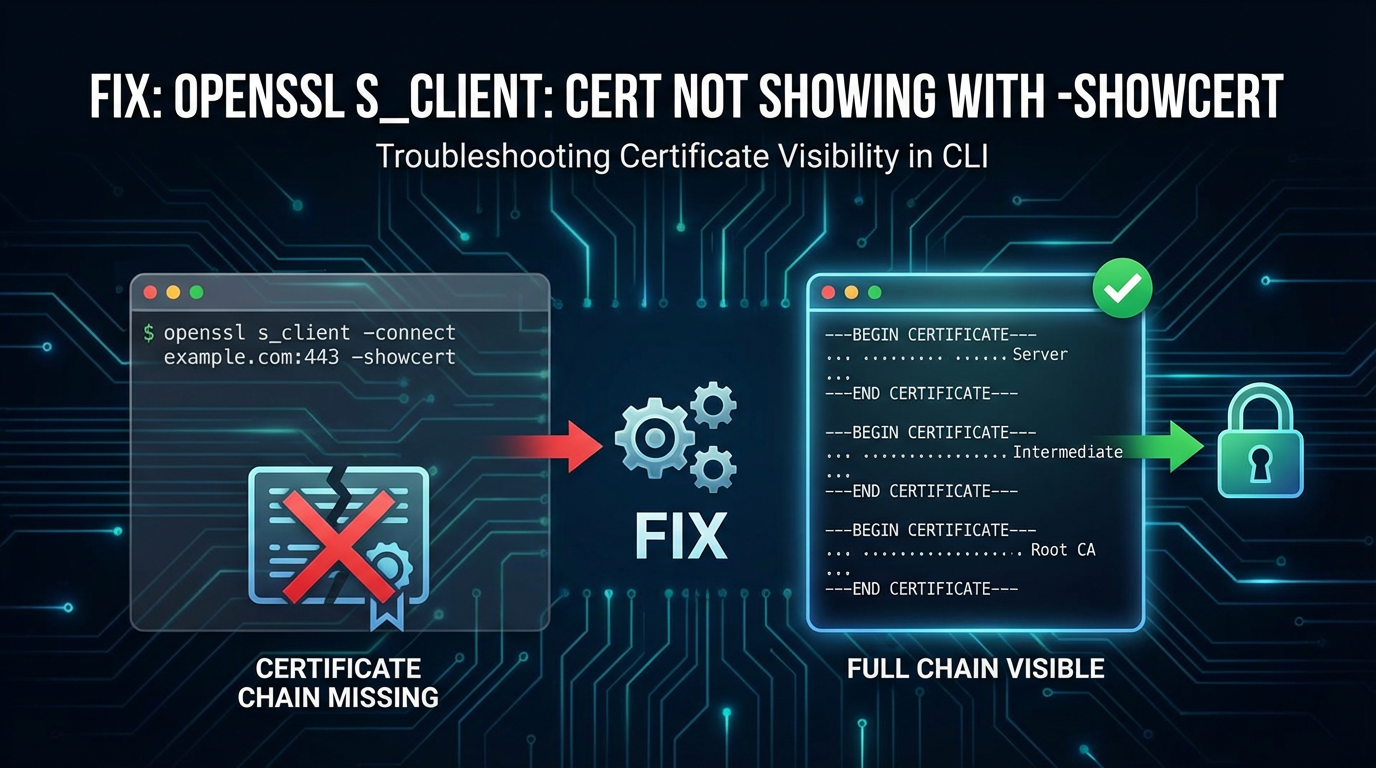


This comprehensive guide aims to demystify one of the more perplexing issues encountered when working with secure network communications: the openssl s_client: cert not showing with -showcert phenomenon. Far from a mere syntax error, this situation often indicates deeper complexities within the SSL/TLS handshake process, involving server configurations, network intermediaries, or subtle client-side command nuances. Understanding and resolving this requires a methodical approach, delving into the intricacies of how certificates are presented, received, and interpreted.
APIPark is a high-performance AI gateway that allows you to securely access the most comprehensive LLM APIs globally on the APIPark platform, including OpenAI, Anthropic, Mistral, Llama2, Google Gemini, and more.Try APIPark now! 👇👇👇
Fix: openssl s_client: cert not showing with -showcert
The openssl s_client command is an indispensable utility for network engineers, developers, and security professionals. It simulates an SSL/TLS client connection to a remote host and port, providing invaluable insights into the server's certificate chain, supported protocols, and ciphers. Among its many capabilities, the -showcert option is designed to display the entire certificate chain sent by the server during the handshake. When this expected output is conspicuously absent, despite a seemingly successful connection, it signals a potential misconfiguration or intervention that warrants immediate investigation. This article will meticulously explore the root causes of this issue, offering detailed troubleshooting steps and best practices to ensure secure and transparent communication.
The Foundation: Understanding openssl s_client and the TLS Handshake
Before diving into troubleshooting, it's crucial to grasp the fundamental mechanisms at play. The openssl s_client tool acts as a command-line interface to the OpenSSL library's client-side SSL/TLS capabilities. It initiates a connection, performs the TLS handshake, and then allows for data exchange.
The -showcert option specifically instructs openssl s_client to print all certificates that the server sends during the TLS handshake. This typically includes the server's end-entity certificate, any intermediate certificates, and sometimes the root certificate (though the root is usually trusted by the client and not explicitly sent by the server). The output provides critical information such as certificate subjects, issuers, validity periods, public keys, and extensions.
The TLS (Transport Layer Security) handshake is a complex multi-step process that establishes a secure channel between a client and a server. A simplified overview of the relevant steps where certificates are exchanged includes:
- Client Hello: The client initiates the connection, sending a "Client Hello" message that includes its supported TLS versions, cipher suites, and sometimes the hostname it wishes to connect to (via Server Name Indication, SNI).
- Server Hello: The server responds with a "Server Hello," selecting a TLS version and cipher suite that both parties support.
- Certificate: Crucially, the server then sends its digital certificate(s) to the client. This chain typically starts with the end-entity certificate (for the server itself) and includes any necessary intermediate certificates, allowing the client to build a chain of trust back to a trusted root certificate authority (CA).
- Server Key Exchange (Optional): If ephemeral Diffie-Hellman (DHE) or elliptic curve Diffie-Hellman (ECDHE) key exchange is used, the server sends its parameters.
- Server Hello Done: The server signals it has finished its part of the handshake.
- Client Key Exchange: The client sends its key exchange parameters.
- Change Cipher Spec: Both client and server signal a transition to encrypted communication.
- Finished: Both send encrypted "Finished" messages to verify the handshake integrity.
If the certificate message is missing or malformed during step 3, openssl s_client -showcert will naturally have nothing to display, leading to the perplexing situation we aim to resolve.
Unraveling the Mystery: Common Causes for Missing Certificates
When openssl s_client -showcert fails to display the certificate, the problem can be categorized into server-side misconfigurations, network-level interference, or client-side command execution issues. Each category requires a distinct diagnostic approach.
1. Server-Side Misconfigurations and Anomalies
The server is the primary source of the certificate chain. Any issue here will directly impact what the client receives.
a. Incorrect Certificate Chain or Missing Intermediate Certificates
One of the most frequent causes is a misconfigured server that either doesn't send the full certificate chain or sends it incorrectly. * Missing End-Entity Certificate: The server simply isn't configured to present its own domain certificate. This is highly unusual for a standard TLS setup but can occur in deeply misconfigured or experimental environments. * Missing Intermediate Certificates: While the server's own certificate might be sent, the intermediate certificates (which link the end-entity certificate to a trusted root CA) are often omitted. Clients, including openssl s_client, need these intermediates to build a complete trust path. If openssl cannot verify the certificate because a link in the chain is broken, it might sometimes behave erratically or simply not present the incomplete chain clearly, especially if further validation fails. The -showcert option should show what was received, but a failure to fully parse or process can sometimes obscure it. * Incorrect Order of Certificates: Certificates must be sent in a specific order: end-entity certificate first, followed by its issuer, and then that issuer's issuer, up to the root (though the root itself is usually omitted). If the order is reversed or scrambled, clients may fail to reconstruct the chain. * Expired or Invalid Certificates: While openssl s_client should still display an invalid certificate with -showcert, an expired or otherwise fundamentally invalid certificate might cause the server to abort the handshake prematurely or the client to encounter a fatal error before parsing and displaying. This is less likely to cause a complete absence but can contribute to overall handshake failures.
b. Server Name Indication (SNI) Issues
SNI is an extension to TLS that allows a client to specify the hostname it is trying to connect to at the start of the handshake. This is crucial for servers hosting multiple secure websites (virtual hosts) on the same IP address and port. Without SNI, the server might not know which certificate to present.
- Server Requires SNI, Client Doesn't Provide It: If your server is configured to serve multiple domains and relies on SNI to determine the correct certificate, and your
openssl s_clientcommand doesn't include the-servernameoption, the server might:- Present a default certificate (which might not be the one you expect or want to see).
- Fail the handshake entirely because it cannot select a suitable certificate.
- Present no certificate at all, leading to the
-showcertfailure.
- Mismatched SNI Hostname: Providing a
-servernamethat doesn't match any configured virtual host on the server can also lead to the server presenting a default certificate or failing to present any.
c. TLS Protocol and Cipher Suite Mismatches
While less direct, protocol or cipher suite negotiation failures can prevent a successful handshake before certificates are exchanged. * Unsupported Protocols: If openssl s_client tries to negotiate a TLS version (e.g., TLS 1.0 or 1.1) that the server no longer supports (e.g., only TLS 1.2 or 1.3), the handshake might fail early. * No Common Cipher Suites: Similarly, if there are no common cipher suites between the client and server, the connection cannot proceed. In such cases, the handshake often terminates before the certificate message is sent, meaning -showcert will yield nothing.
d. Server Configuration Specifics (Apache, Nginx, etc.)
Different web servers have different ways of configuring SSL/TLS. * Apache: Misconfigurations in SSLCertificateFile, SSLCertificateKeyFile, and SSLCertificateChainFile (or SSLCACertificateFile for older versions) can lead to the server not finding or correctly sending the certificate chain. * Nginx: Issues with ssl_certificate, ssl_certificate_key, and ssl_trusted_certificate directives can cause similar problems. A common mistake is to only include the end-entity certificate in ssl_certificate and forget to append the intermediate certificates to it or specify them correctly.
2. Network-Level Interference
The network path between your client and the server is not always transparent. Intermediary devices can sometimes alter or block the TLS handshake.
a. Firewalls and Proxies
- Blocking TLS Traffic: A firewall might outright block traffic on the target port (e.g., 443 for HTTPS), preventing any handshake from occurring. This usually results in a connection timeout or refusal, but sometimes partial connections can lead to ambiguous states.
- SSL/TLS Interception (Deep Packet Inspection - DPI): Enterprise networks, security appliances, or some ISPs employ "man-in-the-middle" proxies that intercept and re-encrypt TLS traffic. These proxies terminate the original TLS connection, inspect the traffic, and then establish a new TLS connection to the client using a proxy's own certificate. If
openssl s_clientdoes not trust the proxy's root certificate, or if the proxy itself misbehaves, the expected server certificate will not be shown, as the proxy's certificate is presented instead, or the connection fails. This is a common source of confusion. The proxy's certificate might also be untrusted, leading to validation errors that overshadow the-showcertoutput. - Transparent Proxies: Some proxies might attempt to be transparent, but still interfere with the TLS handshake, potentially corrupting packets or introducing delays that lead to timeouts.
b. DNS Resolution Issues
While not directly related to certificate display, incorrect DNS resolution means openssl s_client connects to the wrong server, which will undoubtedly present the wrong (or no) certificate for the intended domain. This is a fundamental networking problem that must be ruled out first.
3. Client-Side openssl s_client Usage Errors and Environment
Even with a perfectly configured server and a clear network path, incorrect usage of the openssl s_client command can lead to misleading results.
a. Incorrect Hostname or Port
A simple typo in the hostname or port number will lead to connecting to the wrong service or no service at all. If you connect to an unencrypted service, there will naturally be no certificate.
b. Missing -servername for SNI
As discussed, if the server requires SNI and you don't provide it with openssl s_client -servername <hostname>, you might not get the expected certificate or any certificate at all. Always specify the hostname you intend to connect to, even if it's the same as the IP address or the command's first argument.
c. openssl Version Incompatibilities or Bugs
Different versions of OpenSSL might have subtle differences in behavior, especially concerning newer TLS protocols (like TLS 1.3) or specific extensions. An older openssl client might not correctly negotiate with a modern server, leading to handshake failures. While rare, a bug in a specific OpenSSL version could also manifest in unexpected ways.
d. Output Redirection and Paging
If you pipe the openssl s_client output to another command or redirect it, ensure that the certificate output isn't being filtered or truncated. Using | less or | grep might inadvertently hide the desired information.
e. Client-Side Certificate Trust Store
While -showcert is designed to show what the server sends, independent of client trust, an issue with the client's CA trust store (-CAfile, -CApath) could lead to validation failures that abort the connection prematurely before the full output is rendered, or lead to an untrusted certificate being shown without clear context.
The Role of API Gateways and API Security in Certificate Handling
In modern distributed architectures, particularly those supporting a multitude of microservices and api endpoints, the proper management of SSL/TLS certificates becomes a monumental task. This is where an api gateway plays a pivotal role. An api gateway acts as a single entry point for all client requests to an api ecosystem, handling concerns like routing, authentication, rate limiting, and crucially, SSL/TLS termination and certificate management.
When openssl s_client -showcert is used in the context of an api gateway, you're often debugging the gateway's own certificate presentation to clients, or its ability to correctly forward requests and validate certificates of upstream services. A robust api gateway ensures that certificates are correctly provisioned, renewed, and presented to end-users, simplifying the complexities that openssl s_client helps us dissect at a lower level. For instance, in an environment where apis are exposed through a gateway, the openssl s_client tool can verify that the gateway itself is presenting the correct and trusted certificate chain to inbound connections, ensuring end-to-end security.
This is especially critical for platforms managing numerous apis, including AI and REST services. For example, APIPark, an open-source AI gateway and API management platform, integrates over 100+ AI models and provides end-to-end API lifecycle management. Its core functionality as an api gateway includes securely exposing these services. When debugging an API exposed through APIPark, openssl s_client would be invaluable to verify that APIPark is correctly terminating SSL/TLS and presenting the expected certificates to calling applications. APIPark's ability to simplify prompt encapsulation into REST API and unify API formats relies on a solid foundation of secure network communication, meaning all the underlying TLS connections, whether from clients to APIPark or from APIPark to upstream AI models, must handle certificates impeccably. Its commitment to performance, rivaling Nginx, further emphasizes the critical role of efficient and correct TLS handling. The detailed API call logging and powerful data analysis features of APIPark also implicitly depend on a correctly functioning secure communication layer, where openssl s_client's output would be a diagnostic goldmine for identifying issues related to certificate presentation before they impact the comprehensive logging or analysis.
Detailed Troubleshooting Steps: A Methodical Approach
When facing the "cert not showing" issue, a systematic approach is key.
1. Verify Basic Connectivity and Initial Handshake
Before worrying about certificates, ensure a connection can even be established.
- Ping the Host:
ping <hostname_or_ip>to check basic network reachability. - Check Port Reachability: Use
nc(netcat) ortelnetto confirm the port is open:nc -vz <hostname_or_ip> <port>(on Linux/macOS)telnet <hostname_or_ip> <port>(on Windows/Linux/macOS) If these fail, you have a fundamental network or firewall issue. - Simple
openssl s_clientTest (without-showcert):openssl s_client -connect <hostname>:<port>Does it connect? Does it give any errors? Sometimes, a successful connection with a "Verify return code: 0 (ok)" message, even without-showcert, indicates the server did send a valid certificate. If it hangs or immediately disconnects, the problem is more fundamental.
2. Master openssl s_client Command Syntax and Options
Precision in the command is paramount.
- Specify Hostname and Port Correctly:
openssl s_client -connect www.example.com:443 -showcert - Always Use
-servernamefor SNI-enabled Hosts: This is arguably the most common oversight.openssl s_client -connect 192.0.2.10:443 -servername www.example.com -showcertEven if you're connecting to a hostname, explicitly providing-servernamecan often resolve issues, especially if your DNS resolution is non-standard or the server's virtual host configuration is strict. - Specify TLS Protocol Versions: If you suspect protocol mismatch, try forcing a specific version.
- For TLS 1.2:
openssl s_client -connect www.example.com:443 -tls1_2 -showcert -servername www.example.com - For TLS 1.3:
openssl s_client -connect www.example.com:443 -tls1_3 -showcert -servername www.example.comThis helps diagnose if the issue is with a specific TLS version negotiation. If one works and another doesn't, you've narrowed down the problem significantly.
- For TLS 1.2:
3. Leverage Verbose and Debug Output
OpenSSL provides extensive debugging options.
-debug: Shows hex dumps of the raw TLS traffic. Extremely verbose, but sometimes necessary.-msg: Displays the TLS protocol messages. This is highly useful for seeing the handshake flow, specifically if theCertificatemessage is sent.-state: Shows the state of the SSL engine.-trace: A more condensed view of the handshake flow.
A typical command for deep debugging might look like: openssl s_client -connect www.example.com:443 -servername www.example.com -showcert -msg -state -debug Carefully examine the output for the Certificate message. If you see it, but -showcert still isn't printing the human-readable format, it suggests an internal parsing issue with your openssl version or a highly malformed certificate. If you don't see the Certificate message, it confirms the server isn't sending it.
4. Test Against Known Good Servers
Compare behavior with a server you know is correctly configured.
- Google:
openssl s_client -connect google.com:443 -servername google.com -showcert - Cloudflare:
openssl s_client -connect cloudflare.com:443 -servername cloudflare.com -showcertIf these commands work and display certificates, it strongly points to an issue with your target server or the network path specifically to it, rather than youropensslclient or local environment.
5. Examine Server Configuration
If you have access to the server, review its SSL/TLS configuration.
- Apache (
httpd.conforsites-enabled/*.conf):- Verify
SSLEngine on. - Check
SSLCertificateFilepoints to the correct end-entity certificate. - Check
SSLCertificateKeyFilepoints to the corresponding private key. - Crucially, check
SSLCertificateChainFile(for Apache < 2.4.8) or ensure thatSSLCertificateFileitself contains the full chain (end-entity + intermediates, in order) for Apache >= 2.4.8.
- Verify
- Nginx (
nginx.conforsites-enabled/*.conf):- Verify
ssl_certificatepoints to the correct full chain certificate (end-entity + intermediates). A common mistake is using only the end-entity cert here. - Verify
ssl_certificate_keypoints to the private key. - Consider
ssl_trusted_certificatefor root and intermediate CAs, though oftenssl_certificatecontains the full chain.
- Verify
- Other Servers (HAProxy, Tomcat, IIS, etc.): Consult their specific documentation for certificate chain configuration. The principle remains: ensure the server is configured to send the end-entity certificate and all necessary intermediates.
6. Consult Server Logs
Server-side logs (Apache error_log, Nginx error.log, system syslog or application-specific logs) are invaluable for identifying handshake failures or certificate-related errors from the server's perspective. Look for messages related to SSL, TLS, certificates, handshakes, or connection errors around the time of your openssl s_client test.
7. Use Online SSL/TLS Checkers
Tools like SSL Labs' SSL Server Test (https://www.ssllabs.com/ssltest/) can provide an exhaustive analysis of your server's SSL/TLS configuration, including certificate chain validation, protocol support, and cipher suites. This often highlights issues like missing intermediate certificates or incorrect chain order, which directly lead to the -showcert problem. While not directly using openssl s_client, these tools use similar logic and provide a comprehensive report that can pinpoint server-side issues.
8. Investigate Network Intermediaries
If the server configuration appears correct and direct tests work, suspect network interference.
- Corporate Proxies/Firewalls: If you are within a corporate network, inquire about SSL inspection or DPI. These systems often replace the server's certificate with their own. You might need to import the corporate proxy's root CA into your client's trust store to make
openssl s_clienttrust its certificates. - Wireshark/tcpdump: For advanced diagnosis, capture network traffic between your client and the server. Filter for
tls.handshake.type == 11(Certificate message). This will show you exactly what certificates, if any, the server is sending over the wire. This is the definitive way to confirm whether the server sends certificates or if they are being stripped/altered en route.sudo tcpdump -i <interface> -s 0 -w ssl_debug.pcap host <server_ip> and port <server_port>- Then open
ssl_debug.pcapin Wireshark and apply the filtertls.handshake.type == 11. You should see the Certificate message and be able to inspect its contents.
When No Certificate is "Normal" (or Expected)
It's also important to differentiate between a problem and an expected outcome.
- Connecting to a non-SSL port: If you accidentally connect to an HTTP port (e.g., 80) or any other plain TCP service,
openssl s_clientwill attempt a TLS handshake but will likely fail or connect unencrypted. In such cases, no certificate will be presented. - TLS is not fully implemented: In some bespoke or very specific applications, TLS might be initiated but not fully completed, or the certificate phase is skipped (highly unusual for public-facing services, but possible in custom internal protocols).
- Error before certificate phase: If a critical error occurs very early in the handshake (e.g., protocol mismatch, invalid client hello), the handshake might terminate before the server even gets a chance to send its certificate.
Table of Common Causes and Solutions
To summarize the most frequent scenarios and their resolutions:
| Issue Category | Specific Problem | Symptom in openssl s_client Output |
Primary Solution |
|---|---|---|---|
| Server-Side | Missing Intermediate Certificates | Verification: unable to get local issuer certificate or openssl s_client does not show full chain, -showcert might be empty or incomplete. Verify return code: 21 (unable to verify the first certificate) |
Server Configuration: Ensure the server's certificate file (SSLCertificateFile in Apache, ssl_certificate in Nginx) includes the end-entity certificate followed by all intermediate certificates in the correct order. Use cat end_entity.crt intermediate1.crt intermediate2.crt > full_chain.crt. Alternatively, use a separate directive like SSLCertificateChainFile in older Apache. |
| SNI Not Provided (Virtual Hosts) | Server returns a default certificate, or no certificate at all, or handshake failure. | Client Command: Always use -servername <hostname> in your openssl s_client command, matching the target domain. |
|
| Server Sending No Certificate | openssl s_client connects but no certificate section appears, even with -showcert. Verify return code: 18 (self signed certificate in certificate chain) or 20 (unable to get local issuer certificate) can also occur if a different cert is sent and not trusted. |
Server Configuration: Thoroughly check server SSL/TLS configuration. Verify certificate file paths, permissions, and directives (e.g., SSLCertificateFile, ssl_certificate). Ensure SSLEngine on is active. If using an api gateway like APIPark to expose services, ensure its own certificate configuration for inbound connections is correct and that it's correctly forwarding or terminating TLS. |
|
| Protocol/Cipher Mismatch | Handshake fails early, connection immediately closes, or no common protocol/cipher errors. No certificate output. |
Client Command: Use explicit protocol versions (e.g., -tls1_2, -tls1_3). Server Configuration: Ensure the server supports modern TLS versions and common cipher suites. |
|
| Network-Side | SSL/TLS Interception (DPI/Proxy) | Verify return code: 20 (unable to get local issuer certificate) (if proxy cert is untrusted) or a different unexpected certificate is shown. -showcert might show the proxy's certificate, not the origin server's. |
Network Investigation: Determine if you are behind an SSL-intercepting proxy. If so, you may need to add the proxy's root CA to your openssl trusted store (-CAfile or -CApath) or bypass the proxy for testing. Use Wireshark to confirm what certificate is truly on the wire. |
| Firewall Blocking | Connection timeout or refusal (Connection refused). No handshake occurs. |
Network Investigation: Check firewall rules on both client and server sides. Verify port reachability with nc or telnet. |
|
| Client-Side | Incorrect Hostname/Port | Connection to wrong service, or no connection. No certificate (or irrelevant certificate). | Client Command: Double-check hostname and port for typos. Ensure you're connecting to the SSL-enabled port (usually 443). |
openssl Version Issues |
Unexplained handshake failures with modern servers, or errors in parsing valid certificates. | Client Environment: Update openssl to a recent stable version. If testing against very old servers, sometimes an older openssl client is needed, but generally, newer is better. |
|
| Output Redirection/Filtering | Certificate output is missing from the terminal. | Client Command: Run openssl s_client directly without pipes or redirects initially. If piping, ensure the subsequent commands don't filter out the certificate text. |
Conclusion
The absence of a certificate when using openssl s_client -showcert can be a source of significant frustration, but it is rarely an unsolvable mystery. By systematically exploring server configurations, scrutinizing network paths for intermediaries like api gateways or proxies, and ensuring meticulous command-line usage, the root cause can almost always be identified and rectified. This process not only resolves the immediate issue but also deepens one's understanding of the intricate mechanisms that underpin secure communication on the internet. As digital infrastructures grow in complexity, encompassing vast api ecosystems and platforms like APIPark that streamline their management, tools like openssl s_client remain indispensable for ensuring the integrity and trustworthiness of every secured connection. A disciplined approach to troubleshooting transforms a perplexing error into a valuable learning opportunity, reinforcing the critical role of robust SSL/TLS implementations in today's interconnected world.
Frequently Asked Questions (FAQs)
1. Why would openssl s_client connect successfully but still not show the certificate with -showcert? This is often caused by the server not sending the complete certificate chain, most commonly missing intermediate certificates. It can also happen if the server requires Server Name Indication (SNI) and your openssl s_client command doesn't provide it via -servername, causing the server to present no certificate or a default one that is not what you expect. Network intermediaries like SSL-intercepting proxies or firewalls can also interfere, presenting their own certificate or stripping it entirely.
2. What is Server Name Indication (SNI), and why is it important for openssl s_client? SNI is a TLS extension that allows a client to indicate the hostname it's trying to connect to at the very beginning of the handshake. This is crucial for servers hosting multiple secure websites (virtual hosts) on the same IP address and port. If you don't use -servername <hostname> with openssl s_client when connecting to an SNI-enabled server, the server might not know which certificate to present, potentially leading to a default certificate, no certificate, or a handshake failure.
3. How can an API Gateway affect the openssl s_client -showcert output? An api gateway acts as a reverse proxy and often terminates SSL/TLS connections from clients before forwarding requests to upstream services. When you connect to an api gateway (like APIPark), openssl s_client -showcert will show the certificate presented by the gateway itself, not necessarily the certificates of the upstream services it manages. If the gateway's own certificate configuration is incorrect, or if it's doing further SSL/TLS re-encryption to upstream services with misconfigurations, this could affect what you see or cause connection issues.
4. What are the most useful openssl s_client options for debugging certificate issues beyond -showcert? For deeper debugging, openssl s_client offers several verbose options: * -msg: Displays the TLS protocol messages exchanged during the handshake, letting you see if a Certificate message is sent. * -state: Shows the internal state changes of the OpenSSL engine during the handshake. * -debug: Provides a hexadecimal dump of all data exchanged, which is very verbose but definitive. * -tls1_2 or -tls1_3: Forces a specific TLS protocol version, useful for troubleshooting protocol negotiation issues.
5. I suspect an SSL-intercepting proxy on my network. How can I confirm this and what should I do? You can suspect an SSL-intercepting proxy if openssl s_client -showcert shows a certificate from an unexpected issuer (e.g., your company's IT department) instead of the actual website's CA, or if you get "unable to get local issuer certificate" errors on trusted sites. To confirm, use network capture tools like Wireshark/tcpdump and inspect the Certificate message in the TLS handshake. If it's a proxy, you'll see its certificate. To proceed, you might need to configure openssl s_client to trust the proxy's root CA (using -CAfile or -CApath) or use a network where such interception is not active for your testing.
🚀You can securely and efficiently call the OpenAI API on APIPark in just two steps:
Step 1: Deploy the APIPark AI gateway in 5 minutes.
APIPark is developed based on Golang, offering strong product performance and low development and maintenance costs. You can deploy APIPark with a single command line.
curl -sSO https://download.apipark.com/install/quick-start.sh; bash quick-start.sh

In my experience, you can see the successful deployment interface within 5 to 10 minutes. Then, you can log in to APIPark using your account.

Step 2: Call the OpenAI API.