How to Fix 500 Internal Server Error in AWS API Gateway API Calls
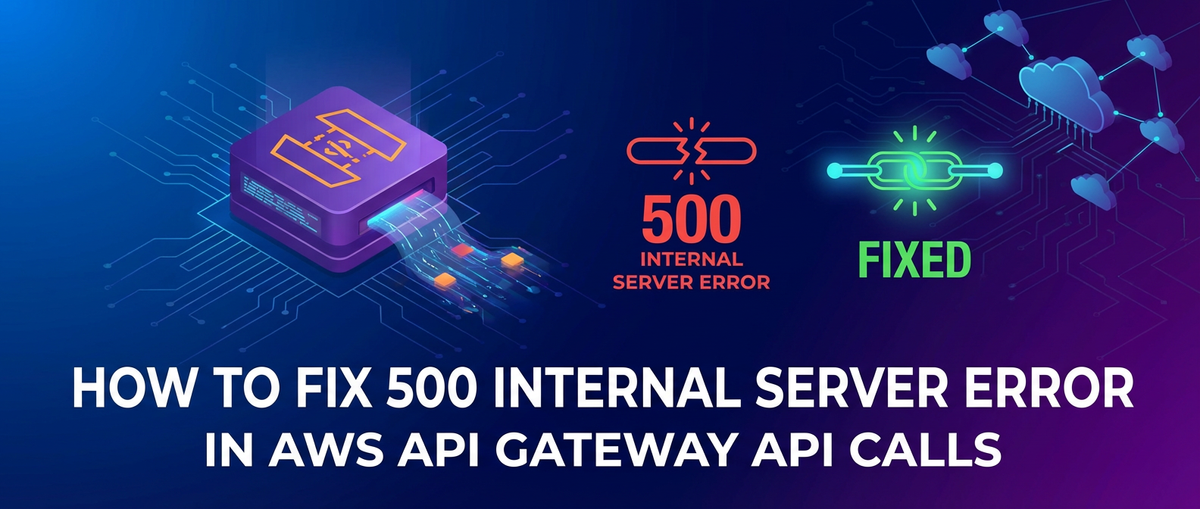


The digital world thrives on seamless communication between services, and at the heart of much of this interaction lies the Application Programming Interface (API). APIs are the fundamental building blocks that allow applications to talk to each other, forming the backbone of modern distributed systems, microservices architectures, and serverless applications. When these critical communication channels falter, the impact can range from minor user inconvenience to complete system outages, making the ability to diagnose and resolve issues paramount.
One of the most elusive and frustrating errors developers encounter is the "500 Internal Server Error." While its meaning is straightforward – something went wrong on the server – its root cause can be anything but. In the context of AWS API Gateway, this generic error message takes on even greater complexity, as API Gateway itself acts as a sophisticated gateway between your clients and your backend services. It's a critical api gateway that handles request routing, authentication, authorization, throttling, and a myriad of other functions before a request even reaches your primary logic. This means a 500 error could originate from API Gateway's internal processes, or it could be a symptom of a problem deep within your integrated backend.
This comprehensive guide aims to demystify the 500 Internal Server Error when it occurs during AWS API Gateway API calls. We will embark on a detailed journey, exploring the common culprits, providing actionable debugging strategies, and outlining robust solutions to ensure your APIs remain robust, reliable, and responsive. Understanding the intricacies of API Gateway's role and its various integration types is the first step toward effectively taming these frustrating server errors and maintaining the health of your api ecosystem.
Understanding AWS API Gateway's Pivotal Role in API Management
Before delving into troubleshooting, it's crucial to grasp what AWS API Gateway does and why it's so central to modern api architectures. AWS API Gateway is a fully managed service that makes it easy for developers to create, publish, maintain, monitor, and secure APIs at any scale. It acts as the "front door" for applications to access data, business logic, or functionality from your backend services.
Imagine API Gateway as a highly sophisticated air traffic controller for your API requests. It receives incoming requests from clients (web browsers, mobile apps, other services), performs various checks and transformations, and then routes them to the appropriate backend service. These backend services can be anything from AWS Lambda functions, HTTP endpoints on EC2 instances or containers, AWS Step Functions, Kinesis streams, or even other AWS services.
The power of API Gateway lies in its ability to abstract away the complexities of backend integration, offering features such as:
- Traffic Management: Throttling, caching, and request/response transformation.
- Security: Authentication (IAM, Cognito User Pools, Custom Authorizers), authorization, and DDoS protection via AWS WAF integration.
- Monitoring: Integration with CloudWatch for logs and metrics.
- Resilience: Retry mechanisms and error handling.
- Lifecycle Management: Versioning, deployment stages, and custom domain names.
Given this extensive functionality, a 500 Internal Server Error can arise from numerous points within the API Gateway's processing pipeline or from the interaction with its integrated backend. Pinpointing the exact source requires a methodical approach, leveraging the diagnostic tools AWS provides.
Deconstructing the 500 Internal Server Error in API Gateway
A 500 Internal Server Error is a generic HTTP status code indicating that the server encountered an unexpected condition that prevented it from fulfilling the request. In the context of API Gateway, it's vital to distinguish between two primary scenarios where a 500 error might originate:
- API Gateway-Generated 500 Errors: These errors occur before the request even successfully reaches your backend integration or are generated by API Gateway itself when it fails to process a response from the backend. This could be due to misconfigurations within API Gateway, internal service limits, or issues during request/response transformation.
- Backend-Generated 500 Errors: These errors are returned by your actual backend service (e.g., Lambda function, EC2 instance, external HTTP endpoint) and are simply passed through by API Gateway. While API Gateway correctly forwards the backend's error, the client still sees it as originating from the API call to the gateway.
The initial challenge in troubleshooting is determining which of these two categories your 500 error falls into. CloudWatch Logs will be your primary tool for this crucial distinction.
Common Causes of 500 Internal Server Errors in AWS API Gateway and Their Solutions
Let's dive into the detailed exploration of common causes for 500 errors and their respective solutions. Each section will provide an in-depth understanding, diagnostic steps, and remedial actions.
1. Backend Integration Failure or Misconfiguration
This is arguably the most common source of 500 errors. If API Gateway cannot successfully invoke or communicate with its designated backend, or if the backend itself fails, a 500 error will almost certainly be returned to the client.
Causes:
- Lambda Function Invocation Errors:
- Lambda Timeout: The Lambda function takes longer than its configured timeout period to execute. API Gateway's integration timeout (default 29 seconds) can also be shorter than Lambda's, causing an API Gateway timeout before Lambda even finishes.
- Lambda Unhandled Exceptions: The Lambda function code throws an unhandled exception, causing the invocation to fail.
- Lambda Permissions: API Gateway lacks the necessary
lambda:InvokeFunctionpermission to call the specified Lambda function. - Lambda Concurrency Issues: The Lambda function runs out of available concurrency, leading to throttled invocations.
- Cold Starts: While usually manifesting as increased latency, extreme cold starts or configuration issues during cold starts can sometimes contribute to timeouts.
- HTTP/VPC Link Integration Issues:
- Unreachable Endpoint: The HTTP endpoint (e.g., on an EC2 instance, ECS container, or external service) is down, incorrect, or inaccessible from API Gateway. This could be due to network configurations (Security Groups, Network ACLs, Route Tables) or the backend service simply not running.
- SSL/TLS Handshake Errors: If the backend uses HTTPS, issues with certificate validity, trust stores, or TLS versions can prevent a successful connection.
- Backend Timeout: The backend service takes too long to respond, exceeding API Gateway's integration timeout.
- DNS Resolution Issues: The hostname for the backend cannot be resolved by API Gateway.
- VPC Link Configuration: If using a VPC Link for private integrations, the VPC Link itself might be misconfigured, pointing to incorrect NLBs, or the security groups associated with the NLB/target instances might be blocking traffic.
Diagnosis:
- Check API Gateway CloudWatch Logs (Execution Logs): This is your primary diagnostic tool. Enable detailed CloudWatch logging for your API Gateway stage. Look for log entries related to the specific request that returned a 500.
- For Lambda integrations, search for "Execution failed due to an internal server error" followed by details about the Lambda invocation failure (e.g., "Lambda.Unknown" errors, timeout messages, or permission denied messages).
- For HTTP/VPC Link integrations, look for messages indicating connection errors, timeouts (e.g., "Endpoint response headers too large" or "Integration response timeout"), or unreachable host errors.
- Check Backend Logs:
- Lambda: Go to the Lambda function's monitoring tab in the AWS Console, then click "View logs in CloudWatch." Look for error messages, stack traces, or timeout messages specific to your function's execution.
- HTTP/VPC Link: Access the logs of your backend server (e.g., Nginx, Apache logs, application logs, container logs). Check if the request even reached your server and what error it returned. For VPC Link, also check Network Load Balancer (NLB) logs if enabled, and the target group health checks.
- API Gateway Metrics: In the API Gateway console, go to the "Stages" section, select your stage, and then click on "Logs/Tracing." View the metrics graphs for 5xx errors, latency, and integration latency. Spikes in "IntegrationError" or high "IntegrationLatency" can point towards backend issues.
Solutions:
- Lambda Integration:
- Timeouts: Increase the Lambda function's timeout and/or API Gateway's integration timeout. API Gateway's maximum integration timeout is 29 seconds. If Lambda needs more, consider asynchronous invocation patterns or direct client-to-Lambda invocation for long-running tasks.
- Unhandled Exceptions: Review your Lambda code to ensure all potential error paths are gracefully handled and that a valid response format is always returned. Use
try-catchblocks effectively. - Permissions: Add the necessary
lambda:InvokeFunctionpermission to API Gateway's IAM role or resource-based policy on the Lambda function. The API Gateway console usually offers to do this automatically when setting up the integration. Verify the resource policy on the Lambda function. - Concurrency: Check Lambda concurrency metrics in CloudWatch. Increase the reserved concurrency for the function if necessary, or optimize your function to use fewer resources.
- HTTP/VPC Link Integration:
- Endpoint Reachability:
- Verify the URL/IP address in the API Gateway integration request.
- Check Security Groups for the API Gateway (if using regional) or the backend service/NLB. Ensure inbound rules allow traffic from API Gateway's source IPs (for public HTTP) or the VPC Link's ENI (for private HTTP/VPC Link).
- Check Network ACLs, Route Tables, and Subnet configurations.
- Ping/curl the backend endpoint directly from an EC2 instance in the same VPC (if applicable) to isolate network issues.
- SSL/TLS: Ensure your backend's SSL certificate is valid and trusted. API Gateway trusts common public CAs by default. For private CAs, you might need to configure trust stores.
- Backend Timeout: Optimize your backend service for faster responses. If impossible, consider asynchronous patterns.
- VPC Link:
- Verify the Target Group associated with your NLB has healthy targets.
- Ensure the Security Group on your backend instances allows traffic from the NLB.
- Confirm the VPC Link itself is associated with the correct NLB.
- Ensure the API Gateway deployment stage is configured to use the VPC Link.
- Endpoint Reachability:
2. Mapping Templates and Data Transformation Errors
API Gateway can transform the request body and parameters before sending them to the backend, and transform the backend response before sending it back to the client. This is done using Velocity Template Language (VTL) mapping templates. Errors in these templates can lead to 500 errors.
Causes:
- Syntax Errors in VTL: Malformed VTL syntax can prevent API Gateway from processing the request or response.
- Invalid Data Access: Attempting to access non-existent fields in the request or response body, or using incorrect JSONPath expressions.
- Schema Mismatch: The transformed payload doesn't conform to what the backend expects or what API Gateway expects from the backend's response, leading to parsing failures.
- Complex Logic Failures: Overly complex VTL logic can sometimes result in unexpected runtime errors within API Gateway's transformation engine.
Diagnosis:
- API Gateway CloudWatch Logs (Execution Logs): Look for log entries that explicitly mention issues with request/response mapping or template processing errors. These logs often include specific VTL parsing errors or details about failed transformations.
- Test Invoke in Console: Use the "Test" feature in the API Gateway console for the specific method. This often provides detailed error messages for mapping template issues, showing the exact point of failure in the transformation process. You can see the "Request body" and "Response body" after transformation.
- Inspect Mapping Templates: Carefully review your
Integration RequestandIntegration Responsemapping templates in the API Gateway console.
Solutions:
- Simplify VTL: Reduce complexity where possible. Test incremental changes.
- Validate VTL Syntax: Use online VTL validators or carefully review the AWS documentation for VTL.
- Check Data Paths: Double-check JSONPath expressions (
$input.body.someField,$input.params().querystring.paramName) to ensure they correctly reference existing data. - Use
$and#Correctly: Understand the difference between$input.body(raw string) and$input.json('$')(parsed JSON object). - Default Values and Error Handling in VTL: Use
#ifdirectives to check for the existence of fields before attempting to access them, providing default values or graceful error handling within the template itself. - Test Extensively: Thoroughly test your mapping templates with various valid and invalid inputs using the "Test" feature in the API Gateway console.
3. Authorization and Authentication Errors (Leading to 500s)
While authorization errors often manifest as 401 (Unauthorized) or 403 (Forbidden), there are scenarios where a misconfigured authorizer or a systemic failure in the authentication process can result in a 500 error.
Causes:
- Lambda Authorizer Execution Failure:
- Authorizer Lambda Timeout: The Lambda authorizer function exceeds its configured timeout.
- Authorizer Lambda Unhandled Exception: The authorizer function throws an unhandled error, failing to return a valid IAM policy.
- Authorizer Lambda Permissions: API Gateway lacks permission to invoke the authorizer Lambda.
- Invalid Policy Format: The authorizer returns an IAM policy in an incorrect format that API Gateway cannot parse.
- Cold Starts: Similar to backend Lambda integrations, extreme cold starts can lead to timeouts.
- Cognito User Pools Authorizer Issues:
- Invalid Configuration: Incorrect User Pool ID, Client ID, or region specified.
- Token Validation Issues: Problems validating the JWT token (e.g., token expired, invalid signature, incorrect issuer). While often a 401, underlying service issues can escalate.
- IAM Authorizer Misconfigurations: If an IAM policy intended to grant access is incorrectly structured or referencing non-existent resources, it can sometimes cause internal processing failures.
Diagnosis:
- API Gateway CloudWatch Logs (Execution Logs): Look for messages related to authorizer failures, Lambda invocation errors for the authorizer, or policy parsing issues.
- Lambda Authorizer Logs: If using a Lambda authorizer, check its specific CloudWatch logs for errors, timeouts, or unexpected behavior.
- Test Invoke: The API Gateway console's "Test" feature provides feedback on authorizer invocation results.
- Cognito User Pool Status: Verify the health and configuration of your Cognito User Pool.
Solutions:
- Lambda Authorizer:
- Optimize Code & Timeouts: Ensure the authorizer function is lightweight and responds quickly. Adjust its timeout.
- Error Handling: Implement robust error handling in the authorizer to always return a valid policy or a specific error response.
- Permissions: Grant API Gateway
lambda:InvokeFunctionpermission to the authorizer Lambda. - Policy Format: Ensure the returned IAM policy adheres strictly to the required JSON format as documented by AWS.
- Cognito User Pools Authorizer:
- Verify Configuration: Double-check the User Pool ID, Client ID, and region.
- Token Integrity: Ensure clients are sending valid, unexpired JWT tokens obtained from the correct User Pool.
- IAM Authorizer:
- Policy Review: Carefully audit the IAM policies attached to the invoking roles/users and the API Gateway resource policies. Use the IAM policy simulator to test permissions.
4. Throttling and Quota Limits
API Gateway has default service quotas and can also be configured with usage plans and throttling limits. Exceeding these limits can result in 429 Too Many Requests errors, but under certain stress scenarios or specific internal API Gateway limits, they can manifest as 500 errors.
Causes:
- Account-Level Throttling: AWS imposes default soft limits on requests per second (RPS) for API Gateway at the account level (e.g., 10,000 RPS, burst up to 5,000 RPS). Exceeding these can lead to API Gateway internally throttling requests, sometimes leading to 500s instead of 429s if the internal system itself is under strain.
- Integration Concurrency Limits: While distinct from account-level throttling, if a particular backend (especially a Lambda function with limited concurrency) is overwhelmed, API Gateway might struggle to manage the backlog, leading to 500s.
- Backend Timeouts During High Load: A backend struggling with high load might start timing out more frequently, generating a cascade of 500 errors.
Diagnosis:
- CloudWatch Metrics for API Gateway:
- Monitor the
Countmetric (total requests). - Monitor
5XXErrorand4XXErrormetrics. A high rate of 500s coinciding with highCountcan indicate stress. - Check the
ThrottledRequestsmetric, even if you're seeing 500s, as throttling might be an underlying cause.
- Monitor the
- CloudWatch Metrics for Backend:
- Lambda: Check
Invocations,Errors,Throttles, andDurationmetrics. A high number of throttles or increasing duration might indicate a stressed backend. - HTTP/VPC Link: Monitor CPU utilization, memory, network I/O, and concurrent connections on your backend instances/containers.
- Lambda: Check
Solutions:
- Increase Service Quotas: If hitting account-level limits, request a service quota increase from AWS Support.
- Configure Usage Plans and Throttling: Implement usage plans with configured throttling and quotas to manage client-side request rates and protect your backend. This can help prevent backend overload and distribute traffic more gracefully, ideally returning 429s instead of 500s.
- Scale Backend Services:
- Lambda: Increase reserved concurrency or optimize function for faster execution.
- HTTP/VPC Link: Auto-scale your EC2 instances, use larger instance types, or increase the number of ECS tasks/pods.
- Implement Caching: API Gateway caching can significantly reduce the load on your backend, especially for idempotent requests.
- Implement Exponential Backoff and Retries: Clients should implement retry logic with exponential backoff for 500 errors, giving your system time to recover.
5. Service Limits and Internal API Gateway Constraints
Beyond general throttling, API Gateway itself has various internal limits on aspects like payload size, header size, path length, and the number of integrations. Exceeding these specific constraints can sometimes trigger a 500 error.
Causes:
- Payload Size Exceeded: The request body or response body exceeds the maximum allowed size (e.g., 10 MB for integration payload).
- Header Size/Count Exceeded: Too many headers or headers that are too large in total size.
- Path Length/Query String Length: Extremely long path segments or query strings.
- Too Many Integrations/Resources: While less common for a single request, exceeding limits on the number of resources or methods in an API can lead to deployment issues or subtle runtime failures.
Diagnosis:
- API Gateway CloudWatch Logs (Execution Logs): Look for specific error messages indicating payload size limits, header limits, or other structural constraint violations.
- Inspect Request/Response: If you suspect a size limit, inspect the actual request being sent by the client and the response being generated by the backend (if it reaches there). Use tools like curl with verbose output or browser developer tools.
Solutions:
- Reduce Payload Size: For large payloads, consider using Amazon S3 for storage and passing S3 object keys through API Gateway. For responses, optimize data structures.
- Optimize Headers: Only send necessary headers.
- Simplify Paths/Query Strings: Redesign your API to have shorter, more meaningful paths and limit the amount of data passed in query strings.
- Architectural Review: If hitting fundamental architectural limits, consider splitting large APIs into smaller, more manageable services.
6. CORS Configuration Issues (Indirect 500s)
While Cross-Origin Resource Sharing (CORS) errors typically result in 4xx status codes (e.g., 400 Bad Request or a network error in the browser console), there are edge cases where a misconfigured CORS setup, particularly with complex preflight requests, could indirectly lead to a 500 error if API Gateway's internal handling of the OPTIONS method fails unexpectedly.
Causes:
- Incorrect
OPTIONSMethod Configuration: If theOPTIONSmethod for CORS is not properly configured (e.g., incorrectAccess-Control-Allow-Origin,Access-Control-Allow-Headers,Access-Control-Allow-Methodsvalues) or points to a non-existent integration, it might lead to an unexpected internal error, though this is rare. - Backend CORS Mismatch: The backend's CORS headers don't align with API Gateway's configuration, leading to a browser error that might appear as a generic failure if the preflight itself fails.
Diagnosis:
- Browser Developer Tools: Check the network tab in your browser's developer tools. Look for the
OPTIONSrequest. Does it succeed? What are its response headers? - API Gateway CloudWatch Logs: Inspect logs for the
OPTIONSmethod specifically.
Solutions:
- Enable CORS in API Gateway: The easiest way is to use the "Enable CORS" button in the API Gateway console for your resource.
- Verify Headers: Ensure
Access-Control-Allow-Origin,Access-Control-Allow-Headers, andAccess-Control-Allow-Methodsare correctly configured to allow requests from your client's origin. Using*for testing is common, but specify exact origins in production. - Backend Alignment: Ensure your backend also correctly handles CORS headers if the request is proxied through API Gateway.
7. Endpoint Mismatches and DNS Resolution Issues
Sometimes, the simplest errors are the hardest to spot. A typo in an endpoint URL or a problem with DNS resolution can manifest as a 500 error because API Gateway cannot reach the intended backend.
Causes:
- Incorrect Endpoint URL: A simple typo in the HTTP integration URL.
- DNS Resolution Failure: The hostname for the backend cannot be resolved by API Gateway's internal DNS resolvers. This could be due to invalid domain names, private DNS zones not accessible, or temporary DNS outages.
- Private DNS Mismatch: For private integrations or VPC Link, if DNS is not correctly configured to resolve private endpoints (e.g., using private hosted zones in Route 53), API Gateway won't find the target.
Diagnosis:
- API Gateway CloudWatch Logs: Look for messages like "hostname could not be resolved" or "connection refused."
- Ping/Curl from VPC: If your backend is in a VPC, try to
pingorcurlthe backend endpoint from an EC2 instance within the same VPC (or a test instance with appropriate network access) to verify network connectivity and DNS resolution. - Review Integration Configuration: Double-check the HTTP endpoint URL configured in your API Gateway method's integration request.
Solutions:
- Verify Endpoint URL: Carefully re-enter or copy-paste the correct endpoint URL.
- Check DNS:
- Ensure the domain name is registered and publicly resolvable if it's an external endpoint.
- For private endpoints, ensure your VPC's DNS settings are configured correctly (e.g.,
enableDnsSupportandenableDnsHostnamesare true) and that any Route 53 private hosted zones are correctly associated with the VPC. - If using third-party DNS, ensure it's propagating correctly.
8. Integration and Request Timeouts
API Gateway has two primary timeout settings that are critical to understand:
- API Gateway Integration Timeout: The maximum time API Gateway will wait for a response from your backend integration. The default for most integrations is 29 seconds, with some exceptions. This cannot be configured higher than 29 seconds.
- Client Request Timeout: This is set by the client making the API call. If the client's timeout is shorter than API Gateway's integration timeout, the client might receive a timeout error before API Gateway even processes the backend's response.
Causes:
- Backend Slowness: Your Lambda function or HTTP endpoint takes longer than 29 seconds (or your custom integration timeout) to process the request and return a response.
- Network Latency: High network latency between API Gateway and the backend, or between the client and API Gateway, can consume a significant portion of the timeout budget.
Diagnosis:
- API Gateway CloudWatch Logs (Execution Logs): Look for "Integration response timeout" messages.
- API Gateway Metrics: Monitor "IntegrationLatency" and "Latency" metrics in CloudWatch. A high integration latency that frequently approaches your configured timeout is a strong indicator.
- Backend Logs/Metrics: Check your backend's duration metrics (Lambda Duration) or application logs for processing times.
Solutions:
- Optimize Backend Performance: This is the most effective solution. Profile your Lambda function or backend service to identify bottlenecks and optimize code or queries.
- Increase Backend Timeout: For Lambda, you can increase its specific function timeout up to 15 minutes. However, remember API Gateway's integration timeout is capped at 29 seconds.
- Asynchronous Processing: For long-running tasks, switch to an asynchronous pattern. The client can trigger a backend process via API Gateway and then poll for results or receive a webhook notification.
- API Gateway Caching: If applicable, cache responses to reduce the number of requests hitting the backend.
- Consider AWS Step Functions: For complex, multi-step long-running workflows, Step Functions can be orchestrated by API Gateway, offering robust state management and error handling beyond the 29-second limit.
9. IAM Permissions for API Gateway Service Role
If API Gateway needs to interact with other AWS services (like invoking a Lambda function, putting items into SQS, or accessing Kinesis streams directly via service integrations), it often requires an IAM role with specific permissions. Incorrectly configured or missing permissions for this service role can lead to 500 errors.
Causes:
- Missing
lambda:InvokeFunction: When integrating with Lambda. - Missing Kinesis/SQS Permissions: For AWS service integrations.
- Insufficient Permissions for Resource Access: Any situation where API Gateway is configured to act on behalf of itself to access an AWS resource.
Diagnosis:
- API Gateway CloudWatch Logs (Execution Logs): Look for "Access Denied" or "Permissions" related errors. These are often explicit.
- IAM Policy Simulator: Use the AWS IAM Policy Simulator to test if the IAM role associated with your API Gateway integration has the necessary permissions to perform the required actions on the target resources.
- Review IAM Role: Inspect the IAM role attached to your API Gateway integration.
Solutions:
- Update IAM Role Policy: Add the necessary permissions to the IAM role that API Gateway assumes for the integration. Ensure the resource ARN in the policy is correct.
- Verify Trust Policy: Ensure the IAM role's trust policy allows
apigateway.amazonaws.comto assume the role.
10. API Gateway Deployment Issues
While less common for runtime 500s, issues during the deployment of an API Gateway can lead to misconfigurations that only manifest at runtime.
Causes:
- Incomplete Deployment: A deployment might fail partially, leaving the API in an inconsistent state.
- Stage Variable Misconfiguration: Stage variables used in integration URIs or mapping templates might be incorrect or missing for a specific stage.
- Rollback Failure: A failed rollback attempt might leave a broken version deployed.
Diagnosis:
- API Gateway Console "Deploy API": Check the deployment history and status.
- Stage Variable Review: Verify stage variables are correctly defined and referenced.
- CloudWatch Logs: Any deployment issues might generate internal service errors that surface in CloudWatch logs.
Solutions:
- Redeploy API: Try redeploying the API to the affected stage.
- Review Stage Variables: Double-check the values and references of any stage variables.
- Version Control: Always version control your OpenAPI/Swagger definitions and deploy via CI/CD pipelines to ensure consistent deployments.
Summary Table of Common 500 Error Causes and Initial Checks
To quickly guide your troubleshooting, here's a summary table outlining the most frequent causes and your first steps:
| Category | Common Causes | Initial Diagnostic Steps | Potential Solutions |
|---|---|---|---|
| Backend Integration | Lambda Timeout/Error, HTTP Unreachable/Timeout | API Gateway Execution Logs, Backend (Lambda/App) Logs, IntegrationLatency metric |
Adjust timeouts, fix backend code, verify network/security groups, check VPC Link health |
| Mapping Templates | VTL Syntax Error, Invalid Data Access | API Gateway Execution Logs, Test feature in Console |
Correct VTL syntax, validate JSONPaths, add default values |
| Authorization | Authorizer Lambda Timeout/Error, Invalid Policy | API Gateway Execution Logs, Authorizer Lambda Logs, Test feature |
Optimize authorizer code, correct policy format, grant permissions |
| Throttling/Limits | Account-level Throttling, Integration Concurrency | CloudWatch 5XXError, ThrottledRequests metrics, Backend Throttles |
Request quota increase, implement usage plans, scale backend |
| Service Constraints | Payload/Header Size Exceeded, Path Length | API Gateway Execution Logs, Inspect Request/Response payloads | Reduce payload/header size, simplify API structure |
| Endpoint/DNS | Incorrect URL, DNS Resolution Failure | API Gateway Execution Logs (hostname errors), Ping/Curl from VPC | Correct URL, verify DNS configuration, check VPC network settings |
| IAM Permissions | Missing lambda:InvokeFunction, Access Denied |
API Gateway Execution Logs (Access Denied), IAM Policy Simulator |
Update IAM role policy, verify trust policy |
APIPark is a high-performance AI gateway that allows you to securely access the most comprehensive LLM APIs globally on the APIPark platform, including OpenAI, Anthropic, Mistral, Llama2, Google Gemini, and more.Try APIPark now! 👇👇👇
Advanced Debugging Strategies and Tools
Beyond the initial checks, effective troubleshooting of 500 errors in API Gateway requires a systematic approach using AWS's powerful diagnostic tools.
1. AWS CloudWatch Logs (The Debugging Lifeline)
CloudWatch Logs is your most critical tool. Ensure detailed logging is enabled for your API Gateway stage.
- Execution Logs: These logs provide incredibly granular detail about each request's journey through API Gateway. For a 500 error, you'll want to look for specific error messages at different stages:
- Authorization: Errors from Lambda authorizers or IAM.
- Request Mapping: Issues during VTL transformation.
- Integration Request: Problems connecting to or invoking the backend.
- Integration Response: Errors receiving or transforming the response from the backend.
- Method Response: Issues sending the final response back to the client.
- Request ID: Each request has a unique
x-amzn-RequestIdheader. Use this to filter logs and trace a single request's complete path.
- Access Logs: These provide a high-level overview of requests, including status codes, latency, and request source. Useful for identifying patterns and overall health but less detailed for root cause analysis of a specific 500.
How to use: 1. Navigate to API Gateway in the AWS Console. 2. Select your API, then "Stages." 3. Choose the stage you're debugging. 4. Go to the "Logs/Tracing" tab. 5. Ensure "CloudWatch logs" is enabled and "Log level" is set to INFO or DEBUG (for granular detail). If DEBUG is too verbose, start with INFO. 6. Click the link to your CloudWatch Log Group. 7. Filter logs by x-amzn-RequestId or keywords like "ERROR," "failed," "timeout," "denied."
2. AWS X-Ray Tracing
For complex integrations involving multiple AWS services (API Gateway -> Lambda -> DynamoDB, for example), X-Ray is invaluable. It provides an end-to-end view of requests as they travel through your application, visualizing components and identifying performance bottlenecks or points of failure.
How to use: 1. Enable X-Ray tracing for your API Gateway stage (under "Logs/Tracing" tab). 2. Enable X-Ray tracing for your backend Lambda functions or other supported services. 3. Make a problematic API call. 4. Go to the X-Ray console and look at "Traces." You should see a trace for your API call. 5. Analyze the trace map and timeline. It will highlight segments that failed or timed out, and show the exact service that returned an error, including 500s. This helps differentiate between API Gateway-generated 500s and backend-generated 500s very clearly.
3. API Gateway Console "Test" Feature
The "Test" feature within the API Gateway console for a specific method is incredibly useful for isolating issues, particularly with mapping templates and authorizers.
How to use: 1. Navigate to API Gateway -> your API -> Resources -> your method. 2. Click the "Test" tab. 3. Provide the necessary path parameters, query string parameters, headers, and a request body. 4. Click "Test." 5. The results pane will show: * Request: What API Gateway received. * Response: The status code and body returned. * Logs: Detailed execution logs for that specific test invocation, including mapping template transformations, authorizer results, and integration responses. This provides immediate feedback without having to comb through CloudWatch.
4. Backend Service Logs and Metrics
Never forget to check your backend logs and metrics, even if API Gateway logs point towards an API Gateway issue. Sometimes, a backend issue can cascade into an API Gateway failure.
- Lambda: CloudWatch Logs for the specific Lambda function,
Duration,Errors,Throttlesmetrics. - EC2/Containers: Application logs (e.g., Nginx, Apache, Node.js, Python app logs), container logs (ECS, EKS), host-level metrics (CPU, Memory, Disk I/O, Network).
- Databases: Query performance, error logs, connection pooling issues.
5. Local Testing and Replication
If possible, try to replicate the problematic API call and its backend logic in a local development environment. This allows for faster iteration and debugging using familiar tools.
- Use
curlor Postman to make direct calls to your API Gateway, observing headers and response bodies. - If your backend is a Lambda, use AWS SAM CLI or Serverless Framework to invoke your Lambda function locally.
- If it's an HTTP endpoint, test it directly without API Gateway in the path.
6. Mentioning API Management Platforms for Enhanced Visibility
For those managing a multitude of APIs, especially across different AI models and REST services, tools that offer comprehensive lifecycle management and detailed logging can be invaluable. The complexity of modern API ecosystems, where a single user interaction might trigger a cascade of calls through multiple APIs and microservices, necessitates robust management solutions.
Products like APIPark provide an open-source AI gateway and API management platform that centralizes API gateway governance. It offers features like end-to-end API lifecycle management, quick integration of over 100 AI models, and powerful data analysis, which can significantly aid in preventing and diagnosing complex issues. By consolidating API management, offering detailed call logging, and providing analytical insights, such platforms empower development and operations teams to gain clearer visibility into their API health and proactively address potential problems that could lead to 500 errors.
Proactive Measures to Prevent 500 Internal Server Errors
Prevention is always better than cure. By implementing best practices and robust monitoring, you can significantly reduce the occurrence of 500 errors.
1. Robust Error Handling in Backend Services
- Catch Exceptions: Ensure your Lambda functions and other backend services gracefully catch and handle all foreseeable exceptions. An unhandled exception is a guaranteed 500 error.
- Meaningful Error Responses: When an error occurs in your backend, return a descriptive error message and an appropriate HTTP status code (e.g., 400 for bad input, 404 for not found, 403 for forbidden) rather than letting it default to a generic 500. This provides better debugging clues for API Gateway and the client.
- Input Validation: Validate all incoming data at the earliest possible point. Reject invalid requests with a 400 Bad Request before they can cause internal errors.
2. Comprehensive Monitoring and Alerting
- CloudWatch Alarms: Set up CloudWatch alarms for critical metrics:
5XXError(for API Gateway and Lambda) – trigger when the error rate exceeds a certain threshold.IntegrationError(API Gateway) – specific to integration failures.ThrottledRequests(API Gateway and Lambda).Duration(Lambda) – alert if execution time consistently approaches timeout limits.- Backend CPU, Memory, Network utilization.
- Anomaly Detection: Use CloudWatch's anomaly detection feature to automatically flag unusual spikes in 500 errors or other metrics.
- Dashboarding: Create CloudWatch dashboards to visualize API Gateway and backend health at a glance.
3. API Gateway Caching
- For idempotent GET requests, enable API Gateway caching. This reduces the load on your backend and provides faster responses, preventing timeouts and reducing the chances of backend-induced 500s.
4. Implement Usage Plans and Throttling
- Protect your API Gateway and backend from being overwhelmed by configuring usage plans with rate limits and quotas. This ensures that even under heavy load, your system returns 429 errors (Too Many Requests) rather than collapsing into 500s.
5. Canary Deployments
- Use API Gateway's canary deployment feature (or stages with weighted routing) to gradually roll out changes. This allows you to test new versions with a small percentage of live traffic before a full rollout, catching potential issues before they impact all users.
6. Infrastructure as Code (IaC)
- Manage your API Gateway configuration (and related AWS resources like Lambda functions, IAM roles, VPC Links) using IaC tools like AWS CloudFormation, AWS SAM, or Terraform. This ensures consistent, repeatable, and version-controlled deployments, reducing manual configuration errors.
7. Regular Security and Permission Audits
- Periodically review IAM roles and policies to ensure API Gateway has exactly the permissions it needs – no more, no less. Incorrect permissions can be a source of unexpected failures.
8. Optimize Backend Performance
- Continuously profile and optimize your backend services. Faster execution reduces the risk of timeouts and improves overall system resilience under load.
9. Test Thoroughly
- Implement unit, integration, and end-to-end tests for your API Gateway and backend. Automated tests can catch many potential issues before they reach production. Simulate high load using tools like JMeter or Artillery.
Conclusion
The 500 Internal Server Error in AWS API Gateway can be a daunting challenge, but it is far from insurmountable. By understanding the multi-faceted nature of API Gateway's role, systematically investigating potential causes, and leveraging AWS's powerful diagnostic tools—primarily CloudWatch Logs and X-Ray—you can efficiently pinpoint the root cause.
Remember that a 500 error is often a symptom, not the problem itself. It's a signal that something unexpected occurred either within API Gateway's processing pipeline or, more frequently, within the backend service it integrates with. Differentiating between these origins is the first and most critical step in effective troubleshooting.
Furthermore, moving beyond reactive debugging to proactive prevention is key to building resilient and scalable API solutions. Implementing robust error handling, comprehensive monitoring and alerting, effective throttling, and thoughtful deployment strategies will significantly enhance the stability of your API gateway and the reliability of your entire api ecosystem. With a methodical approach and the right tools, you can transform the mystery of the 500 Internal Server Error into a manageable, solvable challenge, ensuring your applications continue to communicate seamlessly and effectively.
Frequently Asked Questions (FAQs)
Q1: What is the difference between a 500 error from API Gateway and a 500 error from my backend?
A1: A 500 error from API Gateway means the error originated within API Gateway's own processing (e.g., mapping template error, internal service issue, authorizer timeout). A 500 error from your backend means your integrated service (e.g., Lambda, HTTP endpoint) processed the request but returned a 500 status code, which API Gateway then passed through to the client. The key distinction is where the failure occurred. CloudWatch Execution Logs are essential for telling the difference. If the logs show "Execution failed due to an internal server error" without a clear indication of backend interaction, it's likely an API Gateway issue. If they show a successful integration call but the backend returned a 500, it's a backend issue.
Q2: What are the primary AWS tools I should use to debug a 500 Internal Server Error?
A2: The three most crucial AWS tools for debugging 500 errors in API Gateway are: 1. AWS CloudWatch Logs (Execution Logs): Provides detailed step-by-step logs of how API Gateway processed each request. 2. AWS X-Ray: Offers an end-to-end trace of requests across multiple services, visualizing where errors or latency occur. 3. API Gateway Console "Test" Feature: Allows you to simulate an API call and view immediate execution logs and responses directly within the console, especially useful for mapping template and authorizer issues.
Q3: My Lambda function takes longer than 29 seconds. How can I prevent 500 errors from API Gateway?
A3: API Gateway has a hard limit of 29 seconds for integration timeouts. If your Lambda function needs more time, you cannot directly increase this limit through API Gateway. Instead, you should redesign your architecture for asynchronous processing. The API Gateway can trigger the long-running Lambda (e.g., using Event invocation type for Lambda, or sending to SQS/Step Functions), immediately return a 202 Accepted status to the client, and then the client can poll for results or be notified via a webhook once the long-running process completes.
Q4: How can I ensure API Gateway has the correct permissions to invoke my backend Lambda function?
A4: When you configure a Lambda integration in the API Gateway console, it typically offers to add the necessary resource-based policy to your Lambda function automatically. If you're setting up the integration programmatically (e.g., via CloudFormation or SAM), you must ensure that the Lambda function's resource policy explicitly grants apigateway.amazonaws.com permission to invoke it. The policy will look something like {"Action": "lambda:InvokeFunction", "Principal": "apigateway.amazonaws.com", "Effect": "Allow", "SourceArn": "arn:aws:execute-api:REGION:ACCOUNT_ID:API_ID/*/*/METHOD_PATH"}.
Q5: What's the best way to prevent 500 errors proactively?
A5: Proactive prevention involves several best practices: 1. Robust Error Handling: Implement comprehensive try-catch blocks and return meaningful error messages/status codes from your backend. 2. Thorough Input Validation: Validate all client inputs to prevent unexpected backend behavior. 3. Comprehensive Monitoring & Alerting: Set up CloudWatch alarms for 5XX errors, integration errors, and backend performance metrics. 4. API Gateway Throttling & Usage Plans: Protect your API from being overwhelmed, leading to 429s instead of 500s. 5. Caching: Use API Gateway caching for idempotent requests to reduce backend load. 6. Canary Deployments: Gradually roll out changes to catch issues early. 7. Infrastructure as Code (IaC): Manage your API Gateway and backend configurations consistently.
🚀You can securely and efficiently call the OpenAI API on APIPark in just two steps:
Step 1: Deploy the APIPark AI gateway in 5 minutes.
APIPark is developed based on Golang, offering strong product performance and low development and maintenance costs. You can deploy APIPark with a single command line.
curl -sSO https://download.apipark.com/install/quick-start.sh; bash quick-start.sh

In my experience, you can see the successful deployment interface within 5 to 10 minutes. Then, you can log in to APIPark using your account.

Step 2: Call the OpenAI API.