How to Fix Keys on Flex 5: Quick Repair Guide
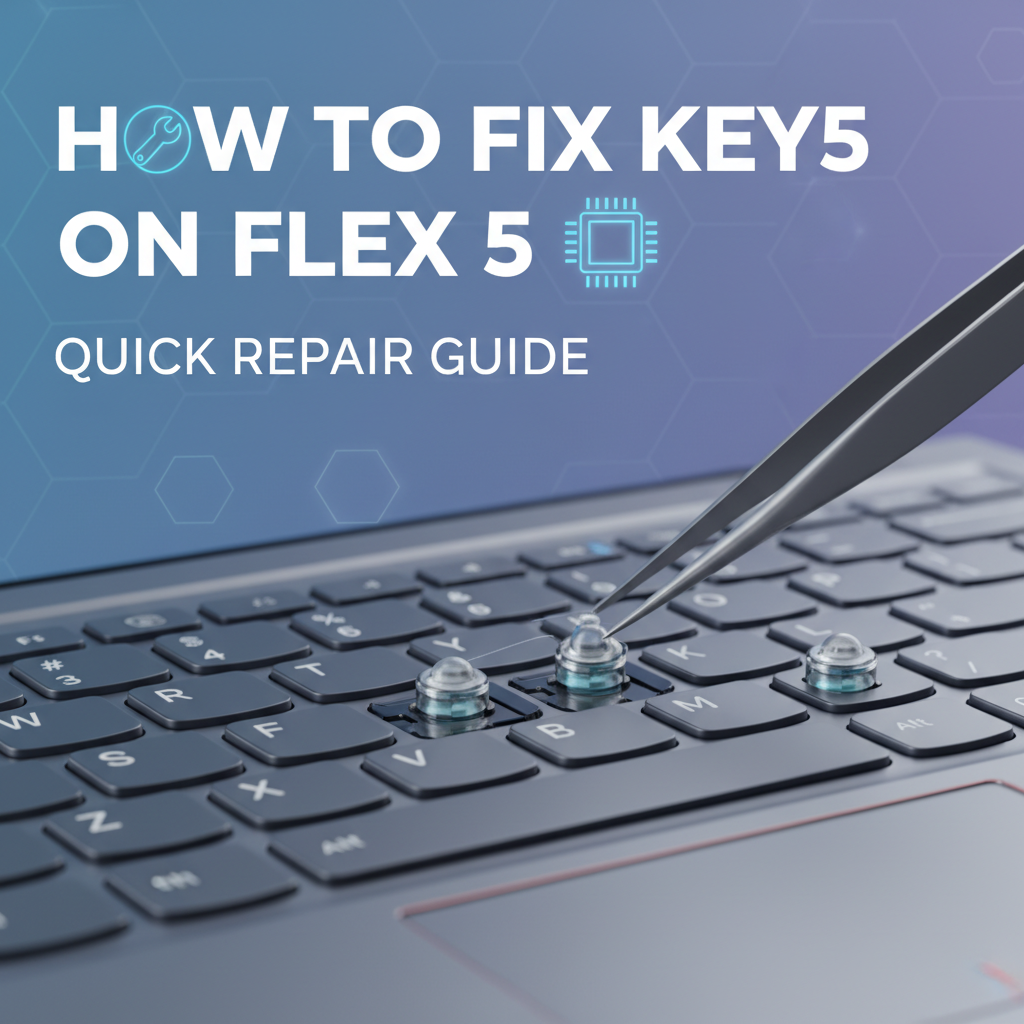


The rhythmic tap of fingers on a keyboard is the symphony of modern productivity, a seamless dance between human intent and digital execution. For owners of the versatile Lenovo Flex 5, its responsive touchscreen and convertible design make it a favorite for both work and play. However, even the most robust machines are susceptible to wear, tear, and the occasional mishap. When a key on your cherished Flex 5 decides to stop working, whether it's an unresponsive letter, a sticky number, or a rogue function key, it can bring your workflow to an abrupt and frustrating halt. This isn't just an inconvenience; it's a direct impediment to everything from composing emails to coding projects, transforming your sleek device into a source of exasperation.
A malfunctioning keyboard isn't necessarily a death knell for your laptop, nor does it always warrant an expensive trip to a professional repair shop. Many common keyboard issues on the Lenovo Flex 5, from minor stickiness to complete key failure, can often be diagnosed and remedied with a methodical approach and a few readily available tools. This comprehensive guide is designed to empower you, the Flex 5 owner, with the knowledge and steps necessary to troubleshoot and fix common keyboard problems. We'll navigate through simple diagnostic tests, delve into practical cleaning techniques, explore mechanical repairs for individual keys, and even touch upon the more advanced process of a full keyboard replacement, ensuring you have a clear path to restoring your Flex 5's keyboard to its full, functional glory. By the end of this guide, you'll be equipped not just with fixes, but with an understanding of your laptop's keyboard that will serve you well in preventing future issues and maintaining its longevity.
Understanding Your Lenovo Flex 5 Keyboard: Anatomy and Ailments
Before embarking on any repair journey, it's crucial to understand the very mechanism you're attempting to mend. The keyboard on your Lenovo Flex 5, like most modern laptop keyboards, utilizes a "chiclet" style design, characterized by flat, square keycaps with small gaps between them. Beneath each keycap lies a sophisticated, yet delicate, assembly that translates your physical press into an electrical signal.
At the heart of this mechanism are several key components:
- Keycap: The visible plastic cap with the letter or symbol printed on it, the part your finger directly interacts with.
- Scissor Mechanism: A two-piece plastic frame that provides stability and even pressure distribution for the keycap. It allows the keycap to move vertically and spring back into position smoothly, preventing wobbling.
- Rubber Dome: A small, flexible rubber cup located beneath the scissor mechanism. When the key is pressed, the dome collapses, pushing a conductive pad down onto the membrane circuit.
- Membrane Circuit: A multi-layered flexible circuit board containing conductive traces. When the rubber dome's pad makes contact, it bridges two traces, completing an electrical circuit and sending a signal to the keyboard controller.
The keyboard serves as your primary gateway to interact with the digital world of your Flex 5. When this critical input device falters, it creates a significant barrier to productivity, making the machine less of a tool and more of a frustration. Understanding these components helps in diagnosing the problem. Is it a broken keycap, a fractured scissor mechanism, a worn-out rubber dome, or something more insidious within the membrane circuit or the underlying electronics? Each component's failure manifests differently and requires a specific approach to repair.
Common causes of keyboard failure on a Flex 5 can typically be categorized as follows:
- Debris and Dust Accumulation: Tiny particles, crumbs, pet hair, and dust can work their way under keycaps, obstructing the scissor mechanism or preventing the rubber dome from fully depressing or rebounding. This is perhaps the most frequent culprit behind sticky or unresponsive keys.
- Liquid Spills: Even a small amount of liquid – coffee, water, soda – can wreak havoc. Liquids can cause sticky residues to form, corrode the delicate membrane circuit, short out electrical traces, or permanently damage the rubber domes, leading to widespread key failure or completely dead sections of the keyboard.
- Physical Damage: Forceful key presses, accidental drops, or impacts can break keycaps, snap scissor mechanisms, or bend the underlying membrane. This usually affects individual keys or a small cluster.
- Wear and Tear: Over time, the rubber domes can lose their elasticity, leading to keys that feel "mushy" or don't register presses consistently. Keycap legends can also wear off, but this is an aesthetic issue rather than a functional one.
- Software and Driver Issues: Less common for specific key failures but can affect the entire keyboard. Outdated drivers, corrupted system files, or conflicting software can prevent the operating system from correctly interpreting keyboard inputs.
By familiarizing yourself with these common failure points, you're already one step closer to accurately diagnosing the issue and selecting the most appropriate repair strategy for your Flex 5's keyboard. This foundational knowledge is paramount to a successful and efficient repair process.
Initial Diagnosis: Pinpointing the Problem's Root
Effective troubleshooting is a systematic process of elimination. Before you reach for any tools, you need to understand whether the problem is hardware-related (a physical defect with the key, mechanism, or circuit) or software-related (drivers, settings, operating system glitches). A thorough diagnosis will save you time and prevent unnecessary disassemblies.
Software vs. Hardware: The First Line of Inquiry
- Test in Different Applications/Browsers: If a key works in one program (e.g., Notepad) but not another (e.g., a web browser or specific game), the issue is almost certainly software-related to that application, not the keyboard itself. Try multiple applications to confirm.
- On-Screen Keyboard Test: Windows includes an "On-Screen Keyboard" (OSK) which can be accessed via
Start > Settings > Accessibility > Keyboardor by typing "osk" in the search bar. Use your mouse to click keys on the OSK. If the problematic key works correctly on the OSK, it points towards a physical keyboard issue. If it doesn't even register on the OSK when clicked, it suggests a deeper software or even operating system-level problem. - External Keyboard Test: This is perhaps the most definitive software/hardware diagnostic. Connect an external USB keyboard to your Flex 5. If all keys on the external keyboard function perfectly, it strongly indicates that your laptop's integrated keyboard has a hardware fault. If the external keyboard also exhibits the same issues, then the problem lies deeper within the operating system, drivers, or even the laptop's motherboard.
- Boot into Safe Mode: Safe Mode starts Windows with a minimal set of drivers and programs. If your keyboard works correctly in Safe Mode, it suggests that a third-party application or driver installed in your regular Windows environment is causing the conflict. To enter Safe Mode:
Start > Settings > System > Recovery > Advanced startup > Restart now. After restart, selectTroubleshoot > Advanced options > Startup Settings > Restart, then press4orF4for "Enable Safe Mode". - Driver Checks (Device Manager): Outdated or corrupted keyboard drivers can cause erratic behavior.
- Right-click the
Startbutton and selectDevice Manager. - Expand
Keyboards. - Right-click on your keyboard entry (often "Standard PS/2 Keyboard" or "HID Keyboard Device") and select
Update driver. Choose "Search automatically for updated driver software." - If no update is found, try
Uninstall device. Then restart your Flex 5. Windows will usually reinstall the driver automatically upon reboot. This can often resolve minor driver glitches.
- Right-click the
- BIOS/UEFI Test: The BIOS (Basic Input/Output System) or UEFI (Unified Extensible Firmware Interface) is firmware that initializes your hardware before the operating system loads. To access it, restart your Flex 5 and repeatedly press
F2,Fn+F2,Del, orEnter(check your specific Flex 5 model's manual for the correct key, as it can vary) immediately after pressing the power button. Once in the BIOS/UEFI settings, try navigating using your arrow keys and pressing other keys. If the problematic key still doesn't work here, it's almost certainly a hardware issue, as the BIOS operates independently of Windows drivers.
Specific Key vs. Multiple Keys vs. Entire Keyboard
The pattern of failure offers further clues:
- Single Key Failure: If only one key is unresponsive or sticky, it's highly likely to be a localized mechanical issue: debris under the keycap, a damaged scissor mechanism, or a faulty rubber dome.
- Multiple Contiguous Keys: If a row or block of keys fails simultaneously (e.g.,
QWERorASDF), it often points towards damage to a specific trace on the underlying membrane circuit, which connects those keys. Liquid damage is a prime suspect here. - Entire Keyboard Failure: If the entire keyboard stops working, but an external keyboard functions fine, the problem could be:
- A disconnected or improperly seated ribbon cable connecting the keyboard to the motherboard.
- A major driver issue (though less common for a complete failure).
- A fault with the keyboard controller chip on the motherboard.
By methodically working through these diagnostic steps, you'll gain a clear understanding of the nature of your keyboard problem, guiding your subsequent repair efforts. This critical phase prevents guesswork and ensures you're addressing the actual root cause, not just the symptoms.
| Problem Symptom | Initial Diagnosis | Likely Cause (Hardware) | Likely Cause (Software) | Recommended Action (Initial) |
|---|---|---|---|---|
| Single Key Unresponsive | Fails in all apps, OSK, BIOS. Works with external keyboard. | Debris, damaged scissor, worn rubber dome | (Unlikely) | Clean key, re-seat keycap |
| Single Key Sticky | Fails in all apps, OSK, BIOS. Works with external keyboard. | Liquid residue, food particles | (Unlikely) | Clean key with isopropyl alcohol |
| Multiple Contiguous Keys Fail | Fails in all apps, OSK, BIOS. Works with external keyboard. | Liquid damage to membrane circuit, ribbon cable | (Less likely) | Check ribbon cable, deeper cleaning |
| Entire Keyboard Fails | Fails in all apps, OSK, BIOS. Works with external keyboard. | Disconnected ribbon cable, controller chip | Corrupted driver, OS conflict | Reinstall drivers, check BIOS, external keyboard test |
| Keyboard Randomly Types | Occurs in all apps. | Liquid damage (shorting), failing controller | Malware, sticky keys feature | Full system scan, check accessibility settings |
| Key Works in OS but not App | Works in Notepad, external keyboard works. | (Not hardware) | App-specific bug, language settings | Check app settings, language input |
| External Keyboard Also Fails | Both internal & external keyboards show issues. | (Not keyboard specific) | Major OS corruption, driver conflict | System Restore, OS reinstallation |
Note: This table provides a general guide. Complex issues may have multiple contributing factors.
Essential Tools and Safety Precautions for Flex 5 Repair
Before you begin any physical interaction with your Lenovo Flex 5, gathering the right tools and understanding crucial safety precautions are paramount. The Flex 5, like all modern laptops, is a compact and delicate piece of engineering. Hasty or ill-equipped attempts at repair can lead to further damage, costly fixes, or even personal injury.
Recommended Tools: Your Repair Arsenal
Having the correct tools makes the difference between a smooth, successful repair and a frustrating, potentially damaging ordeal.
- Plastic Spudgers and Pry Tools: These are indispensable for carefully separating plastic components, prying open clips, and lifting delicate connectors without marring or scratching the laptop's chassis. Avoid using metal tools for prying plastic, as they can easily cause irreversible cosmetic damage or short-circuit components.
- Small Phillips Head Screwdriver Set (PH00, PH000): Most laptop screws are very small. A precision screwdriver set with various Phillips head sizes, particularly PH00 and PH000, will be necessary for removing the bottom cover and accessing internal components. Magnetic tips are a huge plus for preventing lost screws.
- Tweezer Set (Fine-Tip): Essential for handling tiny screws, delicately manipulating ribbon cables, prying up small connectors, and removing minute debris from under keycaps. Both straight and angled fine-tip tweezers are useful.
- Compressed Air Duster: A can of compressed air is ideal for blowing loose dust, crumbs, and debris from under keycaps and out of vents. Ensure you hold the can upright to prevent propellant from spraying onto components.
- High-Purity Isopropyl Alcohol (IPA) (90% or higher): An excellent solvent for cleaning sticky residues, grease, and non-water-soluble contaminants. It evaporates quickly and leaves no residue. Always apply it to a microfiber cloth or cotton swab, never directly spray it onto the keyboard or internal components.
- Microfiber Cloths: Soft, lint-free cloths are perfect for cleaning surfaces, screens, and applying cleaning solutions without leaving fibers behind.
- Guitar Picks or Thin Plastic Cards: Similar to spudgers, these can be useful for prying open tight seams or holding open gaps during disassembly.
- Small Container or Magnetic Mat: To keep track of the tiny screws you remove. Labeling sections or taking photos of screw locations can be very helpful, as different screws often have different lengths and thread patterns.
Critical Safety Precautions: Protect Yourself and Your Device
Ignoring safety precautions can turn a simple repair into a disaster.
- Power Off and Unplug: This is the most critical step. Completely shut down your Flex 5. Do not just put it to sleep. Disconnect the power adapter and remove any connected peripherals (USB drives, external displays, etc.).
- Disconnect the Battery (If Accessible): For many modern laptops like the Flex 5, the battery is internal and requires opening the bottom cover to disconnect. Before touching any internal component, you must disconnect the battery's ribbon cable from the motherboard. This prevents accidental short circuits and electric shock, as components can still be live even when the laptop is off the charger. If you're only cleaning keycaps and not opening the laptop, this step isn't strictly necessary, but it's vital for any internal work.
- Anti-Static Precautions: Electrostatic discharge (ESD) can fry sensitive electronic components. Before touching any internal parts, ground yourself by touching a metal object (like a radiator) or, ideally, wear an anti-static wrist strap connected to a grounded point. Work on a clean, non-carpeted surface.
- Work in a Well-Lit, Clean Area: Good lighting helps you see tiny screws and delicate connectors. A clean workspace prevents new dust or debris from entering your laptop during the repair.
- Be Gentle and Patient: Laptop components are fragile. Never force anything. If something doesn't budge easily, stop and re-evaluate. You might have missed a screw, a clip, or the correct technique. Patience is your greatest tool.
- Document Your Steps: Take photos or videos with your phone at each stage of disassembly. This visual record will be invaluable when it comes time to reassemble your Flex 5, ensuring all components and screws go back in their correct places. Pay close attention to the routing of cables.
- Know Your Limits: If you encounter a situation that seems beyond your comfort level, or if you lack the necessary tools or knowledge, it's always better to stop and seek professional assistance rather than risk irreversible damage.
By diligently following these safety guidelines and preparing with the right tools, you significantly increase the chances of a successful and safe keyboard repair on your Lenovo Flex 5.
Common Quick Fixes for Flex 5 Keys (Least Invasive First)
Once you've diagnosed the problem and prepared your workspace with the necessary tools and safety measures, it's time to tackle the most common and often easiest fixes. These methods are designed to address issues like sticky, unresponsive, or sporadically working keys without requiring extensive disassembly of your Flex 5. Always start with the least invasive methods and progress only if the problem persists.
1. The Power of Cleanliness: Removing Debris and Grime
The vast majority of keyboard issues stem from foreign invaders: dust, crumbs, pet hair, and spilled liquids. A thorough cleaning is often the magic bullet.
Using Compressed Air for Loose Debris:
- Preparation: Power off your Flex 5 completely. If you are only using compressed air, you don't need to disconnect the battery, but it's always safer to unplug the AC adapter.
- Technique: Hold your Flex 5 upside down or at a sharp angle (around 75 degrees). This allows gravity to help dislodge particles. Spray compressed air in short bursts, moving across the keyboard. Pay extra attention to the problematic keys.
- Crucial Tip: Never hold the can of compressed air too close to the keyboard, and always hold it upright to prevent spraying liquid propellant, which can cause damage or leave a residue. Do not spray for extended periods in one spot, as the extreme cold can potentially damage components.
- Purpose: This method is excellent for dislodging dry, loose particles that might be stuck under the keycaps or within the scissor mechanisms, obstructing their free movement.
Microfiber Cloth and Mild Cleaner for Surface Grime:
- Preparation: Again, power off and unplug.
- Technique: Lightly dampen a clean microfiber cloth with a very small amount of electronics cleaner, screen cleaner, or just plain water. Gently wipe the surface of the keycaps and the gaps between them.
- Caution: Ensure the cloth is damp, not wet. Never spray liquid directly onto the keyboard, as it can seep into the delicate internal components and cause catastrophic damage.
- Purpose: This addresses surface grease, oil, and minor grime that can accumulate on keycaps, making them feel slick or less responsive.
Isopropyl Alcohol for Sticky Residues (Post-Spill Cleanup):
- Preparation: Power off and unplug your Flex 5. If the stickiness is significant or if you suspect liquid may have seeped deeper, it's advisable to carefully remove the affected keycap(s) as described in the next section to access the underlying components more directly.
- Technique: Dampen a cotton swab or a corner of a microfiber cloth with high-purity (90% or higher) isopropyl alcohol (IPA). Gently dab and wipe the sticky areas around and under the problematic keycap. If you've removed the keycap, you can clean the scissor mechanism and the top of the rubber dome carefully.
- Warning: Use IPA sparingly. While it evaporates quickly, excessive application can still cause issues. Avoid pouring or spraying. Allow ample time for the area to dry completely before reassembling or powering on your laptop (at least 15-30 minutes).
- Purpose: IPA is excellent for dissolving sugars, sticky drinks, and other residues that cause keys to stick or feel sluggish after a liquid spill.
2. Re-seating a Keycap: When Things Pop Off
Sometimes, a keycap might simply become dislodged or improperly seated, causing it to feel loose or fail to register presses. Re-seating it correctly can be a quick fix.
How to Gently Remove a Keycap:
- Observation: First, observe the key. Does it feel loose? Is it tilted?
- Method: Using a plastic spudger or your fingernail, gently pry up one edge of the keycap (e.g., the bottom edge). Apply even, upward pressure. It should pop off with minimal force. Do not pry from the center, as this can break the delicate plastic tabs or the scissor mechanism.
- For Larger Keys (Spacebar, Shift, Enter): These keys often have metal stabilizer bars in addition to the scissor mechanism. They require a bit more care. You typically pry up from both sides evenly to disengage the stabilizers. Take a photo before removal if you're unsure.
Inspecting the Scissor Mechanism and Rubber Dome:
- Visual Check: Once the keycap is off, carefully inspect the small, white or clear plastic scissor mechanism. Are both pieces intact? Are they attached to the metal clips on the baseplate? Is the small plastic piece that the keycap attaches to undamaged? Look at the rubber dome; is it torn, flattened, or missing? Is there any visible debris or sticky residue?
- Cleaning (if necessary): If you see debris, use tweezers to remove it. If it's sticky, gently clean with an IPA-dampened cotton swab, focusing on the scissor mechanism and the top of the rubber dome.
Aligning and Snapping Back the Keycap:
- Step 1: Reassemble Scissor Mechanism (if disassembled): If the scissor mechanism has come apart, carefully interlock its two plastic pieces. Then, gently seat it onto the metal clips on the keyboard baseplate. It should snap into place with light pressure. Ensure it moves freely up and down.
- Step 2: Attach Keycap to Scissor Mechanism: Align the keycap's small plastic hooks with the corresponding points on the scissor mechanism.
- Step 3: Press Down Evenly: Once aligned, press down firmly and evenly on the center of the keycap until you hear a soft click or feel it snap securely into place. Test its feel and functionality.
- For Larger Keys with Stabilizers: Ensure the metal stabilizer bars are correctly hooked into their respective slots on both the keycap and the keyboard base before pressing down.
3. Checking for Stuck Keys: Simple Inspection
Occasionally, a key might just be physically stuck in the down position due to a foreign object wedged alongside it or a minor misalignment.
- Visual Inspection: Carefully examine the edges of all keys, especially the problematic one. Look for any foreign objects, bent plastic, or signs that a key isn't sitting flush with its neighbors.
- Gentle Jiggle: With your laptop off, gently wiggle the problematic key. Sometimes, this can dislodge a tiny particle or reset a slightly misaligned key.
By systematically applying these quick and least invasive fixes, you'll resolve a significant portion of common Flex 5 keyboard problems. Remember to test the key after each attempted fix to see if the issue has been resolved before moving on to more complex solutions.
Deeper Dive: Addressing Specific Mechanical Issues
If the basic cleaning and re-seating methods haven't resolved your Flex 5's key issues, it's time to delve a bit deeper into mechanical components. This involves more careful inspection and, potentially, replacing individual parts. These steps still focus on individual key repair, avoiding full keyboard replacement for as long as possible.
1. Damaged Scissor Mechanism: The Broken Support Structure
The scissor mechanism is crucial for a key's smooth, stable travel. If one or both parts of this plastic cross-brace are broken, the keycap will feel wobbly, uneven, or might not register presses consistently because it can't properly depress the rubber dome.
- Identifying a Broken Scissor Clip: With the keycap gently removed (as described in the previous section), carefully inspect the scissor mechanism. Look for snapped plastic pieces, cracks, or parts that no longer interlock correctly. Compare it to an adjacent, working key's mechanism if you're unsure what an intact one should look like. The small nubs that attach to the keycap or the baseplate might also be broken.
- Sourcing Replacement Parts:
- Donor Keyboard: The best source is often a "donor" keyboard from an old, non-functional laptop of the exact same model or a compatible one. This ensures a perfect fit. You can often find these cheaply on auction sites or specialized electronics parts retailers.
- Online Retailers: Many online stores specialize in individual laptop key components (keycaps, scissor mechanisms, rubber domes). You'll need to specify your Lenovo Flex 5 model (e.g., Flex 5-14ARE05) and the specific key you need. It's often sold as a "single key repair kit" including the keycap, scissor, and dome.
- Detailed Steps for Replacing the Scissor Mechanism:
- Remove Keycap: Gently pry off the keycap of the affected key.
- Remove Broken Mechanism: Carefully use fine-tip tweezers to unclip the broken scissor mechanism from the metal retainers on the keyboard baseplate. Be very gentle, as these retainers are fragile.
- Inspect Rubber Dome: Ensure the rubber dome underneath is still intact and springs back properly. If it's damaged, you'll need to replace the entire key assembly (keycap, scissor, and dome).
- Install New Scissor Mechanism:
- Take your replacement scissor mechanism. Ensure its two pieces are correctly interlocked.
- Align one set of clips on the scissor mechanism with the corresponding metal retainers on the keyboard baseplate. Hook it into place gently.
- Then, with light pressure from your finger or a spudger, carefully press down on the other side of the scissor mechanism until it snaps into its retainers. It should sit flat and move freely when pressed.
- Reattach Keycap: Align the keycap with the new scissor mechanism and press down firmly until it clicks securely.
- Test: Power on your Flex 5 and test the functionality and feel of the repaired key.
2. Worn or Damaged Rubber Dome: The Lost Spring
The rubber dome provides the tactile "spring" and makes the electrical contact. If it's worn out, flattened, or torn, the key will feel "mushy," have no tactile feedback, or fail to register presses consistently.
- Symptoms: A key with a worn rubber dome will often feel significantly different from adjacent keys. It might go down with little resistance, stay down, or simply not register.
- Limited DIY Options (without full disassembly): Replacing an individual rubber dome without lifting the entire keyboard membrane is extremely difficult and usually not recommended for DIYers. The domes are typically glued to the membrane circuit.
- If the issue is truly just a flattened dome, sometimes a tiny piece of paper or thin foam carefully placed inside the dome (if you can access it and lift the existing dome slightly) can temporarily restore some spring, but this is a very crude and temporary fix.
- The more practical solution, if a rubber dome is confirmed as the culprit and you're not doing a full keyboard replacement, is to try and find a complete "single key repair kit" that includes a new keycap, scissor, and dome assembly. However, these domes are usually attached to a small adhesive patch that you adhere over the old dome, or the kit assumes you're replacing the whole key module, which for a dome usually means lifting the membrane.
- What this means: For most Flex 5 owners, a confirmed rubber dome failure often implies that either you learn to live with the slightly compromised key, or you consider a full keyboard replacement, which we'll discuss later. It's a key component that is deeply integrated.
3. Replacing a Single Keycap: When Aesthetics and Functionality Meet
Sometimes, only the keycap itself is damaged, missing, or worn beyond recognition (e.g., the letter has rubbed off).
- Where to Find Replacements: Similar to scissor mechanisms, you can find individual keycaps from donor keyboards, specialized online retailers, or even by contacting Lenovo directly for parts. Ensure you specify your Flex 5 model and the exact key.
- Installation Process:
- Ensure Scissor Mechanism is Intact: The underlying scissor mechanism must be fully functional and properly seated. If it's damaged, replace it first.
- Align and Press: Align the new keycap directly over the scissor mechanism, ensuring the small plastic hooks on the underside of the keycap match the attachment points on the scissor mechanism.
- Even Pressure: Press down firmly and evenly on the center of the keycap until it clicks securely into place.
- Test: Check the key's tactile feel and ensure it registers input correctly.
These deeper mechanical repairs are still within the realm of DIY for most users, provided you have patience, a steady hand, and the correct replacement parts. Always work slowly and deliberately, taking photos at each step to aid in reassembly. If you're comfortable dealing with the intricacies of small plastic clips and tiny components, you can often bring an individual dead key back to life.
APIPark is a high-performance AI gateway that allows you to securely access the most comprehensive LLM APIs globally on the APIPark platform, including OpenAI, Anthropic, Mistral, Llama2, Google Gemini, and more.Try APIPark now! 👇👇👇
Software-Related Solutions: When the Problem Isn't Mechanical
Sometimes, the culprit behind a misbehaving key or keyboard isn't a physical defect but rather a software glitch. These issues can range from outdated drivers to conflicting system settings, and they often lead to frustration because the hardware appears to be perfectly fine. Addressing software problems usually requires no disassembly and can be resolved through Windows settings or updates.
1. Driver Updates and Reinstallation: The Digital Handshake
Keyboard drivers are essential software components that allow your operating system to communicate effectively with the physical keyboard hardware. If these drivers become corrupted, outdated, or incompatible, your keyboard's functionality can be severely impacted.
- How to Update/Reinstall Keyboard Drivers via Device Manager:
- Access Device Manager: Right-click on the
Startbutton and selectDevice Managerfrom the context menu. - Locate Keyboards: Expand the
Keyboardscategory. You will typically see one or more entries, often labeled "Standard PS/2 Keyboard" or "HID Keyboard Device." - Update Driver: Right-click on your keyboard entry and select
Update driver. Choose "Search automatically for updated driver software." If Windows finds a newer version, it will install it. - Reinstall Driver (if update doesn't work): If updating doesn't resolve the issue, or if Windows reports that the best driver is already installed, you can try reinstalling it. Right-click the keyboard entry again and select
Uninstall device.- Important: When prompted, do NOT check the box that says "Delete the driver software for this device" unless specifically instructed to by Lenovo support, as this can remove the default driver package.
- After uninstalling, restart your Flex 5. Windows will typically detect the keyboard upon reboot and automatically reinstall a generic or manufacturer-provided driver, often resolving minor corruption issues.
- Access Device Manager: Right-click on the
- Checking Lenovo's Support Website for Specific Drivers: While Windows Update usually handles generic drivers, Lenovo often provides specific drivers optimized for your Flex 5 model.
- Go to the official Lenovo Support website (support.lenovo.com).
- Enter your Flex 5's serial number or model name to access its dedicated support page.
- Navigate to the "Drivers & Software" section and look for keyboard-related drivers, chipset drivers, or Hotkey utility drivers. Download and install any recommended updates.
2. Keyboard Settings: Accessibility Features and Input Conflicts
Windows offers several accessibility features and input settings that, while helpful for some, can inadvertently make it seem like your keys are malfunctioning.
- Sticky Keys, Filter Keys, Toggle Keys (Windows Accessibility Features):
- Sticky Keys: Designed for users who have difficulty pressing multiple keys simultaneously (e.g.,
Ctrl+Alt+Del). If enabled, you can press modifier keys (Shift,Ctrl,Alt,Win) sequentially instead of concurrently. If accidentally turned on, it can make keyboard input feel strange. - Filter Keys: Intended to ignore brief or repeated keystrokes, helping users with tremors. If active, it can make keys seem unresponsive or slow.
- Toggle Keys: Plays a sound when
Caps Lock,Num Lock, orScroll Lockis turned on or off. Not usually a functional problem but can be annoying. - How to Check: Go to
Start > Settings > Accessibility > Keyboard. Review the status of "Sticky keys," "Filter keys," and "Toggle keys." Ensure they are turned off unless you deliberately need them.
- Sticky Keys: Designed for users who have difficulty pressing multiple keys simultaneously (e.g.,
- Keyboard Repeat Rate and Delay: These settings control how quickly a character repeats when you hold down a key and how long you have to hold it down before it starts repeating.
- How to Check: Open the
Control Panel(search for it in the Start menu). Go toHardware and Sound > Devices and Printers > Mouse. In the Mouse Properties window, select thePointerstab (sometimesHardwareorSpeedtab depending on Windows version). In the Keyboard Properties window, adjust the "Repeat delay" and "Repeat rate" sliders. Experiment to see if this helps. A very long repeat delay or very slow repeat rate can make keys feel unresponsive.
- How to Check: Open the
- Input Language Settings: An incorrect input language can lead to certain keys typing unexpected characters.
- How to Check: Go to
Start > Settings > Time & language > Language & region. Ensure your preferred language is at the top of the list and that the correct keyboard layout is selected (e.g., "US QWERTY"). You can add or remove keyboard layouts here.
- How to Check: Go to
When troubleshooting software interfaces, it's vital to understand how drivers provide the crucial API (Application Programming Interface) for your operating system to communicate with hardware components like the keyboard. This digital handshake ensures that your key presses are accurately translated into actions on screen. Speaking of powerful APIs and the intricate systems they manage, for businesses and developers needing to integrate and manage a diverse array of AI and REST services, platforms like APIPark become indispensable. It acts as an open-source AI gateway and API management solution, simplifying the complexities of integrating hundreds of AI models and standardizing their invocation.
3. System Restore: Reverting to a Healthy State
If your keyboard issues began shortly after installing new software, a driver update, or a system change, a System Restore can often roll your Windows installation back to a previous point in time when the keyboard was functioning correctly, without affecting your personal files.
- How to Perform System Restore:
- Search for "Create a restore point" in the Windows search bar and open the
System Propertieswindow. - Click the
System Restore...button. - Follow the wizard, choosing a restore point created before your keyboard issues began.
- Important: System Restore does not affect your documents, pictures, or other personal data, but it will uninstall programs and drivers installed after the chosen restore point.
- Search for "Create a restore point" in the Windows search bar and open the
4. Operating System Reinstallation (Last Resort):
If all other software troubleshooting fails, and you've confirmed your hardware is functioning correctly (e.g., via BIOS test and external keyboard), a clean reinstallation of Windows can resolve deep-seated operating system corruption or persistent driver conflicts. This is a drastic step and should only be considered as a last resort, as it will erase all data on your primary drive. Always back up your important files before proceeding.
By methodically working through these software-centric solutions, you can often revive a seemingly dead or erratic keyboard without ever needing to open your Flex 5's chassis. Remember to restart your laptop after making significant driver or system setting changes to ensure they take effect.
Advanced Repair: Full Keyboard Replacement (When DIY is Necessary)
When individual key fixes, cleaning, and software troubleshooting prove insufficient, or if your Flex 5's keyboard suffers from widespread damage (e.g., extensive liquid damage affecting many keys or an entire section), a full keyboard replacement becomes necessary. This is a significantly more involved repair, often requiring substantial disassembly of your laptop. It’s crucial to understand that on many modern laptops, including the Lenovo Flex 5 series, the keyboard is often riveted or plastic-welded to the top case (the part that surrounds the keyboard and trackpad). This means that replacing just the keyboard assembly often necessitates replacing the entire top case assembly, which increases complexity and cost.
1. When to Consider Full Keyboard Replacement:
- Widespread Key Failure: If numerous keys across different sections of the keyboard fail simultaneously and randomly.
- Extensive Liquid Damage: If a significant liquid spill has penetrated beyond individual keys and damaged the underlying membrane circuit extensively.
- Internal Circuit Board Damage: If diagnostics suggest a fault in the keyboard's internal controller or ribbon cable that cannot be repaired separately.
- Time vs. Cost: If the time and effort to individually repair multiple keys outweigh the benefit, or if replacement parts for single keys are hard to find.
2. Finding the Right Replacement Keyboard:
Precision is key here. Ordering the wrong part will waste time and money.
- Model Number and Part Number (FRU): You'll need the exact model number of your Flex 5 (e.g., Flex 5-14ARE05) and, ideally, the Lenovo Field Replaceable Unit (FRU) number for the keyboard assembly. The FRU number can often be found on a sticker on the back of the existing keyboard once removed, or by looking up your laptop's serial number on the Lenovo support website for its parts list.
- Layout and Backlighting: Ensure the replacement keyboard has the correct language layout (e.g., US English QWERTY) and includes backlighting if your original keyboard had it.
- Sources:
- Lenovo Parts: Your most reliable source, though often the most expensive.
- Reputable Third-Party Vendors: Websites specializing in laptop parts (e.g., Parts-People, Laptop-Keys, eBay/Amazon from trusted sellers). Always check seller reviews and return policies.
- Donor Laptops: If you can find a non-functional Flex 5 of the exact same model with a working keyboard, it can be a cost-effective solution, especially if you need the entire top case assembly.
3. Disassembly Process for Lenovo Flex 5 (General Steps - Acknowledge Variations):
Disclaimer: This is a generalized guide. The specific steps, screw locations, and connector types can vary slightly between different Flex 5 sub-models. Always refer to a service manual for your exact model (if available online) or a detailed video teardown guide. Take photos at every step!
- Crucial Step: Disconnecting Power and Battery:
- Completely shut down your Flex 5 and unplug the AC adapter.
- Carefully open the bottom cover: Use your precision screwdriver set to remove all visible screws from the bottom of the laptop. Pay attention to screw lengths and locations.
- Using a plastic spudger, carefully pry open the bottom cover. Start from a corner and work your way around, gently disengaging the plastic clips.
- Locate and Disconnect the Battery: Once the bottom cover is off, identify the large battery pack. There will be a ribbon cable connecting it to the motherboard. Carefully lift the small retaining clip (often black) on the connector, then gently slide the battery cable out. This is absolutely critical to prevent short circuits.
- Accessing the Keyboard Ribbon Cable:
- Identify all components that sit directly above or obstruct access to the keyboard's ribbon cable(s). This often includes the cooling fan, heatsink, SSD, RAM modules, and sometimes even the motherboard itself.
- Carefully disconnect any other visible ribbon cables (e.g., for trackpad, speakers, display) by lifting their retaining clips and gently pulling them out. Remember which cable goes where!
- Unscrew and remove any components (like the SSD, Wi-Fi card, or fan) that prevent access to the motherboard.
- Remove the Motherboard (if necessary): On many Flex 5 models, the keyboard ribbon cable is located under the motherboard or requires the motherboard to be partially lifted or removed to access it. This is the most delicate and advanced part. Carefully remove all screws holding the motherboard in place. Gently lift the motherboard, being mindful of any remaining connectors or cables.
- Detaching the Existing Keyboard Assembly:
- Once the keyboard's large ribbon cable (or multiple smaller ones) is exposed, carefully lift the small retaining clip on the ZIF (Zero Insertion Force) connector(s) and gently pull the ribbon cable(s) out.
- The Keyboard Itself: This is where the Flex 5 design challenge often lies. Unlike older laptops where keyboards might be held by a few screws and simply slide out, many modern thin and light laptops integrate the keyboard into the top case. This means the keyboard is secured by dozens of plastic rivets or melted plastic posts from the underside.
- Option 1 (If keyboard is detachable): If your Flex 5 model allows it, there might be screws on the underside or clips holding the keyboard in place. Remove these and carefully lift out the old keyboard.
- Option 2 (If keyboard is riveted/melted to top case): This is more common. To replace just the keyboard, you would need to carefully melt or cut the plastic rivets/posts to release the old keyboard, then use plastic welding or a strong adhesive to secure the new keyboard. This is a highly skilled and difficult operation, prone to damage.
- Option 3 (Recommended for riveted keyboards): Replace the entire top case assembly, which comes with a new keyboard pre-installed. This is often more expensive but significantly easier and less prone to errors for a DIYer. You would transfer all other components (motherboard, trackpad, speakers, power button board, etc.) to the new top case.
- Installation of New Keyboard (or Top Case Assembly):
- If replacing just the keyboard (Option 1): Carefully position the new keyboard and secure it with screws or clips.
- If replacing just the keyboard (Option 2 - riveted): Carefully position the new keyboard and secure it using small dabs of epoxy or plastic welding (if you have the tools and experience).
- If replacing the entire top case (Option 3): Transfer all components from your old top case to the new one.
- Carefully re-insert the keyboard ribbon cable(s) into their ZIF connector(s) and secure the retaining clips. Ensure they are fully seated and straight.
- Reassembly:
- Carefully re-install the motherboard, securing it with all its screws.
- Reconnect all other ribbon cables and components (fans, SSD, etc.), referring to your photos for correct placement and routing.
- Reconnect the Battery: This is the last internal connection. Re-insert the battery ribbon cable and secure its retaining clip.
- Replace the bottom cover, ensuring all clips align and snap into place, then secure it with all screws.
- Testing:
- Plug in the AC adapter and power on your Flex 5.
- Test all keys thoroughly in Windows. Use a test program or a simple text editor to ensure every single key registers correctly and feels appropriate. Check backlight functionality if applicable.
Beneath the surface, the Flex 5's motherboard houses complex integrated circuits. Modern laptop designs often incorporate mcp (multi-chip package) architectures, where multiple integrated circuits are combined into a single package. This design choice optimizes space and performance, but it also means that diagnosing deep-seated electronic issues can be challenging, as the keyboard controller might be part of such a complex package, making individual component repair practically impossible without specialized tools and expertise. This is why sometimes replacing the entire keyboard or top case assembly is the most practical solution.
A full keyboard replacement, especially if it involves replacing the entire top case, is a challenging but often rewarding DIY project. It requires patience, meticulous attention to detail, and a willingness to work with tiny, delicate components. If you're comfortable with advanced electronics assembly, it can save you significant repair costs.
Preventing Future Keyboard Issues: A Proactive Approach
Once you've gone through the effort of fixing your Lenovo Flex 5's keyboard, the last thing you want is to encounter the same problems again. Proactive maintenance and careful usage can significantly extend the life of your keyboard and prevent many common issues from recurring. Embracing these habits not only protects your current investment but also saves you the headache of future repairs.
1. Regular Cleaning Regimen: Keeping Debris at Bay
The most common enemy of a laptop keyboard is accumulation of dust, crumbs, and other small debris. A consistent cleaning routine is your best defense.
- Weekly Dusting with Compressed Air: Make it a habit to give your keyboard a quick blast with compressed air at least once a week. Hold the laptop at an angle (around 75 degrees or upside down) and spray in short bursts across the keycaps and in the gaps. This helps dislodge any newly accumulated particles before they become lodged deep within the mechanisms.
- Monthly Wipe-Down: Use a slightly dampened microfiber cloth (with water or a mild electronics cleaner) to wipe down the surface of your keycaps. This removes skin oils, sweat, and minor grime that can build up and make keys feel sticky or look unsightly. Remember, the cloth should be damp, not dripping wet.
- Deep Cleaning (Annually or Bi-Annually): Depending on your usage, consider a more thorough cleaning every six to twelve months. This might involve carefully removing a few keycaps to inspect the scissor mechanisms and rubber domes, and using isopropyl alcohol on a cotton swab for any stubborn stickiness. This proactive deep dive can catch potential issues before they become full-blown failures.
2. Guard Against Spills: The Keyboard's Arch-Nemesis
Liquid spills are arguably the most destructive force for any laptop keyboard. Even small amounts can lead to corrosion, short circuits, and sticky residues.
- Avoid Eating and Drinking Over Your Laptop: This is the golden rule. Designate a separate "eating zone" away from your workspace. If you absolutely must have a drink nearby, use a spill-proof cup with a lid and place it far from the laptop, ideally on a lower surface.
- Use a Keyboard Cover: A silicone keyboard cover is an inexpensive and highly effective barrier against both liquids and debris. While it might slightly alter the typing feel, the protection it offers is invaluable, especially if you frequently work in environments where spills are a risk. Ensure you purchase a cover specifically designed for your Lenovo Flex 5 model for a perfect fit.
- Immediate Action Post-Spill: In the event of an accidental spill, immediately power off your Flex 5 (hold the power button if necessary), unplug it, and disconnect the battery if easily accessible. Turn the laptop upside down (tent mode on a Flex 5 can be useful here) to allow gravity to drain the liquid. Do NOT try to power it on until you've thoroughly dried and inspected the internal components. Seek professional help for extensive spills.
3. Gentle Usage and Proper Handling: Mindful Interaction
How you interact with your keyboard daily can also impact its longevity.
- Avoid Forceful Key Presses: There's no need to hammer on your keys. Modern laptop keyboards are designed for light, consistent presses. Excessive force can prematurely wear out rubber domes and scissor mechanisms.
- Handle with Care During Transport: When carrying your Flex 5, use a padded laptop sleeve or bag to protect it from bumps and impacts. Avoid placing heavy objects on top of the closed laptop, as this can put undue pressure on the keyboard and screen.
- Keep Pets Away: Pet hair, especially from shedding animals, can easily find its way under keycaps and accumulate, causing blockages. If you have pets, consider using your Flex 5 in an area where they don't frequently shed.
By integrating these preventative measures into your daily routine, you can significantly reduce the likelihood of your Lenovo Flex 5's keyboard encountering future issues, ensuring it remains a reliable and responsive gateway for all your digital interactions. A little bit of prevention goes a long way in avoiding the frustration and expense of repairs.
When to Seek Professional Help: Knowing Your Limits
While this guide empowers you with comprehensive DIY repair strategies for your Lenovo Flex 5 keyboard, there comes a point where professional intervention is the wisest, safest, and sometimes most cost-effective course of action. Recognizing when to defer to an expert is a crucial part of responsible device ownership and can prevent you from inadvertently causing more extensive, irreparable damage.
1. If You're Uncomfortable with Disassembly:
The thought of opening up a laptop can be daunting for many. If you feel hesitant, unsure, or simply uncomfortable with the intricate steps involved in even removing the bottom cover, let alone disconnecting internal components, it's a clear sign to stop. Laptop components are delicate, and forcing parts or misplacing screws can lead to much larger problems than a few unresponsive keys. A professional has the tools, experience, and knowledge to perform these tasks safely and efficiently.
2. If Replacement Parts Are Hard to Find or Specific to Your Model:
While common Flex 5 parts might be available, some specific keyboard layouts or regional variations can be challenging to source. If you're struggling to find the exact FRU (Field Replaceable Unit) number or a compatible replacement keyboard (especially if it requires replacing the entire top case assembly), a professional repair shop often has access to broader supply chains or can advise you on the best course of action. They can also ensure you get genuine or high-quality compatible parts.
3. If the Issue Persists After All DIY Attempts:
You've diligently followed every step in this guide: cleaned the keys, re-seated mechanisms, updated drivers, checked settings, and perhaps even attempted a partial disassembly and reassembly. If, despite all your efforts, the keyboard problem persists, it indicates a deeper, more complex issue that requires advanced diagnostic tools and specialized expertise. This could include a faulty keyboard controller chip on the motherboard, a damaged internal circuit trace that's not easily visible, or a subtle manufacturing defect. Professionals have sophisticated diagnostic equipment that can pinpoint these elusive problems.
4. For Complex Issues Like Motherboard Damage from Liquid Spills:
Liquid damage is particularly insidious. While superficial spills might cause sticky keys, deeper penetration can corrode motherboard components, short out circuits, and lead to intermittent failures that are incredibly difficult for a DIYer to diagnose or repair. If you suspect liquid has reached the motherboard, or if your Flex 5 exhibits other erratic behavior beyond just the keyboard after a spill, immediately cease all attempts at DIY repair and take it to a professional. Attempting to power on or further disassemble a liquid-damaged laptop without proper knowledge can exacerbate the damage.
5. If Your Flex 5 is Still Under Warranty:
Before attempting any DIY repairs, especially those involving opening the laptop, check your warranty status. Opening your Flex 5 or attempting repairs yourself will almost certainly void your manufacturer's warranty. If your laptop is still under warranty and the issue is not user-induced damage, contacting Lenovo support is your first and best option. They might repair or replace the device at no cost to you.
Ultimately, the decision to seek professional help boils down to your comfort level, the complexity of the problem, and the value you place on your time and your device. A professional repair, though an expense, provides peace of mind, expert execution, and often a guarantee on their work, ensuring your Lenovo Flex 5 returns to you in perfect working order.
Conclusion: Restoring Your Flex 5's Voice
A malfunctioning keyboard can transform your versatile Lenovo Flex 5 from a productivity powerhouse into a frustrating paperweight. Whether it's a single stubborn key refusing to register or an entire section rendered lifeless, the ability to communicate with your digital world is fundamental. This comprehensive guide has walked you through a systematic journey, from the initial shock of a dead key to the satisfying click of a fully restored keyboard. We've explored the intricate mechanics beneath each keycap, armed you with crucial diagnostic techniques to differentiate between hardware and software woes, and equipped you with the practical steps for cleaning, individual key repair, and even the challenging task of a full keyboard replacement.
We began by understanding the delicate ballet of keycaps, scissor mechanisms, rubber domes, and membrane circuits, recognizing that debris, liquid spills, and wear are the primary antagonists. Our diagnostic phase emphasized the power of systematic elimination, using tests like the on-screen keyboard, external keyboard, and BIOS access to pinpoint the problem's root. For quick fixes, we championed the simple yet effective power of compressed air, isopropyl alcohol, and careful keycap re-seating. Delving deeper, we detailed the meticulous process of replacing a damaged scissor mechanism, acknowledging the trickier nature of rubber dome failures. Software solutions offered a non-invasive path, guiding you through driver updates, accessibility settings, and system restoration to address digital hiccups. Finally, for the most stubborn or widespread issues, we outlined the advanced repair of a full keyboard replacement, emphasizing the importance of precise part identification and careful disassembly, particularly noting the integrated design of many Flex 5 keyboards.
Throughout this journey, we've underscored the importance of preparation, patience, and precision – gathering the right tools, adhering to safety protocols, and meticulously documenting each step. We also touched upon how modern computing relies on efficient interfaces, drawing a parallel between your keyboard's input api and comprehensive solutions like APIPark, an open-source AI gateway and API management platform that simplifies complex digital integrations for businesses and developers. Understanding the intricate mcp designs within your laptop's core also highlights the detailed engineering that underpins reliable performance.
Ultimately, the goal is not just to fix a broken key but to empower you with the knowledge and confidence to maintain your Flex 5. By adopting preventative measures – regular cleaning, vigilant spill avoidance, and gentle handling – you can significantly extend your keyboard's lifespan and ensure your Flex 5 remains a reliable, responsive gateway to all your digital endeavors. Remember, while DIY empowers, knowing when to seek professional expertise is a mark of true wisdom. With these insights, your Flex 5's keyboard is ready once again to translate your thoughts into action, smoothly and efficiently.
5 Frequently Asked Questions (FAQs)
1. My Flex 5 key is sticky after a liquid spill, but still works. What's the best first step? The best first step is to immediately power off your Flex 5, unplug the AC adapter, and, if comfortable, disconnect the battery internally. Then, carefully remove the sticky keycap(s) and use a cotton swab lightly dampened with high-purity (90% or higher) isopropyl alcohol to gently clean the scissor mechanism, the top of the rubber dome, and the surrounding areas. Allow ample time (at least 15-30 minutes) for the alcohol to evaporate completely before reassembling the keycap and powering on your laptop. Avoid spraying any liquid directly onto the keyboard.
2. Can I replace just a single keycap or scissor mechanism on my Lenovo Flex 5, or do I need a whole new keyboard? Yes, in many cases, you can replace individual keycaps and scissor mechanisms. These parts are often available from specialized online retailers or by salvaging from a donor keyboard of the same model. You'll need to gently pry off the existing keycap to access the scissor mechanism underneath. However, if the underlying rubber dome or the keyboard's membrane circuit is damaged, a full keyboard replacement might be necessary. Always verify your Flex 5's specific model to ensure compatibility when sourcing parts.
3. My entire Flex 5 keyboard stopped working, but an external USB keyboard works fine. What's the most likely cause? If an external keyboard works perfectly, the problem is almost certainly hardware-related to your Flex 5's internal keyboard. The most likely causes are a disconnected or improperly seated ribbon cable connecting the keyboard to the motherboard, or more rarely, a failure of the keyboard controller chip on the motherboard itself. Less common but possible are severe driver conflicts not resolved by a simple reinstall. To check the ribbon cable, you would typically need to open the laptop's bottom cover and carefully inspect the connection.
4. Will opening my Lenovo Flex 5 to fix the keyboard void its warranty? Yes, generally, opening your Lenovo Flex 5 or attempting any internal repairs yourself will void the manufacturer's warranty. Most warranties have clauses against "customer induced damage" or unauthorized modifications. If your laptop is still under warranty and the issue is not due to accidental damage on your part, it's always recommended to contact Lenovo support first to explore warranty repair options.
5. How can I prevent future keyboard problems on my Flex 5, especially from dust and spills? To prevent future issues, adopt a proactive approach: 1. Regular Cleaning: Use compressed air weekly to dislodge dust and crumbs, and wipe keycaps with a damp microfiber cloth monthly. 2. Avoid Eating/Drinking: Do not consume food or beverages directly over your laptop. Use spill-proof containers if drinks must be nearby. 3. Keyboard Cover: Consider using a custom-fit silicone keyboard cover for an extra layer of protection against both spills and debris. 4. Gentle Handling: Avoid excessive force when typing and ensure your laptop is protected in a padded sleeve or bag during transport to prevent physical damage.
🚀You can securely and efficiently call the OpenAI API on APIPark in just two steps:
Step 1: Deploy the APIPark AI gateway in 5 minutes.
APIPark is developed based on Golang, offering strong product performance and low development and maintenance costs. You can deploy APIPark with a single command line.
curl -sSO https://download.apipark.com/install/quick-start.sh; bash quick-start.sh

In my experience, you can see the successful deployment interface within 5 to 10 minutes. Then, you can log in to APIPark using your account.

Step 2: Call the OpenAI API.