Master `docker run -e`: Environment Variables Made Easy
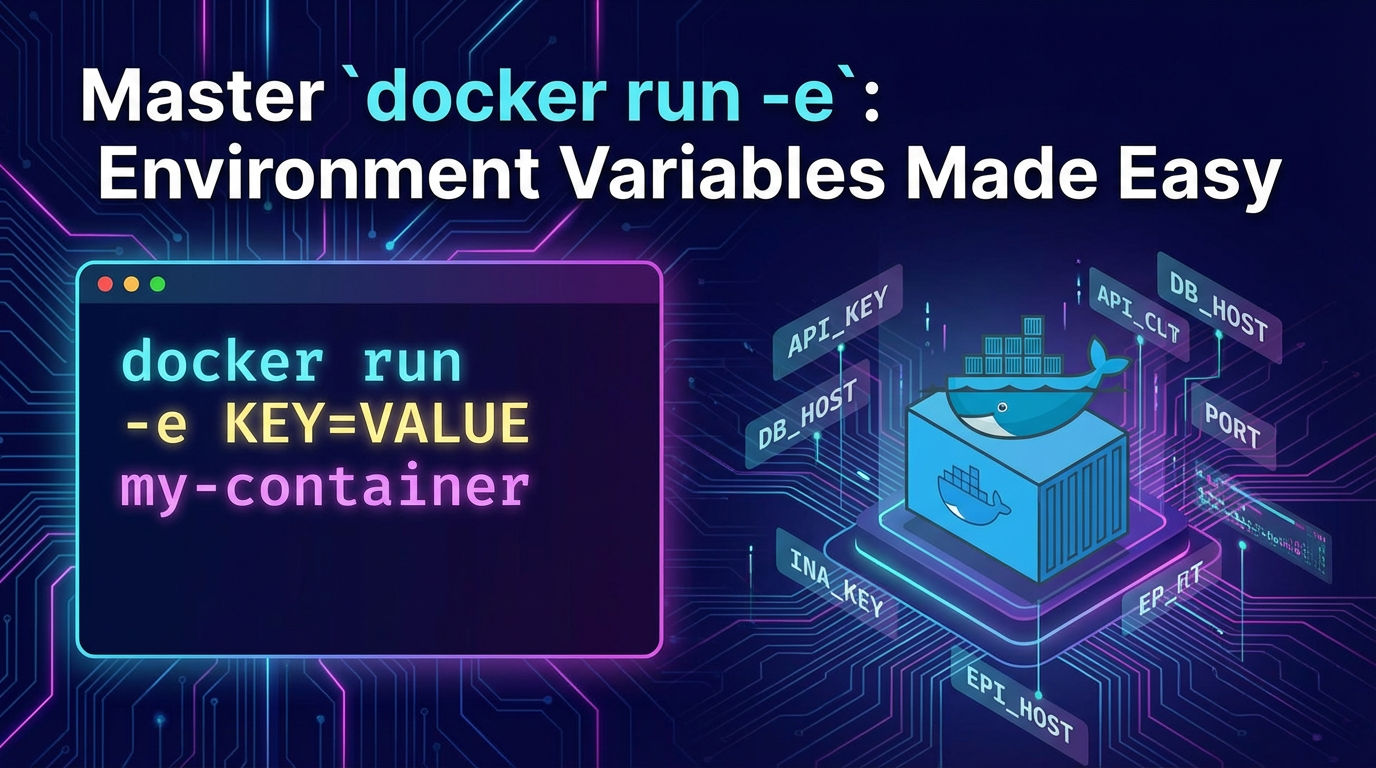


In the dynamic world of containerization, Docker has emerged as an indispensable tool for packaging, distributing, and running applications. At the heart of Docker's versatility lies its elegant approach to configuration management, and few commands are as fundamental and powerful as docker run -e. This simple flag, seemingly innocuous, unlocks a profound capability: the seamless injection of environment variables into your running containers. Understanding and mastering docker run -e is not merely a technical skill; it's a foundational pillar for building robust, flexible, and portable containerized applications, from simple web services to complex orchestrations involving AI models and sophisticated API gateways.
This comprehensive guide will delve deep into the intricacies of docker run -e, exploring its syntax, best practices, advanced use cases, security considerations, and its pivotal role in modern software development. We will uncover how this command facilitates dynamic configuration, enhances portability, and contributes to the security posture of your containerized workloads. By the end, you will not only be proficient in using docker run -e but also possess a nuanced understanding of why it remains a cornerstone of effective Docker utilization.
The Indispensable Role of Environment Variables in Containerization
Before we dissect docker run -e, it's crucial to first grasp the fundamental concept of environment variables and why they are so vital in the context of containerization. Environment variables are a set of dynamic named values that can affect the way running processes behave on a computer. They are part of the environment in which a process runs, providing a simple yet effective mechanism for configuration. Unlike hardcoded values within an application's source code or configuration files, environment variables offer a flexible way to adapt an application's behavior without altering its core binary or image.
In the pre-container era, applications often relied on static configuration files (e.g., .ini, .json, .xml, .properties files) that were either bundled with the application or located at a well-known path on the filesystem. While this approach works, it introduces significant challenges when deploying the same application across different environments—development, testing, staging, and production—each with its unique database credentials, API keys, network endpoints, or logging configurations. Modifying these files for each environment, especially during automated deployments, becomes a tedious, error-prone, and often insecure process. The risk of accidentally committing sensitive production credentials into source control, or deploying the wrong configuration to a critical environment, is ever-present.
Containers, by their very nature, encapsulate an application and its dependencies into a single, immutable unit. This immutability is a core tenet of containerization; once a Docker image is built, it should ideally remain unchanged across environments. This principle promotes consistency and reduces the "it works on my machine" syndrome. However, immutability poses a direct conflict with the need for dynamic configuration. If the application image cannot change, how can we configure it differently for development versus production? This is precisely where environment variables, injected at runtime, provide an elegant solution.
By externalizing configuration into environment variables, developers can build a single Docker image that is "environment-agnostic." This image can then be run in any environment, with the specific configurations supplied as environment variables at the container's launch time. This approach dramatically simplifies the continuous integration and continuous deployment (CI/CD) pipeline, allowing the same tested image to progress through various stages without modification. It also enhances security by keeping sensitive information out of the image layers, preventing its accidental exposure.
Furthermore, environment variables foster portability. A well-designed containerized application will read its configuration from environment variables, making it highly adaptable to different deployment targets, whether it's a local development machine, a cloud-based Kubernetes cluster, or a specialized AI Gateway managing sophisticated machine learning models. The contract remains simple: the application expects certain environment variables to be present, and the orchestration system ensures they are supplied. This separation of concerns—application logic from configuration—is a cornerstone of modern, cloud-native application development.
Unpacking docker run -e: The Core Mechanism
The docker run -e command is the primary mechanism Docker provides for injecting environment variables into a container at the moment of its creation. It's a fundamental part of the docker run command, which is used to create and start a new container from a specified image.
Basic Syntax and Operation
The most straightforward way to use docker run -e is by specifying a single key-value pair:
docker run -e MY_VARIABLE="my_value" my_image
In this example: * docker run: The command to create and start a new container. * -e or --env: The flag that tells Docker you are providing an environment variable. * MY_VARIABLE="my_value": The key-value pair for the environment variable. The key is MY_VARIABLE, and its corresponding value is my_value. It is generally good practice to quote values, especially if they contain spaces or special characters, to ensure they are parsed correctly by your shell and passed intact to Docker. * my_image: The name of the Docker image from which to create the container.
When this command is executed, Docker creates a new container from my_image. Before the container's primary process (the CMD or ENTRYPOINT defined in the Dockerfile) starts, Docker injects MY_VARIABLE with the value my_value into the container's environment. Any process subsequently run within that container, including your application, will have access to this environment variable.
Illustrative Example: A Simple Web Application
Let's consider a simple Node.js application that needs to know which port to listen on and a message to display:
app.js:
const express = require('express');
const app = express();
const port = process.env.PORT || 3000;
const message = process.env.MESSAGE || 'Hello from default message!';

app.get('/', (req, res) => {
  res.send(`<h1>${message}</h1><p>Listening on port ${port}</p>`);
});

app.listen(port, () => {
  console.log(`Application listening at http://localhost:${port}`);
});
Dockerfile:
# Use an official Node.js runtime as a parent image
FROM node:18-alpine

# Set the working directory in the container
WORKDIR /app

# Copy package.json and package-lock.json to the working directory
COPY package*.json ./

# Install any specified dependencies
RUN npm install

# Copy the application source code
COPY . .

# Expose the port the app runs on
EXPOSE 3000

# Define the command to run the app
CMD ["node", "app.js"]
To build the image:
docker build -t my-web-app .
Now, let's run it with environment variables:
- Default behavior (no
-e):bash docker run -p 8080:3000 my-web-app # Output: Application listening at http://localhost:3000 # Access http://localhost:8080/ -> "Hello from default message! Listening on port 3000" - With
-eto customize:bash docker run -p 8080:4000 -e PORT=4000 -e MESSAGE="Welcome to my custom app!" my-web-app # Output: Application listening at http://localhost:4000 # Access http://localhost:8080/ -> "Welcome to my custom app! Listening on port 4000"
This example clearly demonstrates how docker run -e allows us to customize the container's behavior (port and message) without modifying the my-web-app image itself. The same image can serve different purposes or be deployed in different configurations purely by changing the runtime environment variables.
Handling Multiple Environment Variables
You can specify multiple environment variables by using the -e flag multiple times:
docker run \
  -e DB_HOST="database.prod.com" \
  -e DB_PORT="5432" \
  -e DB_USER="produser" \
  -e LOG_LEVEL="INFO" \
  my-backend-service
Each -e flag introduces a new environment variable to the container. Docker processes these flags sequentially, and if there are conflicting keys, the last one specified usually takes precedence, though it's best practice to avoid such conflicts.
Quoting and Special Characters
When an environment variable's value contains spaces, special characters (like &, |, <, >, ;, (, )), or shell expansion characters ($, ~, *), it's crucial to enclose the value in quotes (single or double) to prevent the shell from interpreting them before passing them to Docker.
# Correct: value contains spaces
docker run -e GREETING="Hello World from Docker!" my-app

# Incorrect: shell would split "Hello World" into two arguments
# docker run -e GREETING=Hello World! my-app
For values that contain quotes themselves, or for complex strings, careful escaping might be necessary depending on your shell. Double quotes allow for variable expansion within the shell before passing to Docker, while single quotes generally prevent it.
# Example with single quotes preventing shell expansion
docker run -e MY_SECRET='P@$$w0rd!$pec!al' my-app

# Example with double quotes allowing shell expansion (if VAR is defined in your host shell)
HOST_VAR="This is from host"
docker run -e CONTAINER_VAR="Value is: $HOST_VAR" my-app
# Inside container, CONTAINER_VAR would be "Value is: This is from host"
Understanding how your shell processes quotes and special characters is vital for predictable behavior.
Advanced Techniques and Best Practices
While the basic usage of docker run -e is straightforward, several advanced techniques and best practices can significantly enhance your workflow, improve security, and streamline configuration management.
1. Using --env-file for Bulk Variables
For applications requiring many environment variables, or when you want to manage them externally in a file, repeatedly typing -e can become cumbersome and error-prone. Docker provides the --env-file flag to address this, allowing you to specify a file containing KEY=VALUE pairs, one per line.
config.env example:
DB_HOST=my-database-server.com
DB_PORT=5432
DB_USER=app_user
DB_PASSWORD=supersecurepassword
API_KEY=xyz123abc
LOG_LEVEL=DEBUG
ENABLE_FEATURE_X=true
Then, you can run your container:
docker run --env-file ./config.env my-backend-service
Advantages of --env-file: * Readability: Keeps your docker run command clean and easy to read. * Manageability: Centralizes all environment variables for a specific service in one place. * Version Control: config.env files can be version-controlled (with careful consideration for sensitive data). * Reusability: The same .env file can be used across different docker run commands or even integrated into Docker Compose.
Important Considerations for --env-file: * Security: Like docker run -e, values in an .env file are passed as plain text. This means sensitive information (passwords, API keys) in these files should never be committed to public version control repositories. For production environments, dedicated secret management solutions are preferred. * Pathing: The --env-file path is relative to where you execute the docker run command.
2. Environment Variables from the Host Shell
Docker can also inject environment variables that are already defined in your host's shell environment. This is particularly useful during development or for passing system-wide variables. You can achieve this in two ways:
- Explicitly referencing host variables:
bash export MY_HOST_VAR="This is from the host" docker run -e CONTAINER_VAR=$MY_HOST_VAR my-app # Inside the container, CONTAINER_VAR will be "This is from the host"In this case, your shell expands$MY_HOST_VARbefore passing the value to Docker. - Passing host variables directly (shorthand): If the environment variable name in the container is the same as on the host, you can simply pass the variable name without a value:
bash export LOG_LEVEL="DEBUG" docker run -e LOG_LEVEL my-app # Inside the container, LOG_LEVEL will be "DEBUG"This is a convenient shorthand, but remember it only works if the variable already exists in the host shell's environment.
This feature is excellent for local development workflows where you might set up specific environment variables in your shell profile (.bashrc, .zshrc) or during a development session.
3. Order of Precedence and Overriding
It's possible to define environment variables in several places, and understanding the order in which Docker applies them is critical:
ENVinstructions in the Dockerfile: Variables set here are baked into the image.--env-fileflag: Variables specified in.envfiles are applied next.-eor--envflags: Variables specified directly on thedocker runcommand line.
The general rule is that later definitions override earlier ones. So, a variable set with -e will override the same variable if it was defined in an --env-file, which in turn will override a variable set with ENV in the Dockerfile.
Example: * Dockerfile: ENV MY_VAR="from_dockerfile" * config.env: MY_VAR="from_env_file" * docker run command: docker run --env-file config.env -e MY_VAR="from_command_line" my-image
In this scenario, MY_VAR inside the container will be "from_command_line". This powerful precedence mechanism allows for granular control and easy overrides for specific deployments.
4. Dynamic Variable Injection
Sometimes, you need to generate environment variable values on the fly, perhaps based on the current date, a unique ID, or the output of another command. You can achieve this using shell command substitution.
docker run -e CONTAINER_START_TIME="$(date +%Y-%m-%d_%H-%M-%S)" my-app
docker run -e RANDOM_ID="$(head /dev/urandom | tr -dc A-Za-z0-9 | head -c 10)" my-app
This technique offers immense flexibility for injecting dynamic, context-specific information into your containers at launch time.
5. ENV in Dockerfile vs. docker run -e
It's important to differentiate between ENV instructions in a Dockerfile and docker run -e:
ENVin Dockerfile:- Sets default values for environment variables that are baked into the image.
- These values are present in any container created from that image, unless explicitly overridden.
- Ideal for non-sensitive, common configuration parameters that rarely change or provide good defaults for development (e.g.,
PORT=8080,APP_NAME=MyService). - Can be overridden at runtime by
docker run -eor--env-file.
docker run -e:- Injects variables at container runtime.
- These variables are specific to that particular container instance and do not modify the image.
- Ideal for sensitive information (like API keys, database passwords), environment-specific settings (dev/prod flags), or dynamic configurations.
- Provides maximum flexibility without rebuilding the image.
When to use which? * Use ENV in Dockerfile for sane defaults and non-sensitive configurations that are intrinsic to the application's basic operation. * Use docker run -e (or --env-file) for all configurations that are environment-specific, sensitive, or likely to change between deployments.
This separation promotes image immutability and better security practices.
Security Considerations: Beyond Plain Text
While docker run -e is powerful for configuration, it's crucial to acknowledge its limitations, especially concerning sensitive data. Environment variables, by their nature, are typically passed as plain text. This means:
- Visibility in
docker inspect: Anyone with access to the Docker daemon and the ability to rundocker inspect <container_id>can see all environment variables, including sensitive ones, that were passed to the container. - Process Visibility: Inside the container, any process can read its own environment variables, and in some cases, other processes' environment variables, potentially exposing secrets.
- Logging and History: Environment variables might inadvertently end up in logs, shell histories, or CI/CD system outputs if not handled carefully.
For non-sensitive configuration, docker run -e is perfectly acceptable. However, for truly sensitive data like API keys, database credentials, or private certificates, relying solely on docker run -e is not a secure production practice. This is particularly relevant when deploying sophisticated systems like an AI Gateway or an LLM Gateway, which often require secure access tokens for various external AI models or internal services. Exposing such tokens via plain environment variables could lead to severe security breaches.
Alternatives for Secret Management
Docker and its orchestration counterparts offer more secure ways to handle secrets:
- Docker Secrets (Docker Swarm):
- Built into Docker Swarm mode.
- Secrets are encrypted at rest and in transit.
- Secrets are mounted as files into the container's filesystem (typically in
/run/secrets/). - The application reads the secret from the file, not directly from an environment variable.
- This limits the secret's exposure in environment variable lists and process memory.
- Kubernetes Secrets:
- Similar to Docker Secrets but for Kubernetes.
- Secrets are stored as base64-encoded values (which is not encryption but obfuscation), but they are often encrypted at rest by the underlying cloud provider's storage system.
- Can be mounted as files or injected as environment variables. When injected as environment variables, they inherit the same visibility issues as
docker run -e, so mounting as files is generally preferred for maximum security. - Often integrated with external secret management systems (e.g., HashiCorp Vault, AWS Secrets Manager, Azure Key Vault) for robust secret lifecycle management.
- External Secret Management Systems:
- Dedicated tools like HashiCorp Vault, AWS Secrets Manager, Azure Key Vault, Google Secret Manager.
- These systems securely store, manage, and distribute secrets.
- Applications retrieve secrets at runtime, often using short-lived credentials or service accounts, minimizing exposure.
- This is the gold standard for enterprise-grade secret management, especially in multi-cloud or hybrid environments.
While docker run -e provides the mechanism to pass environment variables, the best practice for sensitive data is to use these dedicated secret management solutions. If docker run -e must be used for secrets in a development context, ensure they are handled with extreme care and never committed to source control.
APIPark is a high-performance AI gateway that allows you to securely access the most comprehensive LLM APIs globally on the APIPark platform, including OpenAI, Anthropic, Mistral, Llama2, Google Gemini, and more.Try APIPark now! 👇👇👇
Practical Use Cases and Real-World Scenarios
The power of docker run -e truly shines in its application across a myriad of practical scenarios. Let's explore some common and advanced use cases.
1. Database Connection Strings
One of the most frequent uses of environment variables is to configure database connections. An application needs to know the database host, port, username, password, and database name. These parameters almost always differ between development, testing, and production environments.
# Development database
docker run -e DB_HOST="localhost" -e DB_PORT="5432" -e DB_USER="dev_user" -e DB_PASS="dev_pass" -e DB_NAME="dev_db" my-app

# Production database (using a secure secrets manager for DB_PASS in real-world)
docker run -e DB_HOST="prod-db.example.com" -e DB_PORT="5432" -e DB_USER="prod_user" -e DB_PASS="<retrieved_from_secret_manager>" -e DB_NAME="prod_db" my-app
This flexibility ensures that the same my-app image can connect to different database instances without modification.
2. API Keys and External Service Integration
Modern applications frequently integrate with third-party APIs (e.g., payment gateways, email services, cloud storage, AI models). These integrations require API keys or tokens, which are inherently sensitive.
Consider an application that uses an external LLM Gateway for natural language processing, or an AI Gateway for image recognition. It would need to pass authentication credentials.
docker run -e LLM_API_KEY="sk-XXXXXXXXXXXXXXXXXXXXXXXXXXXXXXXXXXXXXXXX" -e LLM_ENDPOINT="https://llm.example.com/api/v1" my-llm-client-app
Here, LLM_API_KEY provides the necessary authorization. For a critical API Gateway acting as a central proxy, environment variables would be used to configure upstream service URLs, authentication mechanisms, rate limits, and other operational parameters.
3. Feature Toggles and Application Modes
Environment variables are excellent for controlling application features or modes at runtime.
- Feature Toggles: Enable or disable specific features without deploying new code.
bash docker run -e FEATURE_BETA_ENABLED="true" my-app - Application Mode: Switch between development, staging, or production specific behaviors.
bash docker run -e NODE_ENV="production" -e LOG_LEVEL="INFO" my-web-server docker run -e NODE_ENV="development" -e LOG_LEVEL="DEBUG" -e ENABLE_HOT_RELOAD="true" my-web-serverMany frameworks (e.g., Node.js withNODE_ENV) natively support this pattern, adjusting logging, caching, and error reporting based on the environment variable.
4. Network Configuration and Service Discovery
While Docker's networking capabilities are robust, environment variables can sometimes provide application-specific network hints.
- Port Configuration: As seen in the web app example, an application can listen on a port specified by an environment variable.
- Service Endpoints: When using custom service discovery, environment variables can point to the location of other microservices.
bash docker run -e USER_SERVICE_URL="http://user-service:8080" -e PRODUCT_SERVICE_URL="http://product-service:8081" my-order-serviceThis is less common with advanced orchestrators like Kubernetes (which have built-in service discovery), but still useful for simpler setups or specific needs.
5. Customization of Third-Party Images
Many official Docker images for databases, message queues, and other infrastructure components heavily rely on environment variables for initial configuration.
PostgreSQL Example:
docker run -d \
  --name my-postgres \
  -e POSTGRES_DB=mydatabase \
  -e POSTGRES_USER=myuser \
  -e POSTGRES_PASSWORD=mypassword \
  postgres:14
Without these environment variables, the PostgreSQL container wouldn't know which database to create, which user to set up, or what password to assign. This demonstrates the universal applicability of environment variables for configuring containerized software.
6. Integrating with Monitoring and Logging
Environment variables can be used to configure agents or libraries within your application for connecting to external monitoring, logging, or tracing systems.
docker run -e NEW_RELIC_APP_NAME="MyWebApp-Prod" -e NEW_RELIC_LICENSE_KEY="YOUR_LICENSE_KEY" my-app
docker run -e DATADOG_AGENT_HOST="datadog-agent.monitoring.svc.cluster.local" my-app
This allows the same application image to report metrics and logs to different endpoints based on the deployment environment.
The Broader Ecosystem: docker run -e in Orchestration
While docker run -e is a direct command-line utility, its underlying concept of externalizing configuration via environment variables is fundamental across the entire container orchestration ecosystem. When you move beyond single containers to multi-container applications managed by tools like Docker Compose, Docker Swarm, or Kubernetes, the way environment variables are defined evolves, but their purpose remains the same.
Docker Compose
Docker Compose is a tool for defining and running multi-container Docker applications. It uses a YAML file (docker-compose.yml) to configure application services. Environment variables are a first-class citizen in Compose files.
docker-compose.yml example:
version: '3.8'
services:
  web:
    image: my-web-app
    ports:
      - "8080:4000"
    environment:
      PORT: 4000
      MESSAGE: "Welcome from Docker Compose!"
    env_file:
      - ./env_config/common.env
      - ./env_config/prod.env # This file overrides common.env
  db:
    image: postgres:14
    environment:
      POSTGRES_DB: compose_db
      POSTGRES_USER: compose_user
      POSTGRES_PASSWORD: ${DB_PASSWORD_PROD} # Using host variable
In Docker Compose: * The environment section directly maps to docker run -e. You list KEY: VALUE pairs. * The env_file section maps to --env-file. You can specify multiple files, and variables in later files override those in earlier ones. * Compose also supports variable substitution from the host's environment or a .env file located in the same directory as docker-compose.yml (e.g., ${DB_PASSWORD_PROD} in the example above would pull from the host's DB_PASSWORD_PROD or from a .env file).
This structured approach in Compose makes managing complex configurations for multi-service applications much more organized and scalable than long docker run commands.
Docker Swarm and Kubernetes
In larger-scale orchestration platforms like Docker Swarm and Kubernetes, environment variables are still crucial but are typically managed through their respective manifest files (YAML for Kubernetes) and integrated secret management systems.
- Kubernetes:
- ConfigMaps: Used to store non-confidential data in key-value pairs. They can then be injected as environment variables into Pods or mounted as files. This is the Kubernetes equivalent of
--env-filefor non-sensitive data. - Secrets: Used for sensitive data. They are base64 encoded and can be mounted as files (preferred) or injected as environment variables.
- Pods, Deployments, and other Kubernetes resources define their environment variables in their specification, referencing ConfigMaps or Secrets.
- ConfigMaps: Used to store non-confidential data in key-value pairs. They can then be injected as environment variables into Pods or mounted as files. This is the Kubernetes equivalent of
The transition from docker run -e to these higher-level abstractions demonstrates a clear evolutionary path: the core need for externalized configuration remains, but the tooling becomes more sophisticated to handle the complexity and security requirements of distributed systems. Whether it's a simple docker run -e or a complex Kubernetes manifest, the principle of configuring applications at runtime via environment variables is a constant.
The Role of docker run -e in Modern Platforms
Consider a sophisticated platform like APIPark. APIPark is an open-source AI Gateway and API management platform designed to help developers and enterprises manage, integrate, and deploy AI and REST services with ease. Such a platform, composed of numerous microservices (API gateways, authentication services, data analysis engines, AI model proxies, etc.), would undoubtedly leverage containerization. Each of these services, when deployed via Docker or Kubernetes, would rely heavily on environment variables for configuration.
For instance, an APIPark service responsible for integrating 100+ AI models would need environment variables to specify: * AI_MODEL_ENDPOINT_OPENAI: The URL for the OpenAI API. * AI_MODEL_KEY_OPENAI: The API key for OpenAI. * LLM_GATEWAY_AUTH_TOKEN: An internal token to authenticate with another LLM gateway component. * DB_CONNECTION_STRING_ANALYTICS: Database connection for storing call logs and analytics data. * RATE_LIMIT_DEFAULT: Default rate limiting parameters. * LOG_LEVEL: For debugging or production logging.
While APIPark abstracts much of this complexity for the end-user, its underlying components, if containerized, would be configured using mechanisms equivalent to docker run -e. A system deployed with APIPark could also expose specific API endpoints that internally rely on AI models configured by environment variables. The platform's ability to offer "independent API and access permissions for each tenant" or "end-to-end API lifecycle management" often hinges on robust, externalized configuration that environment variables provide at the individual service level. When deploying API services, perhaps forming an AI Gateway or a broader LLM Gateway solution, the sheer volume of configuration can become daunting. This is where robust API management platforms, such as APIPark, truly shine. They abstract away much of the underlying infrastructure complexity, but the principles of configuring individual components using environment variables, whether directly via docker run -e or through higher-level orchestration manifests, remain fundamental.
Troubleshooting Common docker run -e Issues
Despite its simplicity, misusing or misunderstanding docker run -e can lead to perplexing issues. Here's a rundown of common problems and how to troubleshoot them.
1. Variable Not Found Inside Container
Symptom: Your application reports that an expected environment variable is undefined, null, or missing.
Possible Causes: * Typo: A simple misspelling of the variable name on the docker run -e command line or in your application code. * Quoting Issues: The shell might be interpreting your value differently, or not passing it correctly to Docker. Values with spaces or special characters must be quoted. * Precedence Override: An earlier definition (e.g., from ENV in Dockerfile or an --env-file) is overriding your intended value, or vice-versa. * Application Logic Error: The application might be trying to read the variable before it's available, or reading it incorrectly. * Host Variable Not Set: If using -e VAR_NAME, VAR_NAME might not be set in the host shell.
Troubleshooting Steps: * Inspect the container's environment: After running the container, use docker inspect <container_id> and look for the Env section. This will show exactly what environment variables Docker injected. * Run env inside the container: Start a shell inside the container and run the env command. bash docker run -it -e MY_VAR="test" my-app bash # or sh # Once inside the container shell: # env | grep MY_VAR # echo $MY_VAR This confirms what the container's processes see. * Check Docker logs: Your application might log environment variable values at startup, which can reveal discrepancies. * Simplify: Temporarily reduce the complexity. Remove --env-file and any ENV instructions in the Dockerfile, and try with a single -e flag.
2. Unexpected Variable Values
Symptom: The environment variable is present, but its value is not what you expected.
Possible Causes: * Shell Expansion: If using double quotes, your host shell might be expanding variables or commands within the value before passing it to Docker. For literal values, especially with $, (, or \, single quotes are safer. * Precedence: An override from another source (Dockerfile ENV, --env-file, or another -e flag) is taking effect. * Trailing Whitespace: Accidental spaces or newlines at the end of values in .env files or docker run commands can cause issues.
Troubleshooting Steps: * Review Quoting: Use echo on your command line to see how your shell interprets the command before it even gets to Docker. bash echo docker run -e MY_VAR="value with spaces" my-app * Check Precedence: Carefully review your Dockerfile ENV instructions, --env-file contents, and all -e flags in your docker run command for potential conflicts. Remember the "last one wins" rule. * Inspect/env: As above, docker inspect and env inside the container are your best friends.
3. Security Concerns with Sensitive Data
Symptom: You discover sensitive data (passwords, API keys) visible in docker inspect output or potentially in logs.
Possible Causes: * Direct Injection: Using -e or --env-file for secrets. * Logging: Application logging frameworks might be configured to log all environment variables.
Troubleshooting Steps: * Avoid -e for Secrets: For production, migrate to Docker Secrets (Swarm) or Kubernetes Secrets/ConfigMaps, ideally backed by an external secrets manager. * Mount as Files: When using Kubernetes Secrets, prioritize mounting secrets as files rather than injecting them as environment variables. * Review Logging Configuration: Ensure your application's logging configuration redacts or avoids logging sensitive environment variables. * Minimize Exposure: Limit docker inspect access in production.
4. .env File Not Found or Not Processed
Symptom: Variables from your --env-file are not being set.
Possible Causes: * Incorrect Path: The path to the .env file is wrong or relative to an unexpected working directory. * Syntax Errors: The .env file contains malformed lines (e.g., spaces around =, missing values). * File Permissions: Docker might not have permission to read the file.
Troubleshooting Steps: * Verify Path: Use an absolute path for --env-file or double-check the relative path from where docker run is executed. * Check Syntax: Ensure each line is KEY=VALUE with no leading/trailing spaces on the key or value itself (unless intentional and quoted). Comments start with #. * File Permissions: Ensure the user running Docker has read permissions on the .env file.
By systematically applying these troubleshooting techniques, you can quickly diagnose and resolve most issues related to environment variable injection using docker run -e.
Detailed Comparison: Configuration Methods in Docker
To truly master docker run -e, it's helpful to understand its place among other configuration methods available in Docker and the broader container ecosystem. Each method has its strengths and weaknesses, making it suitable for different scenarios.
| Feature / Method | ENV in Dockerfile |
docker run -e / --env-file |
Mounted Volumes (e.g., -v /host/path:/container/path) |
Docker/Kubernetes Secrets |
|---|---|---|---|---|
| Purpose | Default, immutable configuration; image metadata | Runtime, environment-specific configuration | Runtime, filesystem-based configuration; persistent data | Secure runtime configuration |
| Scope | Image-wide; affects all containers from this image | Specific to a single container instance | Specific to a single container instance (or shared) | Specific to a container/workload |
| Visibility (Plain Text) | Visible in docker inspect <image_id> (Config.Env) |
Visible in docker inspect <container_id> (Config.Env) |
Depends on file content and permissions of mounted file | Generally not plain text in environment vars; encrypted at rest (if using K8s Secrets backend), mounted as files |
| Security for Secrets | Poor (baked into image) | Poor (visible in docker inspect) |
Depends on host file permissions; generally better than -e if specific |
Excellent (encrypted, access controlled) |
| Mutability | Immutable (requires image rebuild to change) | Mutable (can be changed on each docker run) |
Mutable (host file can be changed, container sees updates) | Mutable (can be updated, typically requires pod restart) |
| Use Cases | PORT=8080, APP_NAME=MyApp, default JAVA_OPTS |
DB_HOST, API_KEY_DEV, LOG_LEVEL=DEBUG |
application.properties, nginx.conf, app_data.db |
DB_PASSWORD, TLS_CERTIFICATE, LLM_API_KEY_PROD |
| Orchestration Equivalent | image.env (sometimes) |
environment, env_file (Docker Compose); env in Pod spec (Kubernetes) |
volumes (Docker Compose), volumeMounts (Kubernetes) |
secrets (Docker Compose), Secrets API object (Kubernetes) |
| Ideal For | Base configuration, non-sensitive defaults | Environment variables for non-sensitive or less-sensitive config | Large config files, custom binaries, persistent data | All sensitive data (passwords, tokens, certificates) |
This table underscores that docker run -e is a powerful tool for dynamic configuration, sitting in a sweet spot for flexibility without the overhead of rebuilding images. However, it also highlights the critical need to choose the right tool for the job, particularly when security is paramount. For confidential information, dedicated secret management solutions are always the superior choice.
Conclusion: The Enduring Power of docker run -e
In the rapidly evolving landscape of containerization and cloud-native applications, the humble docker run -e command stands as a testament to the enduring power of simplicity and well-designed abstractions. It provides the fundamental mechanism for injecting environment-specific configuration into immutable container images, thereby enabling portability, flexibility, and a streamlined CI/CD pipeline. From configuring a basic web server's port to securely connecting a complex AI Gateway or LLM Gateway to its myriad of underlying services and external models, environment variables injected at runtime are the unsung heroes of containerized deployments.
Mastering docker run -e goes beyond merely knowing its syntax. It encompasses understanding the critical distinction between image-baked configuration and runtime injection, appreciating the nuances of variable precedence, and, most importantly, recognizing the security implications of handling sensitive data. While for production-grade secrets, dedicated solutions like Docker Secrets or Kubernetes Secrets, often integrated with platforms like APIPark for comprehensive API management, are indispensable, docker run -e remains the foundational command that underpins these more advanced systems. It teaches us the core principle of externalizing configuration—a principle that transcends specific tools and forms the bedrock of building adaptable, resilient, and scalable containerized applications.
By diligently applying the techniques, best practices, and security considerations discussed in this extensive guide, you are now equipped not just to use docker run -e effectively, but to truly master it, leveraging its full potential to build more robust, secure, and easily manageable Dockerized applications. This mastery is a crucial step towards becoming a proficient architect and operator of modern, container-driven infrastructures.
Frequently Asked Questions (FAQs)
1. What are the key differences between ENV in a Dockerfile and docker run -e?
ENV in a Dockerfile sets default environment variables that are "baked" into the Docker image itself. These variables are present in any container created from that image, providing a consistent base configuration. In contrast, docker run -e (or --env-file) injects environment variables dynamically at the time a container is launched. These variables are specific to that particular container instance and override any conflicting ENV variables from the Dockerfile. ENV is best for non-sensitive, static defaults, while docker run -e is ideal for environment-specific settings (e.g., dev vs. prod) and sensitive data, although dedicated secret management solutions are preferred for the latter in production.
2. Is it safe to pass sensitive data like API keys directly with docker run -e in production?
No, it is generally not safe for production environments. Environment variables passed via docker run -e are visible in plain text using docker inspect <container_id>. This means anyone with access to the Docker daemon can easily retrieve these secrets. For sensitive data such as API keys, database passwords, or private certificates, it is strongly recommended to use dedicated secret management solutions like Docker Secrets (for Docker Swarm), Kubernetes Secrets, or external secret managers (e.g., HashiCorp Vault, AWS Secrets Manager). These tools provide encryption at rest and in transit, access control, and better lifecycle management for secrets, significantly enhancing security.
3. How can I pass multiple environment variables to a Docker container efficiently?
You have two primary methods for passing multiple environment variables: 1. Multiple -e flags: You can use -e KEY1=VALUE1 -e KEY2=VALUE2 repeatedly in your docker run command. This is suitable for a small number of variables. 2. --env-file flag: For a larger number of variables, create a .env file (e.g., config.env) with KEY=VALUE pairs on separate lines. Then, use docker run --env-file ./config.env my-image. This approach improves readability, manageability, and reusability of your configuration.
4. What is the order of precedence for environment variables in Docker?
When environment variables are defined in multiple places, Docker applies them with a specific order of precedence, where later definitions override earlier ones: 1. Variables set using the ENV instruction in the Dockerfile (least precedence). 2. Variables loaded via the --env-file flag. If multiple --env-file flags are used, variables in later files override those in earlier ones. 3. Variables defined directly with the -e or --env flag on the docker run command line (highest precedence). This "last one wins" rule allows for flexible overriding of default configurations.
5. Can docker run -e be used with Docker Compose or Kubernetes?
While docker run -e is a direct Docker CLI command, the underlying concept of externalizing configuration via environment variables is fundamental across the entire container orchestration ecosystem. * Docker Compose: Uses an environment section in docker-compose.yml to specify environment variables, which is analogous to docker run -e. It also supports an env_file section similar to --env-file. * Kubernetes: While it doesn't have a direct docker run -e equivalent, environment variables are widely used within Pod specifications. They can be defined directly, pulled from ConfigMaps (for non-sensitive data), or referenced from Secrets (for sensitive data), often mounted as files for enhanced security. The principle of runtime configuration via environment variables remains central to these platforms.
🚀You can securely and efficiently call the OpenAI API on APIPark in just two steps:
Step 1: Deploy the APIPark AI gateway in 5 minutes.
APIPark is developed based on Golang, offering strong product performance and low development and maintenance costs. You can deploy APIPark with a single command line.
curl -sSO https://download.apipark.com/install/quick-start.sh; bash quick-start.sh

In my experience, you can see the successful deployment interface within 5 to 10 minutes. Then, you can log in to APIPark using your account.

Step 2: Call the OpenAI API.