Route Container Through VPN: Step-by-Step Tutorial
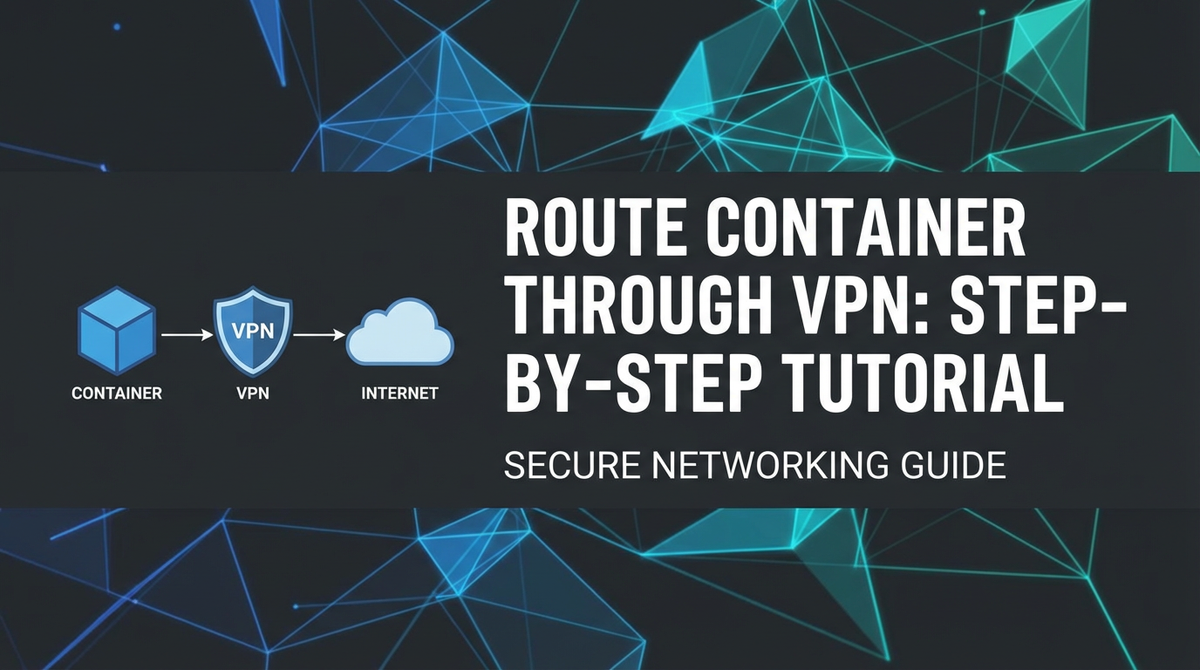


I. Introduction
In the rapidly evolving landscape of modern software development, containers have emerged as a cornerstone technology, fundamentally reshaping how applications are built, deployed, and managed. Their lightweight, portable, and isolated nature offers unparalleled consistency across different environments, from a developer's local machine to production servers in the cloud. However, as applications become increasingly distributed, complex, and reliant on various external and internal services, the challenges associated with securing their network communications, ensuring data privacy, and accessing restricted resources have grown exponentially. This is particularly true for microservices architectures, where numerous containerized components communicate with each other and with third-party systems.
The demand for robust security measures, coupled with the need for flexible network access, often leads to the adoption of Virtual Private Networks (VPNs). A VPN creates a secure, encrypted tunnel over an unsecured network, such as the internet, effectively extending a private network across public infrastructure. While VPNs are widely used for securing individual user traffic or connecting entire office networks, integrating them directly with containerized applications presents unique challenges and opportunities. Imagine a scenario where a container needs to perform sensitive data processing, access an internal company database only reachable via a specific VPN, or bypass geo-restrictions to consume a particular service. Simply running the VPN on the host machine might not provide the granular control or isolation required for individual containers.
This comprehensive tutorial delves into the critical subject of routing container traffic through a VPN. We will explore the fundamental concepts behind containers and VPNs, illuminate the compelling reasons for integrating them, and then guide you through detailed, step-by-step methodologies to achieve this integration effectively. From setting up a VPN client directly within an application container to deploying a dedicated VPN gateway container for shared access, we will cover the practical aspects with code examples and best practices. By the end of this guide, developers, DevOps engineers, and security professionals will possess the knowledge and tools to enhance the security, privacy, and connectivity of their containerized applications, enabling them to operate securely and efficiently in complex network environments. Our journey will focus on practical, actionable steps, ensuring you can implement these solutions with confidence and precision.
II. Understanding the Fundamentals
Before we dive into the intricate process of routing container traffic through a VPN, it's essential to firmly grasp the foundational concepts of containers and VPNs independently. A solid understanding of these building blocks will make the subsequent steps more intuitive and help in troubleshooting potential issues.
A. What is a Container?
At its core, a container is a lightweight, standalone, and executable software package that includes everything needed to run a piece of software, including the code, runtime, system tools, system libraries, and settings. Unlike virtual machines (VMs) which virtualize an entire operating system, containers virtualize the operating system at the application layer. This means multiple containers can share the host OS kernel, making them significantly more efficient in terms of resource consumption (CPU, memory, storage) and startup time.
Key Benefits of Containers:
- Portability: A containerized application runs consistently across any environment—whether it's a developer's laptop, a testing server, or a production cloud instance—because it encapsulates all its dependencies. This eliminates the notorious "it works on my machine" problem.
- Consistency: The immutable nature of container images ensures that every instance of an application spun up from the same image will behave identically, fostering reliability and predictability in deployments.
- Isolation: Each container runs in an isolated environment, preventing conflicts between different applications and their dependencies. This isolation applies to processes, file systems, and crucially, network interfaces.
- Resource Efficiency: By sharing the host OS kernel and using layered file systems, containers consume fewer resources than traditional VMs, allowing for higher density and better utilization of server hardware.
- Faster Deployment and Scaling: The lightweight nature of containers enables rapid startup times and facilitates quick scaling of applications horizontally to meet demand fluctuations.
Popular Container Runtimes:
The most ubiquitous container runtime is Docker, which provides a comprehensive ecosystem for building, shipping, and running containers. Other prominent runtimes include containerd (a core component of Docker, also used by Kubernetes) and CRI-O (a lightweight runtime specifically for Kubernetes). For this tutorial, we will primarily use Docker due to its widespread adoption and user-friendly tooling.
Container Networking Basics:
Understanding how containers communicate is vital. Docker, by default, provides several networking options:
- Bridge Network: The default network mode. Containers connected to a bridge network can communicate with each other and with the host machine. Docker creates a virtual bridge interface on the host, and containers get an IP address on this bridge network.
- Host Network: In this mode, a container shares the network namespace of the host machine. This means the container directly uses the host's network interfaces, ports, and IP address. While offering high performance, it sacrifices network isolation and can lead to port conflicts.
- None Network: The container is entirely isolated from the network, with only a loopback interface. It cannot communicate with other containers or the host unless specifically configured.
- Overlay Networks: Used in Docker Swarm or Kubernetes for multi-host container communication, enabling containers on different hosts to communicate as if they were on the same network.
- Custom Networks: Users can define their own bridge networks, which provide better isolation and DNS resolution than the default bridge network. This is often the preferred choice for multi-container applications.
B. What is a VPN?
A Virtual Private Network (VPN) is a technology that creates a secure, encrypted connection over a less secure network, most commonly the internet. It establishes a "tunnel" through which data can be transmitted privately and securely, making it appear as if the user's device is directly connected to the private network.
Purpose of VPNs:
- Privacy: VPNs hide your actual IP address and encrypt your internet traffic, preventing Internet Service Providers (ISPs), governments, and malicious actors from monitoring your online activities.
- Security: By encrypting data, VPNs protect sensitive information from eavesdropping and tampering, especially when using public Wi-Fi networks.
- Access Restricted Resources: VPNs allow users to securely access private network resources (like internal company servers, databases, or intranets) from remote locations. They can also bypass geographical content restrictions by making it appear that your traffic originates from a different location.
- Anonymity: By masking your original IP address, VPNs contribute to a higher degree of online anonymity.
Types of VPNs and Protocols:
While various VPN implementations exist, they generally fall into categories based on their underlying protocols and use cases:
- SSL/TLS VPN: Often browser-based, providing secure remote access to specific applications or networks without requiring a dedicated client.
- IPsec VPN: A suite of protocols used for securing IP communications, commonly deployed for site-to-site VPNs (connecting entire networks) and remote access VPNs (connecting individual clients).
- OpenVPN: An open-source, highly configurable, and robust VPN protocol that can run on various operating systems and devices. It uses SSL/TLS for key exchange and supports both UDP and TCP. It is known for its strong encryption and flexibility.
- WireGuard: A newer, leaner, and faster VPN protocol designed for simplicity and efficiency. It aims to be significantly faster and more secure than OpenVPN and IPsec while having a much smaller codebase.
How VPNs Work (High-Level):
- Authentication: The VPN client authenticates with the VPN server using credentials (username/password, certificates, pre-shared keys).
- Tunneling: Once authenticated, a secure tunnel is established. All internet traffic from the client is then routed through this tunnel.
- Encapsulation: Data packets are encapsulated within another packet, adding a new header that includes the VPN server's IP address.
- Encryption: The encapsulated data is encrypted, making it unreadable to anyone intercepting the traffic.
- Routing: The encrypted packets are sent to the VPN server. The server decrypts them, removes the encapsulation, and then forwards the original (now decrypted) data packet to its intended destination on the internet or the private network. The response from the destination follows the reverse path. From the outside, all traffic appears to originate from the VPN server's IP address, masking the client's actual location and IP.
C. Why Route a Container Through a VPN?
Combining containers with VPNs unlocks powerful capabilities, addressing several critical requirements in modern application deployments:
- Enhanced Security for Outbound Connections: If a containerized application needs to communicate with sensitive external services (e.g., payment gateways, external APIs, cloud-based data storage) or interact with third-party partners over the internet, routing its traffic through a VPN encrypts this outbound data. This protects against eavesdropping and ensures that the origin of the request (the container's actual public IP) is masked, adding a layer of anonymity and security. For instance, a container might need to fetch data from a public API, and using a VPN ensures that its requests are anonymized and secured from its public IP.
- Accessing Internal Network Resources from External Hosts: A common scenario involves development or staging containers running on a public cloud or a developer's laptop that need to connect to a private internal company network (e.g., a database, an internal API service, or a legacy system) which is only accessible via a corporate VPN. By routing the container through the VPN, it gains secure access to these restricted resources, bridging the gap between external deployment environments and internal infrastructure.
- Geographical Restriction Bypass for Specific Services: Some online services, content providers, or APIs impose geographical restrictions based on the user's IP address. If a containerized service needs to access such resources from a specific region for testing, data scraping, or content delivery, routing its traffic through a VPN server located in the desired region allows it to bypass these restrictions.
- Compliance Requirements: Certain industries and regulatory frameworks mandate specific network security and data privacy standards. Routing critical container traffic through a VPN can help meet these compliance requirements by ensuring that all data in transit is encrypted and that the source of communication is properly masked or attributed to a secure gateway.
- Isolating Network Traffic for Specific Applications: In a multi-service container environment, you might have one container handling sensitive data that requires VPN protection, while another handles public-facing traffic directly. Routing only the sensitive container's traffic through a VPN provides granular control and ensures that only necessary traffic incurs the VPN overhead, maintaining optimal performance for other services. This allows for fine-grained network segmentation within a single host.
By understanding these fundamental building blocks and the motivations behind their integration, we are now well-prepared to explore the technical methodologies for routing container traffic through a VPN.
III. Core Concepts for Container VPN Routing
Implementing VPN routing for containers requires an understanding of several core Linux and Docker networking concepts. These concepts are the bedrock upon which our step-by-step tutorials will be built.
A. Network Namespaces in Linux
At the heart of container networking isolation lies the concept of network namespaces in Linux. A namespace is a feature of the Linux kernel that partitions kernel resources in such a way that one set of processes sees one set of resources, while another set of processes sees a different set of resources. For networking, a network namespace encapsulates an isolated network stack, including its own network interfaces, IP addresses, routing tables, and firewall rules.
- How Containers Leverage Namespaces: When you run a Docker container, Docker creates a new network namespace for that container. This namespace is separate from the host's network namespace and from other containers' namespaces. This is why a container can have its own IP address (e.g., on a bridge network) that is distinct from the host's IP address, and why its network configurations don't interfere with the host or other containers.
- Understanding
ip netns: Theip netnscommand-line utility allows you to create, delete, and manage network namespaces manually. While Docker handles much of this automatically, understandingip netnsis crucial for debugging and for advanced scenarios, such as creating a dedicated VPN gateway container where you might explicitly manipulate network namespaces or observe how they interact. For instance, you can usesudo ip netns exec <namespace_name> <command>to execute a command within a specific network namespace, which is useful for verifying network settings inside a container's isolated environment if you have direct access to its namespace.
B. VPN Client within a Container: The Direct Approach
This is perhaps the most straightforward and intuitive method for getting a container's traffic through a VPN: running the VPN client software directly inside the application container itself.
- How it Works: The Dockerfile for your application container includes instructions to install the VPN client (e.g., OpenVPN), copy its configuration files, and then execute the VPN client as part of the container's startup process (or as a background process managed by a supervisor).
- Challenges:
- Routing: The VPN client needs specific kernel capabilities to create
tun/tapdevices and manipulate routing tables within its network namespace. This often requires running the container with elevated privileges (--cap-add=NET_ADMIN,--device=/dev/net/tun, or--privileged). - Permissions: The container must have the necessary permissions to access
/dev/net/tun, a special device file that enables user-space programs to implement network interfaces. - Network Configuration: Ensuring that all desired traffic from the container genuinely flows through the VPN tunnel, and that DNS resolution also happens via the VPN, requires careful configuration.
- Image Bloat: Installing a VPN client adds extra layers and dependencies to your application container's image, potentially increasing its size and attack surface.
- Routing: The VPN client needs specific kernel capabilities to create
- Choosing the Right Base Image: For minimal image size and efficient resource use, a lightweight base image like Alpine Linux is often preferred for containers that also run VPN clients. If more complex dependencies are needed, Ubuntu or Debian slim images are good alternatives.
C. Dedicated VPN Container: The Sidecar/Gateway Approach
This method involves creating a separate container whose sole responsibility is to establish and maintain the VPN connection. Other application containers then route their traffic through this dedicated VPN container. This is often referred to as a "sidecar" pattern in container orchestration or a "VPN gateway" pattern.
- Advantages:
- Separation of Concerns: The VPN logic is isolated from the application logic. This keeps application container images lean and focused.
- Easier Management: VPN configurations and credentials can be managed in one place, separate from your application code.
- Multiple Containers Sharing One VPN: Several application containers can be configured to use the same VPN gateway container, saving resources by not running a separate VPN client in each application container.
- Enhanced Security: Credentials for the VPN are only present in the VPN gateway container, reducing the exposure surface.
- How to Configure Routing:
- Shared Network Namespace (Docker
network_mode: service:vpn-gatewayor KubernetesshareProcessNamespace): This is the simplest way. An application container can be configured to share the network namespace of the VPN container. They effectively become part of the same network environment, and the application container's traffic will naturally flow through the VPN tunnel established by the VPN container. - Custom Docker Networks and
iptables: For more advanced scenarios, you can create a custom Docker bridge network. The VPN container acts as a router on this network, forwarding traffic from other containers on the same network through its VPN tunnel usingiptablesrules. This method offers more granular control but is more complex to set up.
- Shared Network Namespace (Docker
D. Host-level VPN Configuration
In some simpler scenarios, you might configure the VPN directly on the host machine where your Docker containers are running.
- How it Works: The entire host's network traffic, including all traffic originating from containers (unless explicitly bypassed), flows through the host's VPN tunnel.
- Less Granular Control: This method offers less control over which specific containers use the VPN. All containers on the host, or at least all their outbound traffic, would use the VPN, which might not be desirable for performance or policy reasons.
- Simpler for Some Scenarios: If all containers on a host need to access resources via a VPN, this approach is the simplest to set up as it doesn't require any specific container-level configuration. However, it compromises the network isolation benefits of containers.
E. Advanced Networking Concepts
To effectively implement and troubleshoot container VPN routing, especially with the dedicated VPN gateway approach, a deeper dive into Linux networking tools is beneficial:
- IP Tables and Routing Rules (
iptables,ip route): These are fundamental Linux tools for managing network traffic.iptablesis used for packet filtering (firewall) and Network Address Translation (NAT). You might useiptablesto forward traffic from one Docker network to the VPN interface (tun0) and perform Source NAT (SNAT) to make the traffic appear to originate from the VPN's IP address.ip routeis used to display and modify the kernel's routing tables. Understanding how packets are routed based on destination IP addresses is crucial for verifying that traffic is indeed going through the VPN tunnel.
- Network Interfaces (
tun/tap):- When a VPN client connects, it typically creates a virtual network interface, either a
tun(network TUNnel) device or atap(network TAP) device. - A
tundevice operates at layer 3 (IP layer), handling IP packets. - A
tapdevice operates at layer 2 (Ethernet layer), handling Ethernet frames. - Most IP-based VPNs like OpenVPN primarily use
tundevices. The container needs permission to create and manage this device (--device=/dev/net/tun).
- When a VPN client connects, it typically creates a virtual network interface, either a
- DNS Resolution within the VPN Tunnel: Ensuring that DNS queries also go through the VPN is crucial for complete privacy and for resolving hostnames that are only reachable via the VPN. VPN clients typically push their own DNS servers to the client. Within a container, you might need to manually configure
/etc/resolv.confor use Docker's--dnsoption to point to the VPN's DNS servers.
By internalizing these core concepts, you'll be equipped with the necessary knowledge to navigate the practical steps of setting up VPN routing for your containerized applications.
IV. Step-by-Step Tutorial: Method 1 - VPN Client Inside Application Container
This method is perhaps the most straightforward for individual containers requiring VPN access. We will demonstrate how to build a Docker image that includes an OpenVPN client and configure it to route all container traffic through a VPN tunnel.
A. Prerequisites
Before we begin, ensure you have the following:
- Docker Installed: Docker Desktop for Windows/macOS or Docker Engine on Linux. You can verify your installation by running
docker --versionanddocker compose version. - VPN Provider Configuration: You need an OpenVPN configuration file (usually a
.ovpnfile) from your VPN provider or your own OpenVPN Access Server. This file contains the server address, certificates, and other connection parameters. Make sure you have the necessary credentials (username/password) if your.ovpnfile doesn't embed them. - Basic Understanding of Dockerfiles: Familiarity with Dockerfile commands like
FROM,RUN,COPY,CMD,ENTRYPOINT. curl(for testing): To verify the public IP address from within the container.
B. Setting Up the OpenVPN Client in the Dockerfile
We will create a Dockerfile that extends a base image, installs OpenVPN, copies your configuration, and then initiates the VPN connection.
Let's assume your .ovpn file is named my-vpn-config.ovpn and is located in the same directory as your Dockerfile. If your VPN requires a username and password not embedded in the .ovpn file, you will need a separate credentials.txt file containing your username on the first line and password on the second line.
Example Dockerfile (Dockerfile):
# Use a lightweight base image. Alpine is excellent for small images.
FROM alpine:latest

# Set environment variables for VPN credentials (if required).
# It's generally better to pass these as Docker secrets or environment variables during runtime,
# but for a basic example, we'll show how they can be used.
# ENV VPN_USER="your_vpn_username"
# ENV VPN_PASS="your_vpn_password"

# Install OpenVPN and dependencies.
# 'openvpn' for the client, 'iproute2' for network utilities like 'ip addr' and 'ip route'.
# 'curl' for testing the public IP.
RUN apk add --no-cache openvpn iproute2 curl

# Copy your OpenVPN configuration file into the container.
# Make sure 'my-vpn-config.ovpn' is in the same directory as your Dockerfile.
COPY my-vpn-config.ovpn /etc/openvpn/client.conf

# If your VPN requires credentials in a separate file, copy it.
# COPY credentials.txt /etc/openvpn/credentials.txt
# If you are using 'credentials.txt', ensure your .ovpn file has 'auth-user-pass /etc/openvpn/credentials.txt'

# Expose any ports your application inside the container might need (optional).
# For example, if your app runs on port 8080:
# EXPOSE 8080

# Our entrypoint script will handle starting the VPN and then optionally your application.
# It's good practice to wrap the VPN startup in a script for better error handling and logging.
COPY entrypoint.sh /usr/local/bin/entrypoint.sh
RUN chmod +x /usr/local/bin/entrypoint.sh

ENTRYPOINT ["/techblog/en/usr/local/bin/entrypoint.sh"]
Example Entrypoint Script (entrypoint.sh):
This script will start OpenVPN in the background and then execute any command passed to docker run. This allows the container to run your application while the VPN is active.
#!/bin/bash

echo "Starting OpenVPN client..."

# Ensure /dev/net/tun exists. It should be mounted from the host.
# Some setups might require creating it, but usually Docker handles it with --device.
if [ ! -c /dev/net/tun ]; then
    echo "Creating /dev/net/tun..."
    mkdir -p /dev/net
    mknod /dev/net/tun c 10 200
fi

# Start OpenVPN in the background.
# Using 'config /etc/openvpn/client.conf' points to your VPN config.
# '--daemon' makes OpenVPN run as a background process.
# '--log /var/log/openvpn.log' (optional) logs to a file.
# '--writepid /run/openvpn.pid' (optional) writes PID.
openvpn --config /etc/openvpn/client.conf --daemon --log /var/log/openvpn.log

# Wait a bit for the VPN connection to establish.
# Adjust this sleep duration based on your VPN connection speed.
echo "Waiting for VPN connection to establish (approx. 10-15 seconds)..."
sleep 15

# Verify VPN status (optional, for debugging)
echo "VPN connection status:"
ip addr show tun0 # Check if tun0 interface exists
ip route show default | grep tun0 # Check if default route goes through tun0

if ip addr show tun0 &> /dev/null; then
    echo "VPN tunnel 'tun0' is active."
    echo "Public IP Address via VPN:"
    curl -s ifconfig.me
    echo ""
else
    echo "VPN tunnel 'tun0' is NOT active. Check logs in /var/log/openvpn.log"
    # Exit if VPN fails, or proceed based on your application's requirements.
    # exit 1
fi

# If a command was passed to docker run, execute it.
# Otherwise, keep the container running indefinitely (e.g., a simple bash shell or a dummy command).
if [ "$#" -gt 0 ]; then
    echo "Executing command: $@"
    exec "$@"
else
    echo "No command specified, keeping container alive."
    # If no command is provided, you might want to run a dummy command or an actual application.
    # For a simple test, just keep the shell open.
    # tail -f /dev/null
    # To see the VPN logs:
    tail -f /var/log/openvpn.log
fi
Important Notes:
- Credentials: Embedding
credentials.txtorENVvariables directly in the Dockerfile is generally not recommended for production due to security risks. For production, consider using Docker Secrets (with Docker Swarm/Kubernetes) or environment variables loaded from a secure vault. - VPN Configuration: Ensure your
my-vpn-config.ovpnfile is correctly formatted for client mode and specifies the authentication method (e.g.,auth-user-passif using a separate credential file, or embedded certificates/keys). sleepDuration: Thesleep 15command is a simple way to wait for the VPN to connect. In a production environment, you would implement more robust health checks and waiting mechanisms (e.g., loopingpingto a known VPN-only address) rather than a fixed sleep duration.
C. Building and Running the Container
Now, let's build your Docker image and run a container from it.
- Build the Docker Image: Navigate to the directory containing your
Dockerfile,my-vpn-config.ovpn(andcredentials.txtif used), andentrypoint.sh.bash docker build -t my-vpn-app .The-t my-vpn-apptags your image with a friendly name. The.indicates the build context is the current directory. - Run the Container: This is the crucial step where we provide the necessary Docker runtime options for the VPN client to function.
bash docker run -it --rm \ --cap-add=NET_ADMIN \ --device=/dev/net/tun \ my-vpn-app \ /bin/shLet's break down these options:Security Note on--privileged: An alternative to--cap-add=NET_ADMIN --device=/dev/net/tunisdocker run --privileged. This grants the container all capabilities and access to all devices, making it effectively as powerful as the host. While it works, it is highly insecure and should be avoided in production or any environment where security is a concern. Always prefer--cap-addand--devicefor least privilege.-it: Runs the container in interactive mode and attaches a pseudo-TTY, allowing you to interact with the container's shell.--rm: Automatically removes the container and its file system when the container exits. Useful for testing.--cap-add=NET_ADMIN: This grants the container theNET_ADMINcapability, which is essential for modifying network interfaces, routing tables, and firewall rules within its network namespace. OpenVPN needs this to set up thetundevice and routing.--device=/dev/net/tun: This maps the host's/dev/net/tundevice into the container. This device is the entry point for creating virtual network interfaces, and without it, the OpenVPN client cannot establish the tunnel.my-vpn-app: The name of the Docker image we just built./bin/sh: The command to execute once the entrypoint script finishes its VPN setup. This will drop you into a shell inside the container. If your application is the primary process, you would replace/bin/shwith your application's startup command (e.g.,node app.js,python script.py). If you want to see the VPN logs live, you can omit/bin/shand theentrypoint.shwilltail -f /var/log/openvpn.log.
D. Verifying the Connection
Once the container is running and the entrypoint.sh script has executed (you should see messages indicating VPN startup), you can verify the connection from within the container's shell:
- Check Public IP Address: This is the most direct way to confirm your traffic is exiting via the VPN server.
bash curl ifconfig.meThe IP address displayed should be the public IP address of your VPN server, not your host machine's public IP. - Check Network Interfaces: Verify that the
tun0interface (or similar, depending on your VPN setup) exists and has an IP address assigned.bash ip addr showYou should see an interface liketun0with an IP address assigned by the VPN server. - Check Routing Table: Ensure that the default route (0.0.0.0/0) points to the
tun0interface or a gateway accessible viatun0.bash ip route showLook for a line likedefault via ... dev tun0. This confirms that all outbound traffic from the container is being routed through the VPN tunnel. - Ping Internal VPN Network Resources (if applicable): If your VPN connects you to a private network, try pinging an internal IP address that should only be accessible via the VPN.
bash ping <internal_ip_address>
E. Real-World Considerations
- Handling Disconnections and Reconnections: VPN connections can drop. In a production scenario, you would not rely on a simple
openvpn --daemon. Instead, use a process supervisor likesupervisordorsystemd(if running inside a VM/server, less common for simple containers) to monitor theopenvpnprocess and restart it if it fails. Implement health checks within your application to detect VPN connection loss. - Security Implications of Embedding Credentials: As mentioned, directly embedding sensitive credentials in a Dockerfile or
credentials.txtis a security risk. For robust solutions, consider using Docker secrets, Kubernetes secrets, or environment variables managed by a secrets management system (e.g., HashiCorp Vault) and inject them at runtime. - Managing Configuration Updates: If your VPN provider changes configurations, you'll need to update
my-vpn-config.ovpnand rebuild your Docker image. For frequently changing configurations, consider mounting the.ovpnfile as a volume from the host, allowing updates without rebuilding the image.
This method provides a straightforward way to encapsulate VPN functionality within a single container, making it self-contained for specific application needs. However, it means each container requiring VPN access will carry its own VPN client and configuration overhead. For multi-container applications or microservices, the dedicated VPN gateway approach might be more efficient.
APIPark is a high-performance AI gateway that allows you to securely access the most comprehensive LLM APIs globally on the APIPark platform, including OpenAI, Anthropic, Mistral, Llama2, Google Gemini, and more.Try APIPark now! 👇👇👇
V. Step-by-Step Tutorial: Method 2 - Dedicated VPN Gateway Container (Sidecar/Proxy Approach)
The dedicated VPN gateway container approach offers a more modular and often more secure solution, especially in multi-container environments. Instead of embedding a VPN client in every application container, a single container establishes and maintains the VPN connection, and other application containers route their traffic through it. This method promotes separation of concerns, reduces image bloat, and centralizes VPN management.
A. Advantages of this Method
- Separation of Concerns: The VPN client's logic and configuration are entirely isolated within its own container, separate from your application code. This simplifies debugging and maintenance for both.
- Reusability for Multiple Application Containers: A single VPN gateway container can serve multiple application containers running on the same host, sharing the VPN connection and reducing resource overhead.
- Easier Credential Management: VPN credentials only need to be managed and secured within the VPN gateway container, limiting their exposure compared to distributing them across many application containers.
- Leaner Application Images: Application container images remain smaller and focused on their primary function, as they don't need to include the VPN client software.
- Centralized Logging and Monitoring: VPN connection logs and status can be monitored from a single point, simplifying operational oversight.
B. Prerequisites
- Docker Compose or Kubernetes: For orchestrating multiple containers and defining their network relationships. We will use Docker Compose for this tutorial due to its simplicity for local and small-scale deployments.
- VPN Client Image or Custom Build: You can either use a pre-built OpenVPN client image from Docker Hub (e.g.,
kylemanna/openvpnfor a server, or a simpler client-focused image) or build your own custom image similar to Method 1, but without your specific application. - OpenVPN Configuration File (
.ovpn): As before, from your VPN provider.
C. Creating the VPN Gateway Container
We'll use a Dockerfile very similar to the one in Method 1 to create our dedicated VPN client image. The key difference is that its primary (or sole) job will be to run the OpenVPN client.
Example Dockerfile for VPN Gateway (vpn-client-image/Dockerfile):
# Use a lightweight base image
FROM alpine:latest

# Install OpenVPN and iproute2 for network utilities
RUN apk add --no-cache openvpn iproute2 curl

# Copy your OpenVPN configuration file
# Place 'my-vpn-config.ovpn' in the 'vpn-client-image' directory
COPY my-vpn-config.ovpn /etc/openvpn/client.conf

# Optional: If your VPN needs credentials in a separate file
# COPY credentials.txt /etc/openvpn/credentials.txt

# Entrypoint script to start OpenVPN
COPY entrypoint.sh /usr/local/bin/entrypoint.sh
RUN chmod +x /usr/local/bin/entrypoint.sh

# This container's main purpose is to run the VPN, so the CMD will be the entrypoint script.
ENTRYPOINT ["/techblog/en/usr/local/bin/entrypoint.sh"]
CMD ["openvpn", "--config", "/techblog/en/etc/openvpn/client.conf"]
Example Entrypoint Script for VPN Gateway (vpn-client-image/entrypoint.sh):
This script will focus solely on starting OpenVPN and keeping the container alive.
#!/bin/bash

echo "Starting OpenVPN client..."

# Ensure /dev/net/tun exists. It should be mounted from the host.
if [ ! -c /dev/net/tun ]; then
    echo "Creating /dev/net/tun..."
    mkdir -p /dev/net
    mknod /dev/net/tun c 10 200
fi

# Run OpenVPN. Note: We use 'exec "$@"' so the OpenVPN process becomes the PID 1 of the container.
# This makes sure signals (like SIGTERM for graceful shutdown) are properly handled by OpenVPN itself.
# If you need to run other setup tasks, you might use '--daemon' and then 'tail -f /dev/null'.
exec "$@"
Build this image:
mkdir vpn-client-image
# Place Dockerfile, my-vpn-config.ovpn, entrypoint.sh in vpn-client-image/
cd vpn-client-image
docker build -t vpn-gateway-image .
cd ..
D. Configuring Application Containers to Use the VPN Gateway
There are two primary ways to route traffic from application containers through the VPN gateway container using Docker Compose:
Method 2.1: Sharing the Network Namespace (Simplest Approach)
This method involves the application container directly sharing the network stack of the VPN gateway container. This is the simplest and most common approach for this pattern. When sharing a network namespace, the application container sees the tun0 interface (or whatever the VPN creates) and the routing table established by the VPN container.
Example docker-compose.yml for Network Namespace Sharing:
version: '3.8'

services:
  vpn-gateway:
    image: vpn-gateway-image # Our custom built image
    # Or, if you prefer a pre-built image (ensure it supports client config via volume)
    # image: dperson/openvpn-client # Example, check their docs for usage
    container_name: vpn-gateway
    cap_add:
      - NET_ADMIN # Essential for VPN to modify network settings
    devices:
      - /dev/net/tun # Essential for VPN to create tun/tap device
    volumes:
      # If using dperson/openvpn-client, you might mount the ovpn config like this:
      # - ./my-vpn-config.ovpn:/vpn/config.ovpn:ro
      # For our custom image, config is already copied in Dockerfile
      # Or, for better credential management, mount a secrets volume
      - type: bind # Using bind mount for OpenVPN log file for debugging
        source: ./openvpn_logs
        target: /var/log/openvpn
    # If your VPN config needs credentials, pass them as environment variables
    # environment:
    #   - VPN_USER=your_username
    #   - VPN_PASS=your_password
    # restart: unless-stopped # Ensure VPN restarts if it crashes

  app-service:
    image: alpine/git # A simple image to test internet connectivity (e.g., git clone from a public repo)
    container_name: app-service
    network_mode: service:vpn-gateway # THIS IS THE KEY: Share network namespace with vpn-gateway
    depends_on:
      - vpn-gateway
    command: sh -c "sleep 20 && echo 'Checking VPN status from app-service...' && curl -s ifconfig.me && echo 'Verifying routing...' && ip route show && echo 'Running main application...' && tail -f /dev/null"
    # Replace 'tail -f /dev/null' with your actual application command.
    # The sleep 20 is a simple way to wait for VPN to establish, replace with proper health checks in production.

volumes:
  openvpn_logs: # A volume to persist OpenVPN logs for debugging
Explanation:
vpn-gatewayservice:- Uses our
vpn-gateway-image. cap_add: - NET_ADMINanddevices: - /dev/net/tunare crucial, as explained in Method 1.volumes: We've added a bind mount for logs, which is very useful for debugging VPN connection issues.restart: unless-stoppedis good practice for production, ensuring the VPN service recovers from failures.
- Uses our
app-serviceservice:image: alpine/gitis just a placeholder; replace this with your actual application image.network_mode: service:vpn-gateway: This is the magic line. It tells Docker Compose that theapp-servicecontainer should reuse the network stack of thevpn-gatewayservice. This meansapp-servicewill share the same IP address, network interfaces (includingtun0), and routing table asvpn-gateway. Consequently, all its traffic will automatically flow through the VPN tunnel established byvpn-gateway.depends_on: - vpn-gateway: Ensures thevpn-gatewayservice starts beforeapp-service.command: A simple script that waits, checks the public IP, routing, and then keeps the container running. Thecurl ifconfig.meshould show the VPN's IP.
Method 2.2: Using a Custom Docker Network and iptables for Routing (More Advanced)
This method provides more isolation between the network namespaces of the VPN gateway and the application containers. The VPN container acts as a true network gateway, forwarding traffic from a dedicated Docker network through its VPN tunnel. This is more complex but offers greater flexibility and security (e.g., if you need to apply specific firewall rules between the app and VPN containers).
Conceptual Flow:
- Create a custom Docker bridge network.
- Connect both the
vpn-gatewayandapp-servicecontainers to this network. - Configure the
vpn-gatewaycontainer to:- Establish the VPN tunnel (
tun0). - Enable IP forwarding.
- Add
iptablesrules to perform Source Network Address Translation (SNAT) for all traffic originating from the custom network and destined for the internet, routing it throughtun0.
- Establish the VPN tunnel (
- Configure the
app-servicecontainer to use thevpn-gatewaycontainer as its default gateway for the custom network.
Example docker-compose.yml for iptables Routing:
First, create a custom Docker network manually or within Docker Compose:
version: '3.8'

networks:
  vpn-internal-net:
    driver: bridge # Custom bridge network

services:
  vpn-gateway:
    image: vpn-gateway-image
    container_name: vpn-gateway
    cap_add:
      - NET_ADMIN
    devices:
      - /dev/net/tun
    sysctls:
      - net.ipv4.ip_forward=1 # Enable IP forwarding inside the VPN container
    volumes:
      - type: bind
        source: ./openvpn_logs
        target: /var/log/openvpn
    networks:
      - vpn-internal-net # Connect to our custom network
    # We need to run a script that sets up iptables rules *after* VPN connection
    # For simplicity, we embed it in CMD, but a proper entrypoint script is better.
    command: sh -c "/techblog/en/usr/local/bin/entrypoint.sh openvpn --config /etc/openvpn/client.conf & \
                     sleep 20 && \
                     iptables -t nat -A POSTROUTING -o tun0 -j MASQUERADE && \
                     iptables -A FORWARD -i tun0 -o vpn-internal-net -j ACCEPT && \
                     iptables -A FORWARD -i vpn-internal-net -o tun0 -j ACCEPT && \
                     echo 'VPN Gateway routing configured.' && \
                     wait" # Wait for OpenVPN process to finish

  app-service:
    image: alpine/git
    container_name: app-service
    networks:
      vpn-internal-net:
        ipv4_address: 172.20.0.10 # Assign a static IP for easier routing config
        # Use an IP from the vpn-internal-net range. Docker will usually assign 172.20.0.x
    depends_on:
      - vpn-gateway
    # The default gateway for app-service on vpn-internal-net needs to be vpn-gateway's IP
    # Docker automatically sets the default gateway for a custom bridge network to the bridge's IP.
    # vpn-gateway will also be assigned an IP on this network, typically the lowest available (e.g., 172.20.0.2).
    # Docker's default bridge creates a default gateway that is the first available IP on the bridge.
    # The VPN container's IP on 'vpn-internal-net' will act as the default gateway.
    command: sh -c "sleep 25 && echo 'Checking VPN status from app-service (via VPN gateway)...' && curl -s ifconfig.me && echo 'Verifying routing from app-service...' && ip route show && echo 'Running main application...' && tail -f /dev/null"

volumes:
  openvpn_logs:
Key additions for Method 2.2:
networkssection: Defines a customvpn-internal-netbridge network.sysctls: - net.ipv4.ip_forward=1: This is crucial for thevpn-gatewaycontainer to act as a router. It tells the Linux kernel inside that container to enable IP forwarding, allowing packets to pass through different interfaces.commandforvpn-gateway:- It starts OpenVPN in the background.
- It waits a bit (
sleep 20). iptables -t nat -A POSTROUTING -o tun0 -j MASQUERADE: This is the Source NAT rule. It tells the kernel to rewrite the source IP address of any outgoing packets from thevpn-internal-net(that are being routed throughtun0) to the IP address of thetun0interface. This makes it appear that the traffic originates from the VPN server.iptables -A FORWARD -i tun0 -o vpn-internal-net -j ACCEPTandiptables -A FORWARD -i vpn-internal-net -o tun0 -j ACCEPT: These rules allow packets to be forwarded between thetun0interface and thevpn-internal-netinterface.wait: This waits for any background processes (like OpenVPN) to finish, keeping the container alive.
app-servicenetwork configuration: It explicitly connects tovpn-internal-net. Docker Compose automatically sets the gateway forapp-internal-netto the IP address of thevpn-gatewayservice on that network.
E. Verifying Connectivity and Routing
To test either Docker Compose setup:
- Start the services:
bash docker compose up -d - Monitor logs:
bash docker compose logs -fObserve thevpn-gatewaylogs for successful VPN connection and theapp-servicelogs for thecurl ifconfig.meoutput. The IP address should be that of your VPN server. - Exec into
app-service:bash docker exec -it app-service /bin/shFrom within theapp-serviceshell, runcurl ifconfig.meagain to confirm the public IP. Also, useip route showandip addr showto examine the network configuration.- Method 2.1 (Shared Network Namespace): You will see
tun0and the VPN's default route. - Method 2.2 (Custom Network with
iptables): You will see only thevpn-internal-netinterface (e.g.,eth0) and its default route will point to thevpn-gatewaycontainer's IP on that network.
- Method 2.1 (Shared Network Namespace): You will see
F. Orchestration with Docker Compose Example (Complete for Method 2.1)
This combined docker-compose.yml provides a ready-to-use example for the shared network namespace method, which is generally simpler and suitable for most use cases involving multi-container VPN routing.
version: '3.8'

# This section defines custom networks if needed, but for shared_network_mode, it's not strictly necessary.
# Docker Compose will create a default network for services unless specified.
# For clarity, we'll let Docker create the default network.

services:
  # 1. The VPN Gateway Service
  vpn-gateway:
    build:
      context: ./vpn-client-image # Points to the directory where Dockerfile, .ovpn, entrypoint.sh are
      dockerfile: Dockerfile
    container_name: vpn-gateway
    cap_add:
      - NET_ADMIN # Essential for VPN to modify network settings
    devices:
      - /dev/net/tun # Essential for VPN to create tun/tap device
    volumes:
      # Mount a volume to capture OpenVPN logs for debugging.
      # Create a directory named 'openvpn_logs' next to your docker-compose.yml
      - ./openvpn_logs:/var/log/openvpn:rw
      # If your OpenVPN config is outside the image build context and you want to mount it
      # - ./my-vpn-config.ovpn:/etc/openvpn/client.conf:ro
    environment:
      # If your .ovpn file requires username/password, you can pass them as environment variables.
      # Alternatively, embed them in a credentials.txt file and copy it, but be mindful of security.
      # - VPN_USER=your_vpn_username
      # - VPN_PASS=your_vpn_password
      # For the custom entrypoint, we pass the command directly.
      - COMMAND=openvpn --config /etc/openvpn/client.conf --auth-user-pass # Add --auth-user-pass if using a credentials file or env vars
    restart: unless-stopped # Ensure VPN restarts if it crashes or the container is stopped/started
    # healthcheck: # More robust way to check if VPN is up, rather than sleep.
    #   test: ["CMD-SHELL", "ip addr show tun0 || exit 1"]
    #   interval: 10s
    #   timeout: 5s
    #   retries: 5

  # 2. An Application Service that routes its traffic through the VPN gateway
  app-service-1:
    image: python:3.9-slim-buster # A sample application base image
    container_name: my-python-app
    # THIS IS THE KEY: Share the network namespace with the vpn-gateway service
    network_mode: service:vpn-gateway
    depends_on:
      vpn-gateway:
        condition: service_healthy # Wait for vpn-gateway's healthcheck if enabled
        # If healthcheck is not enabled, use 'service_started'
        # condition: service_started
    # Your application's command. This will run after the VPN is established.
    command: >
      bash -c "echo 'Waiting for VPN to settle...' && sleep 25 && \
               echo 'App Service 1: Public IP via VPN:' && curl -s ifconfig.me && \
               echo 'App Service 1: Verifying routing table:' && ip route show && \
               echo 'App Service 1: Starting Python application...' && \
               python -c 'import time; print(\"Python app running via VPN!\"); time.sleep(3600)'" # Replace with your actual app command
    # Expose any ports needed by your application, *but note these will be exposed on the VPN gateway's network stack*
    # ports:
    #   - "8080:8080" # If your Python app serves on 8080 internally

  # 3. Another Application Service that also uses the same VPN gateway (demonstrates reusability)
  app-service-2:
    image: node:16-slim # Another sample application base image
    container_name: my-node-app
    network_mode: service:vpn-gateway # Also share network namespace with vpn-gateway
    depends_on:
      vpn-gateway:
        condition: service_healthy
        # condition: service_started
    command: >
      bash -c "echo 'Waiting for VPN to settle...' && sleep 30 && \
               echo 'App Service 2: Public IP via VPN:' && curl -s ifconfig.me && \
               echo 'App Service 2: Verifying routing table:' && ip route show && \
               echo 'App Service 2: Starting Node.js application...' && \
               node -e 'setInterval(() => console.log(\"Node app running via VPN!\"), 5000);'" # Replace with your actual app command
    # ports:
    #   - "3000:3000"

volumes:
  openvpn_logs:
To use this docker-compose.yml:
- Create a directory named
vpn-client-image. - Inside
vpn-client-image, place theDockerfileandentrypoint.shfrom section V.C, and yourmy-vpn-config.ovpnfile. - Create an empty directory named
openvpn_logsnext to yourdocker-compose.yml. - Run
docker compose up -d.
You will see my-python-app and my-node-app reporting the VPN's public IP address, confirming their traffic is routed through the vpn-gateway. This powerful setup provides robust network isolation and security for your containerized applications.
VI. Integrating API and Gateway Concepts
Having explored the technicalities of routing containers through VPNs, it's crucial to contextualize this within broader application architectures, particularly those involving microservices and the exposition of services. In modern, distributed systems, APIs serve as the primary communication mechanism between services and external clients. This is where the concepts of API Gateways naturally intersect with our discussion of containerized VPN routing.
A. Containers, VPNs, and Microservices
Modern applications are frequently decomposed into numerous, independently deployable microservices. Each of these services is often packaged as a container, allowing for flexible scaling, isolated development, and technology diversity. In such an environment:
- Some containers might be backend services that need to access highly sensitive internal databases or legacy systems reachable only through a corporate VPN, necessitating outbound VPN routing.
- Other containers might consume external APIs (e.g., cloud provider services, third-party payment gateways, or public data sources) and require the privacy and security of a VPN for their outbound requests.
- Conversely, many containers will expose their own functionalities as APIs, making them accessible to other microservices or to external client applications (web, mobile).
The VPN, as we've discussed, primarily secures the transport layer for traffic originating from or destined for specific containers. It establishes a secure channel, encrypting data and often masking the origin IP.
B. The Role of APIs within VPN-Routed Containers
When a container is configured to route its traffic through a VPN, its interactions with APIs are fundamentally impacted:
- Secure Outbound API Calls: If a container needs to invoke an external API that requires enhanced security or access from a specific geographical region, routing its traffic through a VPN ensures that these outbound API calls are encrypted and originate from the VPN server's IP. This is vital for compliance, data protection, and bypassing geo-restrictions for API access.
- Accessing Internal APIs: A container behind a VPN might need to access other internal API services that are part of a private network infrastructure. The VPN provides the necessary connectivity and security for these internal API communications, effectively extending the private network to the container.
- Exposing Internal APIs: Even if a container itself is behind a VPN for its outbound traffic, it might still expose internal APIs to other services within the same secure (VPN-connected) network segment. These internal APIs benefit from the underlying VPN's transport security, but might still require further management.
C. The Significance of an API Gateway in this Architecture
While a VPN secures the communication channel, an API Gateway operates at a higher layer of abstraction, focusing on the management and security of the API endpoints themselves. An API Gateway acts as a single, intelligent entry point for all API requests, effectively decoupling the client from the complexities of the backend microservices.
In an architecture where containers are routing through VPNs, an API Gateway plays several critical roles:
- Unified Access Point: It provides a single, consistent entry point for external clients or other internal teams to access the services exposed by containerized applications, regardless of whether those containers are routing through VPNs or have complex internal network configurations.
- Traffic Management: An API Gateway can handle request routing, load balancing, and traffic shaping to ensure that incoming API requests are efficiently directed to the appropriate backend containerized services.
- Security and Access Control: Even if a container's service (exposed via an API) is part of a VPN-secured internal network, the API Gateway provides an additional layer of security at the application level. It handles authentication, authorization, rate limiting, and potentially IP whitelisting before requests ever reach the underlying containerized services. This is crucial for protecting against unauthorized API calls and ensuring that only legitimate requests pass through.
- Policy Enforcement: API Gateways allow for the enforcement of various policies, such as caching, request/response transformation, and circuit breaking, improving performance and resilience.
- Abstraction and Simplification: It abstracts the complexity of the underlying microservices architecture (including services potentially routing through VPNs), offering a simplified and consistent API interface to consumers. This means clients don't need to know the specific network topology or VPN requirements of individual backend services.
- Monitoring and Analytics: An API Gateway provides a central point for logging and monitoring API traffic, offering invaluable insights into performance, usage patterns, and potential security threats.
APIPark - An Essential Tool in Modern API Ecosystems
In environments where robust API management is paramount, especially when dealing with a multitude of services or AI models, platforms like APIPark become invaluable. APIPark serves as an open-source AI gateway and API management platform, designed to streamline the integration, deployment, and management of various APIs. Whether your containers are routing through a VPN for enhanced security or accessing restricted resources, exposing their services through a unified API Gateway like APIPark can significantly simplify lifecycle management, ensure consistent authentication, and provide detailed insights into API calls, even if those underlying services leverage complex networking like VPNs.
For instance, consider a containerized application routed through a VPN to securely access a specific data source. If this application then processes that data and exposes a derived service as an API, APIPark can sit in front of this exposed API. It would manage the authentication of external callers, rate-limit access, and provide a developer portal for discovery, abstracting away the underlying VPN configuration of the processing container. This symbiotic relationship ensures both secure transport (VPN) and sophisticated application-layer management (API Gateway).
D. Benefits of Combining VPN with API Gateway
The combination of VPNs and API Gateways creates a layered and highly effective security and management strategy for containerized applications:
- Comprehensive Security: The VPN provides transport-layer security and access control for specific container traffic, encrypting data in transit and securing network access. The API Gateway provides application-layer security, managing access to the API endpoints themselves with robust authentication, authorization, and threat protection. Together, they create a formidable defense.
- Optimized Resource Access: Containers use VPNs to securely access internal or geographically restricted resources. The API Gateway then manages how external or authorized internal clients access the services those containers expose, without needing to understand the underlying VPN complexities.
- Enhanced Observability: While VPNs secure the tunnel, API Gateways provide detailed logs and analytics for every API call, allowing for better monitoring of application usage, performance, and potential abuses. This enables businesses to quickly trace and troubleshoot issues in API calls, ensuring system stability and data security.
- Simplified Development and Operations: Developers can focus on building containerized microservices, knowing that network access is secured by the VPN and external exposure is handled by the API Gateway. Operations teams benefit from centralized management of API traffic and robust security controls.
In summary, while routing containers through VPNs addresses critical network-level security and access concerns, API Gateways are indispensable for managing and securing the application-level interactions (APIs) that drive modern microservices architectures. Platforms like APIPark exemplify how these two concepts can harmoniously integrate to build resilient, secure, and highly manageable distributed systems.
VII. Advanced Scenarios and Best Practices
Moving beyond basic setup, several advanced scenarios and best practices can further enhance the reliability, security, and performance of containerized VPN routing.
A. Container Orchestration (Kubernetes, Swarm)
While our tutorial focused on Docker Compose for simplicity, the principles extend to large-scale orchestration platforms like Kubernetes and Docker Swarm.
- Kubernetes:
- Sidecar Pattern: The dedicated VPN gateway container (Method 2) naturally fits the Kubernetes sidecar pattern. You would deploy your application container and the VPN client container within the same Pod, sharing the Pod's network namespace. This ensures the application container's traffic goes through the VPN. You'd define both containers in a single Pod definition, with the VPN container requiring
NET_ADMINcapability (viasecurityContext.capabilities.add) and volume mounts for thetundevice (hostPathfor/dev/net/tunor similar CNI configurations). - DaemonSets: If every node in your cluster needs a VPN connection for its containers, a DaemonSet could deploy a VPN gateway Pod on each node.
- NetworkPolicies: Kubernetes NetworkPolicies can be used to control traffic flow between Pods, adding another layer of security even when VPNs are in use.
- Secrets Management: Kubernetes Secrets are the secure way to store VPN credentials (e.g.,
.ovpnfiles, username/password) and mount them into the VPN container.
- Sidecar Pattern: The dedicated VPN gateway container (Method 2) naturally fits the Kubernetes sidecar pattern. You would deploy your application container and the VPN client container within the same Pod, sharing the Pod's network namespace. This ensures the application container's traffic goes through the VPN. You'd define both containers in a single Pod definition, with the VPN container requiring
- Docker Swarm:
- Similar to Docker Compose, Swarm services can use
network_mode: service:vpn-gateway(if the VPN gateway is also a Swarm service) or custom overlay networks.docker service createcommands have options for--cap-add,--device, and--secret.
- Similar to Docker Compose, Swarm services can use
B. Security Best Practices
Implementing container VPN routing demands strict adherence to security best practices to mitigate potential vulnerabilities.
- Principle of Least Privilege: Always grant containers the absolute minimum necessary privileges.
- Avoid
--privilegedat all costs. Instead, use specific capabilities like--cap-add=NET_ADMINand mount specific devices like--device=/dev/net/tun. - Review your Dockerfiles for unnecessary
RUNcommands or packages that could expand the attack surface.
- Avoid
- Securely Managing VPN Credentials:
- Docker Secrets (Swarm), Kubernetes Secrets: These are the preferred methods for sensitive information. They encrypt data at rest and only expose it as files within the container's filesystem at runtime.
- Environment Variables (with caution): While simpler, environment variables are easily inspected (
docker inspect) and can leak into logs. If used, ensure robust access control to your container environments. - Mounted Volumes: For
.ovpnconfiguration files that don't contain sensitive credentials, mounting them as read-only volumes (:ro) can facilitate updates without image rebuilds.
- Regularly Updating VPN Client Software and Container Images: Outdated software is a common attack vector. Regularly rebuild your VPN gateway images and application images to incorporate the latest security patches for OpenVPN,
alpine,ubuntu, or other base images. - Monitoring VPN Connections and Container Logs: Implement robust logging for your VPN gateway and application containers. Monitor these logs for connection drops, authentication failures, unusual traffic patterns, or errors. Integrate with a centralized logging solution.
- Network Segmentation: Even with a VPN, segment your networks. Use Docker's custom bridge networks or Kubernetes NetworkPolicies to control which containers can communicate with each other, limiting lateral movement in case of a breach.
C. Performance Considerations
Routing traffic through a VPN introduces overhead due to encryption, decryption, and additional packet encapsulation.
- VPN Overhead: Expect a reduction in network throughput and an increase in latency. The exact impact depends on the VPN protocol, encryption strength, server load, and network conditions.
- Choosing Efficient VPN Protocols:
- WireGuard: Generally offers significantly better performance than OpenVPN due to its simpler design, smaller codebase, and more efficient cryptographic primitives. If your VPN provider or self-hosted solution supports WireGuard, it's often the preferred choice for performance-critical applications.
- OpenVPN: While highly secure and flexible, it can be slower than WireGuard. Performance can be optimized by choosing UDP over TCP (UDP has less overhead), using lighter ciphers if appropriate, and ensuring the VPN server has sufficient CPU resources.
- Impact on Throughput and Latency: For applications that require very high throughput (e.g., large file transfers) or very low latency (e.g., real-time gaming, some financial applications), carefully evaluate the performance impact of the VPN. It might be necessary to selectively route only sensitive traffic through the VPN.
D. DNS Handling
Correct DNS resolution is critical for any network application. When routing through a VPN, ensuring DNS queries also use the VPN's DNS servers is crucial for privacy and for resolving hostnames only reachable via the VPN.
- VPN Client Pushing DNS: Most VPN clients will automatically push DNS server configurations to the client. When a container runs an OpenVPN client, this configuration typically updates the container's
/etc/resolv.conf. - Verifying
resolv.conf: After the VPN connection is established, check thenameserverentries in/etc/resolv.confinside the container. They should point to the VPN's DNS servers or a local resolver that forwards to the VPN's DNS. - Docker's
--dnsOption: You can explicitly tell Docker to use specific DNS servers when running a container:bash docker run --dns=10.8.0.1 ... my-vpn-appThis is particularly useful if the VPN client doesn't automatically configure/etc/resolv.confor if you need to override it. Ensure the specified DNS server is reachable through the VPN tunnel. - DNS Leakage: Test for DNS leaks. Even if your IP appears to be the VPN's, your DNS requests might still be routed through your ISP's DNS servers. Websites like
dnsleaktest.comcan help verify this. Ensure all DNS traffic goes through the VPN.
By considering these advanced aspects and adhering to best practices, you can build a more robust, secure, and performant containerized application ecosystem with integrated VPN routing, capable of meeting stringent operational and security demands.
VIII. Troubleshooting Common Issues
Even with careful setup, you might encounter issues when routing containers through a VPN. This section outlines common problems and their solutions.
A. VPN Connection Failures
The VPN client inside the container might fail to establish a connection to the VPN server.
- Incorrect Credentials or Misconfigured
.ovpnFile:- Symptom: OpenVPN logs show "AUTH_FAILED," "TLS Error," "VERIFY ERROR," or similar authentication/certificate errors.
- Solution: Double-check your username, password, certificates, and keys. Ensure the
.ovpnfile is valid and correctly formatted. If using acredentials.txtfile, ensure it has the username on the first line and password on the second.
- Missing
--cap-add=NET_ADMINor--device=/dev/net/tun:- Symptom: OpenVPN logs report errors like "Cannot open TUN/TAP dev /dev/net/tun: No such device," "Permission denied," or "Cannot alloc TUN/TAP dev dynamically."
- Solution: These are critical runtime flags for Docker containers running VPN clients. Ensure your
docker runcommand (or Docker Compose service definition) includes--cap-add=NET_ADMINand--device=/dev/net/tun.
- Firewall Issues on Host or VPN Server:
- Symptom: OpenVPN logs show "Connection refused," "No route to host," or repeated "TLS handshake failed" attempts without ever connecting.
- Solution: Check the firewall rules on your host machine (e.g.,
ufw,firewalld,iptables). Ensure outbound connections on the VPN port (typically UDP 1194 or TCP 443 for OpenVPN) are allowed. Also, verify that the VPN server's firewall allows incoming connections on the correct port.
- Network Connectivity from Container:
- Symptom: VPN logs show network errors even before authentication.
- Solution: Temporarily remove the VPN setup from the container and try to
pingthe VPN server's IP address from within the container to ensure basic network connectivity from the container to the public internet.
B. Routing Problems
The VPN connection might appear to be established, but traffic from the container doesn't go through the tunnel, or internal resources are unreachable.
- Traffic Not Going Through the Tunnel (Public IP shows host's IP):
- Symptom:
curl ifconfig.meinside the container shows your host's public IP, not the VPN server's.ip route showdoesn't show a default route viatun0. - Solution: This typically means the VPN client failed to establish the default route.
- Re-check
--cap-add=NET_ADMINand--device=/dev/net/tun. - Examine OpenVPN logs for errors related to routing table manipulation.
- Manually add
ip route add default via <vpn_gateway_ip> dev tun0inside the container (if testing, not for production). - Ensure your
.ovpnconfiguration includes directives likeredirect-gateway def1to push the default route.
- Re-check
- Symptom:
- Incorrect
iptablesRules (for dedicated VPN gateway using Method 2.2):- Symptom: Application container can't reach the internet, or traffic isn't being NATed correctly.
- Solution:
- Verify
net.ipv4.ip_forward=1is enabled in the VPN gateway container (sysctlsin Docker Compose). - Double-check your
iptablesrules forPOSTROUTING(SNAT/MASQUERADE) andFORWARDchains. Ensure the interface names (tun0,eth0of the internal network) are correct. - Use
iptables -t nat -L -v -nandiptables -L -v -ninside the VPN gateway container to inspect the active rules and see if packet counts are increasing.
- Verify
- DNS Resolution Issues:
- Symptom: You can ping IP addresses through the VPN, but hostnames (e.g.,
google.com) don't resolve. - Solution:
- Check
/etc/resolv.confinside the application container. Thenameserverentries should point to DNS servers accessible through the VPN. - Ensure your
.ovpnfile hasdhcp-option DNS <DNS_IP>directives, and that the OpenVPN client is correctly pushing these. - If necessary, explicitly use Docker's
--dnsoption or configure your container'sresolv.confwithin yourentrypoint.shor Dockerfile. - Test DNS lookup directly:
dig google.com @<vpn_dns_server_ip>to see if the VPN DNS server is reachable and responsive.
- Check
- Symptom: You can ping IP addresses through the VPN, but hostnames (e.g.,
C. Performance Degradation
Slower network speeds or higher latency than expected.
- Overhead of Encryption:
- Symptom: Network tests (e.g.,
speedtest-cli) show significantly lower throughput through the VPN. - Solution: This is inherent to VPNs.
- Consider a faster VPN protocol like WireGuard if your provider supports it.
- If using OpenVPN, try switching to UDP (if on TCP), or evaluate if a less CPU-intensive cipher suite is acceptable (e.g., AES-128-GCM instead of AES-256-CBC, if your security policy allows).
- Ensure your VPN server is not overloaded and has sufficient CPU resources.
- Symptom: Network tests (e.g.,
- VPN Server Capacity:
- Symptom: Performance issues are intermittent or during peak hours.
- Solution: Your VPN provider's server might be overloaded, or your self-hosted server might be under-resourced. Try connecting to a different server or upgrading server resources.
D. Container Restarts and VPN Re-establishment
Ensuring the VPN connection is stable and restarts reliably.
- VPN Client Not Restarting Automatically:
- Symptom: After a container restart or VPN drop, the VPN does not re-establish, and your application loses connectivity.
- Solution:
- Use
restart: unless-stoppedin Docker Compose orrestartPolicyin Kubernetes for your VPN gateway service. - Ensure your
entrypoint.shorCMDfor the VPN client is robust. If OpenVPN exits (e.g., due to a temporary network issue), the container should restart. - For complex scenarios, consider using a process supervisor (like
supervisordwithin the container) to manage the OpenVPN process, allowing it to restart independently without restarting the entire container.
- Use
- Health Checks for the VPN Tunnel:
- Symptom: Your application attempts to use the VPN before it's fully connected, leading to errors.
- Solution: Implement proper health checks.
- In Docker Compose, use the
healthcheckdirective to check for thetun0interface or a successfulcurlto a VPN-only IP. Your application container can thendepends_onthevpn-gatewayservice withcondition: service_healthy. - In Kubernetes, define
readinessProbeandlivenessProbefor your VPN container to ensure the tunnel is active before routing traffic to dependant application containers.
- In Docker Compose, use the
By systematically addressing these common issues, you can debug and resolve most problems related to routing containers through VPNs, ensuring a smooth and reliable operation for your containerized applications.
IX. Conclusion
The journey through routing containers through a Virtual Private Network unveils a critical facet of modern cloud-native architecture: the fusion of container isolation with robust network security and flexible access. As organizations increasingly adopt microservices and deploy applications across diverse environments, the ability to control and secure network traffic at a granular level becomes not just an advantage, but a necessity.
This tutorial has provided a deep dive into the underlying principles of containers and VPNs, articulating the compelling reasons—from enhanced security and privacy to accessing restricted resources and meeting compliance demands—that make their integration invaluable. We've meticulously walked through two primary methodologies: embedding a VPN client directly within an application container and deploying a dedicated VPN gateway container. Each method, while serving the same ultimate goal, offers distinct trade-offs in terms of isolation, reusability, and management complexity, allowing you to choose the approach best suited for your specific use case. From Dockerfiles and docker run commands to comprehensive docker-compose.yml configurations, we've provided practical, actionable steps and code examples designed to guide you through implementation with confidence.
Crucially, we also connected these technical implementations to the broader landscape of modern application delivery, highlighting the symbiotic relationship between VPN-secured containers and API Gateways. While VPNs provide the secure transport layer, platforms like APIPark offer the essential application-layer management for exposed APIs, ensuring unified access, robust security policies, and invaluable observability across your microservices ecosystem. This layered approach is fundamental to building secure, scalable, and manageable distributed systems.
Looking ahead, as container orchestration platforms like Kubernetes continue to evolve, so too will the sophistication of container networking and security solutions. The principles of least privilege, secure credential management, rigorous monitoring, and continuous integration of security patches will remain paramount. By mastering the techniques outlined in this guide, you are not just configuring network routes; you are empowering your containerized applications with a fortified perimeter and expanded reach, ensuring they operate efficiently, securely, and resiliently in an ever-challenging digital landscape. The ability to route containers through a VPN is a powerful tool in any developer or DevOps engineer's arsenal, contributing significantly to the stability and integrity of modern software infrastructure.
X. Frequently Asked Questions (FAQ)
1. Why would I want to route a container through a VPN instead of just running the VPN on the host machine?
While running a VPN on the host machine is simpler, routing a container through a dedicated VPN offers several advantages: enhanced isolation, allowing only specific container traffic to use the VPN while other containers or host traffic remain unaffected; granular control, enabling different containers to use different VPNs or none at all; improved security, by limiting the exposure of VPN credentials to a single container; and clearer separation of concerns in microservices architectures. This approach aligns better with the containerization philosophy of isolating applications and their dependencies.
2. Is it safe to include VPN credentials directly in a Dockerfile or in environment variables?
Including sensitive VPN credentials (like username/password) directly in a Dockerfile or as plain text environment variables is generally not recommended for production environments due to security risks. Dockerfiles become part of your image history, and environment variables can be easily inspected (docker inspect). For production, it's best to use secure secrets management solutions like Docker Secrets (for Docker Swarm), Kubernetes Secrets, or external vaults (e.g., HashiCorp Vault) to inject credentials securely at runtime as files or encrypted environment variables, adhering to the principle of least privilege.
3. What's the difference between --cap-add=NET_ADMIN and --privileged when running a Docker container for VPN?
--privileged grants a container all capabilities and full access to all host devices. It's akin to running the container as root on the host, making it highly insecure and generally discouraged for production. --cap-add=NET_ADMIN, on the other hand, grants only the NET_ADMIN capability, which is specifically needed by VPN clients to modify network interfaces, routing tables, and firewall rules within the container's namespace. It's a more secure, least-privilege approach compared to --privileged, and should always be preferred along with --device=/dev/net/tun.
4. Can multiple application containers share a single VPN connection established by a dedicated VPN gateway container?
Yes, absolutely, and this is one of the primary benefits of the dedicated VPN gateway container approach (Method 2). In Docker Compose, you can achieve this by configuring multiple application services to use network_mode: service:vpn-gateway. This makes them share the same network namespace as the VPN gateway container, automatically routing their traffic through the established VPN tunnel. In Kubernetes, the sidecar pattern within a Pod allows an application container to share the network namespace of a VPN client container.
5. How does an API Gateway like APIPark fit into an architecture where containers are routing through a VPN?
An API Gateway complements VPN-routed containers by providing application-layer management and security for services exposed by these containers. While the VPN secures the network transport (encrypting data and controlling network access for the container), an API Gateway like APIPark manages the API endpoints themselves. It acts as a single entry point for external clients to access your containerized services, providing critical functionalities such as authentication, authorization, rate limiting, traffic management, and detailed monitoring, even if the underlying container uses a VPN for its internal or outbound network needs. This creates a robust, layered security and management strategy for your distributed applications.
🚀You can securely and efficiently call the OpenAI API on APIPark in just two steps:
Step 1: Deploy the APIPark AI gateway in 5 minutes.
APIPark is developed based on Golang, offering strong product performance and low development and maintenance costs. You can deploy APIPark with a single command line.
curl -sSO https://download.apipark.com/install/quick-start.sh; bash quick-start.sh

In my experience, you can see the successful deployment interface within 5 to 10 minutes. Then, you can log in to APIPark using your account.

Step 2: Call the OpenAI API.