Troubleshooting 500 Internal Server Error in AWS API Gateway


The digital landscape is increasingly powered by Application Programming Interfaces (APIs), acting as the crucial connective tissue between disparate systems, services, and applications. From mobile apps interacting with backend logic to complex microservices architectures exchanging data, APIs are the backbone of modern software. AWS API Gateway stands as a pivotal service in this ecosystem, providing a fully managed service that makes it easy for developers to create, publish, maintain, monitor, and secure APIs at any scale. It handles all the tasks involved in accepting and processing up to hundreds of thousands of concurrent API calls, including traffic management, authorization and access control, monitoring, and API version management.
However, even with the robustness of cloud services, encountering errors is an inevitable part of development and operations. Among the most perplexing and disruptive issues that can arise when operating APIs through AWS API Gateway is the 500 Internal Server Error. Unlike client-side errors (4xx series) that indicate issues with the request itself, a 500 Internal Server Error signals a problem on the server's side, preventing it from fulfilling a seemingly valid request. When this error originates from or is propagated through API Gateway, it can obscure the true underlying cause, making diagnosis and resolution a significant challenge. This article aims to demystify the 500 Internal Server Error in AWS API Gateway, providing a comprehensive guide to understanding its causes, employing effective troubleshooting techniques, and implementing preventive measures to maintain the reliability and performance of your API infrastructure.
The impact of a persistent 500 Internal Server Error can be severe. It leads to service disruptions, degraded user experience, potential data loss, and ultimately, a loss of trust in your application. For businesses relying heavily on their APIs for core operations, sales, or customer engagement, these errors translate directly into financial losses and reputational damage. Therefore, a deep understanding of how to diagnose and resolve these issues swiftly is not just beneficial but absolutely critical for anyone managing an API-driven application on AWS. We will explore the intricate architecture of API Gateway, dissect the common culprits behind 500 errors, delve into the diagnostic tools AWS provides, and outline best practices to harden your API landscape against such disruptions. This journey will equip you with the knowledge to systematically approach and conquer these formidable internal server errors, ensuring your APIs remain robust and responsive.
Understanding AWS API Gateway Architecture and the Flow of Requests
Before diving into troubleshooting, it is essential to have a clear understanding of how AWS API Gateway functions and how requests traverse its various components to reach a backend service. This architectural insight forms the bedrock for effectively pinpointing where an error might be originating. AWS API Gateway acts as a "front door" for applications to access data, business logic, or functionality from your backend services.
At a high level, the lifecycle of an API call through API Gateway involves several stages:
- Client Request: A client (e.g., a web browser, mobile application, another microservice) sends an HTTP request to an API Gateway endpoint. These endpoints can be:
- Edge-optimized: For global API access, using CloudFront to improve performance.
- Regional: For clients within the same AWS region, bypassing CloudFront.
- Private: Accessible only from within your Amazon Virtual Private Cloud (VPC) using VPC endpoints.
- API Gateway Processing: Upon receiving a request, API Gateway performs several critical steps:
- Authentication and Authorization: It verifies the identity of the caller and determines if they have permission to access the requested resource. This can involve IAM roles, Lambda authorizers, or Amazon Cognito user pools.
- Request Validation: Optionally, API Gateway can validate the incoming request parameters and body against a defined model to ensure they meet specified criteria.
- Request Transformation: Using Velocity Template Language (VTL) mapping templates, API Gateway can transform the incoming request body and parameters into a format expected by the backend integration. This is particularly crucial for non-proxy integrations.
- Throttling and Quotas: It applies any configured throttling limits and usage plan quotas to prevent abuse and manage traffic load.
- Integration with Backend: This is where API Gateway connects to your actual backend service. API Gateway supports several integration types:
- Lambda Function: The request is integrated directly with an AWS Lambda function. This is a very common serverless pattern.
- HTTP/HTTP Proxy: The request is forwarded to an arbitrary HTTP endpoint, which could be an EC2 instance, an Elastic Load Balancer (ELB), a service running on ECS/EKS, or even an external website.
- AWS Service: The request is integrated with other AWS services, such as DynamoDB, S3, SNS, SQS, etc. This allows API Gateway to directly invoke AWS service actions.
- VPC Link: For private integrations, API Gateway can connect to network load balancers (NLBs) within your VPC, allowing private access to resources like EC2 instances or ECS tasks.
- Mock Integration: API Gateway returns a canned response directly without invoking a backend. Useful for testing and development.
- Backend Processing: The integrated backend service processes the request, performs its logic, and generates a response.
- Response Transformation: If configured (especially in non-proxy integrations), API Gateway can transform the backend's response before sending it back to the client. This might involve restructuring the JSON, adding/removing headers, or converting data formats.
- Client Response: Finally, API Gateway sends the processed response back to the client.
A 500 Internal Server Error can arise at almost any of these stages, making it challenging to pinpoint the exact source without systematic investigation. The error might originate directly from API Gateway itself due to misconfiguration or an internal issue, or more commonly, it might be a response from the backend service that API Gateway then faithfully (or sometimes erroneously) propagates. Understanding this entire flow is paramount to effective troubleshooting, as it helps narrow down the potential points of failure. The subsequent sections will delve into specific scenarios and how to diagnose issues at each stage of this journey.
Deep Dive into 500 Internal Server Error in API Gateway: Categorizing the Culprits
The 500 Internal Server Error is a generic catch-all for unexpected conditions on the server side. In the context of AWS API Gateway, this generic error can mask a multitude of specific underlying problems. To effectively troubleshoot, it's crucial to categorize these 500 errors based on their origin and manifestations within the API Gateway ecosystem. Broadly, 500 errors related to API Gateway fall into two main categories: those originating from the backend integration and those originating from API Gateway's own processing or configuration.
I. Backend Integration Issues (The Most Common Source)
The vast majority of 500 errors seen at the API Gateway level are actually problems occurring in the backend service that API Gateway is integrating with. API Gateway acts as a proxy, and if the backend returns a 500 error, API Gateway will typically relay it directly to the client. However, even if the backend returns a 200 OK but with an invalid structure, API Gateway might still generate a 500 if it's unable to process the response based on its integration configuration.
- Lambda Function Errors:
- Runtime Errors/Unhandled Exceptions: The Lambda function code itself has a bug, throws an unhandled exception (e.g.,
TypeError,IndexError,FileNotFoundError), or encounters a critical failure during execution. These are often visible in CloudWatch Logs for the Lambda function. - Memory Limit Exceeded: The Lambda function attempts to use more memory than configured, leading to a termination.
- Timeout Issues: The Lambda function takes longer to execute than its configured timeout. API Gateway will typically return
{"message": "Endpoint request timed out"}or{"message": "Internal server error"}in such cases, often accompanied byTask timed out after X secondsin Lambda logs. - Permissions Issues (within Lambda): The Lambda function lacks the necessary IAM permissions to interact with other AWS services (e.g., DynamoDB, S3, Secrets Manager). This manifests as access denied errors within the Lambda logs.
- Incorrect Response Format (Lambda Proxy Integration): If using Lambda proxy integration, the Lambda function must return a JSON object with specific keys:
statusCode,headers, andbody. If this format is incorrect or missing, API Gateway will generate a500error, often with the messageLambda returned an invalid response. - Cold Starts: While not a direct error, very high cold start latency combined with low Lambda timeouts can cause perceived
500errors if the invocation times out before the function can execute. - Environment Variable Misconfigurations: Incorrect or missing environment variables within Lambda can lead to runtime errors when the function attempts to access them.
- Dependency Issues: Missing or corrupted dependencies in the Lambda deployment package can cause the function to fail at startup.
- Runtime Errors/Unhandled Exceptions: The Lambda function code itself has a bug, throws an unhandled exception (e.g.,
- HTTP/VPC Link Backend Errors:
- Backend Server Down/Unreachable: The target EC2 instance, ECS container, or external API is offline, not running, or inaccessible.
- Network Connectivity Issues: Security Group, Network ACL, or Route Table configurations prevent API Gateway (or the VPC Link's ENIs) from reaching the backend. This can result in connection refused or timeout errors.
- DNS Resolution Problems: If the backend uses a hostname, incorrect DNS configuration can prevent API Gateway from resolving it.
- TLS/SSL Certificate Issues: For HTTPS backends, problems with certificates (e.g., expired, self-signed not trusted, hostname mismatch) can cause connection failures. API Gateway will often return
{"message": "Internal server error"}with aHostname/IP does not match certificate's altnamesor similar message in execution logs. - Load Balancer Health Check Failures: If API Gateway integrates with an ELB, and the targets behind the load balancer are unhealthy, requests won't be routed successfully.
- Backend Application Logic Errors: The backend application itself (e.g., Node.js, Python Flask, Java Spring Boot) encounters an internal error and returns a
500status code to API Gateway. - Backend Timeout: The backend server takes too long to process the request and times out before responding to API Gateway, or the API Gateway's integration timeout is shorter than the backend's processing time.
- AWS Service Integration Errors:
- Incorrect IAM Role/Permissions: The IAM role assigned to API Gateway for invoking the AWS service (e.g., DynamoDB, S3) lacks the necessary permissions (
apigateway.amazonaws.comcannot performdynamodb:PutItem). - Invalid Service Parameters: The parameters defined in the API Gateway integration request for the AWS service action are malformed or refer to non-existent resources (e.g., trying to write to a DynamoDB table that doesn't exist).
- Service Limits Being Hit: The integrated AWS service might be hitting its throughput limits, causing it to throttle requests and return errors.
- Service Experiencing Internal Issues: Although rare, the target AWS service itself could be experiencing an outage or degraded performance, leading to errors.
- Incorrect IAM Role/Permissions: The IAM role assigned to API Gateway for invoking the AWS service (e.g., DynamoDB, S3) lacks the necessary permissions (
II. API Gateway Configuration Issues (Originating from API Gateway Itself)
While less common than backend issues, API Gateway itself can generate 500 errors due to misconfigurations or internal processing failures. These are typically harder to debug as they require digging into API Gateway's own execution logs.
- Integration Request/Response Mapping Issues:
- Incorrect VTL (Velocity Template Language) Templates: Errors in the VTL used for request or response transformations can lead to API Gateway failing to process the request/response. Examples include incorrect syntax, trying to access non-existent variables, or complex logic that results in an unexpected state.
- Data Type Mismatches/Parsing Errors: If a VTL template attempts to parse invalid JSON or XML, or if there's an expected data type that doesn't match the actual data, API Gateway can encounter an internal error. This is especially true when attempting to transform an invalid backend response into a valid client response.
- Missing Required Headers/Parameters: If a VTL template expects a certain header or parameter that is not provided by the client or the backend, it might lead to a transformation failure.
- Authorization Issues (Can sometimes manifest as 500, though often 4xx):
- Custom Authorizer Lambda Errors: If a Lambda authorizer function itself fails (runtime error, timeout, incorrect response format), API Gateway might return a
500before the request even reaches the main backend integration. A common error message here would beAuthorizer result body is not a valid JSON.. - IAM Role Issues for Authorizer: If the Lambda authorizer lacks permissions or the API Gateway's authorization configuration is flawed, it could lead to internal errors during the authorization step.
- Custom Authorizer Lambda Errors: If a Lambda authorizer function itself fails (runtime error, timeout, incorrect response format), API Gateway might return a
- Malformed API Gateway Configuration/Deployment Issues:
- Invalid API Definition: If an API is imported via OpenAPI/Swagger and contains syntactical errors or references to non-existent resources, deployment might fail or lead to runtime
500s. - Stage Variable Misconfigurations: Incorrectly defined or referenced stage variables that impact integration endpoints or authorization can cause failures.
- API Gateway Internal Service Limits: Although API Gateway is highly scalable, there are certain account-level or regional limits. Exceeding some internal operational limits might rarely manifest as a
500.
- Invalid API Definition: If an API is imported via OpenAPI/Swagger and contains syntactical errors or references to non-existent resources, deployment might fail or lead to runtime
- VPC Link Errors:
- VPC Link Not Associated with Target Group: If the VPC Link isn't correctly configured to point to a Network Load Balancer (NLB) Target Group, or the Target Group itself is empty.
- Security Group/NACL Misconfiguration on ENI: The Elastic Network Interfaces (ENIs) created by the VPC Link need appropriate security group rules to allow outbound traffic to your backend and inbound traffic from the NLB. If these are misconfigured, API Gateway cannot establish a connection.
- Target Group Health Check Failures: If the NLB's health checks fail for all registered targets, the VPC Link will deem the backend unavailable, potentially returning
500s.
By understanding these distinct categories, troubleshooters can adopt a more systematic and efficient approach to diagnose the 500 Internal Server Error in their AWS API Gateway deployments. The next section will detail the specific diagnostic tools and techniques available to investigate these diverse root causes.
Common Causes and Comprehensive Troubleshooting Techniques
Diagnosing a 500 Internal Server Error in AWS API Gateway requires a systematic approach, leveraging various AWS diagnostic tools and following a logical flow of investigation. Since the error can stem from numerous points in the request lifecycle, it's crucial to examine each potential culprit methodically.
I. Troubleshooting Backend Integration Issues
As the most frequent source of 500 errors, scrutinizing your backend integration is usually the first and most critical step.
A. Lambda Function Backend Errors
If your API Gateway integrates with AWS Lambda, the Lambda function is often the source of the 500 error.
- Check Lambda CloudWatch Logs:
- Action: Navigate to the Lambda console, select your function, and go to the "Monitor" tab. Click "View CloudWatch logs".
- What to Look For:
- Runtime Errors: Search for
ERROR,Exception,Traceback,UnhandledPromiseRejection(Node.js), or similar keywords. These indicate a bug in your code. - Memory Exhaustion: Look for
Memory Size: XXX MB Max Memory Used: YYY MBmessages. If YYY is close to or exceeds XXX, your function is running out of memory. - Timeout Messages: Search for
Task timed out after X seconds. This means your function took longer than its configured timeout. - Permission Denied: Look for messages like
AccessDeniedException,NotAuthorizedExceptionwhen Lambda attempts to interact with other AWS services. - Invalid Response Format: If using Lambda proxy integration, verify the Lambda function returns an object with
statusCode,headers, andbody. A common mistake is returning a simple string or an object missing these keys. API Gateway will often logLambda returned an invalid responsein its own execution logs.
- Runtime Errors: Search for
- Solution: Fix code bugs, increase memory, extend timeout, grant necessary IAM permissions to the Lambda execution role, or correct the response format.
- Lambda Metrics in CloudWatch:
- Action: In the Lambda console's "Monitor" tab or directly in CloudWatch Metrics.
- What to Look For:
- Errors: High
Errorscount indicates function failures. - Invocations: Confirm the function is being invoked.
- Duration: Check average and max duration to identify slow executions, especially if close to the timeout limit.
- Throttles: Although usually a
429error, sustained throttling can sometimes lead to cascading failures that manifest elsewhere.
- Errors: High
- Solution: Optimize code, increase concurrency limits (if throttled), scale up resources.
- API Gateway Test Invoke:
- Action: In the API Gateway console, select your API, then your method. Click "Test".
- What to Look For: This feature allows you to simulate a request. Pay close attention to the "Logs" section in the test results. It will often show the direct error response from Lambda or a detailed log of API Gateway's attempt to integrate.
- Solution: Use this to quickly iterate on request formats and backend responses without a live client.
B. HTTP/VPC Link Backend Errors
When integrating with an HTTP endpoint (EC2, ELB, external service) or a VPC Link (NLB in VPC), the 500 error often points to issues with network connectivity, backend server health, or the backend application itself.
- Check Backend Server/Application Logs:
- Action: Access the logs on your backend servers (e.g., Apache, Nginx, application logs, database logs).
- What to Look For: Application errors, database connection issues, resource exhaustion (CPU, memory), or internal
500responses from your application framework. - Solution: Resolve application bugs, optimize database queries, scale backend resources.
- Network Connectivity Checks:
- Security Groups/Network ACLs: Ensure the security groups attached to your EC2 instances, ENIs (for VPC Link), or load balancers allow inbound traffic from the API Gateway service (if public) or the VPC Link's ENIs (if private) on the correct ports, and outbound traffic to any necessary external services.
- VPC Flow Logs: Enable VPC Flow Logs for the subnets hosting your backend and the VPC Link's ENIs. Look for
REJECTactions that indicate blocked traffic. - Route Tables: Verify that the route tables associated with your backend subnets have routes back to API Gateway (if using a private API endpoint) or to the internet gateway/NAT gateway for external communication.
- DNS Resolution: If using a hostname, perform
nslookupordigfrom within your VPC (e.g., an EC2 instance) to ensure the hostname resolves correctly. For private APIs, ensure your private hosted zones in Route 53 are correctly configured. - Solution: Adjust security group rules, network ACLs, and route tables. Correct DNS entries.
- Load Balancer (ELB/NLB) Health Checks and Metrics:
- Action: In the EC2 console, check the "Target Groups" section for your load balancer.
- What to Look For:
- Unhealthy Targets: If targets are consistently unhealthy, the load balancer won't route traffic to them, leading to
500s. Investigate why targets are failing health checks (e.g., application not running, incorrect health check path). - ELB/NLB Metrics: In CloudWatch, monitor
HealthyHostCount,UnHealthyHostCount,TargetConnectionErrorCount,HTTPCode_Target_5XX_Count.
- Unhealthy Targets: If targets are consistently unhealthy, the load balancer won't route traffic to them, leading to
- Solution: Fix health check issues, ensure backend application is running, scale target capacity.
- TLS/SSL Certificate Validation:
- Action: If your backend is HTTPS, use
curl -vfrom a bastion host within your VPC to test the connection and certificate handshake. - What to Look For: Certificate expired, hostname mismatch, untrusted certificate authority.
- Solution: Renew certificates, ensure correct domain name, install trusted CA certificates if necessary.
- Action: If your backend is HTTPS, use
C. AWS Service Integration Errors
When API Gateway integrates directly with an AWS service (e.g., DynamoDB, S3), 500 errors are typically due to IAM permissions or incorrect integration parameters.
- Check IAM Permissions of API Gateway's Execution Role:
- Action: Go to the IAM console, find the role that API Gateway uses to invoke the AWS service (this is often implicitly created or explicitly configured).
- What to Look For: Ensure the role has the necessary permissions (e.g.,
dynamodb:PutItem,s3:GetObject) for the specific service and resources being accessed. - Solution: Grant the required permissions to the IAM role.
- Verify Integration Request Parameters:
- Action: In the API Gateway console, navigate to the "Integration Request" section for your method.
- What to Look For: Ensure the JSON or XML payload being sent to the AWS service is correctly formatted and contains all required parameters. Check for typos, incorrect resource names (e.g., wrong DynamoDB table name).
- Solution: Correct the integration request mapping template.
II. Troubleshooting API Gateway Configuration Issues
If backend checks don't reveal the root cause, the problem might lie within API Gateway's own configuration or processing.
- API Gateway Execution Logs (CloudWatch Logs):
- Action: Enable detailed CloudWatch logging for your API Gateway stage.
- Go to API Gateway console -> APIs -> Select your API -> Stages.
- Select your stage -> Logs/Tracing tab.
- Enable CloudWatch Logs and set "Log Level" to
INFOorERRORfor quick debugging, orDEBUGfor verbose details (use sparingly in production due to cost and volume). - Ensure a suitable IAM Role is configured for API Gateway to write to CloudWatch Logs.
- What to Look For: These logs are invaluable. They show the entire request flow through API Gateway, including:
- Request/Response Transformations: See what API Gateway sends to the backend (
Endpoint Request Body,Endpoint Request Headers) and what it receives (Endpoint Response Body,Endpoint Response Headers). - VTL Errors: Explicit errors if your mapping templates fail during execution.
- Backend Response Codes: The actual status code received from the backend, even if API Gateway transforms it into a
500. - Integration Errors: Specific messages like
Execution failed due to a problem with the resource,Lambda returned an invalid response,Endpoint request timed out. - Authorization Errors: Details if an authorizer fails.
- Request/Response Transformations: See what API Gateway sends to the backend (
- Solution: Analyze the logs to identify the exact point of failure: is it a malformed request to the backend, an invalid response from the backend, or a VTL transformation error? Adjust mapping templates, backend configuration, or authorizer logic accordingly.
- Action: Enable detailed CloudWatch logging for your API Gateway stage.
- API Gateway Test Invoke (with verbose logging):
- Action: As mentioned before, use the "Test" feature in the API Gateway console. Ensure the "Log level" is set to
INFOorDEBUGin the stage settings. - What to Look For: The
Logssection of the test invocation results provides detailed information, similar to CloudWatch execution logs but in real-time. This is often the quickest way to diagnose mapping template issues. - Solution: Iterate on request/response mapping templates and observe immediate feedback.
- Action: As mentioned before, use the "Test" feature in the API Gateway console. Ensure the "Log level" is set to
- Request/Response Mapping Templates Verification:
- Action: Carefully review your "Integration Request" and "Integration Response" mapping templates in the API Gateway console.
- What to Look For:
- Syntax Errors: Are your VTL templates syntactically correct? Use VTL testers if necessary.
- Variable Existence: Are you trying to access variables (
$input.path('$.someField'),$context.identity.sourceIp) that might not exist in the incoming request or context? - Data Structure Mismatches: Is the template producing a request for the backend (or a response for the client) that matches its expected data structure?
- Status Code Mappings: For non-proxy integrations, ensure that specific backend status codes are correctly mapped to client status codes. An unmapped backend
500might become a generic500from API Gateway, but a backend400could be incorrectly mapped to500if not handled.
- Solution: Correct VTL syntax, ensure variables exist, match data structures, and define explicit status code mappings.
- Custom Authorizer Lambda Function Issues:
- Action: If you use a Lambda authorizer, repeat the Lambda troubleshooting steps (CloudWatch logs, metrics) for the authorizer function itself.
- What to Look For: Authorizer function runtime errors, timeouts, or incorrect response format (e.g., missing
principalIdorpolicyDocument). - Solution: Fix authorizer code, grant necessary permissions, ensure correct response format as expected by API Gateway.
III. Advanced Troubleshooting & Common Error Messages Table
Sometimes, the generic {"message": "Internal server error"} can be vague. Specific error messages in API Gateway execution logs or Lambda logs can provide better clues.
| Error Message/Symptom in CloudWatch Logs | Primary Cause Category | Specific Examples/Context | Initial Troubleshooting Steps |
|---|---|---|---|
{"message": "Internal server error"} (Generic API Gateway response) |
Backend Integration Fault / Unmapped Error | Default catch-all for unhandled backend 5XX or unmapped backend 4XX. |
Check Lambda/HTTP backend logs first. Enable detailed API Gateway execution logs (DEBUG level) to see the actual backend response. |
Lambda returned an invalid response |
Lambda Integration (Proxy) | Lambda function's return object doesn't conform to {"statusCode": ..., "headers": ..., "body": ...} structure. body might not be a string. |
Verify Lambda function's return format for Proxy Integration. Ensure body is stringified JSON. |
Endpoint request timed out |
Backend Latency / Timeout | Lambda function exceeded its configured timeout. HTTP backend took too long to respond. | Increase Lambda timeout. Optimize Lambda or HTTP backend code. Check network latency to HTTP backend. Review API Gateway integration timeout. |
Execution failed due to a problem with the resource |
Permissions / Resource Configuration | API Gateway's execution role lacks permission to invoke Lambda or other AWS service. The integrated Lambda function doesn't exist. | Review IAM permissions for API Gateway's execution role. Verify Lambda function ARN. |
Hostname/IP does not match certificate's altnames |
HTTP Backend (TLS/SSL) | Mismatch between the hostname in the integration URL and the TLS certificate presented by the backend server. | Ensure backend certificate includes the correct hostname in its Subject Alternative Names (SANs). |
Connection timed out (often for VPC Link) |
VPC Link / Network Configuration | Security group or Network ACL blocking traffic between VPC Link ENIs and backend targets. Backend server not listening on specified port. | Check Security Groups on VPC Link ENIs and backend targets. Verify backend port. Enable VPC Flow Logs for rejection details. |
Authorizer result body is not a valid JSON. |
Custom Authorizer Lambda | The Lambda authorizer function is not returning a valid JSON object as expected by API Gateway for authorization. | Debug Lambda authorizer function. Ensure its return value is a JSON object with principalId and policyDocument. |
Invalid request body (even if client request is valid) |
VTL Request Mapping Error | API Gateway's "Integration Request" mapping template fails to transform the incoming request into a valid format for the backend. | Review API Gateway execution logs for VTL transformation details. Debug mapping template. |
IV. Leveraging AWS X-Ray for End-to-End Tracing
For complex architectures involving multiple microservices, Lambda functions, and other AWS services, AWS X-Ray is an invaluable tool for troubleshooting 500 errors.
- How it Helps: X-Ray provides an end-to-end view of requests as they travel through your application. It visualizes the entire request flow, showing latency at each service, identifying bottlenecks, and highlighting where errors occur.
- Setup:
- Enable X-Ray tracing for your API Gateway stage (under "Logs/Tracing").
- Enable X-Ray for your Lambda functions and any other supported AWS services (e.g., EC2 instances running the X-Ray daemon, DynamoDB).
- What to Look For:
- Service Map: Visually identifies which service in the chain is failing or experiencing high latency.
- Traces: Drill down into individual request traces to see the exact execution path, including calls to other AWS services, database queries, and any exceptions or errors reported by the components.
- Subsegments: Detailed timing and error information for specific operations within a service.
- Solution: X-Ray helps pinpoint the exact service and operation causing the
500, significantly reducing diagnostic time. If the error is deep within a downstream service, X-Ray will show it.
This comprehensive approach, combining detailed log analysis, metrics monitoring, and end-to-end tracing, forms a powerful toolkit for effectively diagnosing and resolving 500 Internal Server Errors within your AWS API Gateway deployments. However, equally important are proactive measures to prevent these errors from occurring in the first place.
APIPark is a high-performance AI gateway that allows you to securely access the most comprehensive LLM APIs globally on the APIPark platform, including OpenAI, Anthropic, Mistral, Llama2, Google Gemini, and more.Try APIPark now! 👇👇👇
Preventive Measures and Design Considerations
While robust troubleshooting is essential, preventing 500 Internal Server Errors from occurring in the first place is always the preferred strategy. Implementing best practices in design, development, and operations can significantly reduce the frequency and impact of these errors.
I. Robust Error Handling and Response Management
A well-designed API should anticipate and gracefully handle errors, both from its own logic and from downstream dependencies.
- Comprehensive Error Handling in Backend Services:
- Implement
try-catchblocks: Ensure your Lambda functions or HTTP backend applications catch expected exceptions and handle them appropriately. Uncaught exceptions are a primary cause of500errors. - Meaningful Error Messages: When an error occurs, the backend should return a clear, concise error message (while avoiding sensitive information exposure) that helps in diagnosis.
- Appropriate HTTP Status Codes: Ensure your backend returns the correct HTTP status code. A
500should only be used for genuine unexpected server-side issues. If a client sends an invalid request, a400 Bad Requestor422 Unprocessable Entityis more appropriate. - Custom Error Responses: Instead of relying on generic server errors, define specific error codes and messages that your client applications can understand and react to.
- Implement
- API Gateway Response Mapping for Backend Errors:
- Map Backend
5XXto Custom API Gateway Responses: For non-proxy integrations, you can configure API Gateway to catch specific backend5XXerror messages or regex patterns and map them to a custom500client response with a more user-friendly payload. This avoids exposing raw backend error details. - Default
500Mapping: Always have a default500error response defined in API Gateway to handle any unmapped server errors gracefully. - Error Models: Define error models in API Gateway to ensure consistent error response structures for consumers.
- Map Backend
II. Input Validation
Many backend errors stem from invalid or unexpected input from clients. Validating input at the earliest possible stage can prevent these errors.
- API Gateway Request Validators:
- Schema Validation: Use API Gateway's request validators to enforce schemas for request bodies and parameters. If an incoming request doesn't conform to the defined schema, API Gateway can reject it with a
400 Bad Requestbefore it even reaches your backend, preventing potential500errors in your application logic. - Required Parameters: Mark required headers, query strings, and path parameters, allowing API Gateway to reject requests missing them.
- Schema Validation: Use API Gateway's request validators to enforce schemas for request bodies and parameters. If an incoming request doesn't conform to the defined schema, API Gateway can reject it with a
- Application-Level Validation:
- While API Gateway validation is excellent for basic checks, implement detailed business logic validation within your Lambda function or backend service as well. This provides a safety net and handles more complex validation rules that might be difficult to express in API Gateway schemas.
III. Resource Provisioning and Scalability
Under-provisioned resources are a common cause of performance degradation and 500 errors under load.
- Lambda Function Configuration:
- Memory and Timeout: Configure sufficient memory for your Lambda functions to prevent
Memory Limit Exceedederrors. Set timeouts generously but not excessively, balancing responsiveness with protection against runaway functions. MonitorDurationmetrics to fine-tune. - Concurrency Limits: Understand and manage Lambda concurrency limits to avoid throttling (which usually manifests as
429, but can sometimes indirectly contribute to500s if upstream systems fail to handle it). - Provisioned Concurrency: For critical functions requiring low latency and avoiding cold starts, consider using provisioned concurrency.
- Memory and Timeout: Configure sufficient memory for your Lambda functions to prevent
- Backend Server Capacity:
- Auto Scaling: For HTTP backends (EC2, ECS), implement auto-scaling groups to dynamically adjust capacity based on demand, preventing overload during traffic spikes.
- Load Testing: Regularly perform load testing on your entire API stack to identify performance bottlenecks and ensure your backend can handle anticipated peak loads.
- Database and Downstream Service Resilience:
- Ensure your databases and other downstream services (e.g., message queues, external APIs) are also scaled and resilient enough to handle the load generated by your API.
IV. Monitoring, Alerting, and Observability
Proactive monitoring and robust observability are critical for detecting issues early and understanding their root causes quickly.
- Comprehensive CloudWatch Alarms:
- API Gateway Metrics: Set up alarms on API Gateway
5XXErrorcounts andLatencymetrics. - Lambda Metrics: Alarm on Lambda
Errors,Throttles, andDuration(approaching timeout). - Backend Metrics: For HTTP backends, monitor CPU utilization, memory usage, and application-specific error rates. For ELBs, monitor
HTTPCode_Target_5XX_CountandUnHealthyHostCount. - Logs Alarms: Create CloudWatch Logs Insights queries and set up alarms based on patterns found in your
DEBUGlevel API Gateway or Lambda logs (e.g., specific error messages indicating a critical failure).
- API Gateway Metrics: Set up alarms on API Gateway
- AWS X-Ray Integration:
- As discussed, enable X-Ray across your entire service stack to gain deep insights into the full request lifecycle, pinpointing latency and error sources.
- X-Ray Anomalies: Leverage X-Ray's anomaly detection to be alerted to unusual performance patterns.
- Detailed Logging:
- Structured Logging: Implement structured logging (e.g., JSON format) in your Lambda functions and backend applications. This makes logs easier to query and analyze in CloudWatch Logs Insights.
- Correlation IDs: Pass a correlation ID (e.g., from
X-Amzn-Trace-Idor a custom header) through your entire request chain. This allows you to trace a single request across multiple services in your logs.
While AWS provides excellent foundational tools for managing and monitoring APIs, enterprises with diverse API portfolios, intricate AI integrations, or multi-cloud strategies often benefit from more centralized and feature-rich API management platforms. For example, APIPark, an open-source AI gateway and API management platform, offers an all-in-one solution for managing, integrating, and deploying both AI and REST services. It provides a unified management system for authentication and cost tracking across over 100 AI models, standardizes API formats, and allows prompt encapsulation into REST APIs. Crucially, its end-to-end API lifecycle management, detailed API call logging, and powerful data analysis capabilities, rivaling Nginx performance with over 20,000 TPS on modest hardware, can significantly enhance an organization's ability to monitor, troubleshoot, and proactively manage its API ecosystem beyond the scope of individual cloud provider tools. By offering features like independent API and access permissions for each tenant and subscription approval, APIPark addresses broader governance and security needs, complementing cloud-native tools for a holistic API strategy.
V. Least Privilege IAM Policies
Granting only the necessary permissions reduces the attack surface and prevents unintended actions that could lead to 500 errors.
- API Gateway Execution Role: Ensure the IAM role used by API Gateway to invoke Lambda functions or other AWS services has only the specific permissions required (e.g.,
lambda:InvokeFunctionfor a specific Lambda ARN, not*). - Lambda Execution Role: Similarly, grant your Lambda functions only the permissions they need to interact with other AWS services.
- Custom Authorizer Role: Limit the permissions of your Lambda authorizer's execution role to what's strictly necessary for authorization.
VI. Version Control and CI/CD
Automating deployments and managing changes through version control reduces human error, which is a common cause of 500 errors.
- Infrastructure as Code (IaC): Define your API Gateway configurations, Lambda functions, and backend infrastructure using IaC tools like AWS CloudFormation, AWS SAM, or Terraform. This ensures consistent, repeatable deployments.
- Version Control System (VCS): Store all your code and IaC definitions in a VCS (e.g., Git).
- Continuous Integration/Continuous Deployment (CI/CD): Implement a CI/CD pipeline to automate testing, building, and deploying your API changes. This catches errors early in the development cycle before they reach production.
- Rollback Strategy: Always have a well-defined rollback strategy in case a deployment introduces errors.
VII. Idempotency
Design your API operations to be idempotent where possible. This means that making the same request multiple times has the same effect as making it once.
- Why it helps: If a
500error occurs due to a transient issue and the client retries the request, idempotency ensures that the retry doesn't cause unintended side effects (e.g., duplicate orders, multiple payments). This can mitigate the impact of temporary500s.
By diligently applying these preventive measures and incorporating these design considerations into your API development lifecycle, you can significantly enhance the stability, reliability, and maintainability of your AWS API Gateway deployments, minimizing the occurrence and impact of 500 Internal Server Errors. Proactive engineering is always more efficient and less costly than reactive firefighting.
Advanced Troubleshooting Scenarios
Beyond the common causes, some 500 Internal Server Errors can arise from more nuanced configurations or specific deployment patterns within AWS API Gateway. Understanding these advanced scenarios is key for diagnosing particularly stubborn issues.
I. Private APIs and VPC Link Nuances
Private API Gateway endpoints are designed for secure, internal-only access from within your Amazon VPC. When 500 errors occur with private APIs, the troubleshooting focus shifts heavily to network configuration within your VPC.
- VPC Endpoint Policy:
- Problem: If the Interface VPC Endpoint policy (for
execute-api) is too restrictive, it might block legitimate calls to your private API. This usually results in403 Forbiddenerrors, but misconfiguration could, in rare cases, lead to unexpected internal processing errors if API Gateway's internal mechanisms are blocked. - Troubleshooting: Verify that the VPC endpoint policy explicitly allows access from the correct IAM roles or users who are making requests to the API.
- Problem: If the Interface VPC Endpoint policy (for
- VPC Link and Network Connectivity (Deep Dive):
- Problem:
500errors in VPC Link integrations often relate to the underlying network infrastructure connecting API Gateway to your Network Load Balancer (NLB) and its targets.- Security Groups: The Security Groups attached to the ENIs created by the VPC Link (in API Gateway's service VPC) must allow outbound traffic to your NLB on its listener port. Crucially, the Security Groups of your NLB's targets must allow inbound traffic from the Security Group(s) associated with the VPC Link's ENIs. A common mistake is allowing traffic from the entire VPC CIDR instead of the specific Security Group of the ENIs, which can be less secure and still prone to misconfiguration.
- Network ACLs: Ensure Network ACLs on the subnets hosting your NLB targets do not block traffic from the API Gateway's service VPC CIDRs or the VPC Link ENI IP addresses. Remember NACLs are stateless for inbound/outbound.
- Route Tables: The route tables of the subnets where your NLB targets reside must have a route back to the requesting client if the client is outside the VPC, or specific routes if it's a complex multi-VPC setup. While less common for direct
500s, routing issues can manifest as timeouts.
- Troubleshooting:
- Inspect ENIs: Identify the ENIs created by API Gateway for your VPC Link in your VPC. Check their Security Groups.
- VPC Flow Logs: Enable Flow Logs for the subnets involved to confirm traffic is flowing as expected and identify any
REJECTentries. Filter by the IP addresses of the VPC Link ENIs and your NLB targets. - NLB Target Group Health: Continuously monitor the health status of targets in your NLB target group. If targets are unhealthy, the NLB won't route traffic to them, resulting in API Gateway
500s.
- Problem:
II. Edge-Optimized vs. Regional Endpoints and Latency
While typically associated with 504 Gateway Timeout for clients, extreme latency with Edge-optimized endpoints (which use CloudFront) could, in rare scenarios, cause integration timeouts at the API Gateway level, leading to 500 errors if the backend is extremely slow and the CloudFront/API Gateway interaction is misconfigured for timeout thresholds.
- Problem: If your backend is consistently very slow and you're using Edge-optimized endpoints, the increased hops and potential for global routing might exacerbate timeout issues.
- Troubleshooting: Monitor CloudFront logs (if enabled) and API Gateway latency metrics (
IntegrationLatency,Latency). If a global user base experiences500s due to timeouts, consider optimizing backend performance or adjusting API Gateway integration timeouts. Regional endpoints might reduce a few milliseconds of network latency for clients within the same region, but won't solve a fundamentally slow backend.
III. Integration with WAF (Web Application Firewall)
If you're using AWS WAF with API Gateway to protect against common web exploits, 500 errors can sometimes arise from WAF's interaction.
- Problem:
- False Positives: WAF rules that are too aggressive might block legitimate requests, and if the blocking mechanism isn't gracefully handled, it could theoretically manifest as a
500if API Gateway itself encounters an unexpected state while trying to process the WAF response. More commonly, WAF blocking results in403 Forbiddenerrors. - WAF Rule Misconfiguration: A poorly configured WAF rule or Web ACL might cause API Gateway to behave unexpectedly.
- WAF Service Issues: Although rare, if WAF itself experiences an issue, it could impact API Gateway's ability to process requests.
- False Positives: WAF rules that are too aggressive might block legitimate requests, and if the blocking mechanism isn't gracefully handled, it could theoretically manifest as a
- Troubleshooting:
- WAF Logs: Enable WAF logging to CloudWatch Logs or S3. Analyze these logs to see if WAF is blocking requests that result in
500errors. - WAF Rule Evaluation: Temporarily disable specific WAF rules or set them to
COUNTmode to see if the500errors subside. This helps isolate the problematic rule. - WAF Metrics: Monitor WAF
BlockedRequestsandCountedRequestsmetrics.
- WAF Logs: Enable WAF logging to CloudWatch Logs or S3. Analyze these logs to see if WAF is blocking requests that result in
- Solution: Adjust WAF rules to reduce false positives, ensuring they are precise and don't interfere with legitimate API traffic.
IV. Cross-Account/Cross-Region Integrations
When API Gateway in one AWS account/region integrates with a backend in another account/region, 500 errors often boil down to complex IAM permissions and network routing.
- Problem:
- IAM Role Trust Policies: The IAM role used by API Gateway to invoke a cross-account Lambda or assume a role in another account must have a correctly configured trust policy that allows the API Gateway service principal (
apigateway.amazonaws.com) to assume it. - Resource-Based Policies: The Lambda function or S3 bucket in the target account must have a resource-based policy that explicitly grants permission to the API Gateway's execution role (or the calling account ID) from the source account.
- Network Routing: For HTTP integrations across accounts/regions, ensuring network connectivity (e.g., VPC peering, Transit Gateway, correct routing) is critical.
- IAM Role Trust Policies: The IAM role used by API Gateway to invoke a cross-account Lambda or assume a role in another account must have a correctly configured trust policy that allows the API Gateway service principal (
- Troubleshooting:
- Exhaustive IAM Policy Review: Review both the identity-based (roles) and resource-based policies in both accounts. Use the IAM Policy Simulator.
- Network Trace: Perform network tracing from the API Gateway's vantage point to the cross-account backend.
These advanced scenarios highlight that 500 Internal Server Errors in AWS API Gateway can be deeply intertwined with the intricacies of AWS's networking, security, and integration services. A holistic understanding of your entire AWS architecture, coupled with systematic diagnostic practices, is paramount for resolving these complex issues. Ultimately, mastering the art of troubleshooting these errors transforms a daunting task into a manageable process, ensuring the stability and performance of your mission-critical APIs.
Conclusion
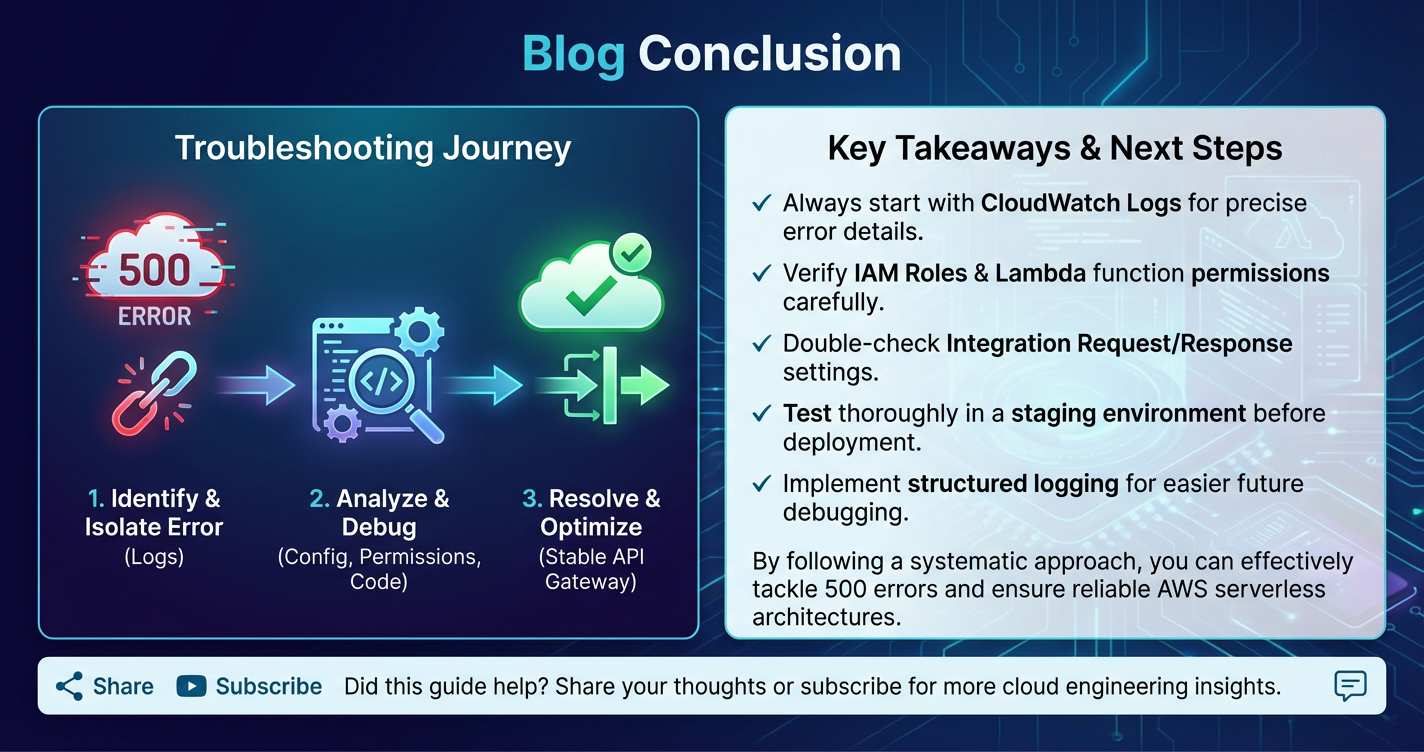
The 500 Internal Server Error in AWS API Gateway can be a source of significant frustration, often masking a labyrinth of underlying issues within your distributed application architecture. As we've thoroughly explored, these errors are rarely simple, stemming from a diverse range of causes that span backend integration flaws, misconfigured API Gateway components, network complexities, and even the nuances of security policies. From a runtime error in a Lambda function to a subtle misconfiguration in a VPC Link's security group, each potential culprit demands a methodical and informed approach to diagnosis.
The journey to resolving a 500 error begins with a foundational understanding of the AWS API Gateway's architecture and the intricate flow of requests through its various stages. This knowledge empowers developers and operations teams to logically narrow down the problem space. We delved into the most common origins of these errors, meticulously detailing how to investigate issues within Lambda functions, HTTP/VPC Link backends, and AWS service integrations. Furthermore, we examined API Gateway-specific configuration issues, such as errors in VTL mapping templates or authorizer functions, which can directly lead to internal server errors.
Crucially, this guide emphasized the indispensable role of AWS's powerful diagnostic toolset. CloudWatch Logs, with its execution logs for API Gateway and detailed logs for Lambda, remains the primary window into the health and behavior of your API components. AWS X-Ray offers unparalleled end-to-end tracing, visualizing the entire request path and pinpointing latency and error hotbeds across multiple services. The API Gateway Test Invoke feature provides an immediate feedback loop for iterative debugging of integration configurations.
Beyond reactive troubleshooting, the most effective strategy lies in proactive prevention. We outlined a comprehensive suite of preventive measures and design considerations, including robust error handling, stringent input validation, appropriate resource provisioning, comprehensive monitoring and alerting, and the implementation of least privilege IAM policies. Embracing Infrastructure as Code and CI/CD practices further hardens your API against human error and ensures repeatable, reliable deployments. We also touched upon how platforms like APIPark can augment AWS's native capabilities, providing an open-source, all-in-one AI gateway and API management platform that offers advanced features for lifecycle management, detailed logging, performance analysis, and seamless integration of diverse AI models, particularly beneficial for complex enterprise environments managing a multitude of APIs.
In essence, mastering the art of troubleshooting 500 Internal Server Errors in AWS API Gateway is not merely about fixing a problem; it's about cultivating a deeper understanding of your cloud infrastructure, adopting best practices in development and operations, and continuously refining your approach to building resilient, high-performing APIs. By adhering to the systematic approach and leveraging the tools and techniques discussed, you can significantly enhance the stability and reliability of your API-driven applications, ensuring a seamless experience for your users and robust operations for your business. The ongoing commitment to observability, vigilance, and continuous improvement will be your greatest allies in maintaining a healthy and error-free API ecosystem.
Frequently Asked Questions (FAQs)
1. What does a 500 Internal Server Error mean in AWS API Gateway? A 500 Internal Server Error from AWS API Gateway indicates that the server (either API Gateway itself or the backend service it integrates with) encountered an unexpected condition that prevented it from fulfilling a seemingly valid request. It's a generic error code signifying a problem on the server's side, rather than an issue with the client's request.
2. What are the most common causes of 500 Internal Server Errors in API Gateway? The most common causes are usually related to the backend integration: * Lambda Function Errors: Runtime errors, unhandled exceptions, memory exhaustion, or timeouts within the Lambda function. * HTTP Backend Issues: The target server being down, network connectivity problems (security groups, NACLs), backend application errors, or backend timeouts. * API Gateway Configuration Issues: Incorrect request/response mapping templates (VTL errors), malformed integration requests, or problems with custom authorizers.
3. How can I quickly diagnose the root cause of a 500 error in API Gateway? The quickest way is to check the AWS CloudWatch Logs. * API Gateway Execution Logs: Enable detailed INFO or DEBUG level logging for your API Gateway stage to see the full request/response flow and any integration errors. * Lambda Function Logs: If integrating with Lambda, check the specific Lambda function's CloudWatch Logs for runtime errors, timeouts, or permission issues. * API Gateway Test Invoke: Use the "Test" feature in the API Gateway console for immediate feedback and logs on a simulated request.
4. How does AWS X-Ray help in troubleshooting 500 errors in API Gateway? AWS X-Ray provides end-to-end tracing of requests as they travel through your application. By enabling X-Ray for API Gateway and your integrated services (like Lambda), you can visualize a service map, examine detailed traces for individual requests, identify which service component is failing or experiencing high latency, and drill down into subsegments to pinpoint the exact source of an error or bottleneck.
5. What are some preventive measures to reduce the occurrence of 500 errors? * Robust Error Handling: Implement comprehensive try-catch blocks and return appropriate HTTP status codes in your backend services. * Input Validation: Use API Gateway request validators and application-level validation to reject invalid client requests early. * Resource Provisioning: Ensure Lambda functions have adequate memory/timeout and backend servers are scaled sufficiently. * Monitoring & Alerting: Set up CloudWatch alarms on 5XXError metrics for API Gateway and Errors for Lambda functions. * Least Privilege IAM: Grant only necessary permissions to API Gateway, Lambda, and other service roles. * CI/CD & IaC: Use Continuous Integration/Continuous Deployment and Infrastructure as Code (e.g., CloudFormation, SAM) to automate deployments and reduce human error.
🚀You can securely and efficiently call the OpenAI API on APIPark in just two steps:
Step 1: Deploy the APIPark AI gateway in 5 minutes.
APIPark is developed based on Golang, offering strong product performance and low development and maintenance costs. You can deploy APIPark with a single command line.
curl -sSO https://download.apipark.com/install/quick-start.sh; bash quick-start.sh

In my experience, you can see the successful deployment interface within 5 to 10 minutes. Then, you can log in to APIPark using your account.

Step 2: Call the OpenAI API.