Troubleshooting `openssl s_client`: Cert Not Showing with `-showcert`


An Introduction to the Labyrinth of TLS and openssl s_client
The digital world relies heavily on secure communication, and at the heart of much of this security lies Transport Layer Security (TLS), the successor to SSL. When debugging secure connections, especially to api endpoints or web services, the openssl s_client command-line utility is an indispensable tool for engineers, developers, and system administrators. It allows us to simulate a client-side TLS handshake, revealing crucial details about the server's certificate, the negotiated cipher suites, and the overall connection parameters. However, like many powerful tools, openssl s_client can sometimes yield unexpected results, leading to confusion and frustration.
One particularly common and perplexing scenario arises when using the -showcert flag: you expect to see the server's full certificate chain, but the output is sparse, incomplete, or entirely missing the certificate you anticipate. This article aims to be a comprehensive guide to understanding why openssl s_client -showcert might not show the certificate you expect, providing deep insights into TLS fundamentals, server configurations, network intermediaries, and the intricate steps involved in diagnosing these elusive issues. We will navigate the complexities of certificate chains, server name indication (SNI), protocol negotiation, and the often-overlooked role of network infrastructure, including api gateways, in shaping what your openssl s_client command ultimately reveals. By the end, you'll possess a robust framework for effectively troubleshooting these critical secure communication problems.
Deconstructing openssl s_client: Your Digital Handshake Navigator
Before diving into troubleshooting, it's crucial to grasp what openssl s_client actually does. In essence, it acts as a minimalist TLS client, initiating a connection to a specified server and port. Its primary purpose is to perform a TLS handshake, exchange cryptographic parameters, and then optionally display details about the secure connection established. This makes it an invaluable diagnostic aid, far more revealing than a simple ping or telnet when dealing with TLS-protected services.
The basic syntax for openssl s_client is straightforward:
openssl s_client -connect hostname:port [options]
Where hostname is the target server's domain name or IP address, and port is typically 443 for HTTPS, but can be any port configured for TLS.
The -showcert option, which is the focus of our discussion, is designed to output the entire peer certificate chain received from the server. This chain typically includes the server's end-entity certificate, any intermediate CA certificates, and sometimes even the root CA certificate if the server is configured to send it (though this is less common for root CAs). The ability to inspect this chain is paramount for verifying trust, identifying misconfigurations, and ensuring that the correct certificate is being presented. When this expected output is missing or incorrect, it signals a deeper problem that warrants methodical investigation.
Understanding the various openssl s_client flags is key to effective diagnosis. Here's a table summarizing some of the most critical ones:
| Flag | Description | Common Use Case |
|---|---|---|
-connect host:port |
Specifies the host and port to connect to. This is the fundamental parameter for establishing the TLS connection. | Essential for any openssl s_client test; defines the target. |
-showcert |
Displays the server's certificate chain received during the TLS handshake. Each certificate in the chain (end-entity, intermediates) will be printed in PEM format. | Verifying the server's certificate, inspecting the chain of trust, and checking for missing intermediate certificates. This is what we are primarily troubleshooting. |
-servername name |
Enables Server Name Indication (SNI). The specified name (typically the hostname) is sent in the ClientHello message, allowing servers hosting multiple TLS certificates on the same IP address to present the correct one. |
Crucial when a server hosts multiple domains with distinct certificates. Without it, you might receive the default certificate, or the handshake might fail if the server requires SNI. |
-tls1_2, -tls1_3 |
Explicitly specifies the TLS protocol version to use for the handshake. Other options exist for older versions (e.g., -ssl2, -ssl3, -tls1, -tls1_1), but these are largely deprecated for security reasons. |
Debugging protocol negotiation issues or testing server support for specific TLS versions. Useful if a server has dropped support for older protocols. |
-debug |
Provides very verbose output, including hex dumps of the TLS messages exchanged. This is often an overwhelming amount of information but can be invaluable for extremely deep-level protocol debugging. | For expert users when standard verbose output isn't enough; helps identify malformed messages or subtle protocol violations. |
-state |
Shows the state of the SSL session. This gives a high-level overview of the handshake progress. | Quickly understanding where the handshake failed or stalled. |
-msg |
Dumps all TLS/SSL messages as they are sent and received, in a more readable format than -debug. It provides details on ClientHello, ServerHello, Certificate, ServerKeyExchange, etc. |
Excellent for tracking the flow of the handshake and identifying exactly which message is missing or problematic, particularly the Certificate message from the server. |
-crlf |
Changes the line endings from LF to CRLF for data sent after the handshake. While not directly related to cert display, it's useful for interacting with specific text-based protocols. | Primarily for debugging application-layer protocols over TLS, e.g., SMTP or HTTP without the -quiet flag, where CR-LF is expected. |
-quiet |
Suppresses some diagnostic output, specifically the certificate chain and handshake details, after the initial connection. Note: this will hide the very output we are trying to troubleshoot, so it should be avoided when debugging -showcert issues. |
For automated scripts where only the success/failure of the connection is needed, without verbose output. Not suitable for troubleshooting. |
-verify depth |
Sets the maximum depth for the certificate chain verification. The depth parameter indicates how many non-self-signed certificates are allowed in the chain. |
Diagnosing certificate path length errors or verifying that the entire chain can be validated. |
-CAfile file |
Specifies a file containing trusted CA certificates in PEM format. These are used to verify the server's certificate. | Testing trust against a custom CA, or explicitly providing trusted roots for verification purposes in environments where the system trust store isn't appropriate or accessible. |
-CApath dir |
Specifies a directory containing trusted CA certificates. The certificates must be named using the hash value of the subject name. | Similar to -CAfile but for a collection of CAs in a directory. |
-cert file, -key file |
Provides a client certificate and private key for client authentication (mutual TLS). | Debugging mutual TLS connections where the server requires the client to present a certificate for authentication. |
Mastering these flags transforms openssl s_client from a simple connectivity checker into a powerful forensic tool, capable of peeling back the layers of a TLS connection to reveal its innermost workings. The challenge often lies in interpreting the verbose output, but with practice, the patterns of a successful or failed handshake become discernible.
The Intricate Dance of the TLS/SSL Handshake and Certificate Presentation
To effectively troubleshoot a missing certificate, one must first grasp the fundamentals of the TLS handshake. This multi-step process establishes a secure communication channel, ensuring confidentiality, integrity, and authentication. The presentation of the server's certificate is a critical phase in this dance.
Here's a simplified overview of the key steps relevant to certificate exchange:
- ClientHello: The client initiates the handshake by sending a
ClientHellomessage to the server. This message contains information such as the highest TLS version supported by the client, a random number, a list of cipher suites the client can use, and optionally, theServer Name Indication (SNI)extension. The SNI is particularly important, as it tells the server which hostname the client is trying to connect to, allowing servers hosting multiple domains on the same IP address to present the correct certificate. - ServerHello: Upon receiving the
ClientHello, the server responds with aServerHellomessage. This message confirms the chosen TLS version, selects a cipher suite from the client's list, and provides its own random number. - Certificate: This is the pivotal message for our discussion. Immediately after
ServerHello, the server sends itsCertificatemessage. This message contains the server's end-entity certificate and, crucially, any necessary intermediate CA certificates. The goal is for the client to receive a complete chain, allowing it to trace trust back to a trusted root CA in its own trust store. If this message is missing, malformed, or contains an unexpected certificate, that's where our troubleshooting begins. - ServerKeyExchange (Optional): If the chosen cipher suite requires it, the server sends a
ServerKeyExchangemessage containing ephemeral public keys for key agreement. - ServerHelloDone: The server signals the end of its part of the handshake negotiation.
- ClientKeyExchange: The client generates its own pre-master secret, encrypts it using the server's public key (from the certificate or
ServerKeyExchange), and sends it to the server. - ChangeCipherSpec (Client): The client sends a
ChangeCipherSpecmessage, indicating that all subsequent messages will be encrypted using the negotiated keys. - Finished (Client): The client sends an encrypted
Finishedmessage, a hash of all previous handshake messages, to verify that the handshake was not tampered with. - ChangeCipherSpec (Server): The server sends its
ChangeCipherSpecmessage. - Finished (Server): The server sends its encrypted
Finishedmessage.
At this point, the TLS handshake is complete, and application data can be securely exchanged. The openssl s_client -showcert command specifically focuses on parsing and displaying the content of the Certificate message received from the server. If this message is never received, is empty, or contains data that OpenSSL cannot interpret as a valid certificate, then -showcert will naturally fail to display anything meaningful.
The Cornerstone of Trust: Understanding Certificate Chains and Validation
A server's identity in the TLS ecosystem is established by its digital certificate. However, this certificate rarely stands alone. It's part of a "chain of trust" that links the end-entity certificate (issued to the server) back to a widely trusted Root Certificate Authority (CA).
The chain typically looks like this:
- End-Entity Certificate: Issued to the server (e.g.,
www.example.com). Signed by an Intermediate CA. - Intermediate CA Certificate(s): Issued by a Root CA, and used to sign end-entity certificates. There can be one or more intermediate certificates in a chain.
- Root CA Certificate: A self-signed certificate, pre-installed in operating systems and browsers, acting as the ultimate anchor of trust.
When a client (like openssl s_client) receives a certificate chain from a server, it attempts to validate it. This involves:
- Verifying Signatures: Each certificate in the chain must be cryptographically signed by the next certificate up the chain (except the root, which is self-signed).
- Checking Expiration Dates: All certificates must be within their valid-from and valid-to dates.
- Checking Revocation Status: Clients may check Certificate Revocation Lists (CRLs) or use Online Certificate Status Protocol (OCSP) to ensure certificates haven't been revoked.
- Trust Anchor: The client must find a Root CA in its own trusted store that matches the root of the server's chain.
If any part of this validation fails, the client might abort the handshake, refuse to display the certificate, or indicate a verification error. Critically, if the server fails to send the intermediate certificate(s), the client cannot build a complete chain back to a trusted root, leading to a "certificate untrusted" error, or in the context of -showcert, potentially an incomplete or absent display of the full chain. openssl s_client is often quite forgiving in displaying what it receives, even if it can't verify it, but a server misconfiguration that prevents the transmission of the certs is a different beast.
APIPark is a high-performance AI gateway that allows you to securely access the most comprehensive LLM APIs globally on the APIPark platform, including OpenAI, Anthropic, Mistral, Llama2, Google Gemini, and more.Try APIPark now! 👇👇👇
Common Scenarios Where -showcert Stumbles
When openssl s_client -showcert doesn't behave as expected, the root cause can often be traced back to one of several common scenarios. Each scenario prevents the full, correct certificate chain from being transmitted by the server or correctly interpreted by the client.
1. Server Misconfiguration: The Missing Intermediates
This is arguably the most frequent culprit. Many server administrators mistakenly configure their web servers (Nginx, Apache, etc.) with only the end-entity certificate and its private key, overlooking the crucial intermediate CA certificates. Without these intermediates, the client receives an incomplete chain. While some clients (especially web browsers) might be smart enough to "fetch" missing intermediates from public repositories (via "AIA chasing"), openssl s_client typically operates more strictly. It will only display what the server sends.
Impact: openssl s_client -showcert will show only the end-entity certificate, or perhaps nothing if the handshake fails verification very early due to the incomplete chain. The output will lack the subject and issuer details for the intermediate certificates.
Diagnosis: * Examine your server's TLS configuration (ssl_certificate and ssl_certificate_key in Nginx, SSLCertificateFile and SSLCertificateKeyFile in Apache). * Ensure that the ssl_certificate (or equivalent) directive points to a file that contains the concatenated end-entity certificate followed by all intermediate certificates, usually in PEM format. The order is crucial: server cert first, then intermediate(s), up to the root (though the root itself is often omitted). * Correct server configuration for Nginx: nginx ssl_certificate /etc/nginx/ssl/your_domain_bundle.pem; # Contains server cert + intermediate(s) ssl_certificate_key /etc/nginx/ssl/your_domain.key; Where your_domain_bundle.pem would look something like: -----BEGIN CERTIFICATE----- (Your Server Certificate) -----END CERTIFICATE----- -----BEGIN CERTIFICATE----- (Intermediate CA Certificate 1) -----END CERTIFICATE----- -----BEGIN CERTIFICATE----- (Intermediate CA Certificate 2, if any) -----END CERTIFICATE-----
2. Server Name Indication (SNI) Issues
SNI is an extension to the TLS protocol that allows a client to indicate which hostname it is trying to connect to at the start of the handshake. This is essential for servers hosting multiple TLS-secured websites or apis on a single IP address, as it enables the server to present the correct certificate for the requested domain.
Impact: If openssl s_client connects to an SNI-enabled server without specifying the -servername flag, the server might: * Present its default certificate (which might not be the one you're expecting for your specific domain). * Fail the handshake entirely if it's strictly configured to require SNI for all virtual hosts.
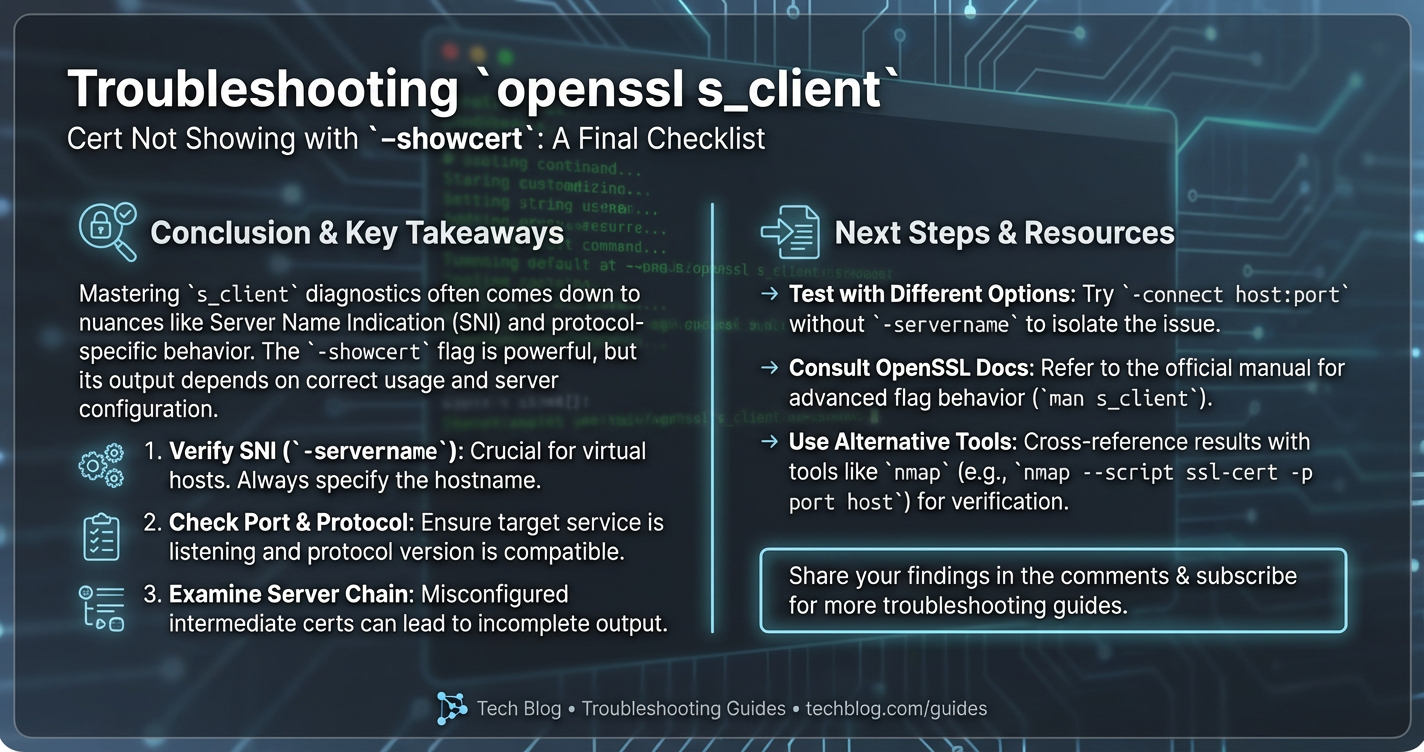
Diagnosis: * Always use openssl s_client -servername your_domain.com -connect your_domain.com:443 -showcert when testing an SNI-enabled host. * If you're unsure if SNI is required, try both with and without the -servername flag and compare the output. The certificates displayed should match your expectation when -servername is correctly used.
3. Network Intermediaries: Proxies, Load Balancers, and API Gateways
In modern distributed architectures, it's rare for clients to connect directly to the backend application server. Instead, requests often pass through various network intermediaries: * Load Balancers (e.g., AWS ELB/ALB, Google Cloud Load Balancer, Nginx, HAProxy): These devices distribute traffic and often terminate TLS connections at the edge. They then establish a new TLS connection (or an unencrypted one) to the backend server. * Reverse Proxies: Similar to load balancers, they sit in front of backend servers. * Firewalls and Intrusion Detection Systems (IDS) with SSL Interception: Some security devices perform "man-in-the-middle" (MITM) attacks for inspection purposes. They decrypt traffic, inspect it, and then re-encrypt it using their own dynamically generated certificates. * API Gateways: An api gateway is a specific type of reverse proxy that acts as the single entry point for a group of apis. It handles tasks like authentication, authorization, rate limiting, and crucially, TLS termination.
When you use openssl s_client to connect to a service behind such an intermediary, you will inevitably see the certificate presented by the intermediary, not the certificate of the ultimate backend server. This is by design, as the intermediary is the actual peer establishing the TLS connection with your client.
For instance, consider a scenario where your api is protected by an api gateway. The client connects to the api gateway, which presents its own TLS certificate. The api gateway then forwards the request (potentially with a new TLS connection or over HTTP) to the backend api server. Your openssl s_client command, when connecting to the api gateway's public address, will therefore show the api gateway's certificate.
This is where a robust and feature-rich api gateway solution, such as APIPark, becomes particularly relevant. As an open-source AI gateway and API management platform, APIPark handles the full API lifecycle, including TLS termination. When you deploy an api or an AI service behind APIPark, openssl s_client pointed at APIPark's ingress will display the certificate that APIPark is configured to present. This might be a certificate managed by APIPark itself or one you've uploaded to the platform. Understanding this distinction is crucial: if you're troubleshooting a backend certificate, you must bypass the gateway or inspect the gateway's configuration for how it handles TLS to its upstream services. APIPark, with its end-to-end API lifecycle management and robust logging, helps provide visibility into these layers, allowing you to manage certificates at the gateway level and ensure proper secure communication with your backend apis.
Impact: openssl s_client -showcert will display the certificate of the intermediary (load balancer, proxy, api gateway, firewall) instead of the actual backend server's certificate. This is not a failure of openssl s_client but rather an accurate reflection of the network topology.
Diagnosis: * Identify if your target api or service is behind any proxies, load balancers, or an api gateway. * If it is, the certificate you're seeing is likely the correct one for that specific network hop. If you need to verify the backend server's certificate, you'll need to connect directly to it (if possible, e.g., on a private network) or inspect the intermediary's configuration to see what certificate it uses for upstream connections. * Use tools like traceroute or whois on the IP address to sometimes identify network boundaries.
4. Protocol Negotiation Failures
TLS versions and cipher suites play a critical role in establishing a secure connection. If there's a mismatch or a lack of common ground between the client and server, the handshake can fail before any certificates are exchanged.
Impact: The openssl s_client command might hang, exit with an error like "handshake failure," or simply not produce any certificate output if the connection is terminated prematurely.
Diagnosis: * Try forcing specific TLS versions using flags like -tls1_2 or -tls1_3. Start with the highest version and work downwards. * openssl s_client -tls1_3 -connect host:port -showcert * openssl s_client -tls1_2 -connect host:port -showcert * Use openssl s_client -cipher 'DEFAULT' or experiment with specific cipher strings to see if a particular cipher suite is causing issues. * The -msg and -debug flags can provide extremely detailed output about the handshake messages, revealing exactly where the negotiation breaks down. Look for messages like "no shared cipher" or "protocol version mismatch."
5. Connection Reset or Termination
Sometimes, the connection might be abruptly reset or terminated by the server or an intervening network device before the certificate message is fully transmitted. This could be due to: * Aggressive Firewall Rules: A firewall might be configured to drop connections that don't conform to certain patterns or if it detects suspicious activity. * Server Overload/Misbehavior: The server might be too busy to respond, or its TLS implementation might be buggy. * Timeouts: A network device or the server itself might time out the connection if the handshake takes too long.
Impact: openssl s_client might show an error like "connection reset by peer" or simply hang and then close without any certificate output.
Diagnosis: * Check server logs for any errors related to TLS connections or connection resets. * Use ping and traceroute to verify basic network connectivity and identify potential packet loss or high latency. * Temporarily disable strict firewall rules (if possible and safe to do so) to rule them out. * Try connecting from a different network location or client machine to rule out client-specific network issues.
6. Certificate Format Issues or Corruption
While less common with modern CAs, it's possible for the certificate file on the server to be malformed or corrupted. This could prevent the server's TLS engine from reading it correctly, leading to it not being presented during the handshake.
Impact: The server might fail to start TLS, or it might abort the handshake without presenting a certificate.
Diagnosis: * Use openssl x509 -in your_certificate.pem -text -noout on the server to parse and display the certificate. This will show any formatting errors. * Verify that the private key matches the certificate using openssl x509 -noout -modulus -in your_certificate.pem | openssl md5 and openssl rsa -noout -modulus -in your_private_key.key | openssl md5. The MD5 hashes should match.
7. Client-Side OpenSSL Version or Configuration
In rare cases, the version of openssl on your client machine might be old, buggy, or configured in a way that interferes with certificate parsing or TLS negotiation.
Impact: Inconsistent behavior, unexpected errors, or failure to display certificates that other clients can see.
Diagnosis: * Check your OpenSSL version: openssl version. * Try updating OpenSSL to the latest stable version if you're on an older release. * Test with openssl s_client from a different machine or a fresh environment (e.g., a Docker container) to rule out local client-side issues.
Deep Dive into Troubleshooting Steps: A Methodical Approach
When facing a missing certificate with openssl s_client -showcert, a structured, methodical approach is essential. Jumping straight to complex solutions without basic checks can waste valuable time.
Step 1: Basic Connectivity and Port Check
Before assuming a TLS issue, verify that you can even reach the server on the specified port.
ping: Check basic network reachability.bash ping your_domain.com(Note:pinguses ICMP, not TCP, so it doesn't guarantee port accessibility).telnetornc(netcat): Attempt a raw TCP connection to the port. If successful, you'll see a blank screen or a banner; if it fails, it usually indicates a firewall blocking the port or the service not listening.bash telnet your_domain.com 443 # OR nc -zv your_domain.com 443If these fail, the problem is at a layer below TLS, likely network or firewall related.
Step 2: Initial openssl s_client Invocation with Key Flags
Start with a standard openssl s_client command, ensuring you include -servername if your target is a virtual host.
openssl s_client -servername your_domain.com -connect your_domain.com:443 -showcert
Analyze the Output: * CONNECTED(...): Indicates a successful TCP connection. If you don't see this, refer to Step 1. * Cipher is (...), TLSv1.X is (...), DHE/ECDHE is (...): Shows successful TLS handshake negotiation. * Certificate chain section: This is what you're primarily looking for. * If it's empty, or contains only one certificate when you expect a chain, proceed to Step 3. * If it shows an unexpected certificate, consider network intermediaries (Step 4). * If it shows errors like Verify return code: X (description), it means the client received the certificate but couldn't validate it (e.g., missing intermediates, revoked cert). This is different from the certificate not showing up.
Step 3: Increase Verbosity to Uncover Handshake Details
If the initial command doesn't yield the expected certificate, or provides cryptic errors, increase the verbosity using -msg or -debug. -msg is generally more readable than -debug for handshake issues.
openssl s_client -servername your_domain.com -connect your_domain.com:443 -showcert -msg
What to look for in -msg output: * ClientHello and ServerHello messages: Confirm the TLS version and cipher suite being negotiated. * <<< TLS 1.X Handshake [length X]Certificate: This is the critical line. If you don't see a Certificate message from the server, or if its length is unusually small, it strongly suggests the server isn't sending the certificate or is sending an invalid one. * read:errno=XXX or write:errno=XXX: Indicates socket errors, often pointing to connection resets or network issues. * SSL_do_handshake:SSLV3_ALERT_XXX: These alerts from the server are crucial. For example, SSLV3_ALERT_HANDSHAKE_FAILURE or SSLV3_ALERT_UNRECOGNIZED_NAME (often related to SNI).
Step 4: Rule Out SNI and Protocol Mismatch
Systematically test different SNI values and TLS versions.
- No SNI:
bash openssl s_client -connect your_domain.com:443 -showcertCompare this output to the one with-servername. If different, SNI is definitely at play. - Specific TLS versions:
bash openssl s_client -servername your_domain.com -connect your_domain.com:443 -showcert -tls1_3 openssl s_client -servername your_domain.com -connect your_domain.com:443 -showcert -tls1_2 # If legacy is suspected (rare and insecure): openssl s_client -servername your_domain.com -connect your_domain.com:443 -showcert -tls1_1Observe if forcing a specific protocol version yields a different result. If one version works and others don't, you've identified a protocol negotiation issue.
Step 5: Verify Server-Side Configuration
If the client-side diagnostics point to the server not sending the certificate, or an incorrect one, it's time to inspect the server's configuration directly.
- For Web Servers (Nginx, Apache, Caddy):
- Locate the
ssl_certificate/SSLCertificateFiledirective. - Ensure the file specified actually exists and is readable by the server process.
- Verify the content of this file. It must contain the end-entity certificate followed by all intermediate certificates in the correct order. Use
openssl x509 -in your_bundle.pem -text -nooutfor each certificate in the file to inspect them. - Check for
ssl_trusted_certificate/SSLCertificateChainFiledirectives (especially in older Apache configurations) which were sometimes used for intermediates, but the modern best practice is to bundle them with the primary certificate. - Confirm the
ssl_certificate_key/SSLCertificateKeyFilepoints to the correct private key that matches the end-entity certificate.
- Locate the
- For Custom Applications/Services:
- Examine the application's configuration for TLS settings. Many applications use libraries like
Go's crypto/tls,Java's JSSE, orPython's sslmodule. - Ensure the application is loading the correct certificate and key files.
- Look for any
chainorintermediatecertificate settings.
- Examine the application's configuration for TLS settings. Many applications use libraries like
- For
API Gateways (like APIPark):- Access the
api gateway's administrative interface or configuration files. - Verify which certificate is assigned to the specific
gatewaylistener orapiendpoint you are targeting. - Ensure the certificate chain (server cert + intermediates) is correctly uploaded and configured within the
gateway's certificate management system. For APIPark, this would involve checking the certificate associated with the specificapiorgatewayinstance. Since APIPark excels at managing TLS for numerousapis, its configuration should be relatively straightforward, but human error in uploading or selecting the wrong certificate bundle is always a possibility.
- Access the
Step 6: Network Packet Analysis (Wireshark/tcpdump)
For the most stubborn issues, going down to the network packet level can provide definitive answers. This confirms what is actually being transmitted over the wire.
tcpdump(Linux/macOS):bash sudo tcpdump -i any -s 0 -w tls_handshake.pcap host your_domain_ip and port 443Run this on the client or server, then perform youropenssl s_clienttest.- Wireshark: Open the
.pcapfile in Wireshark. Filter fortls.handshake.type == 11(Certificate).
What to look for in Wireshark: * ClientHello: Confirm the SNI extension is present and correct. * ServerHello: Confirm the negotiated TLS version and cipher suite. * Certificate message (TLS Handshake, Type: Certificate): This is the key. Expand this section. It should list all the certificates sent by the server. If this message is missing entirely, or if it only contains the end-entity cert and no intermediates, then the server is definitively not sending the full chain. If the packet stream abruptly ends before this message, it points to a connection reset.
Step 7: Compare with Other Clients (curl, web browser)
If openssl s_client is failing, but a web browser or curl works, it suggests a subtle difference in how openssl s_client is performing the handshake or verifying certificates.
curl:bash curl -v https://your_domain.comThe-vflag provides verbose output, including the certificate chain received and the verification status.curltypically uses system trust stores and often implements SNI automatically.- Web Browser: Browsers are highly sophisticated TLS clients. If a browser shows a valid lock icon, it means it received and validated the certificate chain successfully. If it shows warnings, investigate those warnings.
If other clients work, meticulously compare their handshake parameters (TLS version, cipher suites, SNI presence) against what openssl s_client is using. It could indicate an issue with your specific openssl s_client flags or version.
Preventive Measures and Best Practices
Avoiding these troubleshooting headaches in the first place is always the best strategy. Here are some best practices for TLS certificate management and server configuration:
- Always Bundle Intermediate Certificates: When configuring a server, ensure the certificate file provided includes the end-entity certificate followed by all necessary intermediate certificates. Many CAs provide these bundles.
- Verify Certificate Chains Post-Deployment: After deploying or updating a certificate, immediately test it with
openssl s_client -servername your_domain.com -connect your_domain.com:443 -showcert. Automate this check in your CI/CD pipeline if possible. - Correct SNI Configuration: Ensure your server is correctly configured to use SNI, especially if hosting multiple domains on the same IP. Always use the
-servernameflag inopenssl s_clienttests for such environments. - Keep Server Software Updated: Regularly update your web server (Nginx, Apache),
api gateway(like APIPark), and underlying TLS libraries (OpenSSL) to benefit from bug fixes, security patches, and improved TLS protocol support. - Monitor Certificate Expiration: Implement robust monitoring for certificate expiration dates. Expired certificates are a common cause of service outages and handshake failures.
- Use a Dedicated
API Gatewayfor API Security: Forapiservices, leveraging anapi gatewaylike APIPark can centralize TLS management. APIPark's ability to handle end-to-end API lifecycle management, including traffic forwarding and security policies, means you can manage certificates at a single point for multipleapis, ensuring consistency and simplifying troubleshooting. Its detailed API call logging and powerful data analysis features also aid in pre-emptive issue identification. - Understand Your Network Topology: Be aware of all network intermediaries (load balancers, reverse proxies, firewalls, CDNs) that sit between your client and your backend server. Each of these could be performing TLS termination and presenting its own certificate.
- Logging and Monitoring: Ensure your server and
api gatewayhave comprehensive logging enabled for TLS events. These logs can often provide the specific error messages needed to pinpoint the problem.
By adhering to these practices, you can significantly reduce the likelihood of encountering scenarios where openssl s_client -showcert fails to provide the expected certificate information, fostering a more secure and stable api ecosystem.
Conclusion: Navigating the Nuances of TLS Diagnostics
The openssl s_client utility is an unparalleled diagnostic instrument for probing the intricacies of TLS connections. When its -showcert output falls short of expectations, it signals a deeper issue demanding a systematic and informed investigation. From server misconfigurations involving missing intermediate certificates to the subtle complexities introduced by Server Name Indication, and the often-overlooked presence of network intermediaries like load balancers and api gateways, the causes are varied and often interconnected.
We've explored how a clear understanding of the TLS handshake, the critical role of certificate chains, and the impact of various openssl s_client flags can empower you to dissect these problems. By following a methodical troubleshooting process—starting with basic connectivity, progressively increasing verbosity, scrutinizing server configurations, and even resorting to packet analysis—you can effectively pinpoint the root cause. Furthermore, by embracing best practices in certificate management and leveraging robust platforms like APIPark for api gateway functionalities, you can build a more resilient and transparent secure communication infrastructure.
Ultimately, a "missing" certificate in openssl s_client -showcert is rarely truly missing; it's simply not being presented or parsed as expected due to a specific configuration or network dynamic. With the right knowledge and tools, you can demystify these occurrences, ensuring your secure apis and services operate with the trust and integrity they demand.
Frequently Asked Questions (FAQ)
1. What is the most common reason for openssl s_client -showcert not displaying the full certificate chain?
The most common reason is server misconfiguration where the server is not sending the intermediate Certificate Authority (CA) certificates along with its end-entity certificate. Many CAs issue certificates that require one or more intermediate certificates to form a complete chain back to a trusted root. If the server only sends its own certificate, openssl s_client (and other clients) cannot build a full trust path and will either report an error or simply display only the partial chain it received. The solution is to bundle the server certificate with all intermediate certificates in the server's TLS configuration file.
2. Why might openssl s_client show a different certificate than what I expect, even with -showcert?
This usually indicates that your connection is terminating at a network intermediary, such as a load balancer, reverse proxy, or an api gateway. These devices sit between your client and the ultimate backend server, perform TLS termination (decrypting the client's traffic), and then re-establish a connection to the backend. Therefore, openssl s_client will accurately display the certificate of that intermediary, not the backend server. To see the backend's certificate, you would need to connect directly to the backend server, if possible, bypassing the intermediary.
3. How does Server Name Indication (SNI) relate to certificate display issues?
SNI is a TLS extension that allows a client to specify the hostname it intends to connect to during the handshake. This is crucial for servers hosting multiple domains (each with its own certificate) on a single IP address. If you don't use the -servername flag with openssl s_client when connecting to an SNI-enabled server, the server might present a default certificate (which might not be the one you expect for your specific domain) or even fail the handshake. Always use -servername your_domain.com when troubleshooting SNI-enabled services.
4. My openssl s_client command results in "handshake failure" instead of showing any certificate. What does this mean?
A "handshake failure" error indicates that the TLS negotiation could not complete successfully, often before certificates are exchanged or validated. Common causes include: * Protocol Mismatch: The client and server could not agree on a common TLS version (e.g., client only supports TLS 1.3, server only TLS 1.2). * Cipher Suite Mismatch: No common cryptographic algorithms could be agreed upon. * SNI Required: The server requires SNI but the client didn't send it, leading the server to reject the connection. * Aggressive Security Policies: A firewall or server might terminate the connection due to policy violations. Using -msg or -debug flags with openssl s_client can provide detailed insights into where the handshake failed.
5. Can an api gateway like APIPark affect what openssl s_client -showcert displays?
Absolutely. An api gateway such as APIPark typically acts as a TLS termination point for client connections. When you connect to an api service deployed behind APIPark, your openssl s_client command will perform a TLS handshake with APIPark itself. Consequently, -showcert will display the certificate that APIPark is configured to present for that api endpoint, rather than any certificate configured on the ultimate backend api server. APIPark's role here is to manage the secure entry point for your apis, centralizing certificate management and ensuring consistent security policies. If you need to verify the backend server's certificate, you'd need to bypass the gateway or inspect the gateway's configuration for its upstream TLS handling.
🚀You can securely and efficiently call the OpenAI API on APIPark in just two steps:
Step 1: Deploy the APIPark AI gateway in 5 minutes.
APIPark is developed based on Golang, offering strong product performance and low development and maintenance costs. You can deploy APIPark with a single command line.
curl -sSO https://download.apipark.com/install/quick-start.sh; bash quick-start.sh

In my experience, you can see the successful deployment interface within 5 to 10 minutes. Then, you can log in to APIPark using your account.

Step 2: Call the OpenAI API.