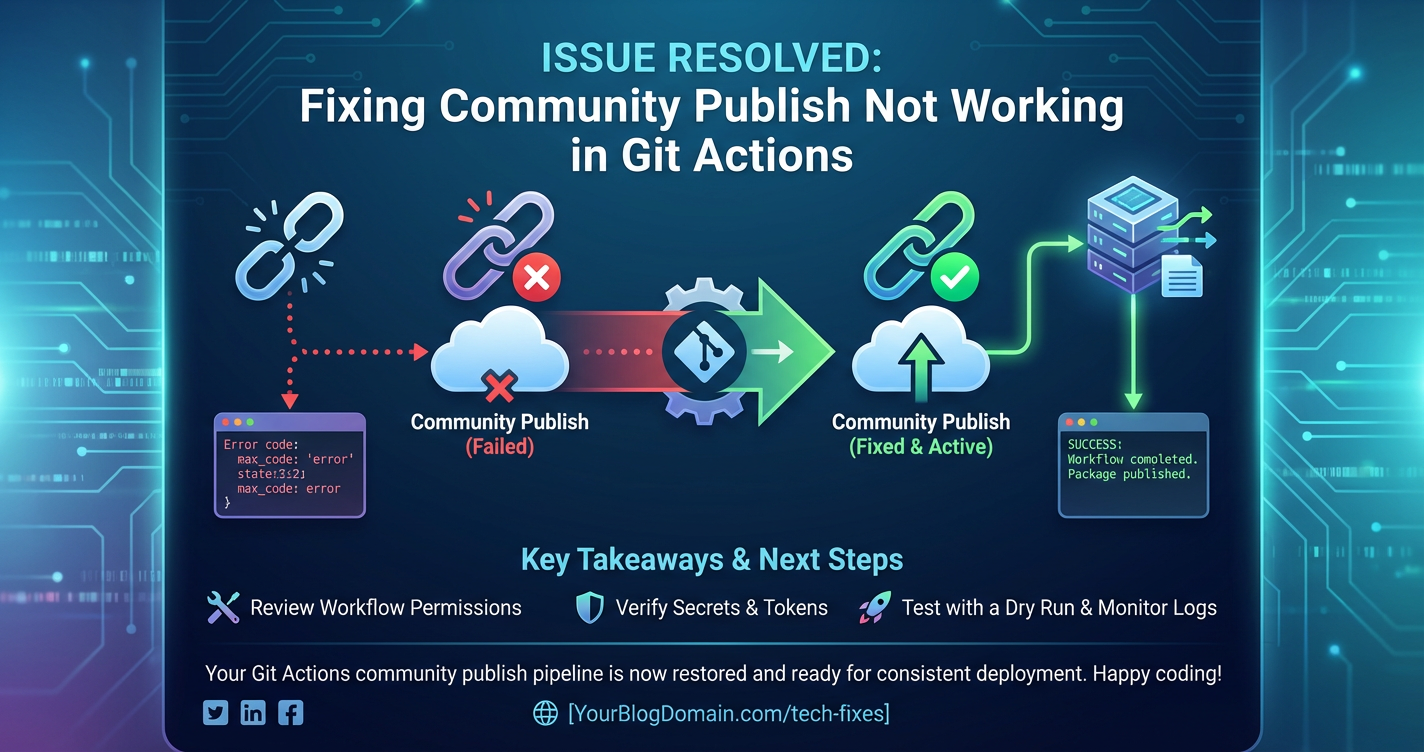
Fixing Community Publish Not Working in Git Actions


In the rapidly evolving landscape of modern software development, automation stands as a cornerstone of efficiency, reliability, and continuous delivery. GitHub Actions, as an integrated part of the GitHub platform, has revolutionized how developers automate their workflows, from continuous integration (CI) to continuous deployment (CD). Among its most powerful applications is the ability to automatically publish artifacts, libraries, and applications to various community platforms, such as npm for JavaScript packages, PyPI for Python libraries, Docker Hub for container images, or even custom content repositories. This seamless automation empowers open-source projects, fosters collaboration, and ensures that the latest stable versions of tools and components are readily available to the wider development community.
However, the path to perfectly smooth automated publishing is not always straightforward. Developers frequently encounter frustrating scenarios where their meticulously crafted Git Actions workflows fail to publish to community platforms. These failures can manifest in myriad ways: cryptic error messages in the workflow logs, silent non-publication, or seemingly successful runs that leave no trace on the target registry. The debugging process can often feel like searching for a needle in a haystack, especially when dealing with distributed systems, external service integrations, and the subtle nuances of environment configurations. The aim of this extensive guide is to demystify these common issues, provide a systematic approach to troubleshooting, and equip developers with the knowledge and best practices necessary to resolve "Community Publish Not Working" errors in Git Actions, ensuring their contributions reach the community without unnecessary friction. We will delve into the underlying causes, explore detailed diagnostic techniques, and offer robust solutions, ultimately enhancing your ability to manage and automate your open-source contributions effectively.
The Essence of GitHub Actions and Community Publishing
Before we dissect the problems, it's crucial to solidify our understanding of what GitHub Actions are and why automated community publishing is so vital. GitHub Actions allows you to automate tasks within your software development lifecycle directly within your GitHub repository. Workflows are defined in YAML files (.github/workflows/*.yml) and are triggered by specific events, such as pushes, pull requests, or scheduled intervals. Each workflow consists of one or more jobs, and each job contains a sequence of steps that run commands or use pre-built actions. These actions are essentially reusable scripts that abstract away complex operations, making it easier to integrate various tools and services.
For community projects, automated publishing is a game-changer. It eliminates the manual, error-prone process of building, packaging, authenticating, and uploading artifacts. Imagine a Python library maintainer who, after every release, manually runs python setup.py sdist bdist_wheel and then twine upload dist/*. This is not only time-consuming but also introduces opportunities for human error, such as uploading the wrong version, forgetting to update metadata, or mismanaging authentication tokens. With GitHub Actions, these steps are codified, version-controlled, and executed consistently every single time a predefined event occurs, typically a new tag being pushed or a release being published on GitHub. This consistency ensures reliability, reduces the burden on maintainers, and accelerates the availability of updates to users, fostering a more dynamic and responsive open-source ecosystem.
The interaction between a Git Action runner and a community publishing platform typically involves several critical components: the build environment (where the project is compiled and packaged), the authentication mechanism (how the runner proves its identity to the publishing service), and the upload mechanism (the specific api calls or CLI commands used to transfer the artifacts). Failures can arise at any of these junctures, making a holistic understanding essential for effective troubleshooting.
Deciphering the Common Causes of Publishing Failures
When a GitHub Action workflow fails to publish to a community platform, the underlying cause can often be traced back to one of several recurring themes. Understanding these categories is the first step toward effective diagnosis. We will explore each in detail, providing context and potential remedies.
1. Authentication and Authorization Mismatches
At the heart of any interaction with an external service lies authentication – the process by which a client (your Git Action runner) proves its identity to a server (the package registry). Authorization then determines what that authenticated client is permitted to do. Issues here are arguably the most frequent culprits in publishing failures.
- Missing or Incorrect Secrets:
- Description: Publishing to a package registry almost always requires a token, API key, or username/password combination. These credentials should never be hardcoded directly into your workflow files for security reasons. Instead, GitHub Secrets are used to store sensitive information securely. A common error is simply forgetting to define the necessary secret in your repository's settings (
Settings > Secrets and variables > Actions > Repository secrets) or mistyping its name when referencing it in the workflow YAML (e.g.,NPM_TOKENvs.NODE_AUTH_TOKEN). - Detail: Secrets are exposed to workflow steps as environment variables. If the variable name in your workflow (
${{ secrets.NPM_TOKEN }}) doesn't match the actual secret name in GitHub, it will resolve to an empty string, leading to an authentication failure. Many publishing tools provide verbose errors when authentication fails, but sometimes they are generic "permission denied" messages. - Solution: Carefully verify the secret names in your workflow YAML against the names defined in GitHub's repository secrets. Ensure the secret actually exists. If in doubt, delete and re-add the secret to rule out hidden corruption or copy-paste errors. Consider using environment variables for the token within the step, like
env: NODE_AUTH_TOKEN: ${{ secrets.NPM_TOKEN }}.
- Description: Publishing to a package registry almost always requires a token, API key, or username/password combination. These credentials should never be hardcoded directly into your workflow files for security reasons. Instead, GitHub Secrets are used to store sensitive information securely. A common error is simply forgetting to define the necessary secret in your repository's settings (
- Insufficient Permissions for the Token:
- Description: Even if the token is present and correct, it might not have the necessary permissions to perform the publish operation. For instance, an npm token might only have read access, or a PyPI API token might be scoped to a different project. GitHub's own
GITHUB_TOKENalso has specific scopes; while it can publish GitHub Releases, it often doesn't have sufficient permissions for external registries. - Detail: When generating tokens (e.g., npm personal access tokens, PyPI API tokens), you're typically given options to select scopes or permissions (e.g., "publish," "read/write packages"). If you select too restrictive a scope, the
apicall from your Git Action will be rejected. - Solution: Review the documentation for the specific package registry on how to generate a token with appropriate publishing permissions. Regenerate the token with the correct scopes and update the GitHub secret. For example, npm tokens should have "Publish" access, and PyPI tokens should be scoped to "project:your-package-name" with "upload" permission.
- Description: Even if the token is present and correct, it might not have the necessary permissions to perform the publish operation. For instance, an npm token might only have read access, or a PyPI API token might be scoped to a different project. GitHub's own
- Expired Tokens:
- Description: Some tokens, especially personal access tokens (PATs) for platforms like GitHub or even certain registry tokens, can have expiration dates. An expired token will lead to immediate authentication failure.
- Detail: This is often overlooked because tokens might work for months or years before suddenly failing. Regular auditing or setting up reminders for token rotation can mitigate this.
- Solution: Check the validity period of your tokens on the respective service's website. If expired, regenerate a new token and update the GitHub secret. Consider using shorter-lived tokens for increased security, rotating them periodically as a best practice.
- IP Whitelisting or Firewall Restrictions:
- Description: While less common for public community registries, if you are publishing to a private registry or a custom
gatewaybehind a corporate firewall, the IP address range of GitHub Actions runners might not be whitelisted. - Detail: GitHub Actions runners operate from a dynamic range of IP addresses. If your target registry or an intervening
gatewayrestricts access by IP, this will block the publishing attempt. - Solution: Consult the documentation for the private registry or
gatewayregarding IP whitelisting. GitHub provides lists of IP ranges used by its runners, which you might need to add to your firewall rules. Alternatively, use a self-hosted runner within your private network, though this adds operational overhead.
- Description: While less common for public community registries, if you are publishing to a private registry or a custom
2. Workflow Configuration Errors
The YAML syntax of GitHub Actions workflows is powerful but sensitive. Even a small misconfiguration can lead to unexpected behavior or outright failure.
- Incorrect Triggers or Event Handling:
- Description: The
on:section of your workflow defines when it runs. If your publishing job is set to trigger on an event that doesn't occur (e.g.,releaseevent never fired), or on an event that's unsuitable for publishing (e.g.,pull_requestinstead ofpushtomain), it simply won't run or will run in an incorrect context. - Detail: A common mistake is attempting to publish a new package version on every push to
main. While useful for CI, publishing should typically be tied to a release tag (e.g.,on: push: tags: 'v*.*.*') or a GitHub Release event (on: release: types: [published]). Publishing onpull_requestevents is problematic becauseGITHUB_TOKENpermissions are often restricted for security, and you wouldn't want to publish pre-release versions anyway. - Solution: Carefully review the
on:section. Align the trigger with your release strategy. Use conditional expressions (if:) to refine when publishing steps execute, for example,if: github.event_name == 'push' && startsWith(github.ref, 'refs/tags/v').
- Description: The
- Wrong Branch or Tag Targeting:
- Description: The workflow might be configured to fetch code from
mainbut your release process dictates publishing from areleasebranch or specific tags. Or, the publishing step might incorrectly assume the current branch context. - Detail: The
actions/checkoutaction, by default, checks out the ref that triggered the workflow. If youron:event is a tag push, then the tag's commit will be checked out. Ensure your build and publish scripts correctly handle the checked-out code. - Solution: Explicitly specify the branch or tag to check out if different from the trigger, using
ref: ${{ github.ref }}orref: maininactions/checkout. Use conditional logic to ensure publishing only happens from the designated source (e.g.,if: github.ref == 'refs/heads/main').
- Description: The workflow might be configured to fetch code from
- Missing Dependencies or Incorrect
needs:- Description: If your publishing job relies on artifacts or outputs from a preceding build job, but
needs:is not correctly configured, the publishing job might start prematurely or without necessary data. - Detail: The
needs:keyword dictates the execution order of jobs. Ifjob-publishneedsjob-buildto complete successfully and provide artifacts,needs: [job-build]is essential. Without it, jobs run in parallel, andjob-publishmight try to access files that haven't been created yet. - Solution: Define
needs:clearly to ensure sequential execution of dependent jobs. Useactions/upload-artifactandactions/download-artifactto pass artifacts between jobs reliably, especially across different runners or matrices.
- Description: If your publishing job relies on artifacts or outputs from a preceding build job, but
- Conditional Logic Flaws:
- Description:
if:conditions are powerful for controlling step execution, but subtle errors can prevent your publish step from ever running. For example,if: success()might prevent execution if any previous step in the same job failed, even if the overall build was fine. - Detail: Boolean logic and syntax in
if:statements can be tricky. Common mistakes include incorrect comparisons, misusing context variables (e.g.,github.refvs.github.head_ref), or over-complicating conditions. - Solution: Simplify
if:conditions where possible. Usealways()orfailure()if you need steps to run regardless of previous step success/failure for debugging. Print out relevant context variables (echo "${{ github.ref }}") to verify their values at runtime.
- Description:
3. Environment Setup Problems
The GitHub Actions runner provides a clean virtual environment for each job. However, this environment needs to be properly configured with the right tools and dependencies for your project to build and publish successfully.
- Missing or Incorrect Tooling/SDKs:
- Description: Your project might require specific versions of Node.js, Python, Java Development Kit (JDK), .NET SDK, or even Docker CLI, which are not present or are the wrong version on the default runner image.
- Detail: For instance, a Python project needs a Python interpreter,
pip, andsetuptools. A Node.js project needsnodeandnpm(oryarn). While many runners come pre-installed with common tools, specifying exact versions is a best practice. Usingactions/setup-node,actions/setup-python,actions/setup-java, ordocker/setup-buildx-actionensures the correct environment. - Solution: Explicitly add setup actions for your required language runtime or tool. For example: ```yaml
- uses: actions/setup-node@v4 with: node-version: '18'
- uses: actions/setup-python@v5 with: python-version: '3.9' ``` Always test your workflow with the target versions.
- Environment Variables Not Set Correctly:
- Description: Beyond secrets, your build or publish scripts might rely on other environment variables that need to be set within the Git Actions job.
- Detail: These could be flags for build tools, paths to configuration files, or other dynamic values. For example,
npmmight needNPM_CONFIG_REGISTRYif publishing to a private registry. - Solution: Set required environment variables at the job or step level using the
env:keyword. Verify their values withecho $YOUR_VAR.
- Cache Issues:
- Description: While caching (
actions/cache) improves build times, a corrupted or stale cache can sometimes lead to obscure build failures that indirectly affect publishing. - Detail: If cached dependencies are incompatible with a new version of your toolchain or code, it might cause compilation errors or runtime issues.
- Solution: If you suspect caching, try clearing the cache in GitHub (under
Actions > Caches) or temporarily disable caching to see if the problem resolves. Ensure your cache keys are appropriately granular to invalidate when necessary.
- Description: While caching (
4. Publishing Tool and Script Issues
Once the environment is set up and authenticated, the actual command to publish the artifact needs to be correct and robust. This is where the specific nuances of each community platform come into play.
- Incorrect Publishing Commands:
- Description: The command used to publish (e.g.,
npm publish,twine upload,docker push) might have incorrect arguments, be missing flags, or be executed from the wrong directory. - Detail: For example,
npm publish --access publicis needed for scope-less public npm packages.twine uploadrequires thedist/directory to contain build artifacts.docker pushneeds correct image tags. - Solution: Consult the official documentation for the specific publishing tool. Replicate the command locally to ensure it works outside of GitHub Actions. Add
pwdandls -Rcommands in your workflow to verify the current directory and the presence of expected files.
- Description: The command used to publish (e.g.,
- Missing or Malformed Configuration Files:
- Description: Many publishing tools rely on specific configuration files (e.g.,
package.jsonfor npm,setup.py/pyproject.tomlfor Python,pom.xmlfor Maven,Dockerfilefor Docker). If these are missing, incomplete, or contain syntax errors, the publishing process will fail. - Detail:
package.jsonmust have a validnameandversion.setup.pyneeds correct metadata. ADockerfileneeds a validFROMinstruction. These files are essential for the publishing tool to understand what it's building and how to package it. - Solution: Validate your configuration files locally. Ensure they are present in the working directory during the build step. Pay close attention to version numbers; some registries prevent re-publishing the same version. Automate version bumping as part of your release workflow.
- Description: Many publishing tools rely on specific configuration files (e.g.,
- Race Conditions or Timing Issues:
- Description: In complex workflows with multiple steps or jobs, one step might try to access a file or resource before another step has finished creating it.
- Detail: This is especially relevant if you have parallel steps or if you're not explicitly using
needs:or artifact passing. - Solution: Ensure proper dependency management using
needs:between jobs. Add explicitsleepcommands (though generally discouraged as a permanent solution) for temporary debugging to see if timing is an issue. Useactions/upload-artifactandactions/download-artifactto ensure data integrity between jobs.
5. Registry/Platform Specific Nuances and Limitations
External factors beyond your workflow's control can also cause publishing failures, often requiring interaction with the target registry's interface or status page.
- Package Name Already Taken or Invalid:
- Description: On public registries, package names must be unique. If you attempt to publish a package with a name that already exists, it will be rejected. Some registries also have strict naming conventions.
- Detail: This is common for new projects. The error message will usually be explicit about the name conflict.
- Solution: Choose a unique package name. If the name is taken, you might need to use a scope (e.g.,
@yourorg/your-package) for npm, or a slightly modified name for other registries.
- Version Conflicts:
- Description: Most registries do not allow re-publishing the exact same version number of a package. If your workflow tries to publish
1.0.0again after it's already on the registry, it will fail. - Detail: This usually means your versioning strategy in the workflow is flawed or your local version cache is out of sync.
- Solution: Ensure your workflow correctly increments the version number for each new release. Consider using semantic versioning (
semver) and automate the version bumping as part of your release process. Many tools likestandard-versionorrelease-pleasecan assist with this.
- Description: Most registries do not allow re-publishing the exact same version number of a package. If your workflow tries to publish
- Rate Limiting or Temporary Outages:
- Description: Package registries, like any public
api, can impose rate limits on requests. Exceeding these limits, or encountering a temporary service outage on their end, will prevent publishing. - Detail: Rate limits are often transient, and retrying after a delay can succeed. Outages are usually announced on status pages.
- Solution: Check the status page of the target registry (e.g., status.npmjs.com, status.pypi.org). For rate limits, consider adding a retry mechanism to your publishing script if the registry's
apisupports it, or simply wait and manually re-run the workflow later.
- Description: Package registries, like any public
- Metadata Validation Errors:
- Description: Registries often have specific requirements for package metadata (e.g., license field, author, description). If your
package.jsonorsetup.pycontains invalid or missing required metadata, the publish may be rejected. - Detail: These errors are usually verbose and point to the specific invalid field.
- Solution: Carefully review the metadata requirements for your chosen registry. Ensure all mandatory fields are present and correctly formatted.
- Description: Registries often have specific requirements for package metadata (e.g., license field, author, description). If your
6. Runner Environment Limitations
While GitHub Actions runners are generally robust, there can be edge cases related to their computational resources.
- Disk Space or Memory Limits:
- Description: For extremely large projects, the build or packaging process might consume too much disk space or memory on the runner, leading to a crash or failure.
- Detail: This is rare for typical library publishing but can occur with very large data artifacts or complex build systems.
- Solution: Optimize your build process to reduce resource consumption. Consider splitting very large projects into smaller components. If absolutely necessary, explore using larger self-hosted runners.
- Network Issues from the Runner:
- Description: Although uncommon, transient network issues originating from the GitHub Actions runner to the public internet can temporarily disrupt publishing.
- Detail: This is usually a temporary problem that resolves itself.
- Solution: Re-run the workflow. If it persists, check GitHub's status page for any reported network issues.
A Systematic Approach to Troubleshooting
When faced with a publishing failure, a haphazard approach to debugging can be time-consuming and frustrating. A systematic methodology is key to efficiently pinpointing and resolving the root cause.
Step 1: Meticulously Review Workflow Logs
The logs generated by each Git Actions workflow run are your primary source of truth. They provide a detailed execution trace of every step, including any errors, warnings, or outputs.
- Detailed Log Analysis: Go to the "Actions" tab in your GitHub repository, click on the failed workflow run, and then navigate to the specific job and step that failed. Read the logs from bottom-up, looking for keywords like
error,failed,denied,permission,unauthorized,401,403,404,500, ortimeout. Often, the error message from the publishing tool or registryapiwill be explicitly printed. - Contextual Clues: Pay attention to the steps immediately preceding the failure. Did a build step fail to produce artifacts? Was a file expected but not found? Did an
npm installorpip installcommand fail? - Re-running with Debugging: GitHub allows you to re-run workflows. For particularly stubborn issues, you can enable debug logging by adding
ACTIONS_STEP_DEBUG: trueto your workflow'senvsection at the job level. This provides much more verbose output, which can sometimes reveal hidden problems.
Step 2: Validate All Secrets and Permissions
Given that authentication issues are paramount, this deserves an isolated and thorough check.
- Double-Check Secret Names and Values: Go to
Settings > Secrets and variables > Actions > Repository secrets. Ensure the secret name exactly matches what's referenced in your workflow YAML. For the value, you can't see the full secret, but you can update it. If you suspect an issue, regenerate the token on the external registry's site and update the secret in GitHub. - Verify Token Scopes/Permissions: Log into the external registry (npm, PyPI, Docker Hub) and review the permissions granted to the specific API token you are using. Does it have "publish" or "write" access? Is it scoped to the correct package or organization?
- GitHub Token Permissions: If your workflow is interacting with GitHub's own
api(e.g., creating a release, uploading release assets), ensure thepermissions:block in your workflow (at the job or workflow level) grants appropriate scopes (e.g.,contents: write,packages: write).
Step 3: Test Publishing Locally
One of the most effective troubleshooting techniques is to isolate the problem. By attempting to publish locally, you can determine if the issue is with your publishing script/configuration or with the GitHub Actions environment itself.
- Replicate Environment (as much as possible):
- Check out the exact commit/tag that the Git Action runner was using.
- Install the same versions of Node.js, Python, or other runtimes that your workflow uses (e.g., using
nvmorpyenv). - Set the environment variables and secrets locally. For example,
export NPM_TOKEN=your_token_here. - Run the exact publishing commands that your workflow executes (e.g.,
npm publish,twine upload dist/*).
- Analyze Local Output: If it fails locally, the error messages are often clearer and easier to debug because you have full control over the environment. If it succeeds locally, then the problem lies specifically within the GitHub Actions environment or how your workflow is configured to interact with it.
Step 4: Simplify the Workflow for Isolation
If the local test passes, or if the workflow is complex, try to simplify it to its bare essentials.
- Minimal Reproducible Example: Create a new, minimal workflow YAML file that only performs the publishing step, with hardcoded dummy values if necessary for testing.
- Step-by-Step Debugging: Break down a complex publishing step into smaller
run:commands. For example, instead of onerun: | npm ci && npm run build && npm publish, separate them: ```yaml- name: Install dependencies run: npm ci
- name: Build package run: npm run build
- name: Verify build artifacts run: ls -R dist/ # Or wherever artifacts are
- name: Publish to npm run: npm publish --access public env: NODE_AUTH_TOKEN: ${{ secrets.NPM_TOKEN }} ``` This helps pinpoint exactly which command is failing.
Step 5: Add Debugging Output and Diagnostic Commands
Sprinkle echo commands liberally throughout your workflow to print the values of variables, paths, and existence of files.
- Print Environment Variables:
run: echo "NODE_AUTH_TOKEN: ${{ secrets.NPM_TOKEN }}"(GitHub will mask the actual secret value, but you can verify it's not empty).run: printenvwill dump all environment variables. - List Directory Contents:
run: ls -alR .to see all files and directories recursively from the root of your repository. This is incredibly useful for verifying if artifacts were created or if the working directory is as expected. - Check Current Working Directory:
run: pwdensures you're running commands from the expected location. - Tool Version Verification:
run: node --version,run: npm --version,run: python --versionto confirm the exact versions of tools installed on the runner.
Step 6: Consult External Status Pages and Documentation
Never rule out external factors.
- Registry Status: Check the status page of npm, PyPI, Docker Hub, or your specific target registry for ongoing outages or degraded performance.
- GitHub Status: Check status.github.com for any reported issues with GitHub Actions or other GitHub services.
- Official Documentation: Re-read the official documentation for the GitHub Action you're using (e.g.,
actions/setup-node,softprops/action-gh-release) and the publishing tool's documentation (npm, twine, docker CLI). There might be a subtle configuration detail you missed.
Step 7: Use Specific Action Versions
Pinning your actions to a specific SHA or major version (e.g., actions/checkout@v4 instead of actions/checkout@main) prevents unexpected breaking changes from upstream action updates. While not a direct cause of "not working," it can introduce new failures.
APIPark is a high-performance AI gateway that allows you to securely access the most comprehensive LLM APIs globally on the APIPark platform, including OpenAI, Anthropic, Mistral, Llama2, Google Gemini, and more.Try APIPark now! 👇👇👇
Best Practices for Robust Community Publishing Workflows
Beyond troubleshooting, adopting a set of best practices can significantly reduce the likelihood of publishing failures and make future debugging much easier.
1. Principle of Least Privilege for Secrets
Only grant the minimum necessary permissions to your api tokens and GitHub secrets. A token with global write access is a significant security risk if compromised. Scope tokens tightly to specific repositories or publishing actions.
2. Secure Secret Management
Always use GitHub Secrets for sensitive information. Avoid hardcoding credentials. For scenarios where secrets might need to be created dynamically, explore GitHub's OpenID Connect (OIDC) support for short-lived, automatically rotated credentials with cloud providers, or use vault solutions that can be integrated with your CI/CD pipeline.
3. Idempotent and Repeatable Workflows
Design your workflows such that re-running them produces the same result without unintended side effects. For publishing, this means ensuring version numbers are correctly managed and that attempts to re-publish an existing version are handled gracefully (usually by failing explicitly, which is preferable to silent failure or overwriting).
4. Version Pinning for Actions and Dependencies
- GitHub Actions: Always pin actions to a specific major version (e.g.,
actions/checkout@v4) or a full SHA for maximum stability. Avoid@mainor@latestas these can introduce breaking changes without warning. - Project Dependencies: Use lock files (
package-lock.json,yarn.lock,requirements.txt,poetry.lock) to ensure consistent dependency installations. - Tool Versions: Explicitly define the versions of Node.js, Python, JDK, etc., using setup actions (
actions/setup-node@v4withnode-version: '18').
5. Comprehensive Logging and Observability
- Verbose Output: Configure your publishing commands to output as much detail as possible. Use
--verboseflags where available. - Diagnostic Steps: Include
ls -alR,pwd, andprintenvcommands as dedicated debugging steps, especially in pre-publish jobs. These can be conditionally run (if: failure()) to only appear when errors occur. - Notifications: Integrate with communication platforms (Slack, Teams) or email to receive immediate notifications upon workflow failure. This shortens the feedback loop and allows for quicker intervention.
6. Conditional and Phased Publishing
- Branch/Tag Specificity: Only trigger publishing workflows from specific branches (e.g.,
main) or only when a new tag is pushed or a GitHub Release is published. - Pre-Publish Checks: Incorporate a comprehensive test suite (unit, integration, linting) that must pass before any publishing step is even attempted. Use a separate job for these checks, with the publishing job
needs:the testing job. - Dry Runs: Many publishing tools offer a "dry run" mode (e.g.,
npm publish --dry-run). Integrate this into a staging or pre-release workflow to simulate publishing without actually pushing to the registry.
7. Integrating with Robust API Management and Open Platforms
For complex build and deployment pipelines, especially those interacting with numerous external services or requiring fine-grained control over api access, robust api management becomes paramount. An effective api management solution can act as a central gateway, standardizing interactions and enhancing security. Consider platforms like APIPark, an Open Platform designed as an AI gateway and API management platform.
While often focused on AI services, its core capabilities in API lifecycle management, unified api formats, and secure access control are universally beneficial. For instance, if your Git Action workflow needs to interact with various internal apis before publishing, or if you're building a custom gateway to expose artifact repositories securely, APIPark's features could streamline these complex integrations. Its ability to encapsulate prompts into REST APIs, manage traffic forwarding, load balancing, and provide detailed logging highlights its utility as a powerful gateway for any service. This can contribute significantly to the overall stability and observability of your publishing infrastructure, ensuring that every interaction is secure, well-managed, and traceable. Furthermore, adopting an Open Platform strategy, both in terms of the tools you use (like GitHub Actions and open-source packages) and the platforms you deploy (like APIPark itself), fosters transparency, interoperability, and community-driven development, which is intrinsically linked to the spirit of community publishing.
8. Automated Versioning and Release Management
Manually updating version numbers is tedious and prone to error. Integrate tools that automate semantic versioning (e.g., semantic-release, standard-version, release-please). These tools can automatically bump versions, create Git tags, and generate release notes based on commit messages, ensuring that each publish event corresponds to a unique and correct version number.
Deep Dive: Example Scenarios & Solutions
Let's look at specific examples for popular community publishing platforms.
Scenario 1: Failing to Publish to npm
A common issue when publishing JavaScript packages to npm is related to authentication or package metadata.
Workflow Snippet Example:
name: Publish to npm

on:
  push:
    tags:
      - 'v*.*.*' # Trigger on version tags like v1.0.0

jobs:
  publish:
    runs-on: ubuntu-latest
    steps:
      - name: Checkout code
        uses: actions/checkout@v4

      - name: Set up Node.js
        uses: actions/setup-node@v4
        with:
          node-version: '18'
          registry-url: 'https://registry.npmjs.org/' # Important for authentication

      - name: Install dependencies
        run: npm ci

      - name: Build package
        run: npm run build # Assuming you have a build script

      - name: Publish to npm
        run: npm publish --access public # --access public is for unscoped public packages
        env:
          NODE_AUTH_TOKEN: ${{ secrets.NPM_TOKEN }} # Secret defined in repository settings
Common Failure Points and Solutions:
- Error:
npm ERR! 401 Unauthorized - PUT https://registry.npmjs.org/your-package-name- Cause: Incorrect or missing
NPM_TOKENsecret, or the token doesn't have publish permissions. - Solution:
- Verify
secrets.NPM_TOKENexists and is namedNPM_TOKENin GitHub. - Go to
https://www.npmjs.com/settings/your_username/tokensand ensure the token used has "Publish" permissions and is active. Regenerate if necessary. - Ensure
registry-url: 'https://registry.npmjs.org/'is correctly set inactions/setup-node.
- Verify
- Cause: Incorrect or missing
- Error:
npm ERR! EPUBLISHCONFLICT Cannot publish over the previously published version X.Y.Z.- Cause: Attempting to publish a package with a version number that already exists on npm.
- Solution:
- Your workflow's versioning strategy is flawed. Ensure
package.json'sversionfield is incremented for each new tag. - Implement automated version bumping (e.g.,
standard-versionorsemantic-release) as part of your release workflow before publishing. - Verify your
on: push: tags:regex matches your versioning scheme and that you're pushing new, unique tags.
- Your workflow's versioning strategy is flawed. Ensure
- Error:
npm ERR! 403 Forbidden - PUT https://registry.npmjs.org/@your-scope%2Fyour-package-name- Cause: This often happens with scoped packages (
@your-scope/your-package) if the token doesn't have access to that specific scope, or if the user creating the token is not a member of the organization that owns the scope. - Solution:
- Ensure your npm token is linked to the correct npm user/organization account.
- For organization-scoped packages, the token must be an "Automation" token generated from the organization's settings, or a user token from a user who is an admin of that organization and has publish rights.
- Cause: This often happens with scoped packages (
Scenario 2: Failing to Publish to PyPI
Python packages use setuptools, build, and twine for packaging and uploading to PyPI. Authentication typically involves API tokens.
Workflow Snippet Example:
name: Publish to PyPI

on:
  push:
    tags:
      - 'v*.*.*'

jobs:
  publish:
    runs-on: ubuntu-latest
    environment:
      name: pypi # To use environment-specific secrets
    steps:
      - name: Checkout code
        uses: actions/checkout@v4

      - name: Set up Python
        uses: actions/setup-python@v5
        with:
          python-version: '3.x' # Use a specific major version

      - name: Install dependencies
        run: pip install setuptools wheel build twine

      - name: Build distribution
        run: python -m build --sdist --wheel . # Creates dist/ artifacts

      - name: Publish to PyPI
        run: twine upload --repository pypi dist/*
        env:
          TWINE_USERNAME: __token__ # Use __token__ for API tokens
          TWINE_PASSWORD: ${{ secrets.PYPI_API_TOKEN }} # Secret for PyPI token
Common Failure Points and Solutions:
- Error:
HTTPError: 403 ForbiddenorHTTPError: 401 Invalid or non-existent authentication credentials.- Cause:
PYPI_API_TOKENis missing, incorrect, or doesn't have sufficient permissions. - Solution:
- Verify
secrets.PYPI_API_TOKENexists and is named correctly in GitHub secrets. - Go to
https://pypi.org/manage/account/token/and ensure your API token is active and scoped to "project:your-package-name" with "upload" permission. Regenerate if necessary. - Ensure
TWINE_USERNAMEis set to__token__.
- Verify
- Cause:
- Error:
twine.exceptions.TwineError: No distribution files found in dist/.- Cause: The
python -m buildstep failed, or thedist/directory was not created or is empty. - Solution:
- Check the logs of the "Build distribution" step carefully. Look for errors during
python -m build. - Add
ls -R dist/after the build step to confirm that.whland.tar.gzfiles were created. - Ensure your
setup.pyorpyproject.tomlis correctly configured for packaging.
- Check the logs of the "Build distribution" step carefully. Look for errors during
- Cause: The
- Error:
twine.exceptions.HTTPError: 400 Bad Request from https://upload.pypi.org/legacy/: Invalid or non-existent package. (The name 'your-package-name' is already registered.)- Cause: Attempting to publish a new package with a name already taken on PyPI, or attempting to upload an existing package with an old version number.
- Solution:
- Choose a unique package name for new projects.
- Ensure the
versionin yoursetup.pyorpyproject.tomlis incremented for each release. PyPI strictly enforces unique version numbers.
Scenario 3: Failing to Publish to Docker Hub
Publishing Docker images involves building, tagging, and pushing to a registry.
Workflow Snippet Example:
name: Publish to Docker Hub

on:
  push:
    tags:
      - 'v*.*.*' # E.g., v1.0.0

jobs:
  publish:
    runs-on: ubuntu-latest
    steps:
      - name: Checkout code
        uses: actions/checkout@v4

      - name: Log in to Docker Hub
        uses: docker/login-action@v3
        with:
          username: ${{ secrets.DOCKERHUB_USERNAME }}
          password: ${{ secrets.DOCKERHUB_TOKEN }} # Or DOCKERHUB_PASSWORD

      - name: Extract metadata (tags, labels) for Docker
        id: meta
        uses: docker/metadata-action@v5
        with:
          images: your_dockerhub_username/your-repo-name

      - name: Build and push Docker image
        uses: docker/build-push-action@v5
        with:
          context: .
          push: true
          tags: ${{ steps.meta.outputs.tags }}
          labels: ${{ steps.meta.outputs.labels }}
Common Failure Points and Solutions:
- Error:
denied: requested access to the resource is deniedorunauthorized: authentication required- Cause: Incorrect
DOCKERHUB_USERNAMEorDOCKERHUB_TOKEN/DOCKERHUB_PASSWORD. - Solution:
- Verify
secrets.DOCKERHUB_USERNAMEandsecrets.DOCKERHUB_TOKEN(orDOCKERHUB_PASSWORD) are correct and exist in GitHub secrets. - Ensure the Docker Hub token (PAT) has "Read & Write" access to the repository. Regenerate if unsure.
- Ensure
docker/login-actionis correctly configured and executed beforedocker/build-push-action.
- Verify
- Cause: Incorrect
- Error:
manifest invalid: manifest text exceeds maximum allowed size- Cause: This is rare but can happen with extremely large images or images with a vast number of layers and metadata, causing the manifest file to exceed Docker Hub's limits.
- Solution:
- Optimize your
Dockerfileto reduce image size and layer count. Multi-stage builds are crucial here. - Minimize unnecessary files copied into the image.
- Consider an alternative registry for very large images if optimization isn't sufficient.
- Optimize your
- Error:
The push refers to repository [docker.io/your_dockerhub_username/your-repo-name] An image does not exist locally with the tag: your_dockerhub_username/your-repo-name:latest- Cause: The image was not correctly tagged by
docker/metadata-actionor thebuild-push-actionis not configured to use the correct tags. - Solution:
- Check the logs of
docker/metadata-actionto see what tags it generated. - Ensure the
tagsoutput ofdocker/metadata-actionis correctly passed todocker/build-push-action. The example snippet above correctly usestags: ${{ steps.meta.outputs.tags }}. - Verify the
images:input todocker/metadata-actionis correct, e.g.,your_dockerhub_username/your-repo-name.
- Check the logs of
- Cause: The image was not correctly tagged by
Table: Community Publishing Troubleshooting Checklist
To help you systematically navigate the debugging process, here's a checklist summarizing the key areas to investigate:
| Category | Checkpoint | Details & Action |
|---|---|---|
| Authentication & Auth. | 1. GitHub Secrets Existence & Name | Does the secret exist in Settings > Secrets > Actions? Is its name NPM_TOKEN, PYPI_API_TOKEN, etc., exactly matching the workflow YAML? |
| 2. Secret Value Validity | Regenerate the api token on the target registry (npm, PyPI, Docker Hub) and update the GitHub secret. Ensure no leading/trailing spaces. |
|
| 3. Token Permissions/Scopes | On the registry's website, verify the token has "publish" or "write" access and is scoped to the correct package/organization. | |
| 4. GitHub Token Permissions | If interacting with GitHub's api, check the permissions: block in your workflow (e.g., contents: write). |
|
| Workflow Configuration | 5. on: Triggers & Events |
Is the workflow triggered by the correct event (push to tag, release published)? Is if: logic preventing steps from running? |
| 6. Branch/Tag Context | Is actions/checkout configured to fetch the correct branch/tag? Is the publish step running on the intended source branch (e.g., main) or tag? |
|
7. Job Dependencies (needs:) |
Does the publish job correctly need: preceding build/test jobs? |
|
| Environment Setup | 8. Tooling & SDKs | Are actions/setup-node, actions/setup-python, actions/setup-java, etc., used to provide the correct versions? Are necessary CLI tools installed (twine, docker)? |
| 9. Environment Variables | Are all required env: variables set at the job/step level? (e.g., TWINE_USERNAME, NPM_CONFIG_REGISTRY). |
|
| Publishing Tool/Script | 10. Publishing Command & Args | Is npm publish, twine upload, docker push (etc.) command correct? Are all necessary flags (--access public, --repository pypi) present? |
| 11. Configuration Files | Is package.json, setup.py, Dockerfile (etc.) present, valid, and correctly configured? Check name and version fields. |
|
| 12. Working Directory & Artifacts | Use pwd and ls -R to verify current directory and existence of build artifacts (dist/). |
|
| Registry/Platform Issues | 13. Package Name & Version | Is the package name unique? Is the version number new and incremented? Check package.json/setup.py and actual registry. |
| 14. Registry Status | Check the official status page of npm, PyPI, Docker Hub, etc., for outages or degraded service. | |
| Debugging General | 15. Review Workflow Logs (Detailed) | Go to Actions -> specific run -> specific job/step. Read logs thoroughly, bottom-up, looking for explicit error messages, status codes (4xx, 5xx), and warnings. |
| 16. Test Locally | Replicate the Git Action runner's environment as much as possible on your local machine and run the exact publishing commands to isolate the issue. | |
| 17. Add Debugging Output | Insert echo commands to print variable values, ls -R for file existence, pwd for directory, and tool version checks (node --version, npm --version). |
|
| 18. Enable Step Debugging | Add ACTIONS_STEP_DEBUG: true to the job env: for verbose logs (remember to remove it afterwards). |
Conclusion
The ability to seamlessly publish to community platforms via Git Actions is a testament to the power of automation in modern software development. It streamlines contributions, fosters innovation, and ensures that open-source projects can rapidly share their work with a global audience. However, the inherent complexity of integrating various systems—version control, build environments, authentication services, and external package registries—means that publishing failures are an inevitable part of the development journey.
By adopting a systematic, methodical approach to troubleshooting, developers can transform these frustrating roadblocks into valuable learning opportunities. This comprehensive guide has explored the multifaceted causes of "Community Publish Not Working" errors, ranging from subtle authentication misconfigurations and workflow logic flaws to environmental inconsistencies and registry-specific quirks. We've emphasized the critical role of detailed log analysis, local replication, and strategic debugging output in diagnosing problems. Furthermore, we've outlined a robust set of best practices, including meticulous secret management, idempotent workflows, strict version pinning, and the strategic use of api management solutions like APIPark. The integration of such Open Platform tools can provide a powerful gateway for managing diverse api interactions, enhancing both security and reliability in complex deployment scenarios.
Ultimately, mastering the art of fixing automated publishing in Git Actions is not just about troubleshooting; it's about building resilient, secure, and efficient release pipelines that stand the test of time. By internalizing these principles and regularly refining your workflows, you empower yourself and your projects to contribute more effectively and confidently to the vibrant global software community.
Frequently Asked Questions (FAQs)
1. What is the most common reason for Git Actions community publish failures? The single most common reason is authentication or authorization issues. This often stems from missing, incorrect, or expired api tokens and secrets in GitHub, or insufficient permissions granted to those tokens on the target registry (e.g., npm, PyPI, Docker Hub). Mismatched secret names between your workflow YAML and GitHub's repository settings are a frequent culprit.
2. How can I securely manage API tokens for publishing in Git Actions? You should always use GitHub Secrets to store api tokens and other sensitive credentials. These secrets are encrypted at rest and masked in logs, preventing exposure. Avoid hardcoding credentials directly into your workflow files. For advanced scenarios, consider GitHub's OpenID Connect (OIDC) support for generating short-lived, dynamic credentials with cloud providers, further enhancing security posture.
3. My Git Action works locally but fails on the runner. What should I check? This indicates an environmental difference. First, ensure the Git Action runner has the correct versions of Node.js, Python, or other required tools set up using actions/setup-node, actions/setup-python, etc. Then, verify that all necessary environment variables and secrets are correctly passed to the runner. Use ls -R, pwd, and printenv commands in your workflow to inspect the runner's environment and file system for discrepancies compared to your local setup.
4. How do I prevent publishing the same package version multiple times to a community registry? Community registries strictly enforce unique version numbers. To prevent "version conflict" errors, ensure your workflow automatically increments the version number with each new release. Implement semantic versioning (SemVer) and integrate tools like semantic-release or standard-version that automate version bumping, Git tagging, and release note generation based on your commit history. Configure your workflow to only trigger publishing on specific, new version tags.
5. How can an API gateway like APIPark help with Git Actions publishing workflows? While Git Actions directly interacts with package registries, an api gateway like APIPark can enhance more complex publishing pipelines. If your build or release process involves interacting with multiple internal apis (e.g., fetching build configurations, deploying to staging environments, or managing internal artifact repositories), APIPark can act as a centralized gateway. It provides unified api management, robust authentication, detailed logging, traffic control, and api sharing capabilities. This helps standardize api interactions, improve security, and offer better observability for all services consumed by your Git Actions, thereby indirectly contributing to a more stable and reliable automated publishing process.
🚀You can securely and efficiently call the OpenAI API on APIPark in just two steps:
Step 1: Deploy the APIPark AI gateway in 5 minutes.
APIPark is developed based on Golang, offering strong product performance and low development and maintenance costs. You can deploy APIPark with a single command line.
curl -sSO https://download.apipark.com/install/quick-start.sh; bash quick-start.sh

In my experience, you can see the successful deployment interface within 5 to 10 minutes. Then, you can log in to APIPark using your account.

Step 2: Call the OpenAI API.