How to Configure Grafana Agent AWS Request Signing
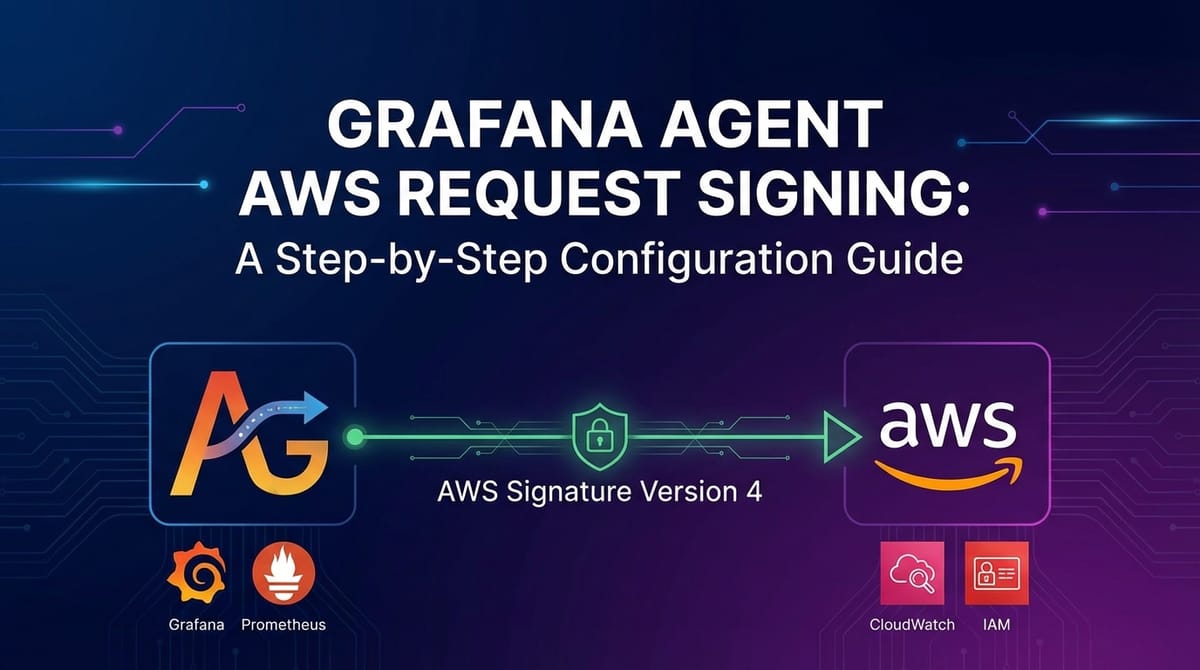


In the vast and dynamic landscape of cloud computing, Amazon Web Services (AWS) stands as a foundational pillar for countless organizations worldwide. From hosting mission-critical applications to powering intricate data pipelines, AWS provides an unparalleled suite of services. However, with great power comes the paramount need for stringent security and comprehensive observability. Ensuring that your monitoring tools can securely and reliably interact with your AWS environment is not merely a best practice; it is an absolute necessity for maintaining operational integrity, compliance, and peace of mind.
Grafana Agent has emerged as a lightweight, efficient, and versatile solution for collecting metrics, logs, and traces from diverse sources and sending them to various Grafana ecosystem components like Prometheus, Loki, and Tempo, or even directly to cloud services. When operating within AWS, a common and critical requirement for Grafana Agent is to securely send collected data to AWS native services such as Amazon S3 for long-term storage, Amazon CloudWatch Logs for centralized log management, or Amazon Kinesis for real-time data streaming. This secure transmission hinges upon correctly configuring AWS request signing, specifically AWS Signature Version 4 (SigV4). Without proper request signing, your Grafana Agent will be unable to authenticate with AWS services, leading to failed data ingestion, gaps in observability, and potential security vulnerabilities if insecure workarounds are attempted.
This comprehensive guide will meticulously walk you through the intricacies of configuring Grafana Agent for AWS request signing. We will demystify SigV4, explore various authentication mechanisms supported by Grafana Agent, provide detailed, practical configuration examples for common deployment scenarios like EC2 and Kubernetes, delve into common troubleshooting steps, and discuss advanced best practices. By the end of this article, you will possess a profound understanding and the practical skills required to ensure your Grafana Agent securely and efficiently pushes critical operational data into your AWS ecosystem, fortifying your monitoring posture and enhancing your cloud infrastructure's overall resilience.
1. Unveiling Grafana Agent and the Imperative of Secure AWS Interaction
The journey into secure AWS integration for Grafana Agent begins with a foundational understanding of both components and the inherent challenges they present when brought together. Grafana Agent, designed to be a "universal collector," is a single binary that can scrape metrics, tail logs, and collect traces, then forward this telemetry data to its respective storage backends. Its lightweight footprint and modular design make it ideal for deployment across various environments, from bare metal servers to sophisticated Kubernetes clusters, often sitting at the very edge of your infrastructure where data originates.
1.1 What Exactly is Grafana Agent? A Closer Look at its Architecture and Capabilities
Grafana Agent differentiates itself from traditional Prometheus or Loki clients by consolidating multiple scraping and forwarding functionalities into one efficient process. Instead of running separate node_exporter, cAdvisor, promtail, and tempo-agent instances, Grafana Agent can be configured to perform all these tasks. It supports a wide array of integrations, allowing it to collect data from operating systems, applications, databases, and cloud services. The core philosophy behind Grafana Agent is resource efficiency and simplified management, particularly in distributed environments where managing numerous agents can become cumbersome.
Its architecture is built around a concept of "flows," where data is ingested, processed (e.g., relabeling metrics, parsing logs), and then exported to configured remote endpoints. This flexibility is crucial when dealing with the diverse data formats and ingestion requirements of modern cloud services. For instance, it can be configured to scrape Prometheus metrics from an application, process them, and then remote_write them to an Amazon Managed Service for Prometheus (AMP), or tail log files and push them to Amazon CloudWatch Logs. Each of these interactions with AWS services necessitates a secure communication channel, preventing unauthorized access and ensuring data integrity.
1.2 The Indispensable Role of AWS Interaction in Cloud Monitoring
In a cloud-native paradigm, monitoring isn't just about collecting data from your servers; it's about understanding the entire ecosystem, including the underlying cloud infrastructure. AWS provides a plethora of services that are crucial for effective observability:
- Amazon S3 (Simple Storage Service): Often used as a cost-effective and highly durable storage backend for raw log data, trace spans, or even processed metrics that need archiving. Grafana Agent might push large volumes of data directly to S3 buckets.
- Amazon CloudWatch Logs: A centralized logging service that ingests, stores, and monitors log files from various sources. Grafana Agent's
promtail-like functionality can stream application logs directly to CloudWatch log groups. - Amazon Kinesis Data Streams/Firehose: Real-time data streaming services that can act as an intermediary for high-throughput telemetry data before it's processed by other services or stored.
- Amazon Managed Service for Prometheus (AMP): A fully managed, Prometheus-compatible monitoring service. Grafana Agent can
remote_writePrometheus metrics to AMP endpoints. - Amazon Managed Service for Grafana (AMG): While less about direct data ingestion from Grafana Agent, AMG benefits from data securely pushed to other AWS services that it can then query and visualize.
The common thread across all these interactions is the need for Grafana Agent to authenticate itself to AWS. AWS, by design, operates on a principle of least privilege and requires all requests to its services to be signed and authorized. This brings us to the fundamental security challenge that AWS Signature Version 4 (SigV4) addresses.
1.3 The Fundamental Challenge: Authentication and Authorization in AWS
AWS security model is built on Identity and Access Management (IAM). Every interaction with an AWS service API endpoint—whether it's s3:PutObject, logs:CreateLogStream, or aps:RemoteWrite—must be authenticated and authorized.
- Authentication: Proving that the entity making the request (in this case, Grafana Agent) is who it claims to be.
- Authorization: Verifying that the authenticated entity has the necessary permissions to perform the requested action on the specified resource.
Without a robust mechanism for both, unauthorized entities could potentially read, write, or modify your critical monitoring data, leading to severe security breaches, data corruption, or compliance failures. This is where AWS Signature Version 4 (SigV4) steps in as the standard protocol for authenticating requests to AWS services. It's a complex cryptographic process designed to ensure the integrity and authenticity of every API call, making it impermeable to common attacks like request tampering and replay attacks. Understanding and correctly configuring SigV4 within Grafana Agent is therefore not just a technical step, but a critical security enabler for your cloud observability strategy.
2. A Deep Dive into AWS Signature Version 4 (SigV4)
AWS Signature Version 4, commonly known as SigV4, is the cryptographic protocol AWS uses to authenticate requests to its services. It's a sophisticated mechanism designed to ensure that only authorized entities can interact with your AWS resources and that the integrity of the request payload is maintained during transit. For any application, including Grafana Agent, attempting to access AWS APIs, correctly generating a SigV4 signature is a prerequisite. Misconfiguration here often results in "SignatureDoesNotMatch" errors, frustrating debugging experiences, and critically, a complete inability to send data.
2.1 The Principles of SigV4: Cryptographic Integrity and Authentication
At its core, SigV4 aims to achieve three primary security objectives:
- Authentication: Prove that the request originated from an entity possessing valid AWS credentials (an access key ID and a secret access key).
- Request Integrity: Ensure that the request has not been tampered with during transmission. Any alteration to the request headers or body would invalidate the signature.
- Protection Against Replay Attacks: Prevent malicious actors from intercepting a valid signed request and replaying it later. This is achieved through the inclusion of a timestamp in the signature, which expires after a short period.
The signature itself is a hash of various components of the request, encrypted with a derived signing key. This derived key is generated from your AWS secret access key, the request's region, the target AWS service, and the current date. This hierarchical key derivation adds an extra layer of security, as the actual secret access key is never used directly in the signing process, minimizing its exposure.
2.2 Components of a Signed Request: A Deconstruction
To generate a SigV4 signature, several pieces of information from the HTTP request and your AWS credentials are combined in a specific, deterministic order. These components are:
- HTTP Method: The method used for the request (e.g., GET, POST, PUT).
- Canonical URI: The URI component of the request, normalized.
- Canonical Query String: The query string parameters, sorted alphabetically and URL-encoded.
- Canonical Headers: A list of specific HTTP headers (like
Host,Content-Type,X-Amz-Date), sorted alphabetically, lowercased, and including their values. Each header must be included in the signed headers list. - Signed Headers List: A colon-separated list of the canonical headers included in the signature.
- Payload Hash: A SHA256 hash of the request body (payload). For empty bodies, a hash of an empty string is used.
- Request Timestamp (
X-Amz-Dateheader): The UTC time and date of the request in ISO 8601 format (e.g.,YYYYMMDDTHHMMSSZ). This timestamp is crucial for replay protection. - Region: The AWS region where the request is being sent (e.g.,
us-east-1). - Service: The AWS service being targeted (e.g.,
s3,logs,aps). - Access Key ID: The public part of your AWS credentials, identifying the user or role.
- Secret Access Key: The private part of your AWS credentials, used to cryptographically sign the request. This key must be kept absolutely confidential.
- Security Token (Optional): If using temporary credentials (e.g., from STS
AssumeRole), anX-Amz-Security-Tokenheader containing the session token is also required.
2.3 Step-by-Step Breakdown of the Signing Process
The SigV4 signing process is meticulous and involves several distinct steps:
- Create a Canonical Request:
- Start with the HTTP Method (GET, POST, etc.).
- Append the Canonical URI.
- Append the Canonical Query String.
- Append the Canonical Headers. Each header is
header_name:header_value\n. - Append a newline.
- Append the Signed Headers List (the names of the canonical headers, sorted, lowercase, separated by semicolons).
- Append a newline.
- Append the Hex-encoded SHA256 hash of the request payload.
- The entire canonical request is then SHA256 hashed.
- Create a String to Sign:
- Start with
AWS4-HMAC-SHA256. - Append a newline.
- Append the Request Timestamp (from
X-Amz-Date). - Append a newline.
- Append the Credential Scope:
YYYYMMDD/region/service/aws4_request. - Append a newline.
- Append the Hex-encoded SHA256 hash of the Canonical Request.
- Start with
- Derive the Signing Key: This is a hierarchical process:
kSecret = "AWS4" + SecretAccessKeykDate = HMAC(kSecret, "YYYYMMDD")kRegion = HMAC(kDate, "region")kService = HMAC(kRegion, "service")kSigning = HMAC(kService, "aws4_request")Each HMAC calculation uses the previous key and the specified string as input.
- Calculate the Signature:
Signature = Hex-encoded HMAC(kSigning, StringToSign)
- Add Signature to the Request: The final signature is typically added as a header:
Authorization: AWS4-HMAC-SHA256 Credential=AccessKeyID/CredentialScope, SignedHeaders=signed-headers-list, Signature=signature
This detailed, multi-step process ensures that even a subtle change in any part of the request—method, URI, query parameters, headers, or payload—will result in a different canonical request hash, and consequently, a different signature. The AWS service then performs the same calculation on the incoming request. If the calculated signature matches the one provided in the Authorization header, the request is authenticated.
2.4 The Role of IAM Policies and Roles: Authorization in Action
While SigV4 handles authentication, authorization is managed by AWS Identity and Access Management (IAM). Once a request is authenticated, AWS uses the IAM identity associated with the Access Key ID (which could be an IAM user, an IAM role, or temporary credentials derived from a role) to check if it has the necessary permissions to perform the requested action on the target resource.
For Grafana Agent, this means that beyond correctly signing the request, the IAM entity it assumes must have the appropriate IAM policy attached. For example:
- Sending metrics to AMP: The IAM role/user needs
aps:RemoteWritepermissions on the specific AMP workspace ARN. - Sending logs to CloudWatch Logs: The IAM role/user needs
logs:CreateLogGroup,logs:CreateLogStream,logs:PutLogEventspermissions on the relevant log group ARN. - Sending data to S3: The IAM role/user needs
s3:PutObjectpermissions on the specific S3 bucket and prefix.
These policies should always adhere to the principle of least privilege, granting only the minimum necessary permissions to perform its function. Overly permissive policies are a common security vulnerability.
2.5 Security Best Practices for SigV4 Implementations
Implementing SigV4 correctly within Grafana Agent (or any application) requires adherence to key security principles:
- Prefer IAM Roles over IAM Users with Long-Lived Keys: For applications running on EC2 instances or within Kubernetes (EKS), leverage IAM roles. EC2 instances can be assigned roles, and applications automatically receive temporary credentials without storing static access keys. For EKS, IAM Roles for Service Accounts (IRSA) achieve the same, highly secure credential management. This eliminates the risk of static keys being compromised.
- Use Temporary Credentials (STS): When static keys are unavoidable (e.g., for local development or CI/CD), use AWS Security Token Service (STS) to assume roles and obtain temporary, short-lived credentials. These expire automatically, reducing the window of opportunity for attackers.
- Rotate Access Keys Regularly: If long-lived IAM user keys are used, ensure a strict rotation policy (e.g., every 90 days).
- Limit Scope of IAM Policies: Grant permissions only to the specific resources Grafana Agent needs to interact with (e.g., a specific S3 bucket, a particular CloudWatch log group). Avoid
*wildcards unless absolutely necessary and thoroughly justified. - Time Synchronization: Ensure that the system running Grafana Agent has its clock accurately synchronized (e.g., via NTP). Significant time skew between the client and AWS servers (typically >5 minutes) will cause "SignatureDoesNotMatch" errors due to timestamp mismatches.
- Secure Storage of Credentials: If credentials must be stored on disk (e.g., shared credentials file), ensure they are protected with appropriate file system permissions and encryption where possible. Never hardcode credentials in configuration files or source code.
By deeply understanding SigV4 and adhering to these best practices, you lay a robust foundation for secure and reliable telemetry data ingestion from Grafana Agent into your AWS environment. The next section will explore how Grafana Agent internally leverages these concepts to provide various configuration options.
3. Grafana Agent's Mechanism for AWS Authentication
Grafana Agent, being a modern and cloud-aware monitoring tool, provides robust and flexible mechanisms for authenticating with AWS services. It's built with an understanding of standard AWS credential provider chains, ensuring it can seamlessly integrate into various AWS deployment patterns. This means it often doesn't need explicit, verbose SigV4 configuration at a low level; instead, it relies on higher-level abstractions that handle the underlying signing process.
3.1 How Grafana Agent Integrates with AWS SDKs or Implements SigV4
Under the hood, Grafana Agent is typically written in Go, and like many Go applications interacting with AWS, it leverages the AWS SDK for Go. This SDK encapsulates the complex SigV4 signing process, allowing developers to focus on the business logic rather than cryptographic details. When you configure Grafana Agent to send data to an AWS service, you're usually providing high-level parameters like region, service endpoint, and crucially, how to obtain credentials. The SDK then takes care of:
- Resolving Credentials: Following the AWS standard credential provider chain to find the appropriate access key, secret key, and session token.
- Constructing the Request: Building the HTTP request specific to the AWS service API (e.g.,
PutMetricDatafor CloudWatch,PutObjectfor S3). - Generating the SigV4 Signature: Applying the SigV4 algorithm using the resolved credentials and request details.
- Adding Authorization Headers: Inserting the
AuthorizationandX-Amz-Date(andX-Amz-Security-Tokenif applicable) headers to the HTTP request. - Sending the Signed Request: Transmitting the request to the AWS service endpoint.
This abstraction simplifies configuration for users, but understanding the underlying SigV4 process remains vital for effective troubleshooting and secure deployment.
3.2 Different Authentication Methods Supported by Grafana Agent for AWS
Grafana Agent supports the standard AWS credential provider chain, which checks for credentials in a specific order. This chain provides flexibility and security by prioritizing more secure and ephemeral methods. The common methods, in approximate order of preference for production deployments, are:
a) IAM Role (for EC2/ECS/EKS using IRSA) - The Gold Standard
This is the most secure and recommended method for applications running on AWS infrastructure.
- For EC2 Instances: You attach an IAM role to the EC2 instance profile. The Grafana Agent running on that instance automatically inherits the permissions defined by the role. AWS manages the temporary credentials securely, rotating them automatically, so no sensitive static keys need to be stored on the instance.
- For Amazon ECS Tasks: Similarly, you can define an IAM role for the ECS task execution role or task role, granting specific permissions.
- For Amazon EKS Pods (using IAM Roles for Service Accounts - IRSA): This mechanism allows you to associate an IAM role with a Kubernetes Service Account. Pods configured to use that Service Account will automatically receive temporary AWS credentials, scoped precisely to the permissions of the IAM role. This is critical for fine-grained, least-privilege security in Kubernetes.
In all these scenarios, Grafana Agent typically requires no explicit credential configuration within its YAML. It simply relies on the environment to provide the necessary temporary credentials.
b) Environment Variables
You can set AWS credentials as environment variables in the environment where Grafana Agent is running:
AWS_ACCESS_KEY_ID: Your AWS access key ID.AWS_SECRET_ACCESS_KEY: Your AWS secret access key.AWS_SESSION_TOKEN: (Optional) Your AWS session token, if using temporary credentials.AWS_REGIONorAWS_DEFAULT_REGION: The AWS region.
This method is suitable for CI/CD pipelines, local development, or specific containerized environments where IAM roles are not directly applicable. However, it's less secure than IAM roles for long-running production workloads as the keys are static and explicitly set. Care must be taken to manage these environment variables securely (e.g., using Kubernetes Secrets or other secret management solutions).
c) Shared Credentials File (~/.aws/credentials)
Grafana Agent will look for a shared credentials file, typically located at ~/.aws/credentials (on Linux/macOS) or %USERPROFILE%\.aws\credentials (on Windows). This file can contain multiple named profiles:
[default]
aws_access_key_id = AKIAIOSFODNN7EXAMPLE
aws_secret_access_key = wJalrXUtnFEMI/K7MDENG/bPxRfiCYEXAMPLEKEY

[monitoring-agent-profile]
aws_access_key_id = AKIAI44QH8DHBEXAMPLE
aws_secret_access_key = ZIUGjK/vN/y4S3CgX9422FEXAMPLEKEY
You can then configure Grafana Agent to use a specific profile. This method is common for local development or machines with multiple AWS identities. For production, it carries similar risks to environment variables if the file is not adequately secured.
d) Explicitly Configured Access Key/Secret Key (Least Recommended)
Some Grafana Agent components, or configurations for remote write endpoints, might allow you to directly specify access_key_id and secret_access_key parameters within the Grafana Agent configuration file itself.
Example (for Prometheus remote_write to AMP):
# ... other config ...
prometheus:
  wal_dir: /var/lib/agent/data
  remote_write:
    - url: https://aps-workspaces.us-east-1.amazonaws.com/workspaces/ws-EXAMPLE/api/v1/remote_write
      # ... other remote_write options ...
      aws:
        region: us-east-1
        access_key_id: AKIAIOSFODNN7EXAMPLE
        secret_access_key: wJalrXUtnFEMI/K7MDENG/bPxRfiCYEXAMPLEKEY
        # You can also specify role_arn and external_id for role assumption
WARNING: Directly embedding static credentials in configuration files is generally considered a severe security anti-pattern for production environments. These files are often stored in source control or deployed as plain text, making the credentials highly vulnerable. This method should only be used for testing or in very tightly controlled, isolated scenarios, and even then, with extreme caution. Always prioritize IAM roles, IRSA, or external secret management solutions.
e) Web Identity Token (for Kubernetes Service Accounts without IRSA)
Before IRSA became widely adopted, applications in Kubernetes often used a WebIdentityTokenFile or similar mechanism to assume an IAM role. While IRSA simplifies this greatly, the underlying concept is that a Kubernetes service account can be configured to present a token that AWS STS can exchange for temporary credentials. Grafana Agent's AWS configuration might support web_identity_token_file for this purpose, but for EKS, IRSA is the preferred, managed approach.
3.3 Focus on the aws Block within Grafana Agent Configurations
Many Grafana Agent components that interact with AWS services provide a dedicated aws configuration block to specify region, profile, or role details. This block abstracts away the lower-level credential discovery.
Common parameters you'll find within these aws blocks include:
region: The AWS region to which the data should be sent (e.g.,us-east-1).access_key_id: (Optional) Explicit AWS access key ID. Use with caution.secret_access_key: (Optional) Explicit AWS secret access key. Use with caution.profile: (Optional) The name of a profile in the shared credentials file.role_arn: (Optional) An IAM role ARN to assume. Grafana Agent will use its current credentials to call STSAssumeRoleto get temporary credentials for this role.external_id: (Optional) Required when assuming a role from another account with anExternal IDconfigured.endpoint_url: (Optional) Custom endpoint URL for the AWS service, useful for local testing with tools like LocalStack or for VPC endpoints.s3_force_path_style: (Optional) Boolean, forces path-style addressing for S3 buckets (e.g.,s3.amazonaws.com/bucket-nameinstead ofbucket-name.s3.amazonaws.com).
Understanding these methods and the aws configuration block is crucial for correctly setting up Grafana Agent to securely interact with your AWS resources. The following section will provide concrete examples for common deployment scenarios.
APIPark is a high-performance AI gateway that allows you to securely access the most comprehensive LLM APIs globally on the APIPark platform, including OpenAI, Anthropic, Mistral, Llama2, Google Gemini, and more.Try APIPark now! 👇👇👇
4. Practical Configuration Examples for Grafana Agent AWS Request Signing
This section dives into hands-on configuration examples, demonstrating how to set up Grafana Agent for secure AWS request signing in various common deployment scenarios. Each example will include the necessary IAM setup, Grafana Agent configuration snippets, and explanations of how to ensure secure credential handling.
4.1 Scenario 1: Grafana Agent on an EC2 Instance Using an IAM Role (Recommended)
This is the most straightforward and secure method for Grafana Agent deployments directly on EC2 instances. By attaching an IAM role to the instance, Grafana Agent automatically receives temporary credentials, eliminating the need to manage static access keys.
Step 1: Create an IAM Policy
First, define an IAM policy that grants Grafana Agent the necessary permissions. For this example, let's assume Grafana Agent needs to send Prometheus metrics to Amazon Managed Service for Prometheus (AMP) and logs to Amazon CloudWatch Logs.
IAM Policy JSON (e.g., GrafanaAgentMonitoringPolicy.json):
{
    "Version": "2012-10-17",
    "Statement": [
        {
            "Sid": "AllowAMPWrite",
            "Effect": "Allow",
            "Action": [
                "aps:RemoteWrite",
                "aps:GetSeries",
                "aps:GetLabels",
                "aps:GetMetricMetadata"
            ],
            "Resource": "arn:aws:aps:us-east-1:123456789012:workspace/ws-EXAMPLEABCD-ABCD-ABCD-ABCD-EXAMPLE12345"
        },
        {
            "Sid": "AllowCloudWatchLogsWrite",
            "Effect": "Allow",
            "Action": [
                "logs:CreateLogGroup",
                "logs:CreateLogStream",
                "logs:PutLogEvents",
                "logs:DescribeLogStreams"
            ],
            "Resource": "arn:aws:logs:us-east-1:123456789012:log-group:/grafana-agent-logs/*"
        }
    ]
}
Explanation: * Replace us-east-1 with your AWS region. * Replace 123456789012 with your AWS account ID. * Replace ws-EXAMPLEABCD-ABCD-ABCD-ABCD-EXAMPLE12345 with your actual AMP workspace ID. * The CloudWatch Logs resource arn:aws:logs:us-east-1:123456789012:log-group:/grafana-agent-logs/* grants permissions to all log streams within the /grafana-agent-logs log group. Adjust the log group name as needed.
Attach this policy to an IAM role.
Step 2: Create an IAM Role and Attach the Policy
- Navigate to the IAM console, select "Roles," and click "Create role."
- Choose "AWS service" and then "EC2" as the use case. This automatically sets up the trust policy for EC2 instances.
- Click "Next."
- Search for and attach the
GrafanaAgentMonitoringPolicy(or whatever you named your policy) that you created. - Give the role a descriptive name (e.g.,
GrafanaAgentEC2Role). - Review and create the role.
Step 3: Launch/Modify EC2 Instance with the IAM Role
When launching a new EC2 instance, select the GrafanaAgentEC2Role under "IAM instance profile." If your EC2 instance is already running, you can modify its IAM role through the EC2 console (Actions -> Security -> Modify IAM role).
Step 4: Grafana Agent Configuration
With the IAM role attached to the EC2 instance, Grafana Agent's configuration becomes remarkably simple regarding AWS authentication. It will automatically pick up the temporary credentials provided by the EC2 instance metadata service.
Grafana Agent Configuration (e.g., agent-config.yaml):
server:
  http_listen_port: 12345

# --- Prometheus Metrics Collection ---
prometheus:
  wal_dir: /var/lib/agent/data/prometheus
  configs:
    - name: default
      scrape_configs:
        - job_name: 'node'
          static_configs:
            - targets: ['localhost:9100'] # Assuming node_exporter is running locally

      # Remote write to Amazon Managed Service for Prometheus (AMP)
      remote_write:
        - url: https://aps-workspaces.us-east-1.amazonaws.com/workspaces/ws-EXAMPLEABCD-ABCD-ABCD-ABCD-EXAMPLE12345/api/v1/remote_write
          # The aws block here tells Grafana Agent to use the AWS SDK's default credential chain.
          # Since an IAM role is attached to the EC2 instance, it will automatically use those credentials.
          aws:
            region: us-east-1 # Specify the region of your AMP workspace
            # No need for access_key_id or secret_access_key when using IAM roles

# --- Loki Logs Collection (using promtail-like functionality) ---
logs:
  configs:
    - name: system
      scrape_configs:
        - job_name: system-journal
          journal:
            path: /var/log/journal
            max_age: 12h
            labels:
              job: system-journal
      # Push logs to Amazon CloudWatch Logs
      clients:
        - url: aws+cloudwatchlogs://us-east-1/grafana-agent-logs # CloudWatch Logs URL scheme
          # The aws block is implicitly used by the aws+cloudwatchlogs URL scheme.
          # It will pick up credentials from the EC2 instance profile.
          cloudwatchlogs:
            log_group_name: /grafana-agent-logs
            log_stream_name_prefix: ec2-instance-{{ .Hostname }}-
            labels:
              instance_id: "{{ .InstanceID }}"
            # No explicit access_key_id/secret_access_key needed here either.
Key Takeaway: When running on an EC2 instance with an attached IAM role, the Grafana Agent configuration for AWS interaction is cleaner and more secure, as no explicit credential parameters are required in the configuration file.
4.2 Scenario 2: Grafana Agent in Kubernetes (EKS) Using IRSA (IAM Roles for Service Accounts)
For Kubernetes deployments on AWS EKS, IAM Roles for Service Accounts (IRSA) is the best practice for granting AWS permissions to pods. It allows you to assign specific IAM roles to Kubernetes Service Accounts, which pods then use to obtain temporary AWS credentials.
Step 1: Enable OIDC Provider for your EKS Cluster
If not already done, enable the OIDC identity provider for your EKS cluster. This allows Kubernetes Service Accounts to assume IAM roles.
eksctl utils associate-iam-oidc-provider --cluster your-cluster-name --approve
Step 2: Create an IAM Policy (Similar to Step 1 in EC2)
Use the same GrafanaAgentMonitoringPolicy.json as in the EC2 example, or adapt it for your specific EKS needs. Ensure the Resource ARNs are correct for your AMP workspace and CloudWatch log groups.
Step 3: Create an IAM Role for the Kubernetes Service Account
This role needs a trust policy that allows the OIDC provider of your EKS cluster to assume it.
Trust Policy JSON (e.g., trust-policy-eks.json):
{
  "Version": "2012-10-17",
  "Statement": [
    {
      "Effect": "Allow",
      "Principal": {
        "Federated": "arn:aws:iam::123456789012:oidc-provider/oidc.eks.us-east-1.amazonaws.com/id/EXAMPLED91C46388F1716ED482D9E2E9A7B"
      },
      "Action": "sts:AssumeRoleWithWebIdentity",
      "Condition": {
        "StringEquals": {
          "oidc.eks.us-east-1.amazonaws.com/id/EXAMPLED91C46388F1716ED482D9E2E9A7B:sub": "system:serviceaccount:monitoring:grafana-agent"
        }
      }
    }
  ]
}
Explanation: * Replace 123456789012 with your AWS account ID. * Replace oidc.eks.us-east-1.amazonaws.com/id/EXAMPLED91C46388F1716ED482D9E2E9A7B with your EKS cluster's OIDC provider URL (you can find this in the EKS console under your cluster details). * monitoring is the Kubernetes namespace where Grafana Agent will run. * grafana-agent is the name of the Kubernetes Service Account that will be created for Grafana Agent.
Create the IAM role with this trust policy and attach the GrafanaAgentMonitoringPolicy to it. Name this role GrafanaAgentEKSRole.
Step 4: Create Kubernetes Service Account and Associate with IAM Role
Create a Kubernetes Service Account in the monitoring namespace and annotate it with the ARN of the GrafanaAgentEKSRole.
grafana-agent-serviceaccount.yaml:
apiVersion: v1
kind: ServiceAccount
metadata:
  name: grafana-agent
  namespace: monitoring
  annotations:
    eks.amazonaws.com/role-arn: arn:aws:iam::123456789012:role/GrafanaAgentEKSRole
Deploy this: kubectl apply -f grafana-agent-serviceaccount.yaml
Step 5: Grafana Agent Deployment Configuration
Now, in your Grafana Agent Deployment or DaemonSet manifest, specify the serviceAccountName as grafana-agent. The pods will automatically inherit the associated IAM role's permissions.
grafana-agent-daemonset.yaml (example snippet):
apiVersion: apps/v1
kind: DaemonSet
metadata:
  name: grafana-agent
  namespace: monitoring
  labels:
    app: grafana-agent
spec:
  selector:
    matchLabels:
      app: grafana-agent
  template:
    metadata:
      labels:
        app: grafana-agent
    spec:
      serviceAccountName: grafana-agent # Crucial for IRSA
      containers:
        - name: agent
          image: grafana/agent:latest
          args:
            - "-config.file=/etc/agent/agent-config.yaml"
            - "-config.expand-env" # Allows using environment variables in the config
          volumeMounts:
            - name: config
              mountPath: /etc/agent
            - name: data
              mountPath: /var/lib/agent
          env:
            - name: AWS_REGION # Optionally set region as env var, can also be in agent config
              value: us-east-1
      volumes:
        - name: config
          configMap:
            name: grafana-agent-config
        - name: data
          hostPath:
            path: /var/lib/grafana-agent-data # Ensure persistence
            type: DirectoryOrCreate
The agent-config.yaml within the ConfigMap for the DaemonSet would be identical to the EC2 example, requiring no explicit access_key_id or secret_access_key.
4.3 Scenario 3: Grafana Agent Using Explicit Credentials (for Testing/Development - Not Production)
While strongly discouraged for production, understanding how to configure explicit credentials is useful for isolated testing or development environments where setting up IAM roles might be overkill.
Step 1: Obtain AWS Access Key ID and Secret Access Key
For an IAM user, generate an access key pair from the IAM console. Ensure this IAM user has the necessary permissions (e.g., GrafanaAgentMonitoringPolicy). Immediately secure these keys.
Step 2: Grafana Agent Configuration
You can use environment variables or directly embed them in the configuration.
Method A: Using Environment Variables (Better than embedding)
export AWS_ACCESS_KEY_ID="AKIAIOSFODNN7EXAMPLE"
export AWS_SECRET_ACCESS_KEY="wJalrXUtnFEMI/K7MDENG/bPxRfiCYEXAMPLEKEY"
export AWS_REGION="us-east-1"
# Then start Grafana Agent
grafana-agent -config.file=agent-config.yaml
The agent-config.yaml would be the same as in Scenario 1, as the Agent will pick up these environment variables.
Method B: Embedding in Configuration (Least Recommended)
server:
  http_listen_port: 12345

prometheus:
  wal_dir: /var/lib/agent/data/prometheus
  configs:
    - name: default
      scrape_configs:
        - job_name: 'node'
          static_configs:
            - targets: ['localhost:9100']

      remote_write:
        - url: https://aps-workspaces.us-east-1.amazonaws.com/workspaces/ws-EXAMPLEABCD-ABCD-ABCD-ABCD-EXAMPLE12345/api/v1/remote_write
          aws:
            region: us-east-1
            access_key_id: AKIAIOSFODNN7EXAMPLE # DANGER! Do not use in production.
            secret_access_key: wJalrXUtnFEMI/K7MDENG/bPxRfiCYEXAMPLEKEY # DANGER! Do not use in production.

logs:
  configs:
    - name: system
      scrape_configs:
        - job_name: system-journal
          journal:
            path: /var/log/journal
            max_age: 12h
            labels:
              job: system-journal
      clients:
        - url: aws+cloudwatchlogs://us-east-1/grafana-agent-logs
          cloudwatchlogs:
            log_group_name: /grafana-agent-logs
            log_stream_name_prefix: dev-test-{{ .Hostname }}-
            labels:
              env: dev
            access_key_id: AKIAIOSFODNN7EXAMPLE # DANGER!
            secret_access_key: wJalrXUtnFEMI/K7MDENG/bPxRfiCYEXAMPLEKEY # DANGER!
CRITICAL WARNING: Embedding credentials directly into configuration files is a significant security risk. These keys can be accidentally committed to source control, accessed by unauthorized personnel, or exposed during deployment. Always prioritize methods that leverage temporary credentials and IAM roles for production environments.
4.4 Detailed Breakdown of Configuration Parameters
Here's a table summarizing common AWS-related parameters within Grafana Agent configurations:
| Parameter | Section(s) | Description | Best Practice/Notes |
|---|---|---|---|
region |
prometheus.remote_write.aws, logs.clients.aws, traces.configs.send_to.aws |
The AWS region to target for service requests (e.g., us-east-1). |
Always specify the correct region. For cross-region communication, ensure appropriate policies and network configurations. |
access_key_id |
prometheus.remote_write.aws, logs.clients.aws, traces.configs.send_to.aws |
Explicit AWS access key ID. | Avoid in production. Prefer IAM roles/IRSA. If necessary for dev/test, use environment variables or a secure secret management system. |
secret_access_key |
prometheus.remote_write.aws, logs.clients.aws, traces.configs.send_to.aws |
Explicit AWS secret access key. | Avoid in production. Same security concerns as access_key_id. |
profile |
prometheus.remote_write.aws, logs.clients.aws, traces.configs.send_to.aws |
The name of a profile in the shared credentials file (~/.aws/credentials). |
Useful for local development with multiple AWS accounts. Less common for production deployments. |
role_arn |
prometheus.remote_write.aws, logs.clients.aws, traces.configs.send_to.aws |
The ARN of an IAM role to assume. Grafana Agent will use its current credentials to call STS AssumeRole to get temporary credentials for this role. |
Excellent for cross-account access or fine-grained role assumption. The executing IAM entity still needs sts:AssumeRole permission on this ARN. |
external_id |
prometheus.remote_write.aws, logs.clients.aws, traces.configs.send_to.aws |
An identifier that helps prevent the confused deputy problem when assuming a role from another account. Used in conjunction with role_arn. |
Crucial for security when AssumeRole is used by a third party or across accounts. |
endpoint_url |
prometheus.remote_write.aws, logs.clients.aws, traces.configs.send_to.aws |
Custom endpoint URL for the AWS service. Useful for LocalStack, AWS PrivateLink (VPC Endpoints), or custom service deployments. | Essential for private networking or local testing. Ensure the endpoint is reachable and correctly configured. |
s3_force_path_style |
logs.clients.aws (for S3 destinations), traces.configs.send_to.aws (for S3) |
For S3 destinations, forces path-style addressing (e.g., https://s3.amazonaws.com/bucket-name) instead of virtual-hosted style (https://bucket-name.s3.amazonaws.com). Needed for some S3-compatible storage. |
Typically not needed for standard AWS S3 unless you have specific network or compatibility requirements (e.g., MinIO). |
cloudwatchlogs block |
logs.clients |
Specific configuration for sending logs to CloudWatch Logs, including log_group_name, log_stream_name_prefix, labels. |
Use this for detailed CloudWatch Logs integration. Ensures logs are correctly categorized and searchable. |
s3 block |
logs.clients (for S3 destinations) |
Specific configuration for sending logs to S3, including bucket_name, prefix, encoding, compression, max_latency, max_bytes_per_file, max_entries_per_file. |
Provides fine-grained control over how log data is structured and stored in S3. |
kinesis block |
logs.clients (for Kinesis destinations) |
Specific configuration for sending logs to Kinesis, including stream_name, partition_key, batch_wait_timeout, batch_size. |
For real-time streaming of logs. Ensure partition key distribution prevents hot shards. |
sigv4 |
prometheus.remote_write (direct) |
While typically implicit with aws block, some components might offer a direct sigv4 parameter to enable or disable it explicitly, or customize signing parameters. |
Rarely needed for direct configuration, as aws block handles it. Only for advanced or niche scenarios. |
By meticulously configuring these parameters and choosing the appropriate authentication method for your environment, you can ensure that Grafana Agent securely and reliably pushes your vital telemetry data to AWS, laying the groundwork for robust monitoring and operational excellence.
5. Troubleshooting Common AWS Request Signing Issues
Despite careful configuration, issues with AWS request signing are not uncommon. Errors related to authentication and authorization can be cryptic and frustrating. Understanding the most frequent culprits and systematic debugging strategies is key to quickly resolving these problems and restoring your monitoring data flow.
5.1 "SignatureDoesNotMatch": The Most Common Authentication Error
This error message is arguably the most frequent and vexing issue encountered when an application attempts to interact with AWS services using SigV4. It fundamentally means that the signature calculated by the AWS service does not match the signature provided in your request's Authorization header. This discrepancy can arise from several sources:
- Incorrect AWS Credentials:
- Invalid Access Key ID or Secret Access Key: The most obvious cause. Double-check that
AWS_ACCESS_KEY_IDandAWS_SECRET_ACCESS_KEY(or the equivalent values in your shared credentials file, or those associated with your IAM role) are precisely correct. Even a single character mismatch will invalidate the signature. - Expired Temporary Credentials: If using AWS STS to assume a role or if relying on instance profiles/IRSA, temporary credentials have a limited lifespan. While AWS SDKs and Grafana Agent are designed to refresh these automatically, network issues or misconfigurations can prevent successful refreshment, leading to expired credentials being used.
- Invalid Access Key ID or Secret Access Key: The most obvious cause. Double-check that
- Time Skew:
- Client vs. Server Time Mismatch: The timestamp in your request (
X-Amz-Dateheader) must be within a few minutes (typically 5 minutes) of the AWS service's internal time. If your Grafana Agent host's clock is significantly out of sync with NTP, this can cause aSignatureDoesNotMatcherror. Solution: Ensure your EC2 instances or Kubernetes nodes are configured for accurate time synchronization (e.g., usingntpdorchronyd).
- Client vs. Server Time Mismatch: The timestamp in your request (
- Incorrect Region or Service:
- Mismatched Region: The region specified in your Grafana Agent configuration (
region: us-east-1) must match the region of the AWS service endpoint you are targeting. Sending a request signed forus-east-1to an S3 bucket ineu-west-1will fail. - Incorrect Service Name in Signature Scope: While typically handled by the SDK, if a custom SigV4 implementation or a misconfigured endpoint is used, the service name component in the credential scope might be wrong (e.g.,
s3instead ofaps).
- Mismatched Region: The region specified in your Grafana Agent configuration (
- Request Tampering or Inconsistent Signing Parameters:
- Modification During Transit: While less common for Grafana Agent directly, if a proxy or network appliance modifies the HTTP request (headers or body) after it has been signed by Grafana Agent, the signature will no longer match.
- Inconsistent Header Order or Values: The canonical request generation requires specific headers, sorted alphabetically. Any deviation in how these are provided or signed (e.g., if Grafana Agent and AWS interpret a header differently) can lead to a mismatch. This is usually an SDK-level issue but worth considering if you're dealing with very custom setups.
- Payload Hash Mismatch: If the request body is somehow altered after the payload hash is calculated, the signature will fail. This could happen if compression settings are mismatched or if there's an issue with how the body is read/sent.
5.2 "AccessDenied": An Authorization Problem
Once a request is successfully authenticated (meaning the signature is valid), AWS then checks for authorization. An "AccessDenied" error indicates that the IAM principal (the user or role) that signed the request does not have the necessary permissions to perform the requested action on the specified resource.
- Missing or Incorrect IAM Policy:
- Policy Not Attached: The IAM policy granting permissions (e.g.,
s3:PutObject,logs:PutLogEvents,aps:RemoteWrite) might not be attached to the IAM role or user being used by Grafana Agent. - Incorrect Resource ARN: The
ResourceARN in your IAM policy might be too restrictive or incorrect. For example, grantings3:PutObjectonarn:aws:s3:::my-bucket/*but Grafana Agent is trying to write toanother-bucket. - Missing Actions: The policy might be missing a crucial action (e.g., only
logs:PutLogEventsbut notlogs:CreateLogStreamif Grafana Agent tries to create a new stream).
- Policy Not Attached: The IAM policy granting permissions (e.g.,
- Implicit Deny: If no IAM policy explicitly grants permission for an action, it is implicitly denied by default.
- Explicit Deny: A more permissive policy might exist, but a more specific policy might explicitly deny the action, taking precedence. This is less common but can happen in complex IAM setups.
- Service Control Policies (SCPs) in AWS Organizations: If your AWS account is part of an AWS Organization, SCPs at the organization or OU level can restrict permissions, even if your IAM policy within the account grants them.
- Resource-Based Policies: Some AWS services (like S3 buckets, SQS queues, KMS keys) support resource-based policies (e.g., S3 bucket policies). An "AccessDenied" error could mean that the bucket policy is denying access, even if the IAM role has permissions.
5.3 Debugging Strategies: A Systematic Approach
When encountering authentication or authorization errors, a systematic approach to debugging is crucial:
- Check Grafana Agent Logs:
- Enable verbose or debug logging for Grafana Agent. Look for error messages specifically from the AWS-related components (e.g.,
prometheus.remote_write,logs.clients). These logs often contain the exact AWS error code and message, which are invaluable. --log.level=debugor similar flags when starting Grafana Agent.
- Enable verbose or debug logging for Grafana Agent. Look for error messages specifically from the AWS-related components (e.g.,
- Verify AWS Credentials:
- IAM Role (EC2/IRSA):
- Confirm the IAM role is correctly attached to the EC2 instance or associated with the Kubernetes Service Account.
- Use the AWS CLI from the Grafana Agent host/pod to test credential availability:
bash aws sts get-caller-identityThis command should return the ARN of the IAM role. If it returnsnullor an unexpected identity, your role association is broken.
- Environment Variables: Double-check
AWS_ACCESS_KEY_ID,AWS_SECRET_ACCESS_KEY, andAWS_REGIONare correctly set and exported. - Shared Credentials File: Verify the
~/.aws/credentialsfile exists, has correct permissions, and contains the expected profile. Test withaws s3 ls --profile <your-profile>.
- IAM Role (EC2/IRSA):
- Validate IAM Policies:
- Use AWS IAM Policy Simulator: This is an incredibly powerful tool. Input the IAM role/user, the AWS service, the action (e.g.,
s3:PutObject), and the resource ARN. The simulator will tell you if the action is allowed or denied and why. - Review the policy JSON for typos in action names, resource ARNs, or missing
Effect: Allowstatements. - Check for any explicit denies that might override grants.
- Use AWS IAM Policy Simulator: This is an incredibly powerful tool. Input the IAM role/user, the AWS service, the action (e.g.,
- Verify Time Synchronization:
- Check the system clock on the Grafana Agent host:
date -u(Linux). - Compare it to the official UTC time.
- If running in a VM or container, ensure the host machine's time is accurate.
- Check the system clock on the Grafana Agent host:
- Network Connectivity:
- Can Grafana Agent reach the AWS service endpoint?
- Check security groups, network ACLs, VPC routing, and DNS resolution.
- Test connectivity using
curlto the service endpoint, if feasible. For example, for AMP:bash curl -v https://aps-workspaces.us-east-1.amazonaws.com/workspaces/ws-EXAMPLE/api/v1/remote_write(This won't authenticate but will verify network reachability and SSL handshake).
- AWS CloudTrail:
- CloudTrail logs all API calls made to AWS. Look for
SignatureDoesNotMatchorAccessDeniedevents in CloudTrail. These logs provide valuable context, including the calling principal, source IP, and exact API action, helping pinpoint the issue.
- CloudTrail logs all API calls made to AWS. Look for
- Grafana Agent Configuration Review:
- Carefully review your
agent-config.yamlfor any typos, incorrect region settings, or misconfigured AWS blocks. Ensureregionmatches the target service.
- Carefully review your
By methodically working through these troubleshooting steps, you can effectively diagnose and resolve most AWS request signing and authorization issues with Grafana Agent, ensuring a continuous flow of critical monitoring data.
6. Advanced Scenarios, Best Practices, and Broader API Management
Beyond the fundamental configurations, there are advanced scenarios and broader architectural considerations that can further enhance the security, efficiency, and robustness of your Grafana Agent deployments and overall API management strategy. This section explores some of these.
6.1 Using AWS KMS for Encryption-at-Rest with SigV4 Signed Requests
When Grafana Agent pushes sensitive data to services like S3 or CloudWatch Logs, ensuring data is encrypted at rest is a critical security requirement. AWS Key Management Service (KMS) integrates seamlessly with many AWS services to provide managed encryption keys.
- S3 with KMS Encryption: When configuring an S3 bucket, you can enable default encryption using AWS KMS keys. Grafana Agent's
s3:PutObjectrequest, once authenticated via SigV4, will succeed, and S3 will handle the encryption using the specified KMS key. The IAM role used by Grafana Agent will needkms:Decryptandkms:GenerateDataKeypermissions on the KMS key. This adds another layer of authorization complexity (IAM principal needs permissions on the KMS key itself) but significantly enhances data security. - CloudWatch Logs with KMS Encryption: CloudWatch log groups can also be configured to use KMS for encryption at rest. Again, the IAM role sending logs to CloudWatch will need appropriate KMS permissions.
The SigV4 signing process itself remains largely unchanged; it's the underlying AWS service that orchestrates the encryption using KMS after a valid, authorized request is received.
6.2 VPC Endpoints for Private AWS Service Access without Public Internet
For highly secure or regulated environments, you might want Grafana Agent to send data to AWS services without traversing the public internet. AWS PrivateLink allows you to create VPC endpoints for many AWS services (S3, CloudWatch Logs, Kinesis, AMP, etc.).
- Configuration: You create an interface endpoint for the desired service within your VPC. This provides a private IP address for the service.
- Grafana Agent Impact: Instead of using the default public endpoint URL (e.g.,
https://aps-workspaces.us-east-1.amazonaws.com), you would configure Grafana Agent with theendpoint_urlparameter pointing to the VPC endpoint's DNS name or IP address. - Security Benefits: All traffic remains within the AWS network, improving security and potentially reducing latency.
- IAM Impact: The IAM policies and SigV4 authentication mechanisms remain the same, but you might need to add VPC endpoint policies to restrict access further.
This setup is crucial for maintaining a strong security perimeter around your monitoring data.
6.3 Cross-Account Access with AssumeRole
In complex enterprise environments, Grafana Agent might need to send data to AWS services in a different AWS account (e.g., a central logging account or a shared monitoring account). This is achieved using the sts:AssumeRole action.
- Setup:
- In the destination account, create an IAM role (e.g.,
CentralMonitoringIngestionRole) with a trust policy that allows the IAM role/user from the source account to assume it. This trust policy should specify the source account's ARN as aPrincipal. - Attach the necessary permissions (e.g.,
s3:PutObject) toCentralMonitoringIngestionRole. - In the source account, ensure the Grafana Agent's IAM role has
sts:AssumeRolepermissions on theCentralMonitoringIngestionRoleARN.
- In the destination account, create an IAM role (e.g.,
- Grafana Agent Configuration: In Grafana Agent's
awsblock, you would specify therole_arnof the role in the destination account: ```yaml remote_write:- url: https://aps-workspaces.us-east-1.amazonaws.com/workspaces/ws-OTHERACCOUNT/api/v1/remote_write aws: region: us-east-1 role_arn: arn:aws:iam::OTHERACCOUNT_ID:role/CentralMonitoringIngestionRole
`` Grafana Agent will first authenticate with its own role in the source account, then usests:AssumeRoleto obtain temporary credentials forCentralMonitoringIngestionRolein the destination account, and finally use those temporary credentials to sign and send the data. If theCentralMonitoringIngestionRoleis configured with anExternal ID, ensure you also provide theexternal_id` parameter in the Grafana Agent config.
- url: https://aps-workspaces.us-east-1.amazonaws.com/workspaces/ws-OTHERACCOUNT/api/v1/remote_write aws: region: us-east-1 role_arn: arn:aws:iam::OTHERACCOUNT_ID:role/CentralMonitoringIngestionRole
This pattern is fundamental for multi-account strategies and centralized observability platforms.
6.4 Integrating with AWS Organizations for Centralized Policy Management
For very large organizations, AWS Organizations allows you to centrally manage and govern your environments. Service Control Policies (SCPs) within Organizations can apply permission guardrails across all accounts in an Organizational Unit (OU) or the entire organization. While SCPs don't grant permissions (IAM policies still do that), they set the maximum available permissions.
- Impact on Grafana Agent: An SCP might implicitly or explicitly deny an action that your Grafana Agent's IAM role policy grants. This can lead to "AccessDenied" errors even if your local IAM policy appears correct.
- Best Practice: Always be aware of any SCPs in effect for your account when troubleshooting or designing new integrations. Coordinate with your AWS organization administrators.
6.5 Beyond AWS: General API Management and Secure Interactions with API Gateways
While Grafana Agent is primarily focused on direct interaction with AWS service APIs, the broader landscape of modern infrastructure often involves a multitude of APIs – both external (like AWS) and internal (microservices, AI models). Managing the security, access, and performance of these diverse API interactions is a critical challenge. This is where dedicated API gateway solutions come into play. An API gateway acts as a single entry point for all API calls, handling routing, authentication, authorization, traffic management, and more.
Organizations frequently operate complex ecosystems where data collected by tools like Grafana Agent might eventually feed into custom internal APIs, machine learning models, or specialized data processing services. Furthermore, many applications expose their own APIs that require robust management beyond what AWS services natively provide for internal-to-AWS communication. When an organization needs to consolidate, secure, and streamline access to hundreds of diverse API services—ranging from internal microservices to externally exposed data endpoints, and increasingly, powerful Large Language Models (LLMs) and other AI services—a dedicated API gateway becomes indispensable. It ensures consistent security policies, simplifies developer experience, and provides centralized monitoring and control over all API traffic.
For managing a diverse ecosystem of APIs, particularly those involving AI or needing a unified gateway approach, solutions like APIPark offer significant advantages. APIPark is an all-in-one AI gateway and API developer portal that is open-sourced under the Apache 2.0 license. It's designed to help developers and enterprises manage, integrate, and deploy AI and REST services with ease.
Key features of APIPark, such as quick integration of over 100 AI models, a unified API format for AI invocation, and prompt encapsulation into REST APIs, directly address the complexities of consuming and exposing AI services. Beyond AI, APIPark provides end-to-end API lifecycle management, enabling teams to govern the design, publication, invocation, and decommission of all their APIs. Its capabilities for API service sharing within teams, independent API and access permissions for each tenant, and robust approval workflows ensure that even non-AWS APIs are managed with enterprise-grade security and control. With performance rivaling Nginx and powerful data analysis features, APIPark can handle large-scale traffic and provide deep insights into API usage. While Grafana Agent meticulously handles the secure ingestion to AWS, APIPark provides the critical layer for managing the broader, often more complex world of an organization's internal and external application programming interfaces, particularly as AI becomes an integral part of modern applications.
Conclusion
Configuring Grafana Agent for AWS request signing is an indispensable aspect of establishing a secure, reliable, and comprehensive monitoring infrastructure in the cloud. We've journeyed through the intricate workings of AWS Signature Version 4 (SigV4), understanding its cryptographic principles and its role in authenticating every API call to AWS services. We've explored the various authentication mechanisms Grafana Agent employs, from the highly recommended IAM roles for EC2 instances and Kubernetes Service Accounts (IRSA) to the less secure but sometimes necessary explicit credential methods.
The practical configuration examples provided a tangible roadmap for deploying Grafana Agent in common scenarios, highlighting the importance of meticulously crafting IAM policies with the principle of least privilege. Furthermore, we equipped you with a systematic approach to troubleshooting common "SignatureDoesNotMatch" and "AccessDenied" errors, emphasizing the criticality of detailed logging, credential verification, and IAM policy validation. Finally, we delved into advanced considerations such as KMS encryption, VPC endpoints for private connectivity, cross-account access using AssumeRole, and the broader context of API management, where solutions like APIPark play a crucial role in orchestrating diverse API interactions beyond direct AWS service calls.
The effort invested in correctly configuring Grafana Agent's AWS request signing is an investment in the foundational security and operational stability of your cloud environment. It ensures that your vital telemetry data—metrics, logs, and traces—flows securely and unimpeded into your AWS backends, empowering you with the visibility needed to detect, diagnose, and resolve issues proactively. By adhering to the best practices outlined in this guide, you not only fortify your monitoring posture but also contribute significantly to the overall resilience, compliance, and security of your cloud-native applications. As cloud environments continue to evolve in complexity and scale, mastering these fundamental security mechanisms will remain paramount for any organization striving for excellence in cloud operations.
Frequently Asked Questions (FAQ)
1. What is AWS Signature Version 4 (SigV4) and why is it important for Grafana Agent? AWS Signature Version 4 (SigV4) is the cryptographic protocol used by AWS to authenticate all requests to its services. It's crucial for Grafana Agent because it ensures that every piece of telemetry data (metrics, logs, traces) sent by the Agent to AWS services (like S3, CloudWatch Logs, AMP) is authenticated as coming from a legitimate source and has not been tampered with. Without a valid SigV4 signature, AWS services will reject Grafana Agent's requests, leading to failed data ingestion and gaps in monitoring.
2. What is the most secure way to provide AWS credentials to Grafana Agent? The most secure and recommended method is to use IAM Roles. * For Grafana Agent running on EC2 instances, attach an IAM role to the instance profile. Grafana Agent will automatically obtain temporary, rotating credentials via the EC2 instance metadata service. * For Grafana Agent running in Kubernetes on EKS, use IAM Roles for Service Accounts (IRSA). This associates an IAM role with a Kubernetes Service Account, allowing pods using that Service Account to assume the role and obtain temporary AWS credentials securely, scoped precisely to the necessary permissions. These methods avoid storing long-lived static credentials on the host or in configuration files.
3. I'm getting a "SignatureDoesNotMatch" error. What should I check first? This is a very common error indicating an authentication failure. First, check: 1. AWS Credentials: Ensure the Access Key ID and Secret Access Key (or the IAM role/profile) being used are absolutely correct and not expired. 2. Time Skew: Verify that the system clock on the Grafana Agent host is accurately synchronized with UTC (e.g., via NTP). A time difference greater than 5 minutes can cause this error. 3. Region: Confirm that the AWS region configured in Grafana Agent matches the region of the target AWS service endpoint. 4. Service Name: Ensure the service name used in the credential scope (if explicitly configured or for debugging) is correct (e.g., s3, logs, aps).
4. My Grafana Agent is getting "AccessDenied" errors even after configuring credentials. What's wrong? An "AccessDenied" error signifies an authorization problem after successful authentication. This means the IAM role or user Grafana Agent is using does not have the necessary permissions. You should: 1. Check IAM Policy: Review the IAM policy attached to the Grafana Agent's IAM role or user. Ensure it explicitly grants the required Action (e.g., s3:PutObject, logs:PutLogEvents, aps:RemoteWrite) on the correct Resource ARN (e.g., specific S3 bucket, CloudWatch log group, AMP workspace). 2. IAM Policy Simulator: Use the AWS IAM Policy Simulator to test if the specific action on the target resource is allowed or denied for the IAM principal Grafana Agent is using. 3. Resource-Based Policies & SCPs: Consider if there are any S3 bucket policies, KMS key policies, or AWS Organizations Service Control Policies (SCPs) that might be overriding your IAM policy and explicitly denying access.
5. How can APIPark help me manage APIs beyond just AWS services? While Grafana Agent focuses on securely interacting with AWS services, APIPark provides a comprehensive open-source AI gateway and API management platform for a broader range of APIs. It helps you: * Unify AI & REST Services: Integrate and manage over 100 AI models and traditional REST APIs through a single platform. * Standardize API Access: Provide a unified API format for invoking diverse AI models, simplifying application development. * Lifecycle Management: Manage the entire lifecycle of your APIs, from design and publication to invocation and decommissioning, ensuring consistent security and governance. * Team Collaboration: Centralize API documentation and sharing for different departments and teams. * Advanced Features: Benefit from capabilities like traffic management, load balancing, detailed call logging, and powerful data analysis, all designed to enhance efficiency and security for your internal and external APIs, especially in the evolving landscape of AI-powered applications.
🚀You can securely and efficiently call the OpenAI API on APIPark in just two steps:
Step 1: Deploy the APIPark AI gateway in 5 minutes.
APIPark is developed based on Golang, offering strong product performance and low development and maintenance costs. You can deploy APIPark with a single command line.
curl -sSO https://download.apipark.com/install/quick-start.sh; bash quick-start.sh

In my experience, you can see the successful deployment interface within 5 to 10 minutes. Then, you can log in to APIPark using your account.

Step 2: Call the OpenAI API.