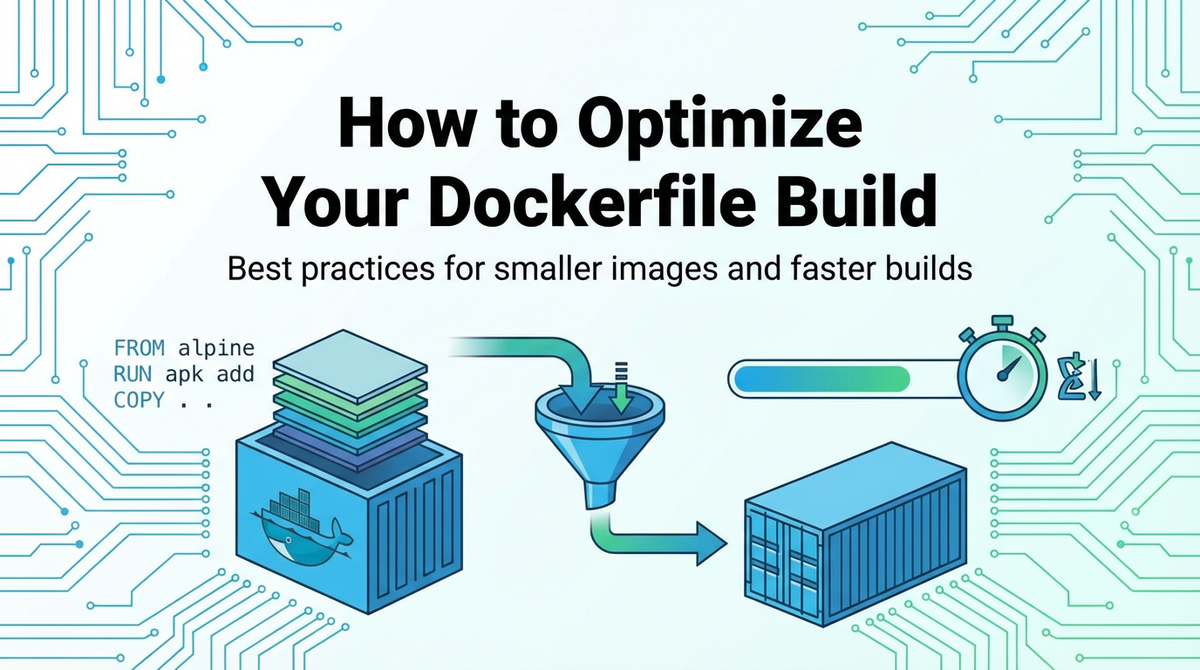
How to Optimize Your Dockerfile Build


APIPark is a high-performance AI gateway that allows you to securely access the most comprehensive LLM APIs globally on the APIPark platform, including OpenAI, Anthropic, Mistral, Llama2, Google Gemini, and more.Try APIPark now! 👇👇👇
How to Optimize Your Dockerfile Build: A Comprehensive Guide to Efficiency, Speed, and Security
In the rapidly evolving landscape of modern software development, Docker has emerged as an indispensable tool, revolutionizing the way applications are built, shipped, and run. Its containerization paradigm offers unparalleled consistency, portability, and isolation, allowing developers to package an application and all its dependencies into a single, cohesive unit. This unit, the Docker image, is then instantiated as a container, capable of running uniformly across any environment that supports Docker. However, the true power of Docker is often unlocked not just by its mere adoption, but by the meticulous crafting of its foundational blueprint: the Dockerfile.
A Dockerfile is a text document that contains all the commands a user could call on the command line to assemble an image. It serves as a recipe, dictating the step-by-step process of creating a Docker image. While seemingly straightforward, an unoptimized Dockerfile can lead to a myriad of issues: bloated image sizes consuming excessive storage and network bandwidth, glacial build times hindering developer productivity and CI/CD pipelines, and critical security vulnerabilities lurking in unnecessary layers. These challenges can significantly impede development velocity, escalate operational costs, and introduce unacceptable risks in production environments.
This comprehensive guide is meticulously designed for developers, DevOps engineers, and architects who seek to master the art and science of Dockerfile optimization. We will embark on a detailed exploration of best practices, advanced techniques, and common pitfalls, all aimed at transforming your Dockerfiles into lean, fast, and secure foundations for your applications. Our journey will delve into strategies for drastically reducing image size, dramatically accelerating build speeds, fortifying image security postures, and enhancing overall maintainability. By the end of this deep dive, you will possess the knowledge and practical insights to construct Dockerfiles that not only encapsulate your applications efficiently but also embody the principles of high performance, robust security, and agile deployment.
1. Understanding the Fundamentals of Dockerfile and Image Layers
To effectively optimize a Dockerfile, one must first grasp the core mechanisms underpinning Docker image creation. A Dockerfile is more than just a script; it's a declarative specification for an image, where each instruction represents a single step in the build process.
1.1 What is a Dockerfile?
At its heart, a Dockerfile is a plain text file that contains a sequence of instructions. These instructions, executed in order, construct a Docker image. Each instruction performs a specific action, such as specifying the base image (FROM), copying files (COPY), executing commands (RUN), or setting environment variables (ENV). The simplicity of its format belies the sophisticated engineering principles it enables, providing a reproducible and auditable record of how an application environment is constructed. This explicit, version-controlled blueprint is foundational to the consistency and reliability that Docker promises across development, testing, and production environments. Without a well-defined Dockerfile, the journey from source code to a deployable container becomes fraught with manual inconsistencies and potential errors, undermining the very benefits of containerization.
1.2 The Concept of Docker Image Layers and How They're Built
The magic of Docker images lies in their layered architecture. Each instruction in a Dockerfile creates a new read-only layer on top of the previous one. When Docker executes a command like RUN apt-get update, it's not just running a command; it's capturing the filesystem changes resulting from that command into a new layer. This layered approach is critical for efficiency. For instance, if you have a base image layer (e.g., ubuntu:22.04) and then add a new application layer, Docker only needs to download the base layer once for all images that share it. Similarly, when you make a minor change to your application code, only the layers affected by that change need to be rebuilt and distributed, rather than the entire image. This incremental build process is a cornerstone of Docker's performance.
Consider a simple Dockerfile:
FROM ubuntu:22.04
RUN apt-get update && apt-get install -y git
COPY . /app
WORKDIR /app
CMD ["./my-app"]
Here's how layers are formed: 1. FROM ubuntu:22.04: This instruction pulls the ubuntu:22.04 image, which itself is composed of several layers, forming the foundational layer(s) for our new image. 2. RUN apt-get update && apt-get install -y git: A new layer is created, containing the updated package lists and the installed git package. 3. COPY . /app: Another new layer is added, containing all files from the current directory (the build context) copied into the /app directory inside the image. 4. WORKDIR /app: This instruction primarily affects metadata; it sets the working directory for subsequent instructions and for the container at runtime. While it doesn't add files, it might be represented as a very small metadata layer. 5. CMD ["./my-app"]: This also adds a metadata layer, defining the default command to execute when a container starts from this image.
Understanding this layering is paramount for optimization, as it directly impacts image size, build speed, and caching efficiency.
1.3 Why Layers Matter for Optimization (Caching, Size)
The layered filesystem is a double-edged sword. While it enables efficient caching, it can also lead to bloated images if not managed carefully. * Caching: When Docker builds an image, it attempts to reuse layers from previous builds if the instruction and its context haven't changed. If an instruction (and its input files for commands like COPY) is identical to a previous build, Docker uses the cached layer instead of executing the command again. This is incredibly powerful for accelerating subsequent builds. * Size: Each layer adds to the overall size of the image. Even if files are deleted in a subsequent layer, the original files from an earlier layer still exist in that layer, contributing to the total image size. This is a common pitfall: deleting large files after installation doesn't actually remove them from the image's total footprint; it only hides them from the final filesystem view. This necessitates careful planning to minimize additions in the first place, or to leverage multi-stage builds which effectively discard unwanted layers. * Security: Every layer contributes to the potential attack surface. Unnecessary tools, libraries, or sensitive data inadvertently left in earlier layers can become vulnerabilities. Therefore, minimizing layers and their contents directly enhances security.
1.4 The Docker Build Cache Mechanism
The Docker build cache is a sophisticated system that significantly reduces build times by reusing existing layers. When Docker processes an instruction, it looks for an existing image in its cache that matches the current instruction and its context. * For FROM, Docker checks if the base image is available locally. * For RUN, CMD, ENTRYPOINT, LABEL, EXPOSE, ENV, ADD, and COPY instructions, Docker compares the instruction with cached images. For RUN instructions, it executes the command and then computes a checksum of the resulting filesystem layer. If this checksum matches a cached layer, that layer is reused. * For ADD and COPY instructions, Docker compares the contents of the files being added/copied with the files in the cached layer. It computes a checksum of the files and if it matches, the cache is used. Metadata of files (like last modified date) is generally ignored, focusing on content. * The cache is invalidated when an instruction changes or if any files relevant to an ADD or COPY instruction change. Once the cache is invalidated for a particular instruction, all subsequent instructions in that Dockerfile will also bypass the cache and be rebuilt, even if those instructions themselves haven't changed. This cascade effect highlights the importance of ordering instructions to minimize cache invalidation. Placing more stable, less frequently changing instructions earlier in the Dockerfile maximizes cache hits, dramatically speeding up rebuilds when only application code or frequently modified dependencies change.
2. Strategies for Minimizing Docker Image Size
Large Docker images are a significant impediment to efficient development and deployment workflows. They consume more disk space, take longer to build, push, pull, and deploy, and can introduce hidden security risks. Optimizing for size is often the most impactful initial step in Dockerfile refinement.
2.1 Choosing the Right Base Image
The choice of base image is arguably the single most critical decision impacting the final size of your Docker image. It sets the foundation upon which your entire application stack is built. Starting with a bloated base image means you're already carrying unnecessary baggage, regardless of subsequent optimization efforts.
- Alpine vs. Debian/Ubuntu vs. Scratch:
- Alpine Linux: This is a popular choice for minimal images due to its incredibly small footprint (typically around 5-6 MB for the base image). It uses musl libc instead of glibc, which makes it smaller but can sometimes lead to compatibility issues with certain compiled binaries or complex C/C++ libraries that expect glibc. However, for most web applications written in Go, Node.js, Python, or Ruby, Alpine is an excellent candidate. Its package manager,
apk, is also very efficient. - Debian/Ubuntu: These are much larger base images, often ranging from 50 MB to hundreds of MBs. They provide a more familiar environment for many developers, with
aptas the package manager and extensive software repositories. They use glibc, ensuring wider compatibility. While larger, their "slim" or "buster-slim" variants offer a good compromise by stripping out unnecessary components like documentation and man pages, making them considerably smaller than their full counterparts. - Scratch: The ultimate minimal base image,
scratchrepresents an empty image. It's not a real Linux distribution; it's literally nothing. You can use it only if your application is statically compiled (e.g., a Go binary) and has no external runtime dependencies. Building fromscratchresults in images that are only the size of your application binary, plus any truly essential files you explicitly add. This is the pinnacle of size optimization for suitable applications.
- Alpine Linux: This is a popular choice for minimal images due to its incredibly small footprint (typically around 5-6 MB for the base image). It uses musl libc instead of glibc, which makes it smaller but can sometimes lead to compatibility issues with certain compiled binaries or complex C/C++ libraries that expect glibc. However, for most web applications written in Go, Node.js, Python, or Ruby, Alpine is an excellent candidate. Its package manager,
- Smallest Possible Base Image for the Job: The principle here is simple: always start with the smallest base image that can fulfill your application's runtime requirements. If your application is a single Go binary,
scratchis ideal. If it's a Node.js application,node:alpineornode:lts-slimwould be better thannode:lts. Evaluate the actual dependencies of your application rather than defaulting to a familiar but oversized distribution. - Official Images and Their Variants: Always prefer official images provided by the respective project or Docker Hub. These are generally well-maintained, secure, and often offer various tags like
latest,lts,alpine,slim,buster, etc. Explicitly pin to a specific version (e.g.,python:3.9-slim-busterinstead ofpython:latest) to ensure reproducible builds and prevent unexpected breakages when thelatesttag updates.
2.2 Leveraging Multi-Stage Builds
Multi-stage builds are arguably the most powerful technique for drastically reducing the size of production Docker images. Introduced in Docker 17.05, this feature allows you to use multiple FROM statements in a single Dockerfile, each starting a new build stage. You can then selectively copy artifacts from one stage to another, effectively leaving behind all the build-time dependencies, intermediate files, and toolchains that are not needed at runtime.
- Concept: Separating Build-Time Dependencies from Runtime Dependencies: Imagine a typical application build process: you need a compiler, build tools, development headers, testing frameworks, and possibly a large number of package dependencies. These are all essential during the build phase. However, once your application is compiled into an executable binary or bundled into a set of runtime scripts, most of these tools and dependencies become entirely superfluous for the application to actually run. A multi-stage build allows you to isolate these phases. The first stage (the "builder" stage) contains all the heavy machinery required for compilation and packaging. The second stage (the "runtime" stage) starts with a much smaller base image and only copies the final, lean artifacts from the builder stage. This means the large build tools never make it into the final image.
- Benefits: Drastically Reduced Image Size, Improved Security:
- Size Reduction: This is the most obvious benefit. By eliminating build tools and intermediate artifacts, the final image becomes significantly smaller, leading to faster pulls, pushes, and deployments.
- Improved Security: A smaller image inherently has a smaller attack surface. Fewer tools, libraries, and executables mean fewer potential vulnerabilities for attackers to exploit. The build stage might contain compilers, debuggers, or shell utilities that are not required at runtime and could pose security risks if included in the final image.
- Cleaner Images: The final image contains only what's absolutely necessary to run the application, making it easier to reason about and manage.
- Separation of Concerns: Clearly separates the build environment from the runtime environment, enhancing clarity and maintainability of the Dockerfile.
Detailed Example with a Common Language (e.g., Go): Let's illustrate with a Go application, which is a perfect candidate for multi-stage builds due to its static compilation capabilities.Without Multi-Stage Build (Less Optimal): dockerfile FROM golang:1.22 # Large base image with Go compiler WORKDIR /app COPY go.mod go.sum ./ RUN go mod download COPY . . RUN CGO_ENABLED=0 GOOS=linux go build -o myapp . # Builds static binary CMD ["./myapp"] This image would contain the entire Go SDK, toolchain, and all build dependencies, resulting in a significantly larger image than necessary.With Multi-Stage Build (Optimized): ```dockerfile
Stage 1: Build the application
FROM golang:1.22 AS builder # Name this stage 'builder' WORKDIR /app COPY go.mod go.sum ./ RUN go mod download # Download dependencies (large) COPY . .
Build the static binary, CGO_ENABLED=0 ensures no external C dependencies
RUN CGO_ENABLED=0 GOOS=linux go build -o myapp .
Stage 2: Create the final lean image
FROM alpine:latest # Start with a minimal base image WORKDIR /app COPY --from=builder /app/myapp . # Copy only the compiled binary from the 'builder' stage
If your app needs certificates for HTTPS calls, add them
RUN apk update && apk add --no-cache ca-certificates CMD ["./myapp"] `` In this optimized example, the final image starts fromalpine:latest(very small) and only includes themyappbinary and essentialca-certificates. The entiregolang:1.22` image and all its associated build tools are discarded, leading to an image size reduction of orders of magnitude.
2.3 Efficiently Managing Dependencies and Packages
Even within a single stage or when using multi-stage builds, how you manage installations and clean up afterwards plays a crucial role in image size.
- Cleaning Up Package Caches (
apt clean,rm -rf /var/lib/apt/lists/*): When using package managers likeapt(Debian/Ubuntu) orapk(Alpine), they download package metadata and sometimes.debor.apkfiles to a local cache. These caches are essential during the installation process but are entirely useless for the runtime application. If not cleaned up in the same layer as the installation, they will persist as part of that layer, contributing to image size. Foraptbased images, always combineapt-get updateandapt-get installwith a cleanup step in a singleRUNinstruction:dockerfile RUN apt-get update \ && apt-get install -y --no-install-recommends some-package \ && rm -rf /var/lib/apt/lists/* # Crucial cleanupThe--no-install-recommendsflag withapt-get installis also important as it prevents installing packages that are merely "recommended" but not strictly necessary, further reducing the footprint. Forapkbased images:dockerfile RUN apk add --no-cache some-packageThe--no-cacheflag directly tellsapknot to save the index cache locally, effectively doing the cleanup automatically. - Removing Build Artifacts: Beyond package caches, compilers and build processes often generate temporary files, object files,
.logfiles, or intermediate build products (like.ofiles in C/C++ builds) that are not part of the final deployable artifact. Ensure these are explicitly removed after the build step in the same layer. Example (hypothetical for a project creating temporary files):dockerfile RUN make build \ && rm -rf build_artifacts/temp/* \ && rm -rf /tmp/* - Combining
RUNCommands Where Appropriate to Reduce Layers: As established, eachRUNinstruction creates a new layer. While many layers are beneficial for caching, an excessive number of trivial layers can slightly increase image size due to filesystem overhead per layer. More importantly, combining commands that are logically related and whose changes would invalidate the same cache entries can prevent redundant layer creation. For instance, instead of:dockerfile RUN apt-get update RUN apt-get install -y package1 RUN apt-get install -y package2Do:dockerfile RUN apt-get update && apt-get install -y package1 package2 && rm -rf /var/lib/apt/lists/*This creates a single layer for all package installations and their cleanup, which is generally more efficient for overall image size. However, exercise caution: overly longRUNcommands that combine many disparate operations might make debugging harder and reduce the granularity of caching. The sweet spot is combining logically related commands that should always be executed together and whose dependencies rarely change independently.
2.4 Utilizing .dockerignore Effectively
The .dockerignore file is a powerful, yet often overlooked, tool for optimizing Docker builds. It functions much like a .gitignore file, specifying patterns of files and directories that should be excluded from the "build context" sent to the Docker daemon during a build operation.
- Purpose: Excluding Unnecessary Files from the Build Context: When you run
docker build ., the Docker client packages up everything in the current directory (the "build context") and sends it to the Docker daemon. If your project directory contains many large, irrelevant files (e.g.,.gitdirectories,node_modulesfor a multi-stage build where they're downloaded in a builder stage, local development.envfiles,.DS_Store,README.md, personal notes, logs, temporary files, old backups), these files are unnecessarily transferred to the daemon. This transfer takes time, especially for remote Docker daemons or large contexts, and can consume significant memory on the daemon side. More critically, if these ignored files were to be included in aCOPY . .command, they would bloat the image. - Impact on Build Speed and Image Size:
- Build Speed: Significantly reduces the time taken to send the build context to the Docker daemon, which can be a bottleneck for large projects.
- Image Size: Prevents unwanted files from being copied into the image by
COPYorADDinstructions, thereby directly reducing the final image size. Even ifCOPY . .is used, the.dockerignorefilters out what's included in.effectively. - Caching: A smaller build context means Docker has less data to checksum for
COPYinstructions, potentially making cache checks faster.
Examples of What to Include/Exclude: A typical .dockerignore file for a web application might look like this:```
Git
.git .gitignore
Node.js
node_modules npm-debug.log yarn-error.log
Python
pycache *.pyc .venv .pytest_cache
Java
target/ .gradle/ build/
IDE specific
.vscode .idea .swp .swo
macOS specific
.DS_Store
Logs and temporary files
logs/ tmp/ .log ~
Docker specific
Dockerfile # You don't copy the Dockerfile into itself .dockerignore # You don't copy the .dockerignore file into itself `` The key is to include anything that is not directly required for the *final runtime* of the application, or anything that will be generated/downloaded within the Docker build process itself (likenode_modulesif you runnpm install` inside the Dockerfile).
3. Accelerating Docker Build Times
Beyond image size, the speed at which Docker images are built is paramount for developer productivity and the efficiency of Continuous Integration/Continuous Deployment (CI/CD) pipelines. Slow builds lead to frustration, longer feedback loops, and bottlenecks in delivery.
3.1 Optimizing Docker Cache Utilization
The Docker build cache is your most potent weapon against slow build times. Mastering its utilization is about understanding how layers are cached and, crucially, how that cache can be invalidated.
- Layer Order: Placing Frequently Changing Layers Last: As previously discussed, once a layer's cache is invalidated, all subsequent layers are rebuilt. This cascade effect is why the order of instructions in your Dockerfile is critical. You want to place instructions that are least likely to change at the top of your Dockerfile and instructions that are most likely to change (e.g., copying application source code) towards the bottom. Consider the typical order:By placing the application source code
COPYinstruction near the end, only that layer and subsequent layers need to be rebuilt when your source code changes. All the heavy lifting of installing system and language dependencies can be pulled from the cache.FROM: Base image (changes infrequently, usually only for security updates).ENV,ARG,LABEL: Environment variables, build args, metadata (usually stable).RUN apt-get update && apt-get install: System dependencies (change less frequently than application code).COPY requirements.txt .,RUN pip install -r requirements.txt: Language-specific dependencies (change when new dependencies are added/removed).COPY . .: Application source code (changes very frequently during development).CMD,ENTRYPOINT: Final command (stable).
- Combining Commands vs. Separate Commands and Cache Invalidation: While combining
RUNcommands (e.g.,apt-get update && apt-get install ... && rm -rf ...) is good for image size, it can impact cache granularity. If one part of a combined command changes, the entire combined command has to be re-executed. For instance, if you install two packages,pkgAandpkgB, in oneRUNcommand, andpkgB's version updates, the whole command runs again, even ifpkgAhasn't changed. However, splitting these into separateRUNcommands would create separate layers. IfpkgArarely changes butpkgBchanges frequently, separating them might allowpkgA's layer to stay cached. The trade-off is slightly increased image size due to more layers versus potentially faster rebuilds for specific changes. Generally, it's a good practice to group installations of core dependencies that tend to change together and separate those that might change independently. The goal is to balance layer count (for size) with cache hit rate (for speed). - The Impact of
COPYandADDCommands:COPYandADDinstructions are significant cache breakers. Docker computes a checksum of the files being copied/added. If any of these files change (even a single byte), the cache for thatCOPY/ADDinstruction and all subsequent instructions is invalidated. This reinforces the strategy of copying only what's necessary, precisely when it's needed:- Copying dependencies first: For applications with package managers (e.g.,
package.jsonfor Node.js,go.mod/go.sumfor Go,requirements.txtfor Python), copy only the dependency declaration files first, install dependencies, and then copy the rest of your application code. This allows the dependency installation layer to be cached as long as your dependency list doesn't change.dockerfile # Example for Node.js COPY package.json package-lock.json ./ # Only dependency files RUN npm ci # Installs dependencies, caches this layer COPY . . # Application code (frequently changing) RUN npm run buildIfpackage.jsondoesn't change, thenpm cilayer will be cached, speeding up subsequent builds when only source code changes.
- Copying dependencies first: For applications with package managers (e.g.,
3.2 Understanding Build Context
The build context is the set of files and directories at the PATH you specify when you run the docker build command (e.g., docker build . means the current directory is the context). The Docker client sends this entire context to the Docker daemon.
- What is the Build Context? It's essentially everything in the directory you're building from, unless it's explicitly excluded by
.dockerignore. The daemon needs this context to resolve anyCOPYorADDinstructions in your Dockerfile. If you're building from a remote Git repository, the repository acts as the build context. - Minimizing the Build Context (again,
.dockerignore): This point cannot be stressed enough. A large build context, especially one filled with unnecessary files, is detrimental. It:Always scrutinize your project directory and ensure your.dockerignorefile is comprehensive.- Slows down initial build setup: The transfer of the context from client to daemon can be substantial, especially over network connections.
- Consumes daemon resources: The daemon temporarily stores this context.
- Causes cache misses: Even if you don't
COPYorADDirrelevant files, if they are part of the context, their mere presence (or absence in a previous build context) might impact how Docker computes checksums, potentially leading to cache invalidations if not properly managed.
- Impact on
COPYandADDPerformance: WhenCOPYorADDare used, Docker needs to access the files within the build context. If the context is huge, even resolving the path to a small file can involve iterating through many irrelevant directories, albeit usually quickly. The main performance hit comes from the initial transfer of the bloated context. By keeping the context lean,COPYandADDoperations become more efficient as the daemon has less data to sift through and checksum.
3.3 Using Build Arguments (ARG) Wisely
Build arguments (ARG) allow you to pass variables to the Dockerfile at build time using the --build-arg flag (e.g., docker build --build-arg VERSION=1.2.3 .). They are useful for dynamic values like versions, proxy settings, or environment-specific configurations.
- When to Use
ARG: UseARGfor values that are transient, might differ between environments (e.g.,DEVvs.PROD), or provide flexibility without changing the Dockerfile itself. For example, setting a base image tag, a package version, or a build flag. - Impact on Caching if Arguments Change:
ARGinstructions themselves do not create layers. However, if anARGis used in a subsequent instruction (e.g.,FROM,RUN,COPY), and the value of thatARGchanges, it will invalidate the cache for that instruction and all subsequent instructions. Example:dockerfile ARG NODE_VERSION=18 FROM node:${NODE_VERSION}-alpine # If NODE_VERSION changes, this layer and subsequent layers are rebuilt WORKDIR /app COPY . . RUN npm installIfNODE_VERSIONchanges from18to20, theFROMinstruction effectively changes, invalidating the cache. This is usually desired behavior as you want to rebuild with a new base image.The key is to understand thatARGvalues are considered part of the instruction for caching purposes. Avoid changing frequently changingARGvalues unnecessarily if you want to maximize cache hits for downstream layers. For truly sensitive data that shouldn't persist in the image, consider usingdocker build --secretwith BuildKit (see next section) or ensuring theARGis used only in multi-stage buildbuilderstages and not propagated to the final image. - Setting Default Values: You can provide a default value for an
ARG:ARG FOO=bar. If--build-arg FOO=bazis passed,bazwill be used. If no--build-argis provided,barwill be used. This provides a sensible fallback and makes your Dockerfile more robust.
3.4 Parallelizing Builds with BuildKit (Optional Advanced Topic)
BuildKit is a new generation image builder that replaces the legacy Docker daemon builder. It offers significant advantages, including improved performance, enhanced security features, and new capabilities.
- Introduction to BuildKit: BuildKit is designed to be highly efficient, extensible, and secure. It's built on a modern architecture that allows for parallel execution of independent build steps, advanced caching, and the ability to define reusable build components. It is already integrated into Docker Engine and can be enabled easily.
- Benefits: Parallel Execution, Improved Caching:
- Parallel Execution: BuildKit can execute independent build steps in parallel. For example, if you have two
RUNcommands that don't depend on each other, BuildKit might execute them concurrently, speeding up the overall build time. This is especially beneficial for complex Dockerfiles or multi-stage builds. - Improved Caching: BuildKit introduces more granular caching mechanisms. It can cache intermediate build steps more intelligently, even when some instructions change. It also supports external cache exports, allowing you to share build caches between different CI/CD runs or even different machines, further accelerating builds.
- New Features: BuildKit enables features like
docker build --secretfor securely passing sensitive information without embedding it into the image,docker build --mount=type=cachefor persistent build caches (e.g., fornpmorpippackage caches), and multi-platform builds (e.g., building ARM images on an x86 machine).
- Parallel Execution: BuildKit can execute independent build steps in parallel. For example, if you have two
- Enabling BuildKit: You can enable BuildKit by setting the
DOCKER_BUILDKIT=1environment variable before runningdocker build:bash DOCKER_BUILDKIT=1 docker build -t my-app .Alternatively, you can configure the Docker daemon to use BuildKit by default in/etc/docker/daemon.json:json { "features": { "buildkit": true } }Enabling BuildKit is a relatively low-effort, high-reward optimization that can significantly boost your Docker build performance.
4. Enhancing Docker Image Security
A well-optimized Docker image is not only small and fast but also secure. Security considerations must be woven into the fabric of your Dockerfile from the very beginning, rather than being an afterthought. A compromised container can be a gateway to your entire infrastructure.
4.1 Running as a Non-Root User
One of the most fundamental security best practices for Docker images is to run your application as a non-root user. By default, processes inside a Docker container run as root, which grants them elevated privileges. If an attacker manages to exploit a vulnerability in your application or its dependencies, they could gain root access within the container, potentially enabling them to break out of the container or escalate privileges on the host system.
- Principle of Least Privilege: This principle dictates that an entity (user, process, or program) should be given only the minimum set of permissions necessary to perform its intended function. For most applications, root privileges are not required at runtime. Running as a non-root user significantly reduces the blast radius of a potential compromise.
USERInstruction: TheUSERinstruction in a Dockerfile sets the user name or UID to use when running the image and for anyRUN,CMD, andENTRYPOINTinstructions that follow it. Example:dockerfile FROM alpine:latest RUN addgroup -S appgroup && adduser -S appuser -G appgroup # Create a non-root user and group WORKDIR /app COPY --chown=appuser:appgroup . /app # Ensure files are owned by the non-root user USER appuser # Switch to the non-root user CMD ["./my-app"]It's crucial that theUSERinstruction comes after any commands that require root privileges (likeapk addorapt-get install) and that the application's working directory and files are owned by this non-root user.- Creating Dedicated Users and Groups: Instead of relying on default non-root users (like
nobody), it's generally better to create a dedicated user and group for your application. This allows for more precise permission management. Theadduser -S(for Alpine's busyboxadduser) oruseradd(for Debian/Ubuntu) commands are used for this purpose.
4.2 Minimizing the Attack Surface
The concept of attack surface refers to all the points where an unauthorized user can try to enter or extract data from an environment. For Docker images, every piece of software, every library, every open port, and every command-line utility adds to this surface. Reducing it is a direct way to enhance security.
- Removing Unnecessary Tools and Packages: This ties back heavily into image size optimization. If a tool or package is not required for the application to run, it should not be in the final image. This includes compilers, debuggers, development headers, unnecessary shell utilities (like
bashwhenshis sufficient), documentation, and even package managers themselves (if they were installed just for initial dependency fetching). Multi-stage builds are excellent for this, as they naturally strip away these build-time dependencies. For instance, if you installcurlto fetch a file, ensurecurlis removed in the same layer after its use, if it's not needed at runtime.dockerfile RUN apt-get update \ && apt-get install -y --no-install-recommends curl \ && curl -o /app/config.json https://example.com/config.json \ && apt-get remove --purge -y curl \ && apt-get autoremove -y \ && rm -rf /var/lib/apt/lists/* - Using Minimal Base Images (reiteration from size section, but framed for security): The choice of a minimal base image (e.g.,
alpine,scratch,slimvariants) directly contributes to a smaller attack surface. A base image with fewer pre-installed packages means fewer potential vulnerabilities to begin with. Every line of code, every installed binary, every configuration file in a base image could potentially hide a bug or misconfiguration exploitable by an attacker. Starting from a smaller foundation dramatically reduces this risk. - Keeping Images Up-to-Date: Software vulnerabilities are discovered constantly. Running outdated base images or application dependencies means you might be running known vulnerable software. Regularly rebuild your images to pull the latest base images and re-install the latest stable versions of your application's dependencies. Incorporate this into your CI/CD pipeline, perhaps with nightly builds or triggered builds upon new base image releases. Pinning to specific versions (e.g.,
python:3.9.18-slim-buster) is good for reproducibility, but you must have a strategy for updating those pins.
4.3 Scanning for Vulnerabilities
Even with the best Dockerfile optimization practices, vulnerabilities can still creep in through transitive dependencies or newly discovered exploits in otherwise robust packages. Integrating vulnerability scanning into your workflow is a critical security layer.
- Introduction to Tools like Trivy, Clair, Anchore: Several excellent open-source and commercial tools are available for scanning Docker images for known vulnerabilities:
- Trivy: A simple, fast, and comprehensive vulnerability scanner for container images, filesystems, and Git repositories. It's popular for its ease of use and ability to detect OS package vulnerabilities and application dependency vulnerabilities.
- Clair: An open-source project for the static analysis of vulnerabilities in application containers. It indexes container image layers and, using vulnerability metadata from a variety of sources, correlates the two to provide a list of vulnerabilities that may affect a container image.
- Anchore Engine: A more comprehensive open-source platform that provides deep image analysis, vulnerability scanning, security compliance, and policy enforcement for containers.
- Integrating Scanning into CI/CD: The most effective place to run image vulnerability scans is as an automated step in your CI/CD pipeline. This ensures that every image built is scanned before it's pushed to a registry or deployed to production.
- Fail builds on critical vulnerabilities: Configure your CI/CD pipeline to fail the build if scans detect critical or high-severity vulnerabilities. This prevents insecure images from progressing.
- Generate reports: Store scan reports for auditing and compliance.
- Automate remediation: While not always possible, some tools offer suggestions for remediation (e.g., updating a package version).
4.4 Limiting Network Exposure
Containers are often designed to be networked. However, exposing more ports or network services than strictly necessary increases the attack surface.
- Only Exposing Necessary Ports: The
EXPOSEinstruction in a Dockerfile documents the ports that the application inside the container intends to listen on. It does not actually publish the ports to the host or make them accessible from outside the host; it merely signals this intention. Actual port publishing is done using the-por--publishflag withdocker runor in adocker-compose.ymlfile. Nonetheless, it's good practice to only declareEXPOSEfor ports your application genuinely needs to receive incoming connections (e.g.,EXPOSE 8080). This serves as documentation and a signal for network configurations. EXPOSEInstruction (documentation vs. actual enforcement): WhileEXPOSEis primarily documentation, it's a critical piece of information for anyone interacting with the image. By clearly stating the intended ports, you guide operators to configure network firewalls and proxy rules correctly, minimizing accidental exposure of unnecessary services. The real enforcement of network security comes from external firewall rules and Docker's network configurations. However, a well-definedEXPOSEin your Dockerfile is the first step towards a secure network posture for your containers.
5. Advanced Dockerfile Techniques and Best Practices
Moving beyond the fundamentals, several advanced Dockerfile techniques and overarching best practices can further refine your container images, making them more robust, maintainable, and aligned with modern operational paradigms.
5.1 Leveraging ONBUILD Instruction
The ONBUILD instruction adds a trigger instruction to the image. When this image is used as a base for another build, the trigger instruction is executed before any instructions in the downstream Dockerfile.
- Creating Reusable Base Images:
ONBUILDpromotes consistency across projects that share a common tech stack. It centralizes common build logic, ensuring that all applications derived from this base adhere to specific build patterns. This reduces boilerplate in application-specific Dockerfiles and makes maintenance easier. However, useONBUILDsparingly and for truly universal steps, as it can make Dockerfiles less explicit and harder to debug if the magic isn't understood.
When and How to Use ONBUILD: ONBUILD is particularly useful for creating reusable base images or "builder" images for specific frameworks or languages. It automates common setup steps that are always required when building an application on top of that base. Example: A base image for a Node.js application.```dockerfile
Base Node.js image for applications
FROM node:18-alpine AS base-node-app WORKDIR /app COPY package.json package-lock.json ./ONBUILD RUN npm ci # This will run when another Dockerfile uses FROM base-node-app ONBUILD COPY . . ONBUILD RUN npm run build # And so will these ONBUILD CMD ["node", "dist/index.js"]
In your application's Dockerfile:
FROM myregistry/base-node-app:1.0 # This triggers the ONBUILD instructions
No need to repeat npm ci, copy, build, or CMD
`` TheONBUILDinstructions essentially get inserted and executed immediately after theFROM` instruction in the consuming Dockerfile.
5.2 Using ENTRYPOINT and CMD Effectively
ENTRYPOINT and CMD are often confused, but they serve distinct purposes in defining how a container runs. Understanding their interaction is crucial for correctly configuring your application's startup behavior.
- Differences and Common Patterns:Common Pattern: Executable
ENTRYPOINTwith flexibleCMD:dockerfile ENTRYPOINT ["/techblog/en/app/my-app"] # My application is the main executable CMD ["--config", "/techblog/en/app/config.json"] # Default arguments for my-appIf you rundocker run my-image, it executes/app/my-app --config /app/config.json. If you rundocker run my-image --version, it executes/app/my-app --version.This pattern is powerful because it makes the image behave like an executable: you can pass arguments to your application directly viadocker run.CMD: Defines the default command that will be executed when a container starts. Ifdocker runspecifies an executable, theCMDis ignored. IfCMDis defined, it can serve as default arguments to anENTRYPOINT. A Dockerfile can only have oneCMD. If multipleCMDinstructions are present, only the last one takes effect.ENTRYPOINT: Configures a container that will run as an executable. When anENTRYPOINTis defined, theCMDinstruction or any arguments passed withdocker runare appended as arguments to theENTRYPOINT. A Dockerfile can only have oneENTRYPOINT.
- Shell Form vs. Exec Form: Both
ENTRYPOINTandCMDcan be specified in two forms:- Shell form:
CMD command param1 param2orENTRYPOINT command param1 param2. This form executes the command in a shell (/bin/sh -c), which means shell processing (like variable substitution) occurs. The process running inside the container will be the shell, not your application, which can lead to issues with signal handling (e.g.,SIGTERMmight not reach your app). - Exec form (preferred):
CMD ["executable", "param1", "param2"]orENTRYPOINT ["executable", "param1", "param2"]. This form directly executes the specified executable. This is generally recommended because it ensures that signals (likeSIGTERMfor graceful shutdown) are correctly passed to your application process, and it avoids an extra shell process overhead.
- Shell form:
- Ensuring Graceful Shutdowns: Using the exec form for
ENTRYPOINT(orCMDif noENTRYPOINT) is crucial for graceful shutdowns. Whendocker stopis issued, Docker sends aSIGTERMsignal to the main process inside the container. If your application is wrapped in a shell (shell form), the shell might receive the signal and exit, but your application process might continue running or be abruptly terminated withSIGKILLafter a timeout. With exec form, your application directly receivesSIGTERM, allowing it to clean up resources and exit gracefully.
5.3 Environment Variables (ENV):
The ENV instruction sets environment variables within the image. These variables are available to all subsequent instructions in the Dockerfile and to the application running inside the container.
- Setting Variables:
dockerfile ENV APP_PORT=8080 ENV DATABASE_URL="postgresql://user:pass@host:5432/db"Variables can also be set and referenced in a single instruction:dockerfile ENV APP_HOME=/app WORKDIR ${APP_HOME} - Impact on Image Layers and Runtime: Each
ENVinstruction creates a new layer. Therefore, grouping relatedENVinstructions into a single layer where possible can slightly reduce overall layer count. More importantly, environment variables set withENVare immutable once the image is built; they are baked into the image. While they can be overridden at runtime withdocker run -e KEY=VALUE, the default value is always present in the image metadata. Avoid storing sensitive information (like production API keys or database credentials) directly inENVinstructions in your Dockerfile, as they become part of the image history and can be inspected. Instead, use external secrets management (e.g., Kubernetes Secrets, Docker Secrets, HashiCorp Vault) and pass them as environment variables at runtime.
5.4 Health Checks (HEALTHCHECK):
The HEALTHCHECK instruction tells Docker how to test if a container is still working. This is particularly useful in orchestrators like Docker Swarm or Kubernetes, where unhealthy containers can be automatically restarted or removed from service.
- Ensuring Application Readiness: A basic
HEALTHCHECKmight simply check if a web server is responding on a particular port. A more sophisticated check might query an application-specific endpoint that performs internal consistency checks or database connectivity tests.dockerfile HEALTHCHECK --interval=30s --timeout=10s --retries=3 \ CMD curl --fail http://localhost:8080/health || exit 1--interval: How often to run the check.--timeout: How long to wait for the check to complete.--retries: How many consecutive failures before the container is marked as unhealthy.CMD: The command to execute for the health check. It must exit with0for success,1for unhealthy.
- Syntax and Best Practices:
- Use a lightweight command: The health check should be quick and not resource-intensive.
curl,wget, or simple shell commands are common. - Don't rely solely on process existence: A process might be running but the application within it is frozen or misconfigured. Health checks should verify actual application readiness.
- Consider start periods: If your application takes time to initialize, use
--start-periodto give it a grace period before health checks begin, preventing premature restarts. - Include
HEALTHCHECKnear the end of the Dockerfile, after your application code has been copied and configured.
- Use a lightweight command: The health check should be quick and not resource-intensive.
5.5 The Role of CI/CD in Dockerfile Optimization
Continuous Integration/Continuous Deployment (CI/CD) pipelines are the engine of modern software delivery. They are also instrumental in maintaining Dockerfile optimization.
- Automating Builds, Testing, and Vulnerability Scans:
- Automated Builds: Every code commit should trigger an automated Docker image build. This ensures that Dockerfiles are always buildable and that any changes in dependencies or code don't break the image creation process.
- Automated Testing: After building, the image should be subjected to automated tests (unit, integration, end-to-end). These tests run inside containers built from the image, verifying that the application functions as expected.
- Vulnerability Scans: As discussed in Section 4, vulnerability scanning should be an integral part of the CI/CD pipeline, ideally after the build and before pushing to a production registry.
- Linting: Tools like
hadolintcan lint your Dockerfiles, pointing out common mistakes and suggesting optimizations. Incorporate this into your CI/CD.
- Continuous Improvement Cycle: CI/CD facilitates a continuous feedback loop. Developers get immediate feedback on Dockerfile changes, performance implications, and security posture. This encourages iterative improvement of Dockerfiles. Monitoring image sizes, build times, and scan results over time provides valuable metrics to track optimization efforts and identify regressions.
5.6 Docker Compose for Development Workflow
While not directly part of Dockerfile optimization, Docker Compose significantly enhances the development workflow when working with containerized applications, especially multi-service architectures.
- Managing Multi-Container Applications: Docker Compose allows you to define and run multi-container Docker applications using a YAML file. Instead of individually managing
docker runcommands for your application, database, cache, and other services, you define them all indocker-compose.yml. This ensures consistency in configuration and makes it easy to spin up and tear down a complete development environment. - Consistency Between Development and Production: While
docker-compose.ymlis primarily for development, it can be a great blueprint for how services interact. The Dockerfiles referenced in Compose files are the same ones used for production builds. This consistency helps prevent "works on my machine" issues and ensures that environment variables, volumes, and network configurations are well-defined across stages. For production, Kubernetes or Docker Swarm are typically used, but the principles of service definition and interconnection often derive from the Compose patterns.
6. Common Pitfalls and How to Avoid Them
Even seasoned developers can fall into common traps when crafting Dockerfiles. Being aware of these pitfalls is the first step toward avoiding them and ensuring your images remain optimized.
- Not Using
.dockerignore: This is perhaps the most frequent oversight. Forgetting to exclude irrelevant files and directories from the build context leads to slow context transfers and potentially bloated images ifCOPY . .is used.- Avoid: Leaving default project files like
.git/,node_modules/(if installing in container),target/,build/,logs/, IDE files, etc., in the build context. - Solution: Always create and maintain a comprehensive
.dockerignorefile at the root of your build context.
- Avoid: Leaving default project files like
- Putting
COPY . .Too Early: Placing theCOPY . .instruction (or anyCOPYinstruction that involves frequently changing files) too early in the Dockerfile will invalidate the cache for all subsequent layers every time your application code changes.- Avoid:
dockerfile FROM node:18-alpine COPY . . # Bad: any code change busts cache for npm install RUN npm ci CMD ["node", "src/index.js"] - Solution: Copy dependency definition files first, install dependencies, then copy application code to leverage caching.
dockerfile FROM node:18-alpine COPY package.json package-lock.json ./ RUN npm ci # This layer can be cached if package.json doesn't change COPY . . # This layer changes frequently, but only this and subsequent layers rebuild CMD ["node", "src/index.js"]
- Avoid:
- Not Combining
RUNCommands for Dependencies (especially cleanup): Executingapt-get updateandapt-get installin separateRUNcommands means theapt-get updatelayer might be cached, but ifapt-get installfails or needs modification, the cachedupdatelayer might be stale. More importantly, leavingaptcaches or temporary build files uncleaned in the same layer means they persist, bloating the image.- Avoid:
dockerfile RUN apt-get update RUN apt-get install -y my-package # Cache for lists is still there! - Solution: Always combine
update,install, and cleanup in a singleRUNcommand.dockerfile RUN apt-get update \ && apt-get install -y --no-install-recommends my-package \ && rm -rf /var/lib/apt/lists/*
- Avoid:
- Running as Root: By default, Docker containers run processes as root. This is a significant security risk if the application inside the container is compromised.
- Avoid: Implicitly running everything as root.
- Solution: Create a dedicated non-root user and switch to it using the
USERinstruction for the application runtime. Ensure files and directories have appropriate permissions.
- Not Cleaning Up After Installations/Builds: Any files added to a layer remain part of that layer's history, even if deleted in a subsequent layer. This applies to downloaded archives, extracted files, source code for compilation, and intermediate build artifacts.
- Avoid: Downloading a large tarball, extracting it, and then simply deleting the tarball in a separate instruction/layer. The tarball's bytes are still in the previous layer.
- Solution: Perform all downloads, installations, and cleanup within a single
RUNinstruction using&&to link commands. This ensures that only the final, cleaned-up state is committed to the new layer. Multi-stage builds are the ultimate cleanup tool.
- Using
latestTags Without Proper Version Pinning: UsingFROM some-image:latestcan lead to non-reproducible builds. Thelatesttag can update at any time, pulling in a new base image with potentially breaking changes, new vulnerabilities, or different configurations.- Avoid:
FROM node:latest. - Solution: Always pin to specific, immutable tags for reproducibility, e.g.,
FROM node:18.17.1-alpine3.18. While this requires a strategy for updating those pins (e.g., automated scans and rebuilds), it ensures that your builds are consistent.
- Avoid:
- Forgetting Multi-Stage Builds: For many compiled languages (Go, Java, C/C++) or even interpreted languages with heavy build-time dependencies (Node.js with webpack, Python with build tools), failing to use multi-stage builds leaves massive amounts of unnecessary build tooling in the final image.
- Avoid: Building a Go application in a
golangbase image and deploying that entire image. - Solution: Always leverage multi-stage builds to separate the build environment from the runtime environment, copying only the essential artifacts to a minimal final image.
- Avoid: Building a Go application in a
7. APIPark - A Glimpse into Modern API Management
As organizations increasingly adopt microservices and containerized architectures, the proliferation of APIs becomes a critical management challenge. Optimizing Dockerfiles, as we've extensively discussed, is fundamental to building efficient and secure services. These well-crafted, lean, and fast containers are often the backbone of APIs that drive modern applications. Once these services are deployed, managing their lifecycle, securing access, monitoring performance, and providing a developer-friendly interface become paramount. This is where comprehensive API management solutions shine.
Consider a scenario where your optimized Docker containers are exposing various REST or AI inference APIs. To effectively govern these, a platform like APIPark can be invaluable. APIPark offers an open-source AI gateway and API management platform designed to streamline the integration, deployment, and management of both AI and REST services. By providing a unified system for authentication, cost tracking, and end-to-end API lifecycle management, APIPark ensures that the APIs built upon your efficiently containerized services are not just functional, but also secure, observable, and easily consumable by other teams and applications. It allows developers to quickly encapsulate AI models with custom prompts into new REST APIs, manage traffic forwarding, and establish independent access permissions for different tenants, all while ensuring high performance. This seamless transition from optimized Docker builds to a managed API ecosystem highlights the synergy between robust containerization and intelligent API governance.
Conclusion
The journey of Dockerfile optimization is a continuous one, demanding a blend of technical acumen, meticulous attention to detail, and a commitment to best practices. As we have explored throughout this comprehensive guide, a thoughtfully constructed Dockerfile transcends its role as a mere build script; it becomes a powerful instrument for enhancing application efficiency, fortifying security postures, and accelerating development workflows.
We began by dissecting the fundamental architecture of Docker images, emphasizing how layers and the build cache mechanisms dictate both image size and build speed. This foundational understanding paved the way for a deep dive into practical strategies for minimizing image footprints, from the judicious selection of base images (Alpine, Slim, Scratch) to the transformative power of multi-stage builds. We underscored the importance of efficient dependency management, including meticulous package cache cleanup and strategic RUN command consolidation, alongside the often-underestimated impact of a well-configured .dockerignore file.
Our exploration then shifted to the critical domain of accelerating build times. We delved into advanced cache utilization techniques, such as intelligent layer ordering and optimizing COPY/ADD instructions, all while highlighting the crucial role of a lean build context. The judicious application of build arguments and the adoption of modern build tools like BuildKit were presented as pathways to further performance gains.
Security, a non-negotiable aspect of any production-ready system, formed a cornerstone of our discussion. We outlined essential practices like running processes as non-root users, aggressively minimizing the attack surface by stripping unnecessary components, and integrating robust vulnerability scanning tools into the development pipeline. The importance of clear network exposure declarations also played a role in fortifying container security.
Finally, we ventured into advanced Dockerfile techniques, including the strategic use of ONBUILD for reusable base images, the precise orchestration of ENTRYPOINT and CMD for application startup, and the configuration of HEALTHCHECK for robust container lifecycle management. The symbiotic relationship between Dockerfile optimization and CI/CD pipelines was highlighted, underscoring how automation can sustain these best practices. We also addressed common pitfalls, providing actionable advice to steer clear of pervasive errors that undermine optimization efforts.
In sum, optimizing your Dockerfile build is not a one-time task but an ongoing commitment. By consistently applying the principles of minimalism, intelligent caching, multi-stage architecture, and security-first thinking, you will consistently produce Docker images that are not only performant and secure but also easier to manage and deploy. These lean, fast, and secure images are the bedrock of reliable and agile containerized applications, forming the very foundation upon which scalable and resilient modern infrastructures are built. Embrace these practices, and your Dockerfiles will cease to be mere instructions, evolving instead into finely tuned engineering blueprints that propel your development and deployment strategies forward.
Frequently Asked Questions (FAQs)
1. Why is Dockerfile optimization so important, and what are its main benefits? Dockerfile optimization is crucial because it directly impacts the efficiency, security, and cost-effectiveness of your containerized applications. The main benefits include: * Reduced Image Size: Smaller images consume less disk space, are faster to pull/push across networks, and accelerate deployment times, especially in cloud environments or CI/CD pipelines. This also reduces storage costs. * Faster Build Times: Optimized Dockerfiles leverage caching more effectively, leading to quicker rebuilds. This speeds up developer iteration cycles and significantly reduces CI/CD pipeline execution times. * Enhanced Security: Smaller images have a reduced "attack surface" because they contain fewer unnecessary packages, libraries, and tools that could harbor vulnerabilities. Running as a non-root user and implementing multi-stage builds further bolsters security by preventing build-time tools from reaching the production image. * Improved Maintainability and Reproducibility: Well-structured and optimized Dockerfiles are easier to understand, manage, and debug. Pinning specific versions for base images and dependencies ensures consistent and reproducible builds across different environments. * Lower Resource Consumption: Leaner images and faster builds translate to less CPU, memory, and network bandwidth usage during the build process and potentially less memory consumption at runtime, leading to more efficient infrastructure utilization.
2. What is a multi-stage build, and how does it help optimize Dockerfiles? A multi-stage build is a Dockerfile technique that uses multiple FROM instructions in a single Dockerfile, each representing a separate "stage" of the build process. The primary benefit is to separate build-time dependencies and tools from runtime dependencies. * How it works: The first stage (the "builder" stage) might use a large base image with compilers, SDKs, and extensive development libraries to compile or package your application. The final stage (the "runtime" stage) starts from a much smaller base image (e.g., Alpine or even scratch) and only copies the essential, compiled artifacts (like a single executable binary or necessary application files) from the previous builder stage. All the heavy build tools and intermediate files from the builder stage are then discarded and do not make it into the final production image. * Optimization benefits: This drastically reduces the final image size (often by orders of magnitude), which in turn improves security by minimizing the attack surface.
3. How can I ensure my Docker builds are fast and leverage caching effectively? To maximize cache utilization and accelerate build times, consider these strategies: * Order Layers Strategically: Place instructions that are less likely to change (e.g., FROM base image, RUN system package installations) earlier in the Dockerfile. Instructions that change frequently (e.g., COPY application code) should be placed later. This ensures that when application code changes, only the lower, more volatile layers are rebuilt, while stable upper layers are pulled from cache. * Minimize Build Context: Use a comprehensive .dockerignore file to exclude any files or directories from the build context that are not essential for building the final image. A smaller build context speeds up the initial transfer to the Docker daemon and makes COPY and ADD operations more efficient. * Group RUN Commands: Combine logically related RUN commands into a single instruction using && to reduce the number of layers and ensure that package installations and subsequent cleanups happen within the same layer. * Copy Dependencies First: For language-specific dependencies (e.g., package.json, requirements.txt, go.mod), copy only the dependency definition files first, run the installation command, and then copy the rest of your application code. This caches the potentially long dependency installation step as long as the dependency list itself remains unchanged. * Utilize BuildKit: Enable BuildKit (e.g., DOCKER_BUILDKIT=1) for advanced caching features, parallel execution of build steps, and new capabilities like --mount=type=cache for persistent build caches.
4. What are the key security considerations for Dockerfiles, beyond just size reduction? While size reduction contributes to security, several practices are specifically aimed at enhancing image security: * Run as a Non-Root User: By default, containers run as root. Create a dedicated non-root user and group within your Dockerfile and switch to this user using the USER instruction before running your application. This adheres to the principle of least privilege, minimizing potential damage if the container is compromised. * Minimize Attack Surface: Beyond general size reduction, explicitly remove unnecessary tools, compilers, debuggers, development headers, and shell utilities that are not needed at runtime. A smaller surface means fewer potential vulnerabilities. * Vulnerability Scanning: Integrate image vulnerability scanners (like Trivy, Clair, or Anchore) into your CI/CD pipeline to detect known vulnerabilities in your base image and application dependencies before images are deployed to production. * Keep Images Up-to-Date: Regularly rebuild your images to pull the latest patched versions of base images and application dependencies. Pinning to specific versions is good for reproducibility, but you must have a strategy for updating those pins to incorporate security fixes. * Limit Network Exposure: Only expose the ports that your application absolutely needs to function. The EXPOSE instruction serves as documentation, but actual network firewall rules and Docker's network configurations enforce this. Avoid running unnecessary network services inside the container.
5. How do ENTRYPOINT and CMD differ, and which should I use for my application? Both ENTRYPOINT and CMD define what executes when a container starts, but they interact differently: * CMD: Defines the default command or arguments for the container. If the user specifies an executable when running docker run (e.g., docker run my-image /bin/bash), the CMD instruction is ignored. If an ENTRYPOINT is defined, CMD provides default arguments for that ENTRYPOINT. A Dockerfile can only have one CMD. * ENTRYPOINT: Configures the container to run as an executable. When an ENTRYPOINT is present, the CMD instruction (or any arguments passed with docker run) is appended to the ENTRYPOINT as arguments. This means the ENTRYPOINT command will always run. A Dockerfile can only have one ENTRYPOINT. * Best Practice: The most common and recommended pattern is to use ENTRYPOINT in its "exec form" to specify your main application executable, and then use CMD (also in exec form) to provide default arguments to that executable. Example: dockerfile ENTRYPOINT ["/techblog/en/app/my-app"] CMD ["--config", "/techblog/en/app/config.json"] This setup makes your image behave like a standalone executable: * docker run my-image: Runs /app/my-app --config /app/config.json * docker run my-image --version: Runs /app/my-app --version (overriding the default CMD) Using the "exec form" (["executable", "param1"]) is preferred over the "shell form" (executable param1) because it ensures that signals (like SIGTERM for graceful shutdown) are correctly passed to your application process, rather than being caught by an intermediate shell.
🚀You can securely and efficiently call the OpenAI API on APIPark in just two steps:
Step 1: Deploy the APIPark AI gateway in 5 minutes.
APIPark is developed based on Golang, offering strong product performance and low development and maintenance costs. You can deploy APIPark with a single command line.
curl -sSO https://download.apipark.com/install/quick-start.sh; bash quick-start.sh

In my experience, you can see the successful deployment interface within 5 to 10 minutes. Then, you can log in to APIPark using your account.

Step 2: Call the OpenAI API.