How to Use gcloud container operations list api
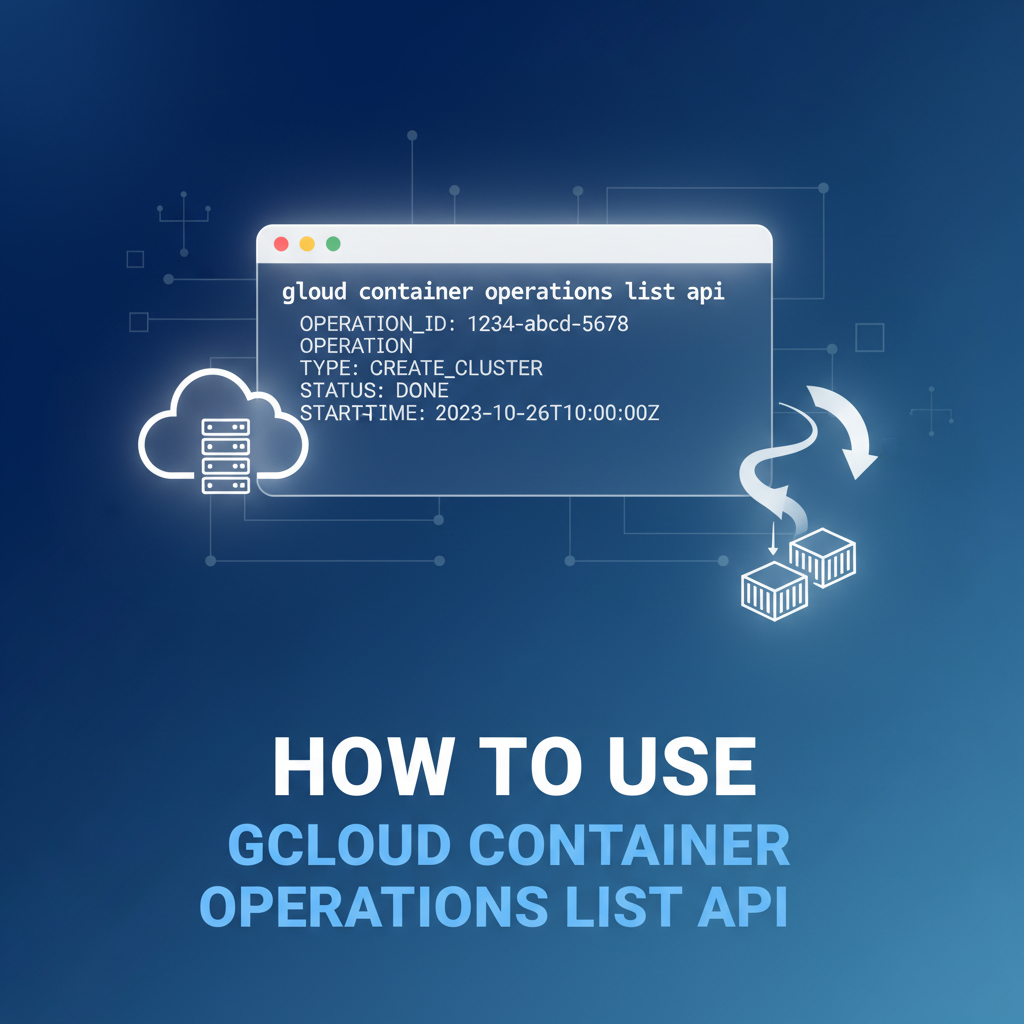


The sprawling landscape of cloud computing, particularly within the realm of container orchestration, demands precision, visibility, and robust control. Google Kubernetes Engine (GKE), a managed service for deploying, managing, and scaling containerized applications using Kubernetes on Google Cloud, stands as a cornerstone for many modern microservices architectures. Yet, merely deploying applications is but one facet; the continuous monitoring and management of the underlying infrastructure operations are paramount to ensuring stability, efficiency, and security. This comprehensive guide delves deep into the utility of gcloud container operations list – a powerful command-line tool that provides an indispensable window into the ongoing and historical activities within your GKE environment.
In an ecosystem increasingly reliant on interconnected services, understanding the lifeblood of your infrastructure through its operational APIs is not just a best practice, but a necessity. We will navigate through the nuances of this command, explore its parameters, unveil practical use cases, and elucidate how it integrates into a broader strategy of cloud governance. Furthermore, we will contextualize its role within the wider domain of API, API Gateway, and OpenAPI specifications, demonstrating how foundational cloud operations underpin sophisticated service management.
Unpacking Google Cloud Platform and the Genesis of GKE Operations
Before we immerse ourselves in the specifics of gcloud container operations list, it's crucial to establish a foundational understanding of its native environment: Google Cloud Platform (GCP) and Google Kubernetes Engine (GKE). GCP is a vast suite of cloud computing services, encompassing everything from compute and storage to machine learning and networking. It provides the digital infrastructure upon which countless applications and services are built, offering unparalleled scalability, reliability, and a global reach.
Within GCP, GKE emerges as a flagship offering for container orchestration. Kubernetes, the open-source system it's based on, has revolutionized how developers manage containerized workloads, enabling declarative configuration, automated scaling, self-healing, and much more. GKE elevates this by providing a fully managed Kubernetes control plane, simplifying cluster provisioning, upgrades, and operational overhead. This means Google handles the complexities of the master nodes, allowing users to focus on their applications running on worker nodes. However, even with a managed service, a multitude of operations – cluster creations, node pool adjustments, version upgrades, security patch applications, and more – are constantly unfolding in the background, initiated either by the user or by the platform itself.
The gcloud command-line interface (CLI) serves as the primary gateway for interacting with GCP services from your local machine or scripting environments. It's a versatile tool that allows users to manage resources, configure settings, and automate tasks across the entire GCP spectrum. Every gcloud command, at its core, translates into one or more API calls to the respective GCP service endpoints. This fundamental understanding is key: when you execute gcloud container operations list, you are, in essence, making a structured API request to the GKE service to retrieve a log of its activities. This direct API interaction, abstracted through the user-friendly gcloud interface, empowers developers and administrators with granular control and invaluable insights.
The Indispensable gcloud container operations list Command: A Deep Dive
The gcloud container operations list command is your vital diagnostic and monitoring tool for GKE. It provides a historical and real-time ledger of all administrative and system-initiated operations pertaining to your GKE clusters and their associated resources (like node pools) within a given Google Cloud project. Without this command, understanding the state changes, progress of long-running tasks, or the root cause of potential issues within your GKE environment would be significantly more challenging, if not impossible.
Purpose and Significance
The primary purpose of gcloud container operations list is to enumerate operations that have been performed on GKE clusters. These operations can range from the mundane to the critical: * Cluster Creation/Deletion: Tracking the lifecycle of your clusters. * Node Pool Management: Monitoring additions, deletions, or updates to node pools, which directly impact your application's capacity and configuration. * Cluster Upgrades: Observing the progress of Kubernetes version upgrades for both the control plane and node pools, which are often long-running and critical operations. * Security Actions: Noticing any security-related modifications or platform-initiated security updates. * Maintenance Events: Identifying automated maintenance activities performed by GKE.
By providing a clear, structured list of these events, the command enables administrators to: 1. Monitor Progress: Keep an eye on long-running tasks, such as cluster creation or version upgrades, to ensure they complete successfully. 2. Troubleshoot Issues: Identify failed operations and delve into their details to understand why they failed, serving as a first step in diagnostic workflows. 3. Audit Changes: Review who initiated what changes and when, aiding in compliance and accountability. 4. Automate Workflows: Integrate the command's output into scripts for automated alerting, reporting, or conditional execution of subsequent tasks.
Command Syntax and Core Parameters
The basic syntax for the command is straightforward, but its power lies in its optional flags, which allow for precise filtering and output formatting.
gcloud container operations list [PROJECT_ID] [--zone=ZONE | --region=REGION] [--filter=EXPRESSION] [--limit=LIMIT] [--page-size=SIZE] [--sort-by=FIELD] [--uri] [--format=FORMAT] [GLOBAL_FLAG ...]
Let's dissect the most critical components of this syntax:
PROJECT_ID(Optional, Positional Argument): While often configured globally viagcloud config set project, you can explicitly specify the Google Cloud project ID for which you want to list operations. This is particularly useful when managing multiple projects simultaneously.- Example:
gcloud container operations list my-gcp-project-123
- Example:
--zone=ZONEor--region=REGION(Optional): GKE clusters can be zonal (residing in a single zone) or regional (distributed across multiple zones within a region for higher availability). Specifying the zone or region narrows down the search scope, making the command faster and its output more relevant, especially if you have many clusters across different geographical locations.- Example (Zonal):
gcloud container operations list --zone=us-central1-a - Example (Regional):
gcloud container operations list --region=us-east1
- Example (Zonal):
--filter=EXPRESSION(Optional, but Extremely Powerful): This flag is arguably the most valuable for practical usage. It allows you to apply a sophisticated filter expression to narrow down the displayed operations based on various criteria. The filter language uses comparisons (e.g.,=,!=,<,>), substring matching (~), and logical operators (AND,OR,NOT).- Common fields for filtering:
status: The current state of the operation. Possible values includePENDING,RUNNING,DONE,ABORTING,ABORTED,EXPIRED,UNKNOWN.operationType: The type of action being performed. Examples includeCREATE_CLUSTER,DELETE_CLUSTER,UPGRADE_MASTER,UPGRADE_NODES,SET_LABELS,SET_NETWORK_POLICY,CREATE_NODE_POOL,DELETE_NODE_POOL,UPDATE_NODE_POOL,REPAIR_CLUSTER, etc.targetLink: The full resource path of the GKE cluster or node pool that the operation is acting upon. This often contains the project, zone/region, and cluster name.name: The unique identifier of the operation itself.startTime,endTime: Timestamp fields that can be filtered using comparison operators.user: The email address of the user who initiated the operation (if applicable).
- Example (Filtering by status):
gcloud container operations list --filter="status=RUNNING"- Shows only operations currently in progress. - Example (Filtering by operation type):
gcloud container operations list --filter="operationType=CREATE_CLUSTER"- Displays only cluster creation operations. - Example (Filtering for a specific cluster):
gcloud container operations list --filter="targetLink~'my-cluster-name'"- Using~for substring matching is very useful here. - Example (Combining filters):
gcloud container operations list --filter="status=DONE AND operationType=UPGRADE_NODES AND NOT error:*"- Shows completed node upgrade operations that did not result in an error.
- Common fields for filtering:
--limit=LIMIT(Optional): Specifies the maximum number of operations to return. Useful when you only need a quick glance at the most recent activities.- Example:
gcloud container operations list --limit=5- Shows the 5 most recent operations.
- Example:
--page-size=SIZE(Optional): For very large result sets, this flag controls how many operations are fetched perAPIcall, aiding in efficient data retrieval and display.--sort-by=FIELD(Optional): Orders the output based on a specified field. Prepending a~to the field name sorts in descending order. Common sort fields includestartTime,endTime,status.- Example:
gcloud container operations list --sort-by=~startTime- Lists operations from newest to oldest.
- Example:
--uri(Optional): When included, displays the full resource URI for each operation, providing a complete path to the underlying resource in GCP.--format=FORMAT(Optional): Controls the output format. This is crucial for scripting and integration.json: Outputs results in JSON format, ideal for programmatic parsing with tools likejq.yaml: Outputs results in YAML format, often preferred for human readability in configurations.text: A simple, space-delimited format.csv: Comma-separated values, suitable for spreadsheet applications.- Example:
gcloud container operations list --filter="status=RUNNING" --format=json- Get running operations in JSON.
Practical Use Cases and Illustrative Examples
Let's walk through several real-world scenarios where gcloud container operations list proves invaluable, providing concrete command examples.
Scenario 1: Quick Overview of Recent Operations
To get a snapshot of what's been happening in your GKE environment recently, without any specific filters:
gcloud container operations list
This command will list operations in chronological order (oldest first by default, unless configured otherwise), showing name, type, targetLink, status, zone, startTime, and endTime.
Scenario 2: Monitoring a Long-Running Cluster Creation
You've just initiated a new GKE cluster, and it's taking some time. To check its status:
gcloud container operations list --filter="operationType=CREATE_CLUSTER AND status=RUNNING" --sort-by=~startTime --limit=1
This command filters for operations that are CREATE_CLUSTER type and RUNNING, sorts them by start time (newest first), and limits the output to just the most recent one. This helps you quickly verify if your cluster creation is still in progress.
Scenario 3: Identifying Failed Node Pool Upgrades
A recent application deployment is failing, and you suspect an issue with a node pool upgrade that was supposed to complete.
gcloud container operations list --filter="operationType=UPGRADE_NODES AND status=DONE AND error:*" --format=yaml
Here, we filter for node upgrade operations that are DONE but have an error associated with them (the error:* syntax checks for the existence of an error field). Outputting in yaml format often provides more detailed error messages for easier debugging.
Scenario 4: Auditing All Operations by a Specific User
You need to know what changes a particular user (or service account) has initiated on your GKE clusters over a certain period.
gcloud container operations list --filter="user='user@example.com' AND startTime>'2023-10-01T00:00:00Z'"
This command filters for operations initiated by user@example.com and starting after a specific timestamp. The timestamps should be in RFC3339 format.
Scenario 5: Finding All Operations for a Specific Cluster
When troubleshooting issues on a particular cluster, it's often helpful to see all its recent operations.
gcloud container operations list --filter="targetLink:projects/my-project/locations/us-central1-a/clusters/my-production-cluster" --sort-by=~startTime
This uses a precise targetLink filter to pinpoint operations related to my-production-cluster in us-central1-a, sorted by the newest first. Note the full resource path used here.
Scenario 6: Getting JSON Output for Scripting
For advanced automation, piping the output to jq for further processing is common.
gcloud container operations list --filter="status=RUNNING" --format=json | jq '.[].name'
This command fetches all running operations in JSON format and then uses jq to extract just the name field from each operation object. This is immensely useful for integrating GKE operation monitoring into custom scripts or CI/CD pipelines.
The Underlying API: How gcloud Interacts with GCP Services
It's fundamental to understand that every gcloud command, including gcloud container operations list, is essentially a high-level abstraction over Google Cloud's powerful set of RESTful APIs. When you execute a gcloud command, the CLI translates your request into a structured HTTP API call, sends it to the relevant GCP service endpoint (in this case, the GKE API), and then parses the API response to present it to you in a human-readable format.
The GKE API exposes various resources (clusters, node pools, operations, etc.) and allows for actions on them via standard HTTP methods (GET, POST, PUT, DELETE). Specifically, gcloud container operations list makes a GET request to an endpoint similar to https://container.googleapis.com/v1/projects/{projectId}/locations/{location}/operations. The API response is typically a JSON payload containing an array of operation objects, each with fields like name, operationType, status, selfLink, targetLink, startTime, endTime, user, and potentially an error object.
This API-first design principle is central to modern cloud platforms. It means that anything you can do through the gcloud CLI or the GCP Console, you can also do programmatically by making direct API calls. This empowers developers to build sophisticated integrations, custom management tools, and automated workflows that are tightly integrated with their cloud infrastructure. Understanding the API layer demystifies the cloud and unlocks its full potential for automation and advanced governance.
Connecting the Dots: API Gateway and OpenAPI in the Cloud Ecosystem
While gcloud container operations list focuses on the internal mechanics of GKE infrastructure, its utility is deeply intertwined with broader API management strategies, especially concerning API Gateways and OpenAPI specifications. These concepts are crucial for how your applications running on GKE interact with the outside world and how you manage your own exposed services.
The Role of an API Gateway
An API Gateway acts as a single entry point for all API requests from clients to your backend services. Instead of clients directly calling individual microservices, they interact with the API Gateway, which then routes the requests to the appropriate service. This architectural pattern offers numerous benefits, especially for services deployed on platforms like GKE:
- Unified Access: Provides a consistent public
APIfor all your backend services, simplifying client-side development. - Security: Centralizes authentication, authorization, and rate limiting, protecting your backend services from unauthorized access and abuse.
- Traffic Management: Handles request routing, load balancing, caching, and circuit breaking, improving performance and resilience.
- Monitoring and Analytics: Collects metrics and logs all
APItraffic, providing invaluable insights intoAPIusage and performance. - Protocol Translation: Can translate between different protocols (e.g., REST to gRPC).
- Version Management: Facilitates
APIversioning, allowing you to introduce newAPIversions without disrupting existing clients.
Consider a scenario where you have multiple microservices deployed on GKE, performing various functions. An API Gateway would sit in front of these services, managing how external clients, mobile apps, or partner systems access them. For example, a customer API might be deployed on a GKE cluster, and its operations (like scaling up nodes or upgrading Kubernetes versions) are monitored using gcloud container operations list. The stability and performance of that underlying GKE infrastructure directly impact the reliability of the API exposed through the API Gateway.
This is precisely where robust API management platforms come into their own. While gcloud provides direct access to Google Cloud's underlying APIs, managing and exposing your own services often requires a dedicated API Gateway that can handle the complexities of external API consumption. This is where platforms like APIPark come into play. APIPark, an open-source AI gateway and API management platform, excels at providing comprehensive lifecycle management for your APIs, whether they are sophisticated AI models or traditional REST services. It unifies API formats, encapsulates prompts into REST APIs, and offers enterprise-grade features for security, monitoring, traffic management, and detailed call logging. By streamlining how your services are exposed and consumed, APIPark complements your infrastructure operations, allowing your GKE-hosted applications to be securely and efficiently shared within and beyond your organization. With features like quick integration of over 100 AI models, end-to-end API lifecycle management, and performance rivaling Nginx, APIPark addresses the critical need for a powerful API Gateway in modern, API-driven architectures.
The Power of OpenAPI Specifications
OpenAPI (formerly known as Swagger) is a language-agnostic, standardized, machine-readable description format for RESTful APIs. It allows you to describe the entire surface of an API, including:
- Endpoints and Operations: All available paths and HTTP methods (GET, POST, PUT, DELETE).
- Parameters: Inputs for each operation (query, header, path, body).
- Authentication Methods: How clients authenticate with the
API. - Contact Information, License, Terms of Use: Metadata about the
API. - Responses: The data structures returned by each operation for various status codes.
- Data Models: The structure of request and response bodies.
The benefits of using OpenAPI are profound for any organization building and consuming APIs:
- Documentation: Generates beautiful, interactive
APIdocumentation (like Swagger UI) automatically from the specification, ensuring it's always up-to-date with the code. - Code Generation: Tools can automatically generate client SDKs, server stubs, and test cases in various programming languages from an
OpenAPIspec, significantly accelerating development. - Testing and Validation: Enables automated testing and validation of
APIrequests and responses against the defined schema, catching errors early. - Design-First Approach: Encourages designing the
APIcontract first, fostering better collaboration between frontend and backend teams. APIDiscovery: MakesAPIs easily discoverable and understandable, improving developer experience.
How does OpenAPI relate to gcloud container operations list and API Gateways? While Google's internal APIs (which gcloud interacts with) have their own specifications, OpenAPI is crucial for the services you build and deploy on GKE. If you're building a microservice that runs on GKE and exposes a REST API, you would ideally document that API using OpenAPI. This OpenAPI specification can then be ingested by an API Gateway (like APIPark) to automatically configure routing, apply policies, generate developer portals, and provide consistent API management. The reliability of that API relies on the underlying GKE cluster, which in turn is managed and monitored via gcloud operations. Thus, a stable infrastructure (monitored via gcloud) supports well-defined, OpenAPI-driven services exposed through a robust API Gateway.
APIPark is a high-performance AI gateway that allows you to securely access the most comprehensive LLM APIs globally on the APIPark platform, including OpenAI, Anthropic, Mistral, Llama2, Google Gemini, and more.Try APIPark now! 👇👇👇
Advanced Scripting and Automation with gcloud container operations list
The ability to programmatically access operation data is a cornerstone of cloud automation. gcloud container operations list shines in this regard, especially when combined with shell scripting and JSON processing tools.
Parsing JSON Output with jq
When you use --format=json, the output is a JSON array of operation objects. Tools like jq are indispensable for filtering, transforming, and extracting specific pieces of information from this output.
Example: Finding the ID of the latest failed operation for a specific cluster:
gcloud container operations list \
  --filter="status=DONE AND error:* AND targetLink~'my-cluster-name'" \
  --sort-by=~startTime \
  --limit=1 \
  --format=json | jq -r '.[0].name'
This command first filters for completed operations with errors on my-cluster-name, sorts by the most recent, takes only the first result, and then uses jq -r '.[0].name' to extract the name field of that first (and only) JSON object, outputting it as a raw string. This ID could then be used for further investigation or logging.
Integrating with CI/CD Pipelines
Automated infrastructure management often involves CI/CD pipelines. You can embed gcloud container operations list into these pipelines to:
- Pre-deployment Checks: Verify that no critical GKE operations (like cluster upgrades) are currently
RUNNINGbefore attempting a new deployment that might conflict. - Post-operation Verification: After initiating a GKE resource change (e.g., creating a new node pool), use a loop with
gcloud container operations listto wait for the operationstatusto becomeDONEbefore proceeding with subsequent steps. - Health Checks: Regularly poll for
ABORTEDorERRORoperations to trigger alerts or automatic remediation scripts.
Example: Bash script to wait for a GKE operation to complete:
#!/bin/bash

OPERATION_NAME=$1
TIMEOUT=3600 # 1 hour timeout
INTERVAL=30  # Check every 30 seconds

echo "Waiting for GKE operation ${OPERATION_NAME} to complete..."

start_time=$(date +%s)
while true; do
  current_time=$(date +%s)
  elapsed_time=$((current_time - start_time))

  if [ "$elapsed_time" -gt "$TIMEOUT" ]; then
    echo "Error: Operation ${OPERATION_NAME} timed out after ${TIMEOUT} seconds."
    exit 1
  fi

  status=$(gcloud container operations describe "${OPERATION_NAME}" --format="value(status)")

  if [[ "$status" == "DONE" ]]; then
    echo "Operation ${OPERATION_NAME} completed successfully."
    exit 0
  elif [[ "$status" == "ABORTED" || "$status" == "ERROR" ]]; then
    echo "Error: Operation ${OPERATION_NAME} failed with status: ${status}"
    gcloud container operations describe "${OPERATION_NAME}" # Print full details for debugging
    exit 1
  else
    echo "Operation ${OPERATION_NAME} is still ${status}. Waiting..."
    sleep "$INTERVAL"
  fi
done
This script would be invoked with an operation name (obtained from an earlier gcloud container operations list command). It demonstrates how gcloud container operations describe (which provides more detail for a single operation) can be used in conjunction with list for robust automation.
Best Practices for Monitoring GKE Operations
Effective monitoring of GKE operations extends beyond merely executing commands. It involves integrating these tools into a holistic strategy to maintain a healthy and performant GKE environment.
- Regular Review: Periodically review the list of GKE operations, especially in production environments. Look for unexpected operations, operations initiated by unknown users, or long-running tasks that seem stuck.
- Automated Alerting: Configure alerts for critical operation states. For instance, if an operation's
statusbecomesABORTEDorERROR, an alert should be triggered via Cloud Monitoring, Slack, PagerDuty, or email. This can be achieved by streaminggcloudoutput to a log sink that Cloud Monitoring can process, or by creating custom scripts that check statuses and integrate with alerting tools. - Specific Filtering: Always use the
--filterflag to narrow down your results. Without filters, the output can be overwhelming and make it difficult to spot relevant events. Prioritize filtering bystatus,operationType, andtargetLinkfor precision. - Leverage Cloud Monitoring and Logging: While
gcloud container operations listprovides a direct view, Cloud Monitoring (formerly Stackdriver) and Cloud Logging offer even deeper insights. All GKE operations generate logs that can be analyzed in Cloud Logging, and metrics related to cluster health can be visualized in Cloud Monitoring. Usegcloudto get an initial overview, then dive into logs for granular details. - Role-Based Access Control (RBAC): Implement strict IAM policies to control who can execute GKE-related
gcloudcommands, especially those that can initiate changes. Users should only have the minimum necessary permissions (Principle of Least Privilege). For example, some users might only needcontainer.operations.listpermission to monitor, while others requirecontainer.clusters.createto provision resources. - Understand Operation Timelines: Be aware that some operations, like cluster upgrades or creation, can legitimately take a significant amount of time. Distinguish between a genuinely stuck operation and a normally long-running one.
- Use Unique Naming Conventions: When creating clusters or node pools, use clear, descriptive naming conventions. This makes it much easier to filter and identify specific resources when reviewing
gcloud container operations listoutput.
Troubleshooting Common gcloud container operations list Issues
Even with a powerful tool, you might encounter situations where the command doesn't behave as expected. Here are some common issues and their resolutions:
- "Permission denied" / "Insufficient permissions":
- Cause: The authenticated user or service account lacks the necessary IAM permissions to list GKE operations.
- Resolution: Ensure the account has at least
roles/container.viewerorcontainer.operations.listpermission for the specific project. For broader visibility,roles/viewermight suffice, but is less specific.
- "No operations found" / Empty output:
- Cause: You might be filtering too aggressively, specifying the wrong project/zone/region, or there simply haven't been any operations matching your criteria.
- Resolution:
- Remove filters one by one to see if the problem is with the filter expression.
- Double-check the currently configured
gcloudproject (gcloud config get-value project). - Verify the specified
--zoneor--regionmatches your GKE clusters. - Broaden your time window if filtering by
startTime.
- "Invalid value for zone/region":
- Cause: Typos in the zone or region name, or the specified location does not exist or is not valid for GKE.
- Resolution: Use
gcloud compute zones listorgcloud compute regions listto verify valid names. Ensure GKE is available in that location.
- Command hangs or is slow:
- Cause: A very large number of operations without sufficient filtering, or network latency.
- Resolution:
- Use
--filterto narrow down the scope. - Try
--limitto get a smaller, quicker sample. - Check your internet connection.
- Use
- Error parsing JSON/YAML output:
- Cause: Incorrect
jqor YAML parsing syntax, or an unexpected output format fromgcloud. - Resolution: Verify your
jqor parser syntax. Always test with a small, known-good output first. Ensuregcloudis not outputting warnings or errors mixed with the JSON/YAML.
- Cause: Incorrect
Comparison with Other Monitoring Tools (Briefly)
While gcloud container operations list is excellent for GKE-specific operation tracking, it's part of a larger monitoring ecosystem on GCP:
- Cloud Logging: Provides detailed logs for all GCP services, including GKE. Operations listed by
gcloudwill have corresponding entries in Cloud Logging, often with more granular details, error messages, and context. It's the go-to for deep diagnostic dives. - Cloud Monitoring: Focuses on metrics (CPU utilization, network traffic, etc.) and offers powerful dashboards, alerts, and uptime checks. It's for understanding the performance and health of your GKE cluster and applications, rather than individual administrative operations.
- Cloud Audit Logs: Captures administrative activities and data access events across GCP. This is for compliance and security auditing, showing who did what and when. GKE operations initiated by users will appear here, offering a high-level audit trail.
gcloud container operations list provides a focused, real-time-ish view of GKE system operations. It complements these other tools by offering a quick, command-line accessible summary of GKE-specific events, acting as a crucial first point of investigation.
Comprehensive Example Table for gcloud container operations list
To summarize the versatility of the gcloud container operations list command, the following table provides a quick reference for common commands and their applications.
| Command | Description | Expected Output / Use Case |
|---|---|---|
gcloud container operations list |
Lists all recent GKE operations in the default project and zone/region. | A table showing NAME, TYPE, TARGET_LINK, STATUS, ZONE, START_TIME, END_TIME for all detected operations. Useful for a general overview. |
gcloud container operations list --project=my-prod-project --region=us-west1 |
Lists operations for a specific project and region. | Similar to the basic list, but filtered by the specified project and region. Essential for multi-project/multi-region management. |
gcloud container operations list --filter="status=RUNNING" |
Shows only GKE operations that are currently in progress. | Displays operations with STATUS as RUNNING. Ideal for monitoring ongoing tasks like cluster creation or upgrades. |
gcloud container operations list --filter="operationType=CREATE_NODE_POOL AND status=DONE AND error:*" |
Lists completed node pool creation operations that resulted in an error. | Shows operations where TYPE is CREATE_NODE_POOL, STATUS is DONE, and an error field exists. Critical for diagnosing failed infrastructure changes. |
gcloud container operations list --filter="targetLink:projects/my-proj/locations/us-central1-a/clusters/dev-cluster" --sort-by=~startTime --limit=5 |
Retrieves the 5 most recent operations for a specific GKE cluster in a particular location. | Displays the latest 5 operations related to dev-cluster in us-central1-a, sorted by start time descending. Useful for quickly checking a cluster's recent activity. |
gcloud container operations list --filter="startTime>'$(date -v -1H "+%Y-%m-%dT%H:%M:%SZ")' AND status!=DONE" |
(macOS/BSD date syntax for 1 hour ago) Shows operations started in the last hour that are not yet DONE (i.e., PENDING, RUNNING, ABORTING). |
Lists operations that are still active or pending from the last hour. Helps catch operations that are stuck or taking longer than expected. (Note: date syntax for other OS might differ). |
gcloud container operations list --filter="user='service-account-123@my-proj.iam.gserviceaccount.com' AND operationType=DELETE_CLUSTER" |
Finds all cluster deletion operations initiated by a specific service account. | Shows operations where TYPE is DELETE_CLUSTER and USER matches the service account. Essential for auditing and security analysis to ensure authorized deletions. |
gcloud container operations list --format=json | jq '.[] | select(.error) | .name' |
Lists the names of all operations that have an associated error, parsing JSON output with jq. |
A list of operation names where an error object is present. Highly useful for scripting and programmatic error identification. |
gcloud container operations list --filter="metadata.subType=REPAIR_CLUSTER" |
(Advanced) Filters operations based on nested fields within the metadata object (e.g., specific GKE maintenance subtypes). |
Shows operations that have a metadata field with a subType of REPAIR_CLUSTER. Useful for granular filtering on platform-initiated actions (requires knowing the schema of the metadata object, which can vary). |
gcloud container operations list --filter="operationType=UPGRADE_MASTER OR operationType=UPGRADE_NODES" |
Lists operations related to upgrading either the GKE control plane or the worker nodes. | Combines two operationType filters using OR to show all upgrade activities. Helpful for comprehensive upgrade tracking. |
Conclusion: Mastering GKE Operations for Resilient Cloud Infrastructure
The journey through gcloud container operations list reveals it to be far more than just another command-line utility. It is a critical lens through which you can observe the very pulse of your Google Kubernetes Engine environment. From initial cluster provisioning to ongoing maintenance and intricate upgrades, every significant event within GKE leaves a digital footprint, meticulously recorded and accessible through this powerful command. Mastering its nuances, especially the --filter flag and various output formats, empowers administrators and developers to proactively monitor, efficiently troubleshoot, and confidently automate their GKE infrastructure.
Beyond the immediate scope of GKE operations, this exploration has underscored the foundational importance of APIs in modern cloud computing. The gcloud CLI, an elegant wrapper around GCP's robust APIs, provides a tangible example of how programmatic access underpins flexible cloud management. Furthermore, we've connected these infrastructure operations to the broader API economy, highlighting how internal GKE stability directly impacts the reliability of external services exposed through an API Gateway, often described and managed using OpenAPI specifications. Platforms like APIPark exemplify this convergence, offering comprehensive API lifecycle management that works in concert with robust cloud infrastructure practices.
In an era where applications are increasingly distributed, dynamic, and API-driven, the ability to see, understand, and react to every infrastructure operation is not a luxury, but a core competency. By diligently utilizing gcloud container operations list and integrating its insights into your monitoring and automation workflows, you not only ensure the smooth functioning of your GKE clusters but also lay a resilient foundation for your entire cloud-native application landscape.
Frequently Asked Questions (FAQs)
1. What is the primary purpose of gcloud container operations list? The primary purpose of gcloud container operations list is to display a record of all administrative and system-initiated operations (such as cluster creation, upgrades, node pool changes) that have occurred on your Google Kubernetes Engine (GKE) clusters within a specified Google Cloud project and location. It helps users monitor the status, progress, and historical activities of their GKE infrastructure.
2. How can I filter operations to find specific events, like failed upgrades? You can use the --filter flag with various fields and logical operators. For example, to find failed upgrade operations, you might use: gcloud container operations list --filter="operationType=UPGRADE_NODES AND status=DONE AND error:*". The error:* part checks for the presence of an error field in the operation's metadata.
3. What's the difference between gcloud container operations list and Cloud Logging for GKE operations? gcloud container operations list provides a concise, command-line summary of GKE-specific operations, showing their status, type, and basic details. Cloud Logging, on the other hand, offers more granular and detailed log entries for virtually all GCP services, including GKE. While gcloud gives you a quick overview, Cloud Logging is where you'd go for deep dives into specific operation logs, error messages, and contextual information for troubleshooting.
4. Can I use gcloud container operations list for automation in scripts? Absolutely. gcloud container operations list is highly suitable for scripting. By using the --format=json or --format=yaml flags, you can get structured output that can be easily parsed by tools like jq (for JSON) in shell scripts, Python, or other programming languages. This allows you to automate monitoring, set up conditional actions, or integrate GKE operation status into CI/CD pipelines.
5. How does gcloud container operations list relate to API Gateway and OpenAPI? While gcloud container operations list focuses on infrastructure operations, its insights are crucial for maintaining the underlying stability of services exposed through an API Gateway. A stable GKE cluster (monitored via gcloud operations) ensures that APIs managed by an API Gateway (like APIPark) remain available and performant. OpenAPI specifications, in turn, define the public contract for these APIs, which the API Gateway uses for configuration, documentation, and managing client access. Together, they form part of a holistic strategy for API lifecycle management and cloud governance.
🚀You can securely and efficiently call the OpenAI API on APIPark in just two steps:
Step 1: Deploy the APIPark AI gateway in 5 minutes.
APIPark is developed based on Golang, offering strong product performance and low development and maintenance costs. You can deploy APIPark with a single command line.
curl -sSO https://download.apipark.com/install/quick-start.sh; bash quick-start.sh

In my experience, you can see the successful deployment interface within 5 to 10 minutes. Then, you can log in to APIPark using your account.

Step 2: Call the OpenAI API.