Step-by-Step: gcloud container operations list api example


APIPark is a high-performance AI gateway that allows you to securely access the most comprehensive LLM APIs globally on the APIPark platform, including OpenAI, Anthropic, Mistral, Llama2, Google Gemini, and more.Try APIPark now! 👇👇👇
Step-by-Step: gcloud container operations list api example
In the ever-expanding universe of cloud-native computing, managing containerized workloads effectively is paramount. Google Cloud Platform (GCP) stands as a prominent player, offering robust services like Google Kubernetes Engine (GKE) and Cloud Run to facilitate the deployment, scaling, and management of applications within containers. At the heart of interacting with these powerful services lies the gcloud command-line interface (CLI), a versatile tool that abstracts the complexities of the underlying Google Cloud APIs. This comprehensive guide will delve deep into one specific, yet incredibly crucial, aspect of gcloud for container management: listing operations, effectively demonstrating how to leverage gcloud container operations list as a window into the API-driven lifecycle of your container infrastructure.
We will embark on a detailed exploration, starting from the foundational understanding of Google Cloud's container ecosystem, traversing the intricacies of gcloud commands, and ultimately unveiling the underlying API interactions. Our journey will highlight the significance of tracking operations for auditing, debugging, and maintaining the health of your deployments. Moreover, we'll explore advanced filtering and formatting techniques, scriptable use cases, and even peek behind the curtain to see how gcloud interacts with the raw RESTful APIs. Finally, we'll connect these concepts to the broader landscape of API management, underscoring the role of an API gateway in orchestrating an increasingly complex API economy.
The Landscape of Google Cloud Containers and the gcloud Command-Line Interface
Modern application architectures frequently lean on containerization for consistency, portability, and scalability. Google Cloud Platform provides a rich suite of services to support this paradigm, with Google Kubernetes Engine (GKE) leading the charge as a managed Kubernetes service. GKE simplifies the deployment, management, and scaling of containerized applications, abstracting away much of the underlying infrastructure complexities. Beyond GKE, services like Cloud Run offer a fully managed compute platform for deploying containerized applications and functions at scale, abstracting even the Kubernetes layer. Artifact Registry acts as a universal package manager, securely storing and managing your container images and other build artifacts. Each of these services, while distinct in their offerings, shares a common interaction model: they are all controlled and configured through a set of powerful APIs.
The primary human-interface to these APIs for many developers and administrators is the gcloud CLI. Think of gcloud as your master key to unlocking the full potential of Google Cloud. It's a unified tool that manages authentication, project selection, and ultimately translates your human-readable commands into the precise API calls that Google Cloud services understand. When you type a gcloud command, you're not just executing a local script; you're initiating a sophisticated interaction with Google's global infrastructure. This interaction involves authentication (determining who you are), authorization (what you're allowed to do), and then constructing the appropriate HTTP requests to the relevant API endpoints.
To effectively use gcloud, a few foundational steps are essential. First, ensure you have the gcloud CLI installed and authenticated. This typically involves running gcloud init and gcloud auth login, which configures your local environment to interact with your Google Cloud account. Second, setting your default project, zone, and region (gcloud config set project [PROJECT_ID], gcloud config set compute/zone [ZONE], gcloud config set compute/region [REGION]) can significantly streamline subsequent commands, reducing the need to specify these parameters repeatedly. These configurations ensure that your gcloud commands are always directed to the correct context within your vast Google Cloud environment. Understanding this foundational layer is critical before diving into specific commands, as it provides the context for how gcloud effectively serves as an API client, simplifying complex API interactions into intuitive command-line operations.
Understanding "Operations" in Google Cloud's Container Services
In the dynamic environment of cloud computing, especially within container orchestration platforms like GKE, nearly every significant action you initiate — from creating a new Kubernetes cluster to updating a node pool, scaling resources, or even deleting a service — is treated as an "operation." These operations are often asynchronous, meaning that when you issue a command to create a GKE cluster, the gcloud CLI (or direct API call) might return immediately, but the actual cluster provisioning takes a considerable amount of time in the background. An operation acts as a durable, traceable record of this background activity.
Tracking these operations is not merely an academic exercise; it's a critical component of robust cloud management, providing invaluable insights for several key reasons:
- Auditing and Compliance: For regulated industries or those with stringent internal policies, every change to infrastructure must be auditable. Operations logs provide a chronological record of who did what, when, and to which resource, satisfying compliance requirements and aiding in post-incident analysis.
- Debugging and Troubleshooting: When a cluster update fails, or a node pool struggles to provision, the details within the operation record are your first line of defense. They can pinpoint error messages, identify specific components that failed, and provide status updates that are crucial for diagnosing and resolving issues efficiently.
- Status Monitoring: For long-running processes like cluster creation, checking the status of an operation allows you to monitor its progress without having to actively poll for resource availability. This is particularly useful in automated scripts or CI/CD pipelines where you need to wait for an infrastructure change to complete before proceeding.
- Resource Management: Understanding the lifecycle of operations helps in anticipating resource consumption spikes or ensuring that resources are correctly de-provisioned after an operation completes, preventing orphaned or underutilized infrastructure.
Each operation is typically assigned a unique identifier (an operation ID), which serves as its primary key within the Google Cloud system. This ID allows you to query specific operations, retrieve their detailed status, and track their progression from initiation to completion or failure. The lifecycle of an operation usually involves states such as PENDING, RUNNING, ABORTING, and DONE (which can further indicate success or failure). Comprehending these states and the significance of operation IDs forms the bedrock for effectively utilizing gcloud container operations list and subsequently, reacting to the outcomes of your container management activities.
Diving into gcloud container operations list
The gcloud container operations list command is your primary tool for inspecting the history and current status of operations related to your GKE clusters and node pools. It provides a comprehensive view into the activities shaping your containerized environment, allowing you to monitor, debug, and audit infrastructure changes. Mastering this command involves understanding its basic syntax, the necessary permissions, and the myriad of flags available for filtering and formatting the output.
Basic Syntax and Purpose
The most straightforward way to use the command is simply:
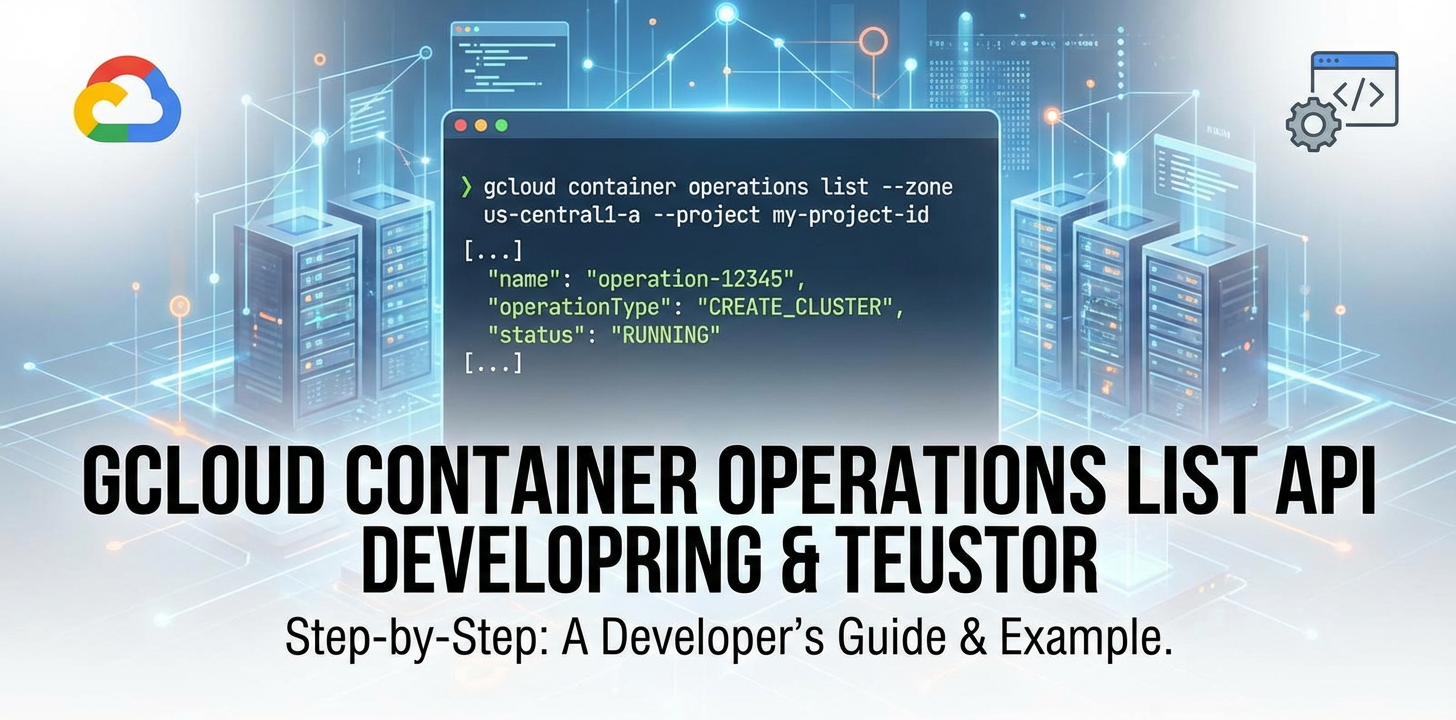
gcloud container operations list
This command, executed within a configured Google Cloud project, will retrieve and display a list of all recent GKE operations across all zones and regions within that project. The default output typically provides a summary of each operation, including its ID, type, target resource, status, and creation/end times. This initial view is excellent for a quick overview but can quickly become overwhelming in projects with high activity.
Required Permissions (IAM Roles)
To execute gcloud container operations list, your Google Cloud identity (user account or service account) must possess the necessary Identity and Access Management (IAM) permissions. The most common role that grants permission to list GKE operations is Kubernetes Engine Viewer (roles/container.viewer). This role allows you to view GKE resources, including operations, clusters, and node pools, without granting permissions to modify them. For broader administrative tasks that involve initiating operations, roles like Kubernetes Engine Developer (roles/container.developer) or Kubernetes Engine Admin (roles/container.admin) would also implicitly include the necessary viewing permissions. Always adhere to the principle of least privilege, granting only the permissions required for a specific task to enhance your cloud security posture.
Detailed Explanation of Common Flags
The true power of gcloud container operations list comes from its flags, which allow you to tailor your queries and output with precision.
--regionand--zone: GKE clusters can be either zonal (residing within a single GCP zone) or regional (distributed across multiple zones within a region for higher availability). To narrow down operations to a specific geographical scope, you can use these flags:Example: Listing operations in a specific zone:bash gcloud container operations list --zone us-central1-cExample: Listing operations in a specific region (for regional clusters):bash gcloud container operations list --region europe-west1--zone [ZONE](e.g.,--zone us-central1-a): Lists operations specifically for resources within that zone.--region [REGION](e.g.,--region us-central1): Lists operations for regional clusters or resources across all zones within that region.
--filter(The Swiss Army Knife of Queries): The--filterflag is arguably the most powerful tool for refining your search. It uses a Google Cloud filtering language that allows you to specify complex conditions based on an operation's attributes. You can filter by:status:DONE,RUNNING,PENDING,ABORTING. Example: Show only currently running operations:bash gcloud container operations list --filter="status=RUNNING"operationType: Common types includeCREATE_CLUSTER,UPDATE_CLUSTER,DELETE_CLUSTER,CREATE_NODE_POOL,UPDATE_NODE_POOL,DELETE_NODE_POOL. Example: Find all cluster creation operations:bash gcloud container operations list --filter="operationType=CREATE_CLUSTER"nameorselfLink: For filtering by specific operation IDs or resource paths. Example: Retrieve a specific operation by its full name/ID:bash gcloud container operations list --filter="name=operations/my-unique-operation-id"targetLink: The resource path of the cluster or node pool the operation is acting upon. This is particularly useful when you want to see all operations related to a specific GKE cluster. ThetargetLinkusually follows the patternprojects/[PROJECT_ID]/zones/[ZONE]/clusters/[CLUSTER_NAME]orprojects/[PROJECT_ID]/regions/[REGION]/clusters/[CLUSTER_NAME]. Example: List operations for a cluster namedmy-gke-cluster:bash gcloud container operations list --filter="targetLink:my-gke-cluster"Note the use of:for substring matching, useful if you don't have the full resource path.- Time-based filtering: Using
createTimeorendTime. The filter language supports operators like>=,<, etc., and date/time functions. Example: List operations created after a specific date (e.g., October 26, 2023):bash gcloud container operations list --filter="createTime > '2023-10-26T00:00:00Z'"Example: List operations that failed (statusDONEwitherrorfield present):bash gcloud container operations list --filter="status=DONE AND error:*"Combining filters is also very powerful usingANDandORoperators. Example: Show all failed cluster or node pool creation operations:bash gcloud container operations list --filter="(operationType=CREATE_CLUSTER OR operationType=CREATE_NODE_POOL) AND status=DONE AND error:*"
--format(Structuring Your API Output): The--formatflag is indispensable when you need to process the output programmatically, makinggclouda true API consumption client. It allows you to specify the desired output format, making it easy to integrate with scripting languages or other tools.--format=json: Outputs the operations as a JSON array, ideal forjqparsing or API integration. Example: Get full JSON details of a specific running operation:bash gcloud container operations list --filter="status=RUNNING" --limit=1 --format=json--format=yaml: Outputs the operations in YAML format, often preferred for readability and configuration management.--format=text: Simple key-value pairs, less structured but easy to grep.--format=table: The default, human-readable table format. Can be customized withcolumns=option. Example: Custom table output showing only operation ID, type, target, and status:bash gcloud container operations list --format="table(name,operationType,targetLink,status)"--format=csv: Comma-separated values, useful for spreadsheet imports.
--limitand--page-size: For very active projects,gcloud container operations listcan return a large number of results.Example: Get the 5 most recent operations:bash gcloud container operations list --limit=5--limit [N]: Retrieves only the firstNoperations.--page-size [N]: Specifies how many operations to fetch per API call. This doesn't limit the total results but controls the batch size, which can affect performance for very large datasets.
Here's a summary table for clarity on common formatting options:
| Format Option | Description | Use Case | Example gcloud Command |
|---|---|---|---|
--format=table |
Default human-readable tabular output. | Quick overview, manual inspection. | gcloud container operations list |
--format=json |
Standard JSON array, ideal for programmatic parsing. | Scripting, jq processing, API integration. |
gcloud container operations list --filter="status=DONE AND error:*" --format=json |
--format=yaml |
YAML format, good for readability and configuration. | Configuration as code, detailed human review. | gcloud container operations list --limit=1 --format=yaml |
--format=text |
Key-value pairs, simple text output. | grep-ing specific values, simple parsing. |
gcloud container operations list --filter="operationType=CREATE_CLUSTER" --format=text |
--format="table(name,status,operationType)" |
Customized table with specific columns. | Tailored human-readable output. | gcloud container operations list --format="table(name,status,operationType)" |
These flags, especially --filter and --format, transform gcloud container operations list from a simple listing tool into a powerful data extraction and analysis utility, bridging the gap between raw API data and actionable insights for your container infrastructure.
Peering Beneath the gcloud Abstraction: The Underlying API
While gcloud provides a remarkably convenient and user-friendly interface for managing Google Cloud resources, it's crucial to remember that it is fundamentally a client for Google's public APIs. Every gcloud command you execute, including gcloud container operations list, translates into one or more RESTful API calls to Google's backend services. Understanding this underlying API interaction is not just an academic exercise; it empowers you to debug issues, integrate with other systems more deeply, and even build custom tooling when gcloud's capabilities aren't sufficient.
The Google Kubernetes Engine (GKE) API is part of the broader container.googleapis.com service. Specifically, operations related to GKE clusters are managed through endpoints such as projects.zones.operations for zonal clusters and projects.locations.operations for regional clusters. These are standard RESTful endpoints that respond to HTTP GET requests for listing operations, and specific GET requests for retrieving details of a single operation.
How to Find the Equivalent API Calls
Google provides several ways to peek at the API calls gcloud makes:
--log-httpflag: Almost allgcloudcommands support the--log-httpflag. When you add this flag,gcloudwill output the full HTTP request and response headers and bodies tostderr. This is an invaluable debugging tool that explicitly shows you the target API endpoint, the HTTP method (GET, POST, PUT, DELETE), the request body (if any), and the response from the API. Example:bash gcloud container operations list --log-httpYou would see output similar to (simplified):DEBUG: Send request to https://container.googleapis.com/v1/projects/my-gcp-project/locations/-/operations?alt=json ... Response: { "operations": [ { "name": "projects/my-gcp-project/zones/us-central1-a/operations/operation-id-1", "operationType": "CREATE_CLUSTER", ... }, ... ] }This directly reveals theapiendpoint and the structure of the JSON response.- Google Cloud Documentation: The official Google Cloud documentation for GKE API (
container.googleapis.com) provides detailed specifications for each API endpoint, including required parameters, response structures, and examples in various programming languages.
Direct API Interaction Example (Conceptual curl)
While gcloud handles authentication and request signing automatically, you can interact with these APIs directly using tools like curl (after obtaining an access token) or client libraries in languages like Python, Go, Node.js, or Java.
Here's a conceptual curl example for listing operations, assuming you have an authenticated access token (ACCESS_TOKEN) and your project ID (PROJECT_ID):
ACCESS_TOKEN=$(gcloud auth print-access-token)
PROJECT_ID=$(gcloud config get-value project)
ZONE="us-central1-a" # Or use "-" for all locations/regions

curl -X GET \
  -H "Authorization: Bearer ${ACCESS_TOKEN}" \
  "https://container.googleapis.com/v1/projects/${PROJECT_ID}/zones/${ZONE}/operations"
For regional operations, the URL would be:
curl -X GET \
  -H "Authorization: Bearer ${ACCESS_TOKEN}" \
  "https://container.googleapis.com/v1/projects/${PROJECT_ID}/locations/${REGION}/operations"
Or, to list all operations across all locations (zones and regions):
curl -X GET \
  -H "Authorization: Bearer ${ACCESS_TOKEN}" \
  "https://container.googleapis.com/v1/projects/${PROJECT_ID}/locations/-/operations"
This curl command directly hits the GKE operations API endpoint. The -H "Authorization: Bearer ${ACCESS_TOKEN}" header is critical for authenticating your request, providing the necessary credentials to access your project's resources. The response will be a JSON object containing an array of operations, identical in structure to what gcloud --format=json would produce.
Advantages and Disadvantages of gcloud vs. Direct API Calls
gcloudAdvantages:- Simplicity and Abstraction: Hides complex API details (authentication, URL construction, error handling).
- Ease of Use: Intuitive commands, tab completion, consistent interface across services.
- Built-in Features: Automatic pagination, sensible defaults, user-friendly output formatting.
- Developer Productivity: Quicker to get started and execute common tasks.
gcloudDisadvantages:- Limited Customization: While powerful,
--filterand--formathave boundaries. For highly custom queries or transformations, direct API interaction might be needed. - Overhead: For very high-frequency or performance-critical programmatic access, direct API calls (especially with optimized client libraries) can sometimes be marginally faster by avoiding
gcloudCLI's startup overhead.
- Limited Customization: While powerful,
- Direct API Call Advantages:
- Maximum Flexibility: Full control over every aspect of the request and response.
- Fine-grained Control: Ideal for building highly specialized integrations, custom UIs, or SDKs.
- Performance (with Libraries): Client libraries are often optimized for network efficiency and retry mechanisms.
- Independence: Not dependent on the
gcloudCLI being installed or configured.
- Direct API Call Disadvantages:
- Complexity: Requires deep understanding of API schema, authentication flows (OAuth2), and error handling.
- Boilerplate Code: More code is needed for common tasks (e.g., authentication token refreshing, retry logic).
- Maintenance Overhead: Changes in API versions or schema require manual updates to your code.
In essence, gcloud serves as an excellent general-purpose client, suitable for most administrative and scripting tasks. However, when you need unparalleled control, advanced integration, or are building a platform that directly interacts with Google Cloud at a programmatic level, understanding and utilizing the raw APIs becomes indispensable.
Practical Use Cases and Advanced Scripting
The true utility of gcloud container operations list extends far beyond manual inspection. When combined with scripting languages and command-line tools, it becomes a potent asset for automation, monitoring, and proactive management of your GKE infrastructure.
Monitoring Long-Running Operations
Many GKE operations, such as creating a new cluster or upgrading its master version, can take several minutes, or even longer. Manually checking their status can be tedious. You can script this process to provide continuous updates.
Example Script (Bash):
#!/bin/bash

OPERATION_ID="operation-1234567890abcdef" # Replace with your actual operation ID
CLUSTER_NAME="my-gke-cluster"
ZONE="us-central1-a" # Or REGION for regional clusters

echo "Monitoring operation: ${OPERATION_ID} for cluster ${CLUSTER_NAME} in ${ZONE}"

while true; do
  STATUS=$(gcloud container operations list \
    --filter="name:operations/${OPERATION_ID} AND targetLink:clusters/${CLUSTER_NAME}" \
    --zone="${ZONE}" \
    --format="value(status)" 2>/dev/null) # Redirect stderr to /dev/null for cleaner output

  if [ -z "$STATUS" ]; then
    echo "Operation ${OPERATION_ID} not found or completed. Exiting monitor."
    break
  fi

  echo "Current status: ${STATUS} at $(date)"

  if [ "$STATUS" = "DONE" ]; then
    echo "Operation ${OPERATION_ID} has completed."
    gcloud container operations describe "${OPERATION_ID}" --zone="${ZONE}" # Show full details upon completion
    break
  elif [ "$STATUS" = "ERROR" ]; then
    echo "Operation ${OPERATION_ID} failed!"
    gcloud container operations describe "${OPERATION_ID}" --zone="${ZONE}" # Show full details of failure
    break
  fi

  sleep 10 # Check every 10 seconds
done
This script repeatedly checks the status of a specific operation, printing updates and exiting once the operation is DONE or ERROR. This is invaluable for CI/CD pipelines where you need to wait for infrastructure changes to complete before deploying applications.
Automated Auditing Scripts Using gcloud Output
For compliance and security, knowing what changes occurred in your GKE environment is paramount. You can create scripts to extract recent operations and log them to an external system or generate reports.
Example: Listing all failed operations in the last 24 hours:
#!/bin/bash

# Calculate timestamp for 24 hours ago
START_TIME=$(date -u -v -24H +"%Y-%m-%dT%H:%M:%SZ")

echo "Searching for failed GKE operations since ${START_TIME}"

gcloud container operations list \
  --filter="status=DONE AND error:* AND createTime > '${START_TIME}'" \
  --format="json" | jq -c '.[] | {id: .name, type: .operationType, target: .targetLink, error: .error.message, createTime: .createTime}' > failed_gke_operations_last_24h.json

if [ -s failed_gke_operations_last_24h.json ]; then
  echo "Found failed operations. Details saved to failed_gke_operations_last_24h.json"
  cat failed_gke_operations_last_24h.json
else
  echo "No failed GKE operations found in the last 24 hours."
fi
This script leverages jq (a lightweight and flexible command-line JSON processor) to parse the json output, extracting relevant fields for a more concise report of failed operations.
Integrating with CI/CD Pipelines to Check Deployment Status
In a Continuous Integration/Continuous Deployment (CI/CD) pipeline, you might initiate GKE infrastructure changes (e.g., node pool resizing) as part of a deployment. gcloud container operations list can be used to ensure these changes are complete before proceeding with application deployments.
# Example step in a CI/CD pipeline script
echo "Scaling node pool 'my-node-pool' to 5 nodes..."
gcloud container node-pools resize my-node-pool --cluster=my-gke-cluster --num-nodes=5 --zone=us-central1-a --async

# Extract the operation ID (this requires parsing the async command output, or using --format=json for specific commands)
# For simplicity, assume OPERATION_ID is available from a previous step or you describe it:
# OP_ID=$(gcloud container operations list --filter="operationType=RESIZE_NODE_POOL AND targetLink:my-node-pool" --limit=1 --format="value(name)" | cut -d'/' -f6)

OPERATION_ID="gke-op-12345" # Example ID, replace with actual ID obtained from resize command

echo "Waiting for node pool resize operation ${OPERATION_ID} to complete..."
# Call the monitoring script developed earlier
./monitor_gke_operation.sh "${OPERATION_ID}" "my-gke-cluster" "us-central1-a"

if [ $? -ne 0 ]; then
  echo "Node pool resize failed or was not found. Aborting deployment."
  exit 1
fi
echo "Node pool resize completed successfully. Proceeding with application deployment."
This demonstrates how an asynchronous GKE command can be chained with a monitoring script to create a robust CI/CD workflow, preventing subsequent deployment steps from running on an incomplete infrastructure.
Creating Alerts Based on Specific Operation Failures or Successes
While Google Cloud's Cloud Monitoring and Cloud Logging can be configured to alert on GKE API activity, you could also build simpler, custom alerting mechanisms for specific operation patterns. For instance, a daily cron job could check for any DELETE_CLUSTER operations that failed and send an email or Slack notification.
These advanced scripting examples underscore the flexibility and power of gcloud container operations list. By combining its filtering and formatting capabilities with shell scripting, jq, and other command-line utilities, you can build sophisticated automation and monitoring solutions that are tailored to your specific operational needs and enhance the reliability and efficiency of your container infrastructure.
Managing API Interactions and the Role of an API Gateway
As organizations grow and their IT landscapes become increasingly complex, they invariably deal with a burgeoning number of APIs. These APIs range from external services like Google Cloud's GKE API, which we've been exploring, to internal microservices, partner APIs, and increasingly, specialized AI services. While gcloud provides an excellent interface for Google Cloud's native APIs, the broader challenge of managing this diverse api ecosystem—ensuring consistency, security, performance, and discoverability—requires a more holistic approach. This is precisely where robust API Gateway and API management solutions become indispensable.
An API Gateway acts as a single entry point for all API calls, sitting between clients and backend services. It orchestrates requests, applies policies, and routes traffic, fundamentally simplifying how consumers interact with a myriad of underlying APIs. Without an API Gateway, clients would need to directly call each individual service, handle different authentication mechanisms, and manage varying data formats. This leads to increased complexity on the client side, duplicated effort, and a lack of centralized control.
This brings us to a cutting-edge solution in this space: APIPark - Open Source AI Gateway & API Management Platform. APIPark is designed to tackle the modern challenges of API management, especially for enterprises incorporating AI models. It's an all-in-one platform that unifies the management, integration, and deployment of both AI and REST services, making it a critical component for developers and businesses navigating today's API-first world.
Let's consider how a platform like APIPark complements the direct API interactions we've discussed. While gcloud container operations list helps us monitor the operations of a specific Google Cloud API, APIPark addresses the challenges of governing all APIs within an enterprise, regardless of their origin or type.
Key features of APIPark that highlight its value in a complex api environment:
- Unified API Format for AI Invocation: Imagine integrating 100+ diverse AI models, each with its own specific input/output requirements. APIPark standardizes the request data format across all AI models. This means your applications or microservices don't break every time an AI model changes or a prompt is updated, drastically simplifying AI usage and reducing maintenance costs. This kind of standardization is critical for scalable AI adoption.
- Prompt Encapsulation into REST API: APIPark allows users to quickly combine AI models with custom prompts to create new, specialized APIs. For instance, you could define a prompt that leverages a large language model for sentiment analysis, and APIPark instantly exposes this as a standard REST
API. This transforms complex AI interactions into consumable, manageable building blocks for developers. - End-to-End API Lifecycle Management: Beyond just routing traffic, APIPark assists with the entire lifecycle of APIs—from design and publication to invocation and decommissioning. It helps regulate API management processes, manage traffic forwarding, load balancing, and versioning of published APIs. This comprehensive approach is vital for maintaining a healthy and evolving API ecosystem, preventing "API sprawl."
- API Service Sharing within Teams: In large organizations, different departments often need to discover and reuse existing API services. APIPark provides a centralized display of all API services, acting as a developer portal that makes it easy for teams to find and use required APIs, fostering collaboration and preventing redundant development.
- Independent API and Access Permissions for Each Tenant: For organizations managing multiple business units or client-facing applications, APIPark enables the creation of multiple teams (tenants), each with independent applications, data, user configurations, and security policies. This ensures isolation and security while sharing underlying infrastructure, improving resource utilization and reducing operational costs.
- API Resource Access Requires Approval: Enhancing security, APIPark allows for subscription approval features. Callers must subscribe to an API and await administrator approval before they can invoke it, preventing unauthorized API calls and potential data breaches—a critical feature for protecting sensitive data and services.
- Performance Rivaling Nginx: Performance is non-negotiable for an
API Gateway. APIPark, with just an 8-core CPU and 8GB of memory, can achieve over 20,000 Transactions Per Second (TPS) and supports cluster deployment for large-scale traffic handling. This high performance ensures that thegatewayitself doesn't become a bottleneck. - Detailed API Call Logging and Powerful Data Analysis: Comprehensive logging of every API call is essential for monitoring, troubleshooting, and auditing. APIPark records every detail, allowing businesses to quickly trace issues. Furthermore, it analyzes historical call data to display long-term trends and performance changes, helping with preventive maintenance and capacity planning before issues even arise.
In summary, while gcloud helps us directly manage specific aspects of Google Cloud's underlying API infrastructure, a platform like APIPark provides the overarching gateway and management layer for all enterprise APIs. It ensures that whether you're integrating a sophisticated AI model, exposing an internal microservice, or consuming an external service, the experience is standardized, secure, performant, and manageable. For enterprises grappling with the explosion of APIs and the increasing demand for AI integration, an API Gateway like APIPark transitions API management from a reactive, per-service task into a proactive, strategic business capability.
Security Considerations for Container Operations and APIs
The power to list and manage container operations, whether through gcloud or direct api calls, comes with significant security responsibilities. Misconfigured permissions or unprotected api access can lead to unauthorized modifications, data breaches, or service disruptions. A robust security posture for your GKE environment and its related api interactions involves several layers of protection.
- IAM Roles and Least Privilege Principle: Google Cloud's Identity and Access Management (IAM) is the cornerstone of security. When granting permissions, always adhere to the principle of least privilege. For instance, a user or service account that only needs to view GKE operations should be granted the
Kubernetes Engine Viewerrole (roles/container.viewer), not a broaderKubernetes Engine Adminrole. This minimizes the potential impact of a compromised credential. Regularly review and audit IAM policies to ensure they align with current operational needs. - Service Accounts for Automated Tasks: For any automated scripts, CI/CD pipelines, or applications that interact with
gcloudor the GKE API, always use Google Cloud service accounts instead of user accounts. Service accounts are identities specifically designed for machines, and their credentials can be managed and rotated securely. You can assign specific IAM roles to service accounts, limiting their scope to only the resources and actions they absolutely need. For example, a service account used by a monitoring script forgcloud container operations listwould ideally only havecontainer.operations.listpermission. - Logging and Auditing (Cloud Audit Logs): Beyond
gcloud container operations list, Google Cloud provides comprehensive Cloud Audit Logs. Everyapicall made to Google Cloud services, including those initiated bygcloudcommands, is recorded. These logs include details about who made the call, when, from where, and what resource was affected. Enable and actively monitor these audit logs to detect suspicious activity, trace changes, and maintain a complete audit trail for compliance purposes. Integrate Cloud Audit Logs with a Security Information and Event Management (SIEM) system for centralized security monitoring. - Securing API Keys/Credentials: If you opt for direct
apiinteraction, managingapikeys and service account keys is critical. Never hardcode credentials in your code or store them in publicly accessible repositories. Use secure mechanisms like Google Cloud Secret Manager to store and retrieveapikeys, ensuring they are encrypted at rest and in transit, and access is tightly controlled by IAM. Rotate your credentials regularly to mitigate the risk of compromise. - How an API Gateway Enhances Security: An
API Gatewaylike APIPark adds another powerful layer of security, acting as a policy enforcement point for all incoming API traffic.- Authentication and Authorization: The
API Gatewaycan handle authentication (e.g., OAuth2, JWT validation) and authorization checks before forwarding requests to backend services. This offloads security concerns from individual services. - Rate Limiting and Throttling: It can enforce rate limits to protect your backend services from denial-of-service (DoS) attacks or abusive usage patterns.
- Traffic Filtering and Transformation: The
gatewaycan inspect and filter incoming requests, blocking malicious payloads or transforming requests/responses to mask sensitive backend details. - IP Whitelisting/Blacklisting: It can restrict API access based on IP addresses, allowing only trusted clients to connect.
- Auditing and Monitoring: As demonstrated by APIPark's detailed logging capabilities, the
gatewayprovides a centralized point for logging all API interactions, offering crucial data for security audits and anomaly detection across your entire API surface.
- Authentication and Authorization: The
By diligently implementing these security practices, you can ensure that your GKE container operations and api interactions remain robust, compliant, and protected against evolving threats, safeguarding your critical cloud infrastructure.
Troubleshooting Common Issues
Even with a firm grasp of gcloud container operations list and underlying api concepts, you might encounter issues. Knowing how to troubleshoot common problems can save significant time and frustration.
- Permission Denied Errors:
- Symptom: You receive an
(gcloud.container.operations.list) PERMISSION_DENIEDerror or a similar message indicating insufficient permissions. - Cause: Your authenticated user or service account lacks the necessary IAM roles.
- Resolution:
- Verify your current
gcloudactive account:gcloud auth list. - Check your project ID:
gcloud config get-value project. Ensure you're in the correct project. - Review the IAM roles granted to your account for the specific project:
gcloud projects get-iam-policy [PROJECT_ID] --filter="bindings.members:user:[YOUR_EMAIL_OR_SERVICE_ACCOUNT]". - Ensure you have at least the
Kubernetes Engine Viewerrole (roles/container.viewer). If not, request it from a project administrator or grant it if you have the necessaryroles/resourcemanager.projectIamAdminpermissions.
- Verify your current
- Symptom: You receive an
- Operation Not Found:
- Symptom: When trying to
describea specific operation or filter for one, you get a "not found" error, even if you're sure it exists. - Cause: Incorrect operation ID, wrong
zone/regionspecified, or the operation has aged out of the active log (operations typically persist for a limited time). - Resolution:
- Double-check the operation ID. It's often a long string with
operations/prefix. - Ensure you're specifying the correct
--zoneor--regionfor the operation. If you're unsure if it's zonal or regional, try listing operations for the entire project (gcloud container operations list --filter="name:operations/your-id"without zone/region) or use theprojects.locations.operationsAPI endpoint with-for location. - Remember that operations eventually expire from the list (though they remain in Cloud Audit Logs). If the operation is very old, it might no longer be retrievable via
listordescribe.
- Double-check the operation ID. It's often a long string with
- Symptom: When trying to
- Long-Running Operations Seem Stuck:
- Symptom: An operation remains in
RUNNINGorPENDINGstatus for an unusually long time, or for longer than expected based on previous operations of the same type. - Cause: Backend issues, resource contention, internal service errors, or simply a very large and complex operation that genuinely takes a long time.
- Resolution:
- Use
gcloud container operations describe [OPERATION_ID] --zone=[ZONE]to get the most detailed status information. Look for any error messages or specificprogressdetails within the operation object. - Check Google Cloud Status Dashboard for any ongoing outages or degraded performance in your region.
- Review Cloud Audit Logs (specifically Admin Activity logs) for any related events or errors that might provide more context.
- If the operation is for a GKE cluster or node pool, check the cluster's health (
gcloud container clusters describe [CLUSTER_NAME] --zone=[ZONE]) for any warnings or errors. - If the issue persists and no clear cause is evident, contact Google Cloud Support with the operation ID and relevant logs.
- Use
- Symptom: An operation remains in
- Interpreting Operation Status Messages:
- Symptom: An operation is
DONEbut has anerrorfield, or the status message is cryptic. - Cause: Operations can complete with partial success or outright failure. The
errorfield orstatusMessageprovides crucial context. - Resolution:
- Always inspect the
errorfield if it exists. It often contains amessageandcodethat explain what went wrong. - The
statusMessagefield can also offer human-readable insights into the operation's final state or current progress. - If the error message isn't clear, search Google Cloud documentation or support forums for the specific error code or message.
- Remember that a
DONEstatus doesn't always mean success; you must check theerrorfield for a true indication of completion without issues.
- Always inspect the
- Symptom: An operation is
By systematically approaching these common issues, leveraging the detailed output from gcloud container operations describe and gcloud container operations list --format=json, and understanding the underlying api structures, you can efficiently diagnose and resolve problems within your GKE environment.
Conclusion
Navigating the intricacies of Google Cloud's container services requires a keen understanding of both the high-level orchestration concepts and the granular details of how infrastructure changes are managed. Our journey through gcloud container operations list has demonstrated its unparalleled utility as a window into the API-driven lifecycle of Google Kubernetes Engine. From its basic invocation to advanced filtering with --filter and programmatic output formatting with --format, the gcloud CLI empowers developers and administrators to monitor, audit, and troubleshoot their containerized environments with precision.
We've explored how gcloud serves as an intelligent wrapper around powerful RESTful APIs, abstracting away much of the complexity while still providing avenues for direct API interaction when maximum flexibility is required. Practical scripting examples showcased how gcloud container operations list can be integrated into CI/CD pipelines, automated monitoring solutions, and auditing processes, transforming reactive management into proactive governance.
Beyond the realm of specific Google Cloud APIs, we recognized the broader challenge of managing a sprawling API ecosystem in modern enterprises. This led us to the vital role of an API Gateway and API management platform. Solutions like APIPark, an open-source AI gateway and API management platform, stand out by offering comprehensive features for unifying diverse APIs – especially those incorporating AI models – under a single, secure, and performant management layer. Such platforms are instrumental in standardizing API formats, managing their full lifecycle, enabling secure access, and providing critical insights through detailed logging and analytics, ensuring that enterprises can harness the full potential of their API investments.
Ultimately, effective API management, whether at the level of specific gcloud commands or through a sophisticated API Gateway like APIPark, is not merely a technical necessity; it is a strategic imperative. As cloud-native architectures continue to evolve and the integration of AI becomes ubiquitous, mastering the tools and platforms that facilitate seamless, secure, and scalable api interactions will be key to driving innovation and maintaining competitive advantage in the digital age. The insights gleaned from listing and understanding container operations are just one vital piece of this ever-expanding and interconnected puzzle.
Frequently Asked Questions (FAQs)
1. What is the primary purpose of gcloud container operations list? The primary purpose of gcloud container operations list is to display a historical and current view of all significant actions or "operations" that have occurred within your Google Kubernetes Engine (GKE) clusters and node pools in a specific Google Cloud project. This includes events like cluster creation, updates, deletions, node pool resizes, and version upgrades, providing essential data for monitoring, auditing, and troubleshooting.
2. How can I filter gcloud container operations list output to find specific operations? You can use the powerful --filter flag with gcloud container operations list. This flag allows you to specify conditions based on various operation attributes such as status (e.g., status=DONE), operationType (e.g., operationType=CREATE_CLUSTER), createTime (e.g., createTime > '2023-10-01T00:00:00Z'), or targetLink (for a specific cluster or node pool). You can also combine multiple filter conditions using AND or OR operators for highly granular searches.
3. What's the difference between using gcloud commands and directly calling Google Cloud APIs? gcloud commands act as a user-friendly abstraction layer over Google Cloud's underlying RESTful APIs. gcloud handles authentication, request formatting, and error handling, making it simpler to interact with services. Directly calling the APIs (e.g., with curl or client libraries) offers maximum flexibility and control over every aspect of the request and response, ideal for custom integrations or specific programmatic needs, but requires more knowledge of API schemas and authentication flows. The --log-http flag with gcloud can reveal the underlying API calls.
4. Why is an API Gateway important for managing Google Cloud operations and other APIs? While gcloud directly manages Google Cloud's native APIs, an API Gateway like APIPark provides a centralized management layer for all APIs in an enterprise (internal, external, AI services). It offers a single entry point for API calls, enforcing security policies (authentication, authorization, rate limiting), managing the API lifecycle (design, publication, versioning), standardizing data formats (especially crucial for diverse AI models), and providing comprehensive logging and analytics. This reduces complexity for clients, enhances security, and improves the overall governance of a diverse API ecosystem.
5. What should I do if a gcloud container operations list command returns a "Permission Denied" error? A "Permission Denied" error indicates that your authenticated Google Cloud identity (user or service account) lacks the necessary IAM permissions to perform the requested operation. To resolve this: 1. Verify your active gcloud account (gcloud auth list). 2. Ensure you are operating within the correct Google Cloud project (gcloud config get-value project). 3. Check the IAM roles assigned to your account in that project. You typically need at least the Kubernetes Engine Viewer role (roles/container.viewer) to list operations. 4. If permissions are missing, ask a project administrator to grant the appropriate role, or grant it yourself if you have the necessary administrative privileges.
🚀You can securely and efficiently call the OpenAI API on APIPark in just two steps:
Step 1: Deploy the APIPark AI gateway in 5 minutes.
APIPark is developed based on Golang, offering strong product performance and low development and maintenance costs. You can deploy APIPark with a single command line.
curl -sSO https://download.apipark.com/install/quick-start.sh; bash quick-start.sh

In my experience, you can see the successful deployment interface within 5 to 10 minutes. Then, you can log in to APIPark using your account.

Step 2: Call the OpenAI API.